
HTML element
View on Wikipedia
| HTML |
|---|
 |
| HTML and variants |
| HTML elements and attributes |
| Editing |
| Character encodings and language |
| Document and browser models |
| Client-side scripting and APIs |
| Graphics and Web3D technology |
| Comparisons |
An HTML element is a type of HTML (HyperText Markup Language) document component, one of several types of HTML nodes (some common node types include document, document fragment and attribute nodes).[1] The first used version of HTML was written by Tim Berners-Lee in 1993 and there have since been many versions of HTML. The current de facto standard is governed by the industry group WHATWG and is known as the HTML Living Standard.
An HTML document is composed of a tree of simple HTML nodes, such as text nodes, and HTML elements, which add semantics and formatting to parts of a document (e.g., make text bold, organize it into paragraphs, lists and tables, or embed hyperlinks and images). Each element can have HTML attributes specified. Elements can also have content, including other elements and text.
Concepts
[edit]
Elements vs. tags
[edit]As is generally understood, the position of an element is indicated as spanning from a start tag and is terminated by an end tag.[2] This is the case for many, but not all, elements within an HTML document. The distinction is explicitly emphasised in HTML 4.01 Specification:[3]
Elements are not tags. Some people refer to elements as tags (e.g., "the P tag"). Remember that the element is one thing, and the tag (be it start or end tag) is another. For instance, the HEAD element is always present, even though both start and end HEAD tags may be missing in the markup.
Similarly the W3C Recommendation HTML 5.1 2nd Edition explicitly says:[4]
Tags are used to delimit the start and end of elements in the markup. [...] The start and end tags of certain normal elements can be omitted. [...]
The contents of the element must be placed between just after the start tag (which might be implied, in certain cases) and just before the end tag (which again, might be implied in certain cases).
and:[4]
Certain tags can be omitted.
NOTE:
Omitting an element's start tag [...] does not mean the element is not present; it is implied, but it is still there. For example, an HTML document always has a root <html> element, even if the string <html> doesn't appear anywhere in the markup.
As HTML (before HTML5) is based on SGML,[5] its parsing also depends on the Document Type Definition (DTD), specifically an HTML DTD (e.g. HTML 4.01).[6][note 1] The DTD specifies which element types are possible (i.e. it defines the set of element types) and also the valid combinations in which they may appear in a document. It is part of general SGML behavior that, where only one valid structure is possible (per the DTD), its explicit statement in any given document is not generally required. As a simple example, the <p> tag indicating the start of a paragraph element should be complemented by a </p> tag indicating its end. But since the DTD states that paragraph elements cannot be nested, an HTML document fragment <p>Para 1 <p>Para 2 <p>Para 3 is thus inferred to be equivalent to <p>Para 1 </p><p>Para 2 </p><p>Para 3. (If one paragraph element cannot contain another, any currently open paragraph must be closed before starting another.) Because this implication is based on the combination of the DTD and the individual document, it is not usually possible to infer elements from document tags alone but only by using an SGML—or HTML—aware parser with knowledge of the DTD. HTML5 creates a similar result by defining what tags can be omitted.[7]
SGML vs. XML
[edit]SGML is complex, which has limited its widespread understanding and adoption. XML was developed as a simpler alternative. Although both can use the DTD to specify the supported elements and their permitted combinations as document structure, XML parsing is simpler. The relation from tags to elements is always that of parsing the actual tags included in the document, without the implied closures that are part of SGML.[note 2]
HTML as used on the current web is likely to be either treated as XML, by being XHTML, or as HTML5; in either case the parsing of document tags into Document Object Model (DOM) elements is simplified compared to legacy HTML systems. Once the DOM of elements is obtained, behavior at higher levels of interface (example: screen rendering) is identical or nearly so.[note 3]
%block; vs. box
[edit]Part of this CSS presentation behavior is the notion of the "box model". This is applied to those elements that CSS considers to be "block" elements, set through the CSS display: block; declaration.
HTML also has a similar concept, although different, and the two are very frequently confused. %block; and %inline; are groups within the HTML DTD that group elements as being either "block-level" or "inline".[9] This is used to define their nesting behavior: block-level elements cannot be placed into an inline context.[note 4] This behavior cannot be changed; it is fixed in the DTD. Block and inline elements have the appropriate and different CSS behaviors attached to them by default,[9] including the relevance of the box model for particular element types.
Note though that this CSS behavior can, and frequently is, changed from the default. Lists with <ul><li> ... are %block; elements and are presented as block elements by default. However, it is quite common to set these with CSS to display as an inline list.[10]
Overview
[edit]Syntax
[edit]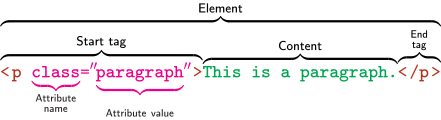
In the HTML syntax, most elements are written with a start tag and an end tag, with the content in between. An HTML tag is composed of the name of the element, surrounded by angle brackets. An end tag also has a slash after the opening angle bracket, to distinguish it from the start tag. For example, a paragraph, which is represented by the <p> element, would be written as:
<p>In the HTML syntax, most elements are written ...</p>
However, not all of these elements require the end tag, or even the start tag, to be present.[7] Some elements, the so-called void elements, do not have an end tag. A typical example is the <br> (hard line-break) element. A void element's behavior is predefined, and it cannot contain any content or other elements. For example, an address would be written as:
<p>P. Sherman<br>42 Wallaby Way<br>Sydney</p>
When using XHTML, it is required to open and close all elements, including void elements. This can be done by placing an end tag immediately after the start tag, but this is not legal in HTML 5 and will lead to two elements being created. An alternative way to specify that it is a void element, which is compatible with both XHTML and HTML 5, is to put a / at the end of the tag (not to be confused with the / at the beginning of a closing tag).
<p>P. Sherman<br />42 Wallaby Way<br />Sydney</p>
HTML attributes are specified inside the start tag. For example, the <abbr> element, which represents an abbreviation, expects a title attribute within its opening tag. This would be written as:
<abbr title="abbreviation">abbr.</abbr>
Informally, HTML elements are sometimes referred to as "tags" (an example of synecdoche), though many prefer the term tag strictly in reference to the markup delimiting the start and end of an element.
Element (and attribute) names may be written in any combination of upper or lower case in HTML, but must be in lower case in XHTML.[11] The canonical form was upper-case until HTML 4, and was used in HTML specifications, but in recent years, lower-case has become more common.
Types of element
[edit]There are three kinds of HTML elements: normal elements, raw text elements, and void elements.
Normal elements usually have both a start tag and an end tag, although for some elements the end tag, or both tags, can be omitted. It is constructed in a similar way:
- a start tag (
<tag>) marking the beginning of an element, which may incorporate any number of HTML attributes; - some amount of content, including text and other elements;
- an end tag, in which the element name is prefixed with a slash:
</tag>.
Raw text elements (also known as text or text-only elements) are constructed with:
- a start tag (in the form
<tag>) marking the beginning of an element, which may incorporate any number of HTML attributes; - some amount of text content, but no elements (all tags, apart from the applicable end tag, will be interpreted as content);
- an end tag, in which the element name is prefixed with a slash:
</tag>. In some versions of HTML, the end tag is optional for some elements. The end tag is required in XHTML.
An example is the <title> element, which must not contain other elements (including markup of text), only plain text.
Void elements (also sometimes called empty elements, single elements or stand-alone elements) only have a start tag (in the form <tag>), which contains any HTML attributes. They may not contain any children, such as text or other elements. For compatibility with XHTML, the HTML specification[which?] allows an optional space and slash[citation needed] (<tag /> is permissible). The slash is required in XHTML and other XML applications. Two common void elements are <br /> (for a hard line-break, such as in a poem or an address) and <hr /> (for a thematic break). Other such elements are often place-holders which reference external files, such as the image (<img />) element. The attributes included in the element will then point to the external file in question. Another example of a void element is <link/>, for which the syntax is:
<link rel="stylesheet" href="fancy.css" type="text/css">
This <link /> element points the browser at a style sheet to use when presenting the HTML document to the user. In the HTML syntax attributes do not have to be quoted if they are composed only of certain characters: letters, digits, the hyphen-minus and the period. When using the XML syntax (XHTML), on the other hand, all attributes must be quoted, and a spaced trailing slash is required before the last angle bracket:
<link rel="stylesheet" href="fancy.css" type="text/css" />
Attributes
[edit]HTML attributes define desired behavior or indicate additional element properties. Most attributes require a value. In HTML, the value can be left unquoted if it does not include spaces (attribute=value), or it can be quoted with single or double quotes (attribute='value' or attribute="value"). In XML, those quotes are required.
Boolean attributes, on the other hand, do not require a value to be specified. An example is the checked for checkboxes:
<input type=checkbox checked>
In the XML (and thus XHTML) syntax, though, a value is required, and the name should be repeated as the value:
<input type="checkbox" checked="checked" />
Element standards
[edit]HTML elements are defined in a series of freely available open standards issued since 1995, initially by the IETF and subsequently by the W3C.
During the browser wars of the 1990s, developers of user agents (e.g. web browsers) often developed their own elements, some of which have been adopted in later standards. Other user agents may not recognize non-standard elements, and they will be ignored, possibly causing the page to be displayed improperly.
In 1998, XML (a simplified form of SGML) introduced mechanisms to allow anyone to develop their own elements and incorporate them in XHTML documents, for use with XML-aware user agents.[12]
Subsequently, HTML 4.01 was rewritten in an XML-compatible form, XHTML 1.0 (eXtensible HTML). The elements in each are identical, and in most cases valid XHTML 1.0 documents will be valid or nearly valid HTML 4.01 documents. This article mainly focuses on real HTML, unless noted otherwise; however, it remains applicable to XHTML. See HTML for a discussion of the minor differences between the two.
Element status
[edit]Since the first version of HTML, several elements have become outmoded, and are deprecated in later standards, or do not appear at all, in which case they are invalid (and will be found invalid, and perhaps not displayed, by validating user agents).[13]
In HTML 4.01 / XHTML 1.0, the status of elements is complicated by the existence of three types of DTD:
- Transitional, which contain deprecated elements, but which were intended to provide a transitional period during which authors could update their practices;
- Frameset, which are versions of the Transitional DTDs which also allow authors to write frameset documents;
- Strict, which is the up-to-date (as at 1999) form of HTML.
HTML5 instead provides a listing of obsolete features to go along with the standardized normative content. They are broken down into "obsolete but conforming" for which implementation instructions exist and "non-conforming" ones that should be replaced.[14]
The first Standard (HTML 2.0) contained four deprecated elements, one of which was invalid in HTML 3.2. All four are invalid in HTML 4.01 Transitional, which also deprecated a further ten elements. All of these, plus two others, are invalid in HTML 4.01 Strict. While the frame elements are still current in the sense of being present in the Transitional and Frameset DTDs, there are no plans to preserve them in future standards, as their function has been largely replaced, and they are highly problematic for user accessibility.
(Strictly speaking, the most recent XHTML standard, XHTML 1.1 (2001), does not include frames at all; it is approximately equivalent to XHTML 1.0 Strict, but also includes the Ruby markup module.)[15]
A common source of confusion is the loose use of deprecated to refer to both deprecated and invalid status, and to elements that are expected to be formally deprecated in the future.
Content vs. presentation and behavior
[edit]Since HTML 4, HTML has increasingly focused on the separation of content (the visible text and images) from presentation (like color, font size, and layout).[16] This is often referred to as a separation of concerns. HTML is used to represent the structure or content of a document, its presentation remains the sole responsibility of CSS style sheets. A default style sheet is suggested as part of the CSS standard, giving a default rendering for HTML.[17]
Behavior (interactivity) is also kept separate from content, and is handled by scripts. Images are contained in separate graphics files, separate from text, though they can also be considered part of the content of a page.
Separation of concerns allows the document to be presented by different user agents according to their purposes and abilities. For example, a user agent can select an appropriate style sheet to present a document by displaying on a monitor, printing on paper, or to determine speech characteristics in an audio-only user agent. The structural and semantic functions of the markup remain identical in each case.
Historically, user agents did not always support these features. In the 1990s, as a stop-gap, presentational elements (like <b> and <i>) were added to HTML, at the cost of creating problems for interoperability and user accessibility. This is now regarded as outmoded and has been superseded by style sheet-based design; most presentational elements are now deprecated.[18]
External image files are incorporated with the <img /> or <object /> elements. (With XHTML, the SVG language can also be used to write graphics within the document, though linking to external SVG files is generally simpler.)[19] Where an image is not purely decorative, HTML allows replacement content with similar semantic value to be provided for non-visual user agents.
An HTML document can also be extended through the use of scripts to provide additional behaviors beyond the abilities of HTML hyperlinks and forms.
The elements <style> and <script>, with related HTML attributes, provide style sheets and scripts.
- In the document head,
<style />and<script />may link to shared external documents, or<style>...</style>and<script>...</script>may contain embedded instructions. (The<link>element can also be used to link style sheets.) <script />or<script>...</script>can occur at any point in the document (head or body).- The
styleattribute is valid in most document body elements (e.g.<div style="...">) for inclusion of inline style instructions. - Event-handling attributes, which provide links to scripts, are optional in most elements.
- For user agents which do not operate scripts, the
<noscript>...</noscript>element provides embedded alternative content where appropriate; however, it can only be used in the document head and in the body as a block-level element.
Document structure elements
[edit]<html>...</html>- The root element of an HTML document; all other elements are contained in this. The HTML element delimits the beginning and the end of an HTML document.
- Both the start and end tags may be omitted (HTML5).[7]
- Standardized in HTML 2.0; still current.
<head>...</head>Container for processing information and metadata for an HTML document.
- Both the start and end tags may be omitted and inferred from child elements (HTML5).[7]
- Standardized in HTML 5.0; still current.
<body></body>Container for the displayable content of an HTML document.
- Both the start and end tags may be omitted and inferred from child elements (HTML5).[7]
- Standardized in HTML 2.0; still current.
Document head elements
[edit]<base />- Specifies a base URL for all relative
hrefand other links in the document. Must appear before any element that refers to an external resource. HTML permits only one<base>element for each document. This element has HTML attributes, but no contents. - A development version of this element (as
BASE) is mentioned in HTML Tags; standardized in HTML 2.0; still current. <basefont />(deprecated)- Specifies a base font size, typeface, and color for the document. Used together with
<font>elements. Deprecated in favor of style sheets. - Standardized in HTML 3.2; deprecated in HTML 4.0 Transitional; invalid in HTML 4.0 Strict.
<isindex />(deprecated)<isindex>could either appear in the document head or in the body, but only once in a document. See Forms.<link />- Specifies links to other documents, such as previous and next links, or alternate versions.[20] A common use is to link to external style sheets, using the form,
<link rel="stylesheet" type="text/css" href="url" title="description_of_style">.[21] A less-common, but important, usage is to supply navigation hints consistently through use of microformats. Several common relationships are defined, that may be exposed to users through the browser interface rather than directly in the web page, such as:<link rel="next" href="url">. A document's<head>element may contain any number of<link />elements. This element has HTML attributes, but no contents. LINKexisted in HTML Internet Draft 1.2, and was standardized in HTML 2.0; still current.<meta />-
Can be used to specify additional metadata about a document, such as its author, publication date, expiration date, language, page title, page description, keywords, or other information not provided through the other header elements and HTML attributes. Because of their generic nature,
<meta />elements specify associative key-value pairs. In general, a meta element conveys hidden information about the document. Several meta tags can be used, all of which should be nested in the head element. The specific purpose of each<meta />element is defined by its attributes. Outside of XHTML, it is often given without the slash (<meta>), despite being a void element.In one form,
In the general form, a<meta />elements can specify HTTP headers which should be sent by a web server before the actual content. For example,<meta http-equiv="foo" content="bar" />specifies that the page should be served with an HTTP header calledfoothat has a valuebar.<meta />element specifiesnameand associatedcontentHTML attributes describing aspects of the HTML page. To prevent possible ambiguity, an optional third attribute,scheme, may be supplied to specify a semantic framework that defines the meaning of the key and its value. For example, in<meta name="foo" content="bar" scheme="DC" />the<meta />element identifies itself as containing thefooelement, with a value ofbar, from the DC or Dublin Core resource description framework. - Standardized in HTML 2.0; still current.
<object>...</object>- Used for including generic objects within the document header. Though rarely used within a
<head>element, it could potentially be used to extract foreign data and associate it with the current document. - Standardized in HTML 4.0; still current.
<script>...</script>- Can act as a container for script instructions or link to an external script with the optional
srcattribute.[22] Also usable in the document body to dynamically generate either both block or inline content. - Standardized in HTML 3.2; still current.
<style>...</style>- Specifies a CSS style for the document, usually in the form,
<style type="text/css"> ... </style>. Can either act as a container for style instructions or link to external style sheets – for example, in CSS, with@importdirectives of the form,[23]<style> @import url; </style> - Standardized in HTML 3.2; still current.
<title>...</title>- This tag defines a document title. Required in every HTML and XHTML document. User agents may use the title in different ways. For example:
- Web browsers usually display it in a window's title bar when the window is open, and (where applicable) in the task bar when the window is minimized.
- It may become the default file-name when saving the page.
- We can use <title> element only one time in a web page, and when we make another page then we will use again another <title> element with new title (do not take same name for all title tag in website, It can be problem for search engines).
- Web search engines' web crawlers may pay particular attention to the words used in the title.
<title>element must not contain other elements, only text. Only one<title>element is permitted in a document. - Existed in HTML Tags, and was standardized in HTML 2.0; still current.
Document body elements
[edit]In visual browsers, displayable elements can be rendered as either block or inline. While all elements are part of the document sequence, block elements appear within their parent elements:
- as rectangular objects which do not break across lines;
- with block margins, width, and height properties which can be set independently of the surrounding elements.
Conversely, inline elements are treated as part of the flow of document text; they cannot have margins, width, or height set, and do break across lines.
Block elements
[edit]Block elements, or block-level elements, have a rectangular structure. By default, these elements will span the entire width of its parent element, and will thus not allow any other element to occupy the same horizontal space as it is placed on.
The rectangular structure of a block element is often referred to as the CSS box model, and is made up of several parts. Each element contains the following:
- The content of an element is the actual text (or other media) placed between the opening and closing tags of an element.
- The padding of an element is the space around the content but which still forms part of the element. Padding should not be used to create white space between two elements. Any background style assigned to the element, such as a background image or color, will be visible within the padding. Increasing the size of an element's padding increases the amount of space this element will take up.
- The border of an element is the absolute end of an element and spans the perimeter of that element. The thickness of a border increases the size of an element.
- The margin of an element is the white space that surrounds an element. The content, padding, and border of any other element will not be allowed to enter this area unless forced to do so by some advanced CSS placement. Using most standard DTDs, margins on the left and right of different elements will push each other away. Margins on the top or bottom of an element, on the other hand, will not stack or will intermingle. This means that the white space between these elements will be as big as the larger margin between them.
The above section refers only to the detailed implementation of CSS rendering and has no relevance to HTML elements themselves.
Basic text
[edit]<p>...</p>- Creates a paragraph, perhaps the most common block level element.
Pexisted in HTML Tags, and was standardized in HTML 2.0; still current.<h1>...</h1><h2>...</h2><h3>...</h3><h4>...</h4><h5>...</h5><h6>...</h6>- Section headings at different levels.
h1delimits the highest-level heading,h2the next level down (sub-section),h3for a level below that, and so on toh6. They are sometimes referred to collectively ashntags, n meaning any of the available heading levels. Most visual browsers show headings as large bold text by default, though this can be overridden with CSS. Heading elements are not intended merely for creating large or bold text – in fact, they should not be used for explicitly styling text. Rather, they describe the document's structure and organization. Some programs use them to generate outlines and tables of contents. - Headings existed in HTML Tags, and were standardized in HTML 2.0; still current.
Lists
[edit]<dl>...</dl>- A description list (a.k.a. association list or definition list) consists of name–value groups,[24] and was known as a definition list prior to HTML5.[25] Description lists are intended for groups of "terms and definitions, metadata topics and values, questions and answers, or any other groups of name–value data".[26]
DLexisted in HTML Tags, and was standardized in HTML 2.0; still current.<dt>...</dt>- A name in a description list (previously definition term in a definition list).
DTexisted in HTML Tags, and was standardized in HTML 2.0; still current.<dd>...</dd>- A value in a description list (previously definition data in a definition list).
DDexisted in HTML Tags, and was standardized in HTML 2.0; still current.<ol>...</ol>- An ordered (enumerated) list. The
typeattribute can be used to specify the kind of marker to use in the list, but style sheets give more control. The default is Arabic numbering. In an HTML attribute:<ol type="foo">; or in a CSS declaration:ol { list-style-type: foo; }– replacingfoowith one of the following:- A, B, C ... – HTML value:
A; CSS value:upper-alpha - a, b, c ... – HTML value:
a; CSS value:lower-alpha - I, II, III ... – HTML value:
I; CSS value:upper-roman - i, ii, iii ... – HTML value:
i; CSS value:lower-roman - 1, 2, 3 ... – HTML value:
1;decimal
none, and options for CJK, Hebrew, Georgian, and Armenian script. The attribute is deprecated in HTML 3.2 and 4.01, but not in HTML 5. - A, B, C ... – HTML value:
OLexisted in HTML Internet Draft 1.2, and was standardized in HTML 2.0; still current.<ul>...</ul>- An unordered (bulleted) list. The type of list item marker can be specified in an HTML attribute:
<ul type="foo">; or in a CSS declaration:ul { list-style-type: foo; }– replacingfoowith one of the following (the same values are used in HTML and CSS):disc(the default),square, orcircle. Only the CSS method is supported in HTML5; the attribute is deprecated in HTML 3.2 and 4.01. CSS also providesnone, and the ability to replace these bullets with custom images. ULexisted in HTML Tags, and was standardized in HTML 2.0; still current.<li>...</li>- A list item in ordered (
ol) or unordered (ul) lists. LIexisted in HTML Tags, and was standardized in HTML 2.0; still current.<dir>...</dir>(deprecated)- A directory listing. The original purpose of this element was never widely supported; deprecated in favor of
<ul>. DIRexisted in HTML Tags, and was standardized in HTML 2.0; deprecated in HTML 4.0 Transitional; invalid in HTML 4.0 Strict.
Other block elements
[edit]<address>...</address>- Contact information for the document author.
ADDRESSexisted in HTML Tags, and was standardized in HTML 2.0; still current.<article>...</article>- Used for articles and other similar content.
- Standardized in HTML5.
<aside>...</aside>- Used for content in a document which is separate from the main page content, for example, sidebars or advertising.
- Standardized in HTML5.
<blockquote>...</blockquote>-
A block level quotation, for when the quotation includes block level elements, e.g. paragraphs. The
The default presentation of block quotations in visual browsers is usually to indent them from both margins. This has led to the element being unnecessarily used just to indent paragraphs, regardless of semantics. For quotations not containing block level elements see the quote (citeattribute (not to be confused with the<cite>element) may give the source, and must be a fully qualified Uniform Resource Identifier.<q>) element. BLOCKQUOTEexisted in HTML Internet Draft 1.2, and was standardized in HTML 2.0; still current. See blockquote element for more information.<center>...</center>(deprecated)- Creates a block-level center-aligned division. Deprecated in favor of
<div>or another element with centering defined using style sheets. - Standardized in HTML 3.2; deprecated in HTML 4.0; not supported in HTML5.
<del>...</del>- Marks a deleted section of content. This element can also be used as inline.
- Standardized in HTML 4.0; still current.
<div>...</div>- A block-level logical division. A generic element with no semantic meaning used to distinguish a document section, usually for purposes such as presentation or behavior controlled by style sheets or DOM calls.
- Proposed in the HTML 3.0 Drafts; Standardized in HTML 3.2; still current.
<figure>...</figure>- Used to group images and captions, along with
<figcaption>. - Standardized in HTML5.
<figcaption>...</figcaption>- A caption for an image. Always placed inside the
<figure>element. - Standardized in HTML5.
- Used for document footers. These might contain author or copyright information, or links to other pages.
- Standardized in HTML5.
<header>...</header>- Used for document headers. These typically contain content introducing the page.
- Standardized in HTML5.
<hr />- A thematic break (originally: horizontal rule). Presentational rules can be drawn with style sheets.
- Standardized in HTML 2.0; still current.
<ins>...</ins>- Marks a section of inserted content. This element can also be used as inline.
- Standardized in HTML 4.0; still current.
<main>...</main>- Contains the main content of a document.
- Standardized in HTML 5.1.
- HTML 2.0: A menu listing. Should be more compact than a
<ul>list. MENUexisted in HTML Tags, and was standardized in HTML 2.0; deprecated in HTML 4.0 Transitional; invalid in HTML 4.0 Strict; then redefined in HTML5, removed in HTML 5.2, but is included in the HTML Living Standard in 2019.- Used in navigational sections of articles (areas of webpages which contain links to other webpages).
- Standardized in HTML5.
<noscript>...</noscript>- Replacement content for scripts. Unlike script this can only be used as a block-level element.
- Standardized in HTML 4.0; still current.
<pre>...</pre>- Pre-formatted text. Text within this element is typically displayed in a non-proportional font exactly as it is laid out in the file (see ASCII art). Whereas browsers ignore white-space for other HTML elements, in
<pre>...</pre>, white-space should be rendered as authored. (With the CSS properties:{ white-space: pre; font-family: monospace; }, other elements can be presented in the same way.) This element can contain any inline element except:<image>,<object>,<big>,<small>,<sup>, and<sub>...</sub>. PREexisted in HTML Internet Draft 1.2, and was standardized in HTML 2.0; still current.<section>...</section>- Used for generic sections of a document. This is different from
<div>in that it is only used to contain sections of a page, which the W3C defines as a group of content with a similar theme. - Standardized in HTML5.
<script>...</script>- Places a script in the document. Also usable in the head and in inline contexts. It may be used as
<script />with asrcattribute to supply a URL from which to load the script, or used as<script>...</script>around embedded script content. Note:<script>is not itself either a block or inline element; by itself it should not display at all, but it can contain instructions to dynamically generate either both block or inline content. - Standardized in HTML 3.2; still current.
Inline elements
[edit]Inline elements cannot be placed directly inside the <body> element; they must be wholly nested within block-level elements.[27]
Anchor
[edit]<a>...</a>An anchor element is called an anchor because web designers can use it to "anchor" a URL to some text on a web page. When users view the web page in a browser, they can click the text to activate the link and visit the page whose URL is in the link.[28]
In HTML, an "anchor" can be either the origin (the anchor text) or the target (destination) end of a hyperlink. As an origin, setting the attribute
In HTML5, any element can now be made into a target by using thehref,[29] creates a hyperlink; it can point to either another part of the document or another resource (e.g. a webpage) using an external URL. As a target, setting thenameoridHTML attributes, allows the element to be linked from a Uniform Resource Locator (URL) via a fragment identifier. The two forms, origin and anchor, can be used concurrently.idattribute,[30] so using<a name="foo">...</a>is not necessary, although this way of adding anchors continues to work.To illustrate: the header of a table of contents section on example.com's homepage could be turned into a target by writing:
<h2><a name="contents">Table of contents</a></h2>.Continuing with this example, now that the section has been marked up as a target, it can be referred to from external sites with a link like:
<a href="http://example.com#contents">see contents</a>;or with a link on the same page like:
<a href="#contents">contents, above</a>.The attribute
titlemay be set to give brief information about the link:<a href="URL" title="additional information">link text</a>.In most graphical browsers, when the cursor hovers over a link, the cursor changes into a hand with an extended index finger and the
titlevalue is displayed in a tooltip or in some other manner. Some browsers render alt text the same way, although this is not what the specification calls for.Aexisted in HTML Tags, and was standardized in HTML 2.0;
Phrase elements
[edit]Phrase elements are used for marking up phrases and adding structure or semantic meaning to text fragments. For example, the <em> and <strong> tags can be used for adding emphasis to text.
General
[edit]<abbr>...</abbr>- Marks an abbreviation, and can make the full form available:
<abbr title="abbreviation">abbr.</abbr> - Standardized in HTML 4.0; still current.
<acronym>...</acronym>(deprecated)- Similar to the
<abbr>element, but marks an acronym:<acronym title="Hyper-Text Mark-up Language">HTML</acronym> - Standardized in HTML 4.0; still current, not supported in HTML5. Recommended replacement is the
abbrtag.[31] <dfn>...</dfn>- Inline definition of a single term.
DFNexisted in HTML Internet Draft 1.2, and was fully standardized in HTML 3.2; still current.<em>...</em>- Emphasis (conventionally displayed in italics)
EMexisted in HTML Internet Draft 1.2, and was standardized in HTML 2.0; still current.<strong>...</strong>- importance; originally strong emphasis (conventionally displayed bold). An aural user agent may use different voices for emphasis.
STRONGexisted in HTML Internet Draft 1.2, and was standardized in HTML 2.0; still current, redefined in HTML5.
Computer phrase elements
[edit]These elements are useful primarily for documenting computer code development and user interaction through differentiation of source code (<code>), variables (<var>), user input (<kbd>), and terminal or other output (<samp>).
<code>...</code>- A code snippet (
code example). Conventionally rendered in a mono-space font. CODEexisted in HTML Internet Draft 1.2, and was standardized in HTML 2.0; still current.<kbd>...</kbd>- Keyboard – text to be entered by the user (kbd example).
KBDexisted in HTML Internet Draft 1.2, and was standardized in HTML 2.0; still current.<samp>...</samp>- Sample output – from a program or script: (samp example).
SAMPexisted in HTML Internet Draft 1.2, and was standardized in HTML 2.0; still current.<var>...</var>- Variable (var example).
VARexisted in HTML Internet Draft 1.2, and was standardized in HTML 2.0; still current.
Presentation
[edit]As visual presentational markup only applies directly to visual browsers, its use is discouraged. Style sheets should be used instead. Several of these elements are deprecated or invalid in HTML 4 / XHTML 1.0, and the remainder are invalid in the current draft of XHTML 2.0. The current draft of HTML5, however, re-includes <s>, <u>, and <small>, assigning new semantic meaning to each. In an HTML5 document, the use of these elements is no longer discouraged, provided that it is semantically correct.
<b>...</b>
{ font-weight: bold; }. The <strong> element usually has the same effect in visual browsers, as well as having more semantic meaning, under HTML 4.01.
In HTML5, however, <b> has its own meaning, distinct from that of <strong>. It denotes "text to which attention is being drawn for utilitarian purposes without conveying any extra importance and with no implication of an alternate voice or mood."[32]B existed in HTML Internet Draft 1.2, and was standardized in HTML 2.0; still current, redefined in HTML5.<i>...</i>
{ font-style: italic; }. Using <em>...</em> has the same visual effect in most browsers, as well as having a semantic meaning as emphasis, under HTML 4.01. (Purely typographic italics have many non-emphasis purposes, as HTML 5 more explicitly recognized.)
In HTML5, however, <i> has its own semantic meaning, distinct from that of <em>. It denotes "a different quality of text" or "an alternate voice or mood" e.g., a thought, a ship name, a binary species name, a foreign-language phrase, etc.[33]I existed in HTML Internet Draft 1.2, and was standardized in HTML 2.0; still current, redefined in HTML5.<u>...</u>
{ text-decoration: underline; }. Deprecated in HTML 4.01. Restored in HTML5.
In HTML5, the <u> element denotes "a span of text with an unarticulated, though explicitly rendered, non-textual annotation, such as labelling the text as being a proper name in Chinese text (a Chinese proper name mark), or labelling the text as being misspelt." The HTML5 specification reminds developers that other elements are almost always more appropriate than <u> and admonishes designers not to use underlined text where it could be confused for a hyper-link.[34]U existed in HTML Internet Draft 1.2, was standardized in HTML 3.2 but was deprecated in HTML 4.0 Transitional and was invalid in HTML 4.0 Strict. Reintroduced in HTML5.<small>...</small>
{ font-size: smaller; }
In HTML5, the <small> element denotes "side comments such as small print."[35] This has caused some confusion with the <aside>...</aside> element.<s>...</s>
<strike>.
In HTML5, the <s> element denotes information that is "no longer accurate or no longer relevant", and is not to be confused with <del>, which indicates removal/deletion.[36]S was deprecated in HTML 4.0 Transitional (having not appeared in any previous standard), and was invalid in HTML 4.0 Strict. Reintroduced in HTML5, which instead deprecated <strike>.<big>...</big> (deprecated)
{ font-size: larger; }<strike>...</strike> (deprecated)
{ text-decoration: line-through; })STRIKE was standardized in HTML 3.2; deprecated in HTML 4.0 Transitional; invalid in HTML 4.0 Strict.<tt>...</tt> (deprecated)
{ font-family: monospace; })TT existed in HTML Internet Draft 1.2, and was Standardized in HTML 2.0; not supported[37] in HTML5. Possible replacements: <kbd> for marking user input, <var> for variables (usually rendered italic, and not with a change to monospace), <code> for source code, <samp> for output.[37]<font>...</font> (deprecated)
<font [color=<var>color</var>] [size=<var>size</var>] [face=<var>face</var>]>...</font>
Can specify the font color with the color attribute (note the American spelling), typeface with the face attribute, and absolute or relative size with the size attribute.
Examples (all uses are deprecated, use CSS equivalents if possible):
<font color="green">text</font>creates green text.<font color="#114499">text</font>creates text with hexadecimal color #114499.<font size="4">text</font>creates text with size 4. Sizes are from 1 to 7. The standard size is 3, unless otherwise specified in the <body> or other tags.<font size="+1">text</font>creates text with size 1 bigger than the standard.<font size="-1">text</font>is opposite.<font face="Courier">text</font>makes text with Courier font.
<font size="N">corresponds to{font-size: Yunits}(the HTML specification does not define the relationship between size N and unit-size Y, nor does it define a unit).<font color="red">corresponds to{ color: red; }<font face="Times New Roman">corresponds to{ font-family: 'Times New Roman', Times, serif; }– CSS supports a font stack, of two or more alternative fonts.
Span
[edit]<span>...</span>- An inline logical division. A generic element with no semantic meaning used to distinguish a document section, usually for purposes such as presentation or behavior controlled by style sheets or DOM calls.
- Standardized in HTML 4.0; still current.
Other inline elements
[edit]<br />- A forced line break.
- Standardized in HTML 2.0; still current.
<bdi>...</bdi>- Isolates an inline section of text that may be formatted in a different direction from other text outside of it, such as user-generated content with unknown directionality.
- Standardized in HTML5.
<bdo>...</bdo>- Marks an inline section of text in which the reading direction is the opposite from that of the parent element.
- Standardized in HTML 4.0; still current.
<cite>...</cite>- A citation or a reference for a quote or statement in the document.
- CITE existed in HTML Internet Draft 1.2, and was standardized in HTML 2.0; still current.
- Note: The HTML 5 specifications have been confusingly forked,[38] including with regard to this element. In HTML 4 and earlier,
<cite>was for "a citation or a reference to other sources" without any particular limitations or requirements.[39] The W3C HTML 5 spec uses a refinement of this idea, reflecting how the element has historically been used, but now requiring that it contain (but not be limited to) at least one of "the title of the work or the name of the author (person, people or organization) or an URL reference, or a reference in abbreviated form as per the conventions used for the addition of citation metadata."[40] But the WHATWG spec only permits the element to be used around the title of a work.[41] The W3C specs began with the broader definition, then switched to the very narrow one after WHATWG made this change. However, W3C reverted their own change in 2012, in response to negative developer-community feedback; the element was in broadly-deployed use with the broader scope, e.g., various blog and forum platforms wrap commenters' IDs and e-mail addresses in<cite>...</cite>, and people using the element for bibliographic citations were (and still are) routinely wrapping each entire citation in this element. Another problem with the element is that WHATWG recommends that it be italicized by default (thus almost all browsers do so), because it (in their view) is only for publication titles. By convention, however, only certain kinds of titles actually take italics, while others are expected to be put in quotation marks, and standards may actually vary by publishing context and language. Consequently, many website authors and admins use a site-wide stylesheet to undo this element's auto-italics. <data>...</data>- Links inline content with a machine-readable translation.
- Standardized in HTML5.[42]
<del>...</del>- Deleted text. Typically rendered as a strikethrough:
Deleted text. - Standardized in HTML 4.0; still current.
<ins>...</ins>- Inserted text. Often used to mark up replacement text for material struck with
<del>or<s>. Typically rendered underlined: Inserted text. - Standardized in HTML 4.0; still current.
- Both
<ins>and<del>elements may also be used as block elements: containing other block and inline elements. However, these elements must still remain wholly within their parent element to maintain a well-formed HTML document. For example, deleting text from the middle of one paragraph across several other paragraphs and ending in a final paragraph would need to use three separate<del>elements. Two<del>elements would be required as inline elements to indicate the deletion of text in the first and last paragraphs, and a third, used as a block element, to indicate the deletion in the intervening paragraphs. <mark>...</mark>- Produces text that looks like this. Intended for highlighting relevant text in a quotation.
- Standardized in HTML5.
<q>...</q>- An inline quotation (for block level quotation see
<blockquote>). Quote elements may be nested.<q>should automatically generate quotation marks in conjunction with style sheets. Practical concerns due to browser non-compliance may force authors to find workarounds. Theciteattribute gives the source, and must be a fully qualified URI. - Standardized in HTML 4.0; still current.
<rb>...</rb>- Represents the base component of a ruby annotation.
- Standardized in HTML5.[43]
<rp>...</rp>- Provides fallback parenthesis for browsers lacking ruby annotation support.
- Standardized in HTML5.[44]
<rt>...</rt>- Indicates pronunciation for a character in a ruby annotation.
- Standardized in HTML5.[45]
<rtc>...</rtc>- Semantic annotations for a ruby annotation.
- Standardized in HTML5.[46]
<ruby>...</ruby>- Represents a ruby annotation for showing the pronunciation of East Asian characters.
- Standardized in HTML5.[47]
<script>...</script>- Places a script in the document. Also usable in the head and in block contexts.
Note:
<script>is not itself either a block or inline element; by itself it should not display at all, but it can contain instructions to dynamically generate either both block or inline content. - Standardized in HTML 3.2; still current.
<sub>...</sub><sup>...</sup>- Mark subscripted or superscripted text. (Equivalent CSS:
{ vertical-align: sub; }and{ vertical-align: super; }, respectively.) - Both were proposed in the HTML 3.0 Drafts; Standardized in HTML 3.2; still current.
<template>...</template>- Code fragments to be copied by scripts.
- Standardized in HTML5.[48]
<time>...</time>- Represents a time on the 24-hour clock or a date on the Gregorian calendar, optionally with time and time zone information. Also allows times and dates to be represented in a machine-readable format.
- Standardized in HTML5.[49]
<wbr />- An optional word break.
- Was widely used (and supported by all major browsers)[citation needed] for years[timeframe?] despite being non-standard until finally being standardized in HTML5.[50]
Images and objects
[edit] | This section needs to be updated. The reason given is: How do current browsers handle <applet>? What does HTML 5 say about it?. (July 2023) |
<applet>...</applet>(deprecated)- Embeds a Java applet in the page. Deprecated in favor of
<object>, as it could only be used with Java applets, and had accessibility limitations. - Standardized in HTML 3.2; deprecated in HTML 4.0 Transitional; invalid in HTML 4.0 Strict; obsolete in HTML5.
<area />- Specifies a focusable area in a
<map>. - Standardized in HTML 3.2; still current.
<audio>...</audio>- Adds playable HTML audio to the page. The audio URL is determined using the
srcattribute. Supported audio formats vary from browser to browser. - Standardized in HTML5.
<canvas>...</canvas>- Adds a canvas whose contents can be edited with JavaScript. Frequently used for online games.
- Standardized in HTML5.
<embed>...</embed>- Inserts a non-standard object (like applet) or external content (typically non-HTML) into the document.
- Deprecated in HTML 4 in favor of
<object>, but then was added back into the HTML5 specification[51][52] <img />- Used by visual user agents to insert an image in the document. The
srcattribute specifies the image URL. The requiredaltattribute provides alternative text in case the image cannot be displayed.[53] (Thoughaltis intended as alternative text, Microsoft Internet Explorer 7 and below render it as a tooltip if notitleattribute is given.[54] Safari and Google Chrome, on the other hand, do not display the alt attribute at all.)[55] The<img />element was first proposed by Marc Andreessen and implemented in the NCSA Mosaic web browser.[56] IMGexisted in HTML Internet Draft 1.2, and was standardized in HTML 2.0; still current.<map>...</map>- Specifies a client-side image map.
- Standardized in HTML 3.2; still current.
<object>...</object>- Includes an object in the page of the type specified by the
typeattribute. This may be in any MIME-type the user agent understands, such as an embedded HTML page, a file to be handled by a plug-in such as Flash, a Java applet, a sound file, etc. - Standardized in HTML 4.0; still current.
<param />- Originally introduced with
<applet>, this element is now used with<object>, and should only occur as a child of<object>. It uses HTML attributes to set a parameter for the object, e.g. width, height, font, background color, etc., depending on the type of object. An object can have multiple<param />elements. - Standardized in HTML 3.2; still current.
<source>...</source>- Specifies different sources for audio or video. Makes use of the
srcattribute in a way similar to the<video>and<audio>elements. - Standardized in HTML5.
<track>...</track>- Provides text tracks, like subtitles and captions, for audio and video.
- Standardized in HTML5.
<video>...</video>- Adds a playable HTML video to the page. The video URL is determined using the
srcattribute. Supported video formats vary from browser to browser. - Standardized in HTML5.
Forms
[edit]These elements can be combined into a form or in some instances used separately as user-interface controls; in the document, they can be simple HTML or used in conjunction with Scripts. HTML markup specifies the elements that make up a form, and the method by which it will be submitted. However, some form of scripts (server-side, client-side, or both) must be used to process the user's input once it is submitted.
(These elements are either block or inline elements, but are collected here as their use is more restricted than other inline or block elements.)
<form action="url">...</form>- Creates a form. The
<form>element specifies and operates the overall action of a form area, using the requiredactionattribute. - Standardized in HTML 2.0; still current.
- A generic form button which can contain a range of other elements to create complex buttons.
- Standardized in HTML 4.0; still current.
<datalist>...</datalist>- A list of
options for use in form elements. - Standardized in HTML5.
<fieldset>...</fieldset>- A container for adding structure to forms. For example, a series of related controls can be grouped within a
<fieldset>, which can then have a<legend>added in order to identify their function. - Standardized in HTML 4.0; still current.
<input /><input>elements allow a variety of standard form controls to be implemented.- Standardized in HTML 2.0; still current.
- Input Types:
- type="checkbox"
- A checkbox. Can be checked or unchecked.
- type="radio"
- A radio button. If multiple radio buttons are given the same name, the user will only be able to select one of them from this group.
- A general-purpose button. The element
<button>is preferred if possible (i.e., if the client supports it) as it provides richer possibilities. - type="submit"
- A submit button.
- type="image"
- An image button. The image URL may be specified with the
srcattribute. - type="reset"
- A reset button for resetting the form to default values.
- type="text"
- A one-line text input field. The
sizeattribute specifies the default width of the input in character-widths.max-lengthsets the maximum number of characters the user can enter (which may be greater than size). - type="search"
- A variation of
textwhich produces a search bar. - type="password"
- A variation of
text. The difference is that text typed in this field is masked – characters are displayed as an asterisk, a dot, or another replacement. The password is still submitted to the server as plaintext, so an underlying secure communication protocol like HTTPS is needed if confidentiality is a concern. - type="file"
- A file select field (for uploading files to a server).
- type="tel"
- A variation of
textfor telephone numbers. - type="email"
- A variation of
textfor email addresses. - type="url"
- A variation of
textfor URLs. - type="date"
- A date selector.
- type="time"
- A time selector.
- type="number"
- A variation of
textfor numbers. - type="range"
- Produces a slider for that returns a number, but the number is not visible to the user.
- type="color"
- A color picker.
hiddeninputs are not visible in the rendered page, but allow a designer to maintain a copy of data that needs to be submitted to the server as part of the form. This may, for example, be data that this web user entered or selected on a previous form that needs to be processed in conjunction with the current form. Not displayed to the user but data can still be altered client-side by editing the HTML source.
<isindex />(deprecated)<isindex />could either appear in the document head or in the body, but only once in a document.<isindex />operated as a primitive HTML search form; but was de facto obsoleted by more advanced HTML forms introduced in the early to mid-1990s. Represents a set of hyperlinks composed of a base URI, an ampersand and percent-encoded keywords separated by plus signs.ISINDEXexisted in HTML Tags; standardized in HTML 2.0; deprecated in HTML 4.0 Transitional; invalid in HTML 4.0 Strict.<keygen>...</keygen>(deprecated)- A key pair generator.
- Standardized in HTML5, but removed in HTML 5.2.
<label for="id">...</label>- Creates a label for a form input, such as
radio. Clicking on the label fires a click on the matching input. - Standardized in HTML 4.0; still current.
<legend>...</legend>- A legend (caption) for a
<fieldset>. - Standardized in HTML 4.0; still current.
<meter>...</meter>- A meter which needs a
valueattribute. Can also have:min,low,high, andmax. - Standardized in HTML5.
<option value="x">...</option>- Creates an item in a
<select>list. - Standardized in HTML 2.0; still current.
<optgroup>...</optgroup>- Identifies a group of
<option>elements in a<select>list. - Standardized in HTML 4.0; still current.
<output>...</output>- The value of a form element.
- Standardized in HTML5.
<progress>...</progress>- A bar for showing the progress of an action.
- Standardized in HTML5.
<select name="xyz">...</select>- Creates a selection list, from which the user can select a single option. May be rendered as a dropdown list.
- Standardized in HTML 2.0; still current.
<textarea rows="8">...</textarea>- A multiple-line text area, the size of which is specified by
cols(where a column is a one-character width of text) androwsHTML attributes. The content of this element is restricted to plain text, which appears in the text area as default text when the page is loaded. - Standardized in HTML 2.0; still current.
Tables
[edit]The format of HTML Tables was proposed in the HTML 3.0 Drafts and the later RFC 1942 HTML Tables. They were inspired by the CALS Table Model. Some elements in these proposals were included in HTML 3.2; the present form of HTML Tables was standardized in HTML 4. (Many of the elements used within tables are neither block nor inline elements.)
<table>...</table>- Identifies a table. Several HTML attributes are possible in HTML Transitional, but most of these are invalid in HTML Strict and can be replaced with style sheets. The
summaryattribute is informally required for accessibility purposes, though its usage is not simple. - Proposed in the HTML 3.0 Drafts; Standardized in HTML 3.2; still current.
<tr>...</tr>- Contains a row of cells in a
<table>. - Proposed in the HTML 3.0 Drafts; Standardized in HTML 3.2; still current.
<th>...</th>- A
<table>header cell; contents are conventionally displayed bold and centered. An aural user agent may use a louder voice for these items. - Proposed in the HTML 3.0 Drafts; Standardized in HTML 3.2; still current.
<td>...</td>- A
<table>data cell. - Proposed in the HTML 3.0 Drafts; Standardized in HTML 3.2; still current.
<colgroup>...</colgroup>- Specifies a column group in a
<table>. - Proposed in HTML Tables; Standardized in HTML 4.0; still current.
<col>...</col>- Specifies a column in a
<table>. - Proposed in HTML Tables; Standardized in HTML 4.0; still current.
<caption>...</caption>- Specifies a caption for a
<table>. - Proposed in the HTML 3.0 Drafts; Standardized in HTML 3.2; still current.
<thead>...</thead>- Specifies the header part of a
<table>. This section may be repeated by the user agent if the table is split across pages (in printing or other paged media). - Proposed in HTML Tables; Standardized in HTML 4.0; still current.
<tbody>...</tbody>- Specifies a body of data for a
<table>. - Proposed in HTML Tables; Standardized in HTML 4.0; still current.
<tfoot>...</tfoot>- Specifies the footer part of a
<table>. Like<thead>, this section may be repeated by the user agent if the table is split across pages (in printing or other paged media). - Proposed in HTML Tables; Standardized in HTML 4.0; still current.
Frames
[edit]Frames allow a visual HTML browser window to be split into segments, each of which can show a different document. This can lower bandwidth use, as repeating parts of a layout can be used in one frame, while variable content is displayed in another. This may come at a certain usability cost, especially in non-visual user agents,[57] due to separate and independent documents (or websites) being displayed adjacent to each other and being allowed to interact with the same parent window. Because of this cost, frames (excluding the <iframe> element) are only allowed in HTML 4.01 Frame-set. Iframes can also hold documents on different servers. In this case the interaction between windows is blocked by the browser. Sites like Facebook and Twitter use iframes to display content (plugins) on third party websites. Google AdSense uses iframes to display banners on third party websites.
In HTML 4.01, a document may contain a <head> and a <body> or a <head> and a <frameset>, but not both a <body> and a <frameset>. However, <iframe> can be used in a normal document body.
<frameset>...</frameset>(deprecated)- Contains the set of
<frame />elements for a document. The layout of frames is given by comma separated lists in therowsandcolsHTML attributes. - Standardized in HTML 4.0 Frameset, obsolete in HTML5.
<frame />(deprecated)- Defines a single frame, or region, within the
<frameset>. A separate document is linked to a frame using thesrcattribute inside the<frame />element. - Standardized in HTML 4.0 Frameset, obsolete in HTML5.
<noframes>...</noframes>(deprecated)- Contains normal HTML content for user agents that do not support
<frame />elements. - Standardized in HTML 4.0 Transitional, obsolete in HTML5.
<iframe>...</iframe>- An inline frame places another HTML document in a frame. Unlike an
<object />element, an<iframe>can be the "target" frame for links defined by other elements, and it can be selected by the user agent as the focus for printing, viewing its source, and so on. The content of the element is used as alternative text to be displayed if the browser does not support inline frames. A separate document is linked to a frame using thesrcattribute inside the<iframe />, an inline HTML code is embedded to a frame using thesrcdocattribute inside the<iframe />element. - First introduced by Microsoft Internet Explorer in 1997, standardized in HTML 4.0 Transitional, allowed in HTML5.
longdesc attribute
[edit]In HTML, longdesc is an attribute used within the <img />, <frame />, or <iframe> elements. It is supposed to be a URL[note 5] to a document that provides a long description for the image, frame, or iframe in question.[58] This attribute should contain a URL, not – as is commonly mistaken – the text of the description itself.
longdesc was designed to be used by screen readers to display image information for computer users with accessibility issues, such as the blind or visually impaired, and is widely implemented by both web browsers and screen readers.[59] Some developers object that[60] it is actually seldom used for this purpose because there are relatively few authors who use the attribute and most of those authors use it incorrectly; thus, they recommend deprecating longdesc.[61] The publishing industry has responded, advocating the retention of longdesc.[62]
Example
[edit]<img src="Hello.jpg" longdesc="description.html">
Content of description.html:
<br />
<p>This is an image of a two-layered birthday cake.</p>
...
Linking to the long description in the text
[edit]Since very few graphical browsers support making the link available natively (Opera and iCab being the exceptions), it is useful to include a link to the description page near the <img /> element whenever possible, as this can also aid sighted users.
Example
[edit]<img src="Hello.jpg" longdesc="description.html" /> [<a href=
"description.html" title="long description of the image">D</a>]
Historic elements
[edit]The following elements were part of the early HTML developed by Tim Berners-Lee from 1989 to 1991; they are mentioned in HTML Tags, but deprecated in HTML 2.0 and were never part of HTML standards.
<listing>...</listing>(deprecated)- This element displayed the text inside the tags in a monospace font and without interpreting the HTML. The HTML 2.0 specification recommended rendering the element at up to 132 characters per line.
- Deprecated in HTML 3.2; obsolete in HTML5.[63]
<plaintext>(deprecated)<plaintext>does not have an end tag as it terminates the markup and causes the rest of the document to be parsed as if it were plaintext.<plaintext>existed in HTML Tags; deprecated in HTML 2.0; invalid in HTML 4.0.<xmp>...</xmp>(deprecated)- This element displayed the text inside the tags in a monospace font and without interpreting the HTML. The HTML 2.0 specification recommended rendering the element at 80 characters per line.
- Deprecated in HTML 3.2; obsolete in HTML5.[64]
<nextid>(deprecated)- This element enabled NeXT web designing tool to generate automatic NAME labels for its anchors and was itself automatically generated.[63]
<nextid>existed in HTML Tags (described as obsolete); deprecated in HTML 2.0; invalid in HTML 3.2 and later.
Non-standard elements
[edit]This section lists some widely used obsolete elements, which means they are not used in valid code. They may not be supported in all user agents.
<blink>...</blink>(deprecated)-
Causes text to blink. Introduced in imitation of the ANSI escape codes. Can be done with CSS where supported:
{text-decoration: blink}(This effect may have negative consequences for people with photosensitive epilepsy;[65] its use on the public Internet should follow the appropriate guidelines.) <blink>originated in Netscape Navigator and is mostly recognized by its descendants, including Firefox; deprecated or invalid in HTML 2.0 and later. The replacement CSS tag, while standard, is not required to be supported.<layer>...</layer>(deprecated)- Creates an absolute positioned and framed layer. Can be done with frames and/or CSS instead. There are attributes, including ID, LEFT, TOP, PAGEX, PAGEY, SRC, Z-INDEX, ABOVE, WIDTH, HEIGHT, BELOW, CLIP, VISIBILITY and CLIP.
<layer>originated in Netscape 4; deprecated or invalid in HTML 4.01 and later.<marquee>...</marquee>(deprecated)- Creates scrolling text. Can be done with scripting instead. (This effect may have negative consequences for people with photosensitive epilepsy;[65] its use on the public Internet should follow the appropriate guidelines.) There are three options, including Alternate, Scroll and slide. Scrolldelay can also be added.
<marquee>originated in Microsoft Internet Explorer; deprecated or invalid in HTML 4.01 and later.<nobr>...</nobr>(deprecated)- Causes text to not break at end of line, preventing word wrap where text exceeds the width of the enclosing object. Adjacent text may break before and after it. Can be done with CSS:
{white-space: nowrap;} <nobr>is a proprietary element which is recognized by most browsers for compatibility reasons; deprecated or invalid in HTML 2.0 and later.<noembed>...</noembed>(deprecated)- Specifies alternative content, if the embed cannot be rendered. Replaced by the content of the
<embed>or<object>element.
Comments
[edit]<!-- A Comment -->A comment in HTML (and related XML, SGML and SHTML) uses the same syntax as the SGML comment or XML comment, depending on the doctype.
Unlike most HTML tags, comments do not nest. More generally, there are some strings that are not allowed to appear in the comment text. Those are
<!--(the beginning of a comment),-->(this ends the comment so it trivially follows it can not appear inside it) and--!>. Additionally, the strings>and->cannot appear at the beginning of a comment and<!-cannot appear at the end.[66]As a result, the markup
<!--Xbegin<!--Y-->Xend-->is ill-formed and will yield the comment Xbegin<!--Y and the text Xend--> after it, or sometimes just Xend-->, depending on the browser.Comments can appear anywhere in a document, as the HTML parser is supposed to ignore them no matter where they appear so long as they are not inside other HTML tag structures (i.e., they cannot be used next to attributes and values; this is invalid markup:
<span id="x1"<!--for "extension one"--> style="...">).Comments can even appear before the doctype declaration; no other tags are permitted to do this.
However, not all browsers and HTML editors are fully compliant with the HTML syntax framework and may do unpredictable things under some syntax conditions. Defective handling of comments only affects about 5% of all browsers and HTML editors in use, and even then only certain versions are affected by comment mishandling issues (Internet Explorer 6 accounts for most of this high percentage).
There are a few compatibility quirks involving comments:
- Placing comments – or indeed any characters except for white-space – before the
doctypewill cause Internet Explorer 6 to use quirks mode for the HTML page. None of thedoctypeinformation will be processed. - For compatibility with some pre-1995 browsers, the contents of
<style>and<script>elements are still sometimes surrounded by comment delimiters, and CSS- and script-capable browsers are written to specifically ignore that comment markup as not actually a comment. This means that attempts to actually comment out CSS and script markup by change the elements inside the comment to not be recognized, e.g.<-- [script]...[/script] -->. - The BlueGriffon HTML editor, in versions 1.7.x, makes comments that are not embedded in the syntax structure;
<style> ... {comment tags} ...</style>will show up on-screen. Other HTML editors may have this same defect.
- Placing comments – or indeed any characters except for white-space – before the
See also
[edit]Notes
[edit]- ^ HTML 4.01 is one of a small number of well-known HTML DTDs. It is chosen here as the best illustrative example, although the same behavior applies to the other W3C-published DTDs for HTML.
- ^ A macro-like feature of DTDs may still be used within XML.
- ^ One minor difference is that XML, even after the DOM interface, is case-sensitive.[8]
- ^ However, see
<object>for the inevitable exception. - ^ Strictly an IRI, not a URL; although URLs are a subset of IRIs.
References
[edit]- ^ mozilla.org contributors (2025-08-18). "Node - DOM API". MDN Web Docs. Retrieved 2025-09-05.
{{cite web}}:|last=has generic name (help) - ^ "§3 On SGML and HTML". HTML 4.01 Specification. W3C. 24 December 1999. §3.2.1 Elements.
- ^ "On SGML and HTML". www.w3.org. Retrieved 2025-10-11.
- ^ a b "HTML 5.1 2nd Edition § 8.1.2.4. Optional tags". WHATWG. 2025-09-14. Retrieved 2025-09-14.
- ^ "§3 On SGML and HTML". HTML 4.01 Specification. W3C. 24 December 1999. §3.1 Introduction to SGML.
- ^ "HTML 4.01, §21, Document Type Definition". W3C. 24 December 1999.
- ^ a b c d e "HTML Standard § Optional tags". WHATWG. Retrieved 22 March 2019.
- ^ "§1. Document Object Model HTML". Document Object Model (DOM) Level 2 HTML Specification. W3C. 9 January 2003. §1.3. XHTML and the HTML DOM.
- ^ a b "§7 The global structure of an HTML document". HTML 4.01 Specification. W3C. 24 December 1999. §7.5.3 Block-level and inline elements.
- ^ Mark Newhouse (27 September 2002). "CSS Design: Taming Lists". A List Apart.
- ^ XHTML 1.0 §4.2
- ^ XML 1.0 (The ability to produce additional elements is part of the eXtensibility in the acronym.)
- ^ XML 1.0 §5.1
- ^ WHATWGLS. § 15
- ^ XHTML 1.1 §A
- ^ "HTML & CSS". W3C. 2013.
- ^ "Appendix D. Default style sheet for HTML 4". Cascading Style Sheets Level 2 Revision 1 (CSS 2.1) Specification. W3C. 7 June 2011.
- ^ HTML 4.01 §14.1
- ^ Ferraiolo, J.; Fujisawa, J.; Jackson, D., eds. (2003-01-14). "§2.3 Options for using SVG in Web pages". Scalable Vector Graphics (SVG) 1.1 Specification. W3C. Retrieved 2009-03-25.
- ^ HTML 4.01 §12.3
- ^ HTML 4.01 §14.3.2
- ^ HTML 4.01 §18
- ^ CSS §1.1
- ^ "4.4 Grouping content – HTML5". HTML5: A vocabulary and associated APIs for HTML and XHTML – W3C Recommendation. World Wide Web Consortium. 28 October 2014. §4.4.8 The dl element. Retrieved 16 August 2015.
- ^ "Lists in HTML documents". HTML 4.01 Specification – W3C Recommendation. World Wide Web Consortium. 24 December 1999. §10.3 Definition lists: the DL, DT, and DD elements. Retrieved 2 May 2015.
- ^ "HTML5: A Vocabulary and Associated APIs for HTML and XHTML, W3C Working Draft". W3C. 5 April 2011..
- ^ HTML 4.01, W3C, retrieved 2012-03-26
- ^ Tittel, Ed; Burmeister, Mary C. (2005). HTML 4 for dummies (5th ed.). Hoboken, New Jersey: Wiley. p. 96. ISBN 978-0-7645-8917-1. Retrieved 7 August 2022.
- ^ "ServerWriter -- /Provider". W3C.
- ^ "HTML 5.2". W3C.
- ^ Acronym tag, acronym.
- ^ 4.6 Text-level semantics — The b element, Developers.whatwg.org, retrieved 2012-03-26
- ^ 4.6 Text-level semantics — The i element, Developers.whatwg.org, retrieved 2012-03-26
- ^ 4.6 Text-level semantics — The u element, Developers.whatwg.org, retrieved 2012-03-26
- ^ 4.6 Text-level semantics — The small element, Developers.whatwg.org, retrieved 2012-03-26
- ^ 4.6 Text-level semantics — The s element, Developers.whatwg.org, retrieved 2012-03-26
- ^ a b 11 Obsolete features — HTML5, W3C, retrieved 2012-03-26
- ^ "HTML5 specification finalized, squabbling over specs continues". Ars Technica. 29 October 2014. Retrieved 29 October 2014.
- ^ "9.2.1 Phrase elements: EM, STRONG, DFN, CODE, SAMP, KBD, VAR, CITE, ABBR, and ACRONYM". HTML 4.01 Specification. W3C. 24 December 1999. Retrieved 26 July 2018.
- ^ HTML 5.2 W3C Recommendation, at "§4.5.6. The cite element".
- ^ HTML Living Standard, at "§4.5.6 The cite element".
- ^ "<data>". MDN Web Docs.
- ^ "HTML <rb> Tag". www.quackit.com.
- ^ "<rp>: The Ruby Fallback Parenthesis element". MDN Web Docs.
- ^ "<rt>: The Ruby Text element". MDN Web Docs.
- ^ "<rtc>: The Ruby Text Container element". MDN Web Docs.
- ^ "<ruby>". MDN Web Docs.
- ^ "<template>". MDN Web Docs.
- ^ "<time>". MDN Web Docs.
- ^ "<wbr>". MDN Web Docs.
- ^ Jennifer Kyrnin Archived 2012-11-02 at the Wayback Machine
<embed> - ^ W3Schools about
<embed> - ^ The alt attribute's text cannot be styled with markup; as a result, other methods of alternative text presentation, such as Fahrner Image Replacement, have been devised to accommodate situations in which the coder wishes styled text to be displayed if images are disabled in a user's browser.
- ^ "What's New in Internet Explorer 8 – Accessibility and ARIA". MSDN. Microsoft. Retrieved 2009-07-22.
- ^ Bug 5566 – ALT attribute value sometimes not displayed when image is missing, Bugs.webkit.org, retrieved 2012-03-26
- ^ WWW-Talk Jan-Mar 1993: proposed new tag: IMG, 1997.webhistory.org, retrieved 2012-03-26
- ^ "Are frames accessible?".
...frames do present additional usability challenges that are unique to users with disabilities, particularly those who use screen readers.
- ^ "Objects, Images, and Applets". W3C. Retrieved 2008-12-20.
- ^ "InState Longdesc". Retrieved 2011-09-05.
- ^ "Creating Accessible Images". WebAim. Retrieved 2008-12-20.
- ^ Longdesc usage - WHATWG Wiki, Wiki.whatwg.org, retrieved 2012-03-26
- ^ "Bug 13461 - Commentary on Issue #30 (longdesc) from the Association of American Publishers". Retrieved 2011-09-05.
- ^ a b "Obsolete – Non-conforming features". HTML Living Standard. WHATWG. July 22, 2022. Retrieved August 7, 2022.
- ^ "<xmp>". MDN Web Docs. 24 February 2023.
- ^ a b Chisholm, Wendy; Vanderheiden, Gregg; Jacobs, Ian (1999-05-05). "Web Content Accessibility Guidelines 1.0". World Wide Web Consortium. Retrieved 2010-07-20.
- ^ "HTML standard". html.spec.whatwg.org.
Bibliography
[edit]HTML standards
[edit]- HTML 2.0:
- Berners-Lee, Tim; Connolly, Dan (November 1995). Hypertext Markup Language - 2.0 (RFC 1866). IETF. doi:10.17487/RFC1866. RFC 1866. Retrieved 2009-03-24.
- HTML 3.2:
- Raggett, Dave (1997-01-14). "HTML 3.2 Reference Specification". W3C. Retrieved 2009-03-27.
- HTML 4.01:
- Raggett, Dave; Le Hors, Arnaud; Jacobs, Ian (1999-12-24). "HTML 4.01 Specification". W3C. Retrieved 2009-03-24. (HTML 4.01 superseded 4.0 (1998), which was never widely implemented, and all earlier versions. Superseded in turn on 2018-03-27 by HTML 5.2).
- XHTML 1.0:
- "XHTML 1.0: The Extensible HyperText Markup Language (Second Edition)". Revised version. W3C. 2002-08-01 [2000]. Retrieved 2009-03-24.
- XHTML 1.1:
- Altheim, Murray; McCarron, Shane; Ishikawa, Masayasu, eds. (2010-11-23) [2001]. "XHTML 1.1 - Module-based XHTML - Second Edition". Revised version. W3C. Retrieved 2018-07-26. (Superseded on 2018-03-27 by HTML 5.2.)
- Austin, Daniel; Peruvemba, Subramanian; McCarron, Shane; Ishikawa, Masayasu; Birbeck, Mark; Altheim, Murray; Boumphrey, Frank; Dooley, Sam; Schnitzenbaumer, Sebastian; Wugofski, Ted, eds. (2010-07-29) [2006]. "XHTML Modularization 1.1 - Second Edition". Revised version. W3C. Retrieved 2018-07-26. (A more detailed version of the above. Also superseded on 2018-03-27 by HTML 5.2.)
- W3C HTML 5.2:
- Faulkner, Steve; Eicholz, Arron; Leithead, Travis; Danilo, Alex; Moon, Sangwhan; Doyle Navara, Erika; O'Connor, Theresa; Berjon, Robin, eds. (2017-12-14) [2016]. "HTML 5.2 W3C Recommendation". Revised version. W3C. Retrieved 2018-07-26. Supersedes all previous versions of HTML and XHTML, including HTML 5.1.
- WHATWG HTML5 Living Standard:
- Hickson, Ian, ed. (2018-07-25). "HTML Living Standard". One-page Version. WHATWG. Retrieved 2018-07-26. Also available as a Multipage Version, and Developer's Edition (also multi-page, with a search function and other gadgets, and minus details only of interest to browser vendors).
Other sources
[edit]- HTML Tags:
- Berners-Lee, Tim (1992-11-03). "HTML Tags". Retrieved 2009-03-28. (Part of the first published description of HTML.)
- HTML Internet Draft 1.2:
- Berners-Lee, Tim; Connolly, Dan (June 1993). "Hypertext Markup Language (HTML)". Retrieved 2009-03-28.
- HTML 3.0 Drafts:
- Raggett, Dave (1995-03-24). "HyperText Markup Language Specification Version 3.0 (draft)". Retrieved 2009-04-18. (This is the final draft of HTML 3.0, which expired without being developed further.)
- HTML Tables:
- Raggett, Dave (May 1996). HTML Tables (RFC 1942). IETF. doi:10.17487/RFC1942. RFC 1942. Retrieved 2009-03-22.
- XML 1.0:
- Bray, Tim; Paoli, Jean; Sperberg-McQueen, C. Michael; Maler, Eve; Yergeau, François, eds. (2008-11-26). "Extensible Markup Language (XML) 1.0 (Fifth Edition)". W3C. Retrieved 2009-03-20.
- CSS 1:
- Lie, Håkon Wium; Bos, Bert (2008-04-11) [1996]. "Cascading Style Sheets, Level 1". Revised version. W3C. Retrieved 2018-07-26.
- CSS 2.1:
- Bos, Bert; Çelik, Tantek; Hickson, Ian; Lie, Håkon Wium (12 April 2016) [2011]. "Cascading Style Sheets Level 2 Revision 1 (CSS 2.1) Specification". Revised version. W3C. Retrieved 2018-07-26.
- CSS 3 and 4:
- Atkins, Tab Jr.; Eternad, Elika J.; Rivoal, Florian (31 January 2017). "CSS Snapshot 2017". W3C. §2. Cascading Style Sheets (CSS) – The Official Definition. Retrieved 2018-07-26. (List of active specifications that have superseded CSS 2.1, as of the publication date.)
- "CSS Current Status". W3C. 2018. Retrieved 2018-07-26. (CSS levels 3 and 4 are developed as independent modules, indexed at that page.)
External links
[edit]
- HTML 4.01 (Dec 24, 1999): elements and attributes
- HTML5 (Oct 28, 2014): elements and attributes
HTML element
View on Grokipedia<p> element denotes a paragraph, while an <a> element creates a hyperlink.[2][3]
In source code, most elements are delimited by a start tag (e.g., <body>) and an end tag (e.g., </body>), but HTML recognizes six parsing categories: void elements (like <img>, which cannot contain content and lack end tags), the <template> element (inert until activated), raw text elements (e.g., <script>, <style>), escapable raw text elements (e.g., <title>, <textarea>), foreign elements (from other namespaces like SVG), and normal elements (the default category).[4]
Additionally, elements fall into content model categories such as flow content (for block-level structure), phrasing content (for inline text and media), sectioning content (for outlining documents), and interactive content (for user actions), ensuring proper nesting and document validity.[5]
Attributes on elements provide further configuration, such as id for identification or class for styling, while custom elements extend HTML's vocabulary for web components.[6][7]
Fundamental Concepts
Elements versus Tags
In HTML, an element is a fundamental unit of document structure that consists of a start tag, optional content (such as text or nested elements), and an end tag, or in the case of void elements, a start tag without content or an end tag.[8] Elements represent semantic components of the document, such as paragraphs, headings, or links, forming a tree structure that browsers parse to render the page.[9] Tags, by contrast, are the syntactic delimiters used to mark the beginning and end of elements in the source code, such as<p> as the start tag and </p> as the end tag for a paragraph element.[10] For example, the element <p>This is a [paragraph](/page/Paragraph).</p> includes the tags <p> and </p> enclosing the textual content, while a void element like <br> is represented solely by its start tag to insert a line break without enclosing content.[11]
This distinction originates from HTML's roots in the Standard Generalized Markup Language (SGML), an ISO standard (ISO 8879:1986) where elements are defined as logical constructs representing the document's structure and meaning, and tags serve as the syntactic markup to delimit those elements in the markup language.[12] In SGML applications like early HTML, the Document Type Definition (DTD) specifies element types and their content models, with tags providing the concrete syntax for implementation.[12]
Syntax and Types
The basic syntax of an HTML element consists of a start tag, optional attributes within the start tag, content (if applicable), and an end tag. The start tag begins with an opening angle bracket<, followed by the element's name (a sequence of characters matching the production for a qualified name), optional whitespace, optional attributes, optional whitespace, and a closing angle bracket >. For example, <p class="intro"> represents a start tag for a paragraph element with a class attribute. The corresponding end tag mirrors this structure but uses a closing angle bracket / after the opening angle bracket, such as </p>, and must not include attributes. Certain elements allow the omission of the end tag if followed by specific other elements or the end of the parent element, but explicit closing is recommended for clarity.[4]
Void elements, which have no content model, require only a start tag and prohibit an end tag; they may optionally be written in self-closing form with a trailing slash before the closing angle bracket, though this is not semantically required in HTML. Examples include <meta>, <link>, <img src="example.jpg" alt="Description">, and <br>. Attempting to include content or an end tag for void elements results in invalid markup, as the parser will ignore such additions. This design ensures efficiency for elements that solely convey metadata or serve as insertion points without nested structure.[4]
HTML elements are classified into six parsing categories based on how their content is parsed: normal elements (the default, such as <div> or <p>, which accept parsed content including nested elements and text following HTML rules); raw text elements (e.g., <script> and <style>, which treat content as unparsed raw text to preserve scripts or stylesheets without HTML interpretation); escapable raw text elements (e.g., <textarea> and <title>, similar to raw text but allowing end tag escaping); template elements (only <template>, whose content is inert until activated via scripting and stored in a DocumentFragment); foreign elements (from other namespaces like SVG or MathML, e.g., <svg> or <math>, parsed with namespace rules); and void elements (a subset with no content or end tags, e.g., <img>, <br>). These categories dictate parsing behavior and content restrictions.[4]
Additionally, certain elements fall into the rendering category of replaced elements, which are rendered using external resources or generated content independent of their inner HTML, such as <img>, <video>, and <canvas>. For example, <img src="photo.jpg" alt="A landscape"> displays the image file in place of the element. Replaced elements overlap with parsing categories (e.g., <img> is void and replaced) but primarily affect display rather than parsing.[13][4][14]
Nesting rules enforce a hierarchical tree structure, where elements must open and close in a last-in-first-out order to maintain validity; improper nesting, such as <p><div>Nested incorrectly</p></div>, triggers parsing recovery modes that may imply missing tags but produces non-conforming documents. The content model of each element specifies permissible children, preventing, for example, block-level elements like <div> inside inline phrasing elements like <span> without causing layout issues or validation errors. This ensures the document object model (DOM) forms a well-formed tree, with the root <html> element containing head and body children.[15]
In HTML5, element and attribute names in tags are case-insensitive, meaning <P> equates to <p> during parsing, but the specification recommends lowercase for consistency and readability across tools and teams. Uppercase tags may preserve case in the DOM for custom elements but can complicate authoring and compatibility with case-sensitive contexts like XML.[4]
Attributes
HTML attributes are pieces of metadata that provide additional information about HTML elements, typically specified as key-value pairs within the opening tag of an element. For example, in<div id="main">, the id attribute assigns a unique identifier "main" to the div element. These attributes influence the element's behavior, properties, or rendering in the browser. According to the HTML Living Standard, attributes are expressed inside an element's start tag, with the name and value separated by an equals sign (=), and attribute names must consist of one or more characters in the ASCII range, excluding certain control characters.[16]
All HTML elements can use a set of global attributes, which apply universally regardless of the element type and are reflected in the DOM as properties of the element interface. Key global attributes include id, which specifies a unique identifier for an element within the document; class, which assigns one or more CSS class names for styling or scripting; style, which defines inline CSS declarations; title, which provides advisory text displayed as a tooltip; lang, which indicates the primary language of the element's content; dir, which sets the text direction (e.g., "ltr" for left-to-right); and data-* attributes, which allow custom data storage via a namespace-prefixed format like data-value. These global attributes ensure consistent functionality across the document, such as accessibility support or scripting hooks.[17]
In contrast, local attributes (also called element-specific or intrinsic attributes) are defined only for particular elements and control features unique to them. For instance, the src attribute on the img element specifies the URL of the image resource, while the href attribute on the a element defines the hyperlink destination. The HTML specification details these per-element requirements, ensuring that only valid local attributes are meaningfully processed for each tag.[18]
Attributes vary in their value types to accommodate different use cases. String attributes accept arbitrary text values, often URLs or identifiers, and are case-sensitive unless specified otherwise. Enumerated attributes restrict values to a predefined set, such as the type attribute on the input element, which can be "text", "password", or other enumerated options to determine input behavior. Boolean attributes represent a true/false state solely by their presence or absence on the element; if present, they are true (e.g., <input disabled> disables the input), and if absent, false, with optional values like the empty string or the attribute name itself being ignored for the state but allowed in syntax. The specification mandates that boolean attributes' presence toggles the feature without requiring a value.[19][20]
Attribute values must follow strict quoting rules for proper parsing: they are typically enclosed in double quotes (") or single quotes ('), especially if containing spaces, special characters, or quotes of the opposite type. Unquoted values are permitted only if they contain no whitespace or any of "&<'=, but the standard recommends always quoting to avoid parsing ambiguities. HTML parsers, as defined in the syntax section, tokenize attributes during the "before attribute name" and "attribute name" states, converting names to lowercase (since HTML attribute names are case-insensitive) and handling values through dedicated states like "attribute value (double-quoted) state," which escapes certain characters and reports errors for malformed input without halting parsing. This error-tolerant approach ensures robust document handling, though conformance requires valid attribute usage per the element's definition.[21][22]
Standards and Compatibility
Element Standards and Specifications
The development of HTML element standards began in the early 1990s with informal proposals by Tim Berners-Lee, leading to the first basic specifications that defined core elements for hypertext documents. The initial formal standard, HTML 2.0, was published by the Internet Engineering Task Force (IETF) in 1995, establishing a foundational set of elements for basic document structure, links, and images while aiming for interoperability across early web browsers. By 1997, the World Wide Web Consortium (W3C) released HTML 3.2, which expanded support for tables, forms, and basic styling, though it remained a compromise to accommodate browser vendors' implementations. The W3C's HTML 4.01 specification in 1999 marked a significant advancement, introducing Document Type Definitions (DTDs) with variants like Strict (emphasizing semantic markup without deprecated presentational elements), Transitional (allowing legacy features for backward compatibility), and Frameset (for framed layouts), thereby promoting cleaner separation of content from presentation. In 2000, XHTML 1.0 reformulated HTML 4.01 as an XML application, enforcing stricter syntax rules such as case-sensitivity and well-formedness to enable integration with XML ecosystems. The advent of HTML5 in the mid-2000s addressed the limitations of prior versions by fostering a more dynamic and semantic web. Initiated by the Web Hypertext Application Technology Working Group (WHATWG) in 2004 as a "living standard" to continuously evolve without version snapshots, HTML5 was jointly developed with the W3C starting in 2007. The W3C published HTML5 as a Candidate Recommendation in 2012 and as a full Recommendation on October 28, 2014, introducing semantic elements such as<article> for independent content pieces and <nav> for navigation sections to enhance document meaning and accessibility. This version also standardized multimedia elements like <video> and <audio>, reducing reliance on plugins, and incorporated APIs for interactive applications.
Post-HTML5 developments, maintained primarily through the WHATWG's living standard as of November 2025, have focused on enhancing accessibility and modularity without major version overhauls.[23] Key integrations include expanded support for Accessible Rich Internet Applications (ARIA) attributes directly in HTML elements, as detailed in the W3C's ARIA in HTML specification updated in August 2025, allowing authors to map elements to accessibility roles and states.[24] Web Components, comprising Custom Elements, Shadow DOM, and HTML Templates, were formalized in the living standard to enable reusable, encapsulated components, with ongoing refinements for better browser interoperability. The W3C continues to produce periodic snapshots, such as HTML 5.3 in 2021, but defers to the WHATWG for day-to-day maintenance.
Standardization is overseen by the W3C, WHATWG, and historically the IETF, with the W3C emphasizing stable recommendations and the WHATWG prioritizing an agile, browser-implemented living standard. In May 2019, the W3C and WHATWG signed an agreement to collaborate on a single version of the HTML standard, with the WHATWG maintaining the living standard and the W3C publishing periodic Recommendations based on it.[25] A notable point of convergence is HTML5's polyglot mode, described in the HTML Living Standard (WHATWG), which allows documents to be valid as both HTML and XHTML by adhering to shared syntactic constraints, bridging the gap between forgiving HTML parsing and strict XML requirements.[26] This collaborative yet distinct approach ensures HTML elements remain robust across diverse environments.
Element Status and Deprecation
HTML elements are classified into conformance levels based on the HTML Living Standard maintained by the WHATWG, which defines what constitutes valid, recommended markup for modern web documents. Valid elements, such as<div>, <p>, and <a>, are fully recommended for use as they conform to the current specification and ensure consistent rendering across compliant user agents. In contrast, obsolete elements like <font> and <center> are explicitly discouraged because they were removed from the HTML5 specification in favor of semantic and stylistic alternatives, though they may still be parsed by browsers for backward compatibility. Non-conforming elements, such as invalid nesting like a <p> inside another <p>, trigger parsing errors in user agents, potentially leading to unpredictable document tree construction as described in the HTML parsing algorithm.
The deprecation process for HTML elements involves community feedback, specification updates by the WHATWG, and validation tools that flag non-recommended usage. The W3C Markup Validator, for instance, issues warnings for obsolete elements and non-conforming structures, helping developers identify issues during authoring. Browser support for deprecated elements is tracked on platforms like CanIUse, which aggregates data from major user agents; for example, <font> receives partial support in legacy modes but is not recommended for new content due to inconsistent styling. This process ensures a gradual phase-out, with specifications updating to reflect real-world implementation without breaking existing sites.
Experimental elements often appear as vendor-prefixed attributes or tags during early adoption, such as -webkit- prefixed properties for layout features, which are later standardized to avoid fragmentation. Elements proposed in the living standard, like <dialog>, transitioned from experimental status in the early 2010s to stable implementation by the 2020s, with full cross-browser support achieved around 2022. Developers are advised to check specification maturity levels via the WHATWG tracker before deployment.
For migrating away from deprecated elements, particularly presentational ones, the recommended approach is to use CSS for styling; for instance, replace <font size="3"> with <span style="font-size: 1.2em;"> or, preferably, external stylesheets to separate content from presentation, aligning with web standards principles. Tools like the HTML5 Doctor provide guidance on these transitions, emphasizing semantic HTML for better accessibility and maintainability.
Content versus Presentation
The principle of separating content from presentation in HTML emphasizes using markup to describe the semantic structure and meaning of document content, while delegating visual styling to external stylesheets like CSS. This separation of concerns allows HTML to focus on the inherent meaning of elements, such as using the<strong> element to indicate text of strong importance rather than the presentational <b> element for bold styling alone.[27][28]
Similarly, behavior and interactivity should be separated from HTML structure by using JavaScript, avoiding inline event attributes like onclick that embed scripts directly in markup. Instead, modern practices recommend attaching event listeners via the DOM API, such as addEventListener(), to keep code modular and maintainable.[29]
This approach yields significant benefits, including improved accessibility for assistive technologies that can parse semantic structure independently of visual presentation, and enhanced maintainability by allowing changes to styling or behavior without altering the underlying HTML. For instance, deprecated presentational elements like <font> for specifying text color or size can be refactored to neutral containers like <span class="highlight">, paired with CSS rules, enabling easier updates and broader device compatibility.[30][27][31]
HTML5 further strengthens this principle through the introduction of semantic elements, such as <header> for introductory content or navigational aids, which convey meaning beyond mere layout and reduce reliance on generic <div> elements for structural purposes. These elements promote clearer document outlines for search engines and screen readers, reinforcing the separation while improving overall web interoperability.[32][33]
Document Structure Elements
Root and Doctype Elements
The<html> element serves as the root container for an HTML document, encapsulating all other elements and defining the document's overall structure. It typically includes the lang attribute to specify the primary language; obsolete attributes such as manifest (previously used for application caching, now replaced by service workers) and version (for indicating the HTML version) should not be used.[34] The element's content consists of a <head> section for metadata and a <body> for visible content, establishing the document's hierarchical foundation.
The <!DOCTYPE html> declaration precedes the <html> element and instructs web browsers to render the document in standards mode, ensuring consistent parsing and layout according to the HTML5 specification. This short declaration, lacking a full DTD reference, triggers no-quirks mode in parsers, avoiding legacy rendering quirks from earlier browser implementations. Without it, or with an invalid doctype, browsers default to quirks mode, which emulates behaviors from HTML 3.2 and earlier to support outdated pages but can lead to inconsistent results.
Historically, doctypes were more verbose to reference specific Document Type Definitions (DTDs), such as the HTML 4.01 Strict doctype: <!DOCTYPE HTML PUBLIC "-//W3C//DTD HTML 4.01//EN" "http://www.w3.org/TR/html4/strict.dtd">, which enforced separation of structure from presentation by disallowing deprecated elements and attributes.[35] This strict variant, part of the HTML 4.01 specification, aimed to promote cleaner markup without framesets or presentational hints, contrasting with transitional doctypes that permitted legacy features during migration.[35]
For XHTML compatibility, the <html> element requires the xmlns attribute set to "http://www.w3.org/1999/xhtml", declaring the namespace to align with XML syntax rules and enable processing by XML tools.[36] This attribute distinguishes XHTML 1.0 documents, which must be well-formed and case-sensitive, from traditional HTML, while a corresponding doctype like <!DOCTYPE html PUBLIC "-//W3C//DTD XHTML 1.0 Strict//EN" "http://www.w3.org/TR/xhtml1/DTD/xhtml1-strict.dtd"> reinforces strict conformance.[36] Such namespace usage facilitates interoperability but is optional in pure HTML5 contexts.[36]
Head Elements
The<head> element serves as a container for metadata that describes the HTML document, including its title, linked resources, and other non-rendered information essential for browsers, search engines, and developers. It is required within the <html> element and must appear before the <body> element, containing only elements classified as metadata content to ensure proper document parsing and rendering.[37]
Key child elements within <head> provide specific functionalities. The <title> element defines the document's title, displayed in browser tabs, bookmarks, and search results; it is mandatory, should be unique per page, and limited to 60 characters for optimal display. For example: <title>Document Title</title>. This element aids in user navigation and search engine optimization (SEO) by summarizing page content.[38]
The <meta> element supplies machine-readable metadata, such as character encoding to prevent display issues (<meta charset="UTF-8">), viewport configuration for responsive design on mobile devices (<meta name="viewport" content="width=device-width, initial-scale=1">), and descriptive tags for SEO (<meta name="description" content="A brief summary of the page.">). Viewport meta tags enable browsers to scale content appropriately, improving usability across devices, while description metas influence search result snippets. Google supports specific <meta> attributes like name="description" for enhanced visibility in search results, but ignores outdated ones like keywords.[39][40]
The <link> element establishes relationships to external resources, most commonly for cascading stylesheets (<link rel="stylesheet" href="styles.css" rel="nofollow">) to apply visual formatting or favicons (<link rel="icon" type="image/x-icon" href="/favicon.ico" rel="nofollow">) for branding in browser interfaces. Multiple <link> elements can be used, but they should specify rel, href, and appropriate type attributes for correct processing.[41]
Embedded styles are defined using the <style> element, which includes CSS rules directly in the document (<style>body { font-family: Arial; }</style>), useful for small stylesheets or overrides without external files. However, for maintainability, external <link> references are preferred over extensive <style> usage.[42]
The <base> element sets a base URL for resolving relative hyperlinks and resources within the document (<base href="https://example.com" rel="nofollow">), allowing consistent addressing without full paths in other elements; only one <base> is permitted per document and should appear early in <head>.[43]
Scripts can be included via the <script> element in <head>, loading JavaScript for functionality (<script src="script.js"></script>); to avoid blocking page rendering, use defer for non-critical scripts that execute after parsing or async for independent loading (<script defer src="script.js"></script>). Placing blocking scripts in <head> can degrade performance, so deferral is recommended for better load times.
These elements collectively support SEO by providing search engines with title, description, and canonical links to avoid duplicate content issues, while aiding browser rendering through encoding, base URLs, and viewport settings. For instance, proper meta descriptions can improve click-through rates in search results. Best practices emphasize placing no visible content in <head>, as it is non-rendered; start with <meta charset>, followed by <title>, other <meta>, <link>, <style>, <base>, and finally <script> to optimize parsing and performance. Critical resources like stylesheets should preload if necessary (<link rel="preload" as="style" href="styles.css" rel="nofollow">), and the overall <head> should remain concise to minimize initial download size.[40][44]
Body Structure Elements
The<body> element in HTML serves as the primary container for the visible content of a web document, encapsulating all user-facing material such as text, images, and interactive components within the document's structure.[45] It must appear as the second child of the <html> element, following the <head>, and there can be only one <body> per document to maintain semantic integrity.[46] This element plays a crucial role in the document flow, defining the boundaries where rendering begins for the viewport, thereby influencing how content is laid out and displayed across devices.[45]
The <body> element supports all global attributes defined in HTML, including onload, which fires a script when the entire page has loaded, enabling initialization tasks like setting up event listeners or loading additional resources.[46] Additionally, it accommodates event attributes such as onresize, which triggers when the browser window is resized; however, the use of inline event attributes like these is discouraged in modern web development in favor of JavaScript's addEventListener method for better separation of concerns and maintainability. As part of the CSS box model, the <body> behaves as a block-level element, generating a rectangular box that contains its content, padding, borders, and margins, which collectively determine its positioning and styling in the layout.
In valid HTML documents, the <body> start and end tags are optional under certain conditions; if omitted, user agents infer an implicit <body> element to wrap the document's content, ensuring consistent parsing and rendering across browsers. This implicit handling promotes flexibility in authoring while adhering to the HTML Living Standard's conformance requirements, which emphasize a single, well-defined body for the document's visible portion.[45]
Body Content Elements
Block-level Elements
Block-level elements in HTML are elements that create a block-level box in the document's layout, starting on a new line after the previous element and extending to fill the available horizontal width of their containing block.[47] These elements participate in the normal flow of block layout, where they stack vertically from top to bottom within their parent container, such as the<body> element.[47] Their height is typically determined by the content they enclose, though this can be influenced by CSS properties.[47]
Headings provide hierarchical structure to content using the <h1> through <h6> elements, where <h1> denotes the highest-level heading and <h6> the lowest, aiding in outlining the document's sections. Paragraphs are defined by the <p> element, which represents a block of text forming a single paragraph, automatically adding margins to separate it from adjacent blocks. For generic grouping without specific semantics, the <div> element serves as a neutral container that holds other block or inline content, often styled via CSS for layout purposes. HTML5 introduced semantic alternatives like <section>, which groups thematically related content usually headed by a heading; <article>, for independent, self-contained compositions such as forum posts; and <aside>, for supplementary content like sidebars that relates indirectly to the main flow.
Lists organize content in block form, with the <ul> element creating unordered (bulleted) lists containing <li> items; <ol> for ordered (numbered) lists, also using <li>; and <dl> for description lists comprising <dt> terms and <dd> descriptions. Additional block elements include <hr>, which inserts a thematic break between paragraphs or sections, often rendered as a horizontal line; <blockquote>, for quoting content from another source, typically indented; and <pre>, which displays preformatted text while preserving whitespace and line breaks exactly as authored.
In terms of flow behavior, block-level elements arrange sequentially in the vertical direction, with each subsequent element positioned below the previous one, respecting any applied margins and padding through CSS to manage spacing and borders.[48] This layout ensures that content within blocks does not mix inline with surrounding text flows, maintaining structural integrity unless altered by CSS display properties.[48] For instance, the following markup demonstrates basic block stacking:
<h2>Sample Heading</h2>
<p>This paragraph follows the heading on a new line.</p>
<div>Generic block container with content.</div>
<ul>
  <li>First list item</li>
  <li>Second list item</li>
</ul>
<hr>
<blockquote>A quoted block.</blockquote>
Inline Elements
Inline elements, also known as phrasing content in the HTML specification, consist of text and embedded elements that do not create new line breaks or block-level boxes, allowing them to flow seamlessly within the surrounding text of a document.[50] These elements are designed to annotate or stylize portions of text without disrupting the overall layout, forming the building blocks of paragraphs and other flow content.[51] Unlike block-level elements, inline elements occupy only the space necessary for their content and adjacent inline elements wrap around them as needed.[52] Phrasing elements include semantic tags that convey meaning about the text they enclose, such as the<em> element for stressed emphasis, which indicates a change in tone or mood, and the <strong> element for content of strong importance, like warnings or key points.[53][54] The <cite> element marks the title of a creative work, such as a book or film, providing bibliographic context.[55] For presentational effects, elements like <i> and <b> serve as alternatives, where <i> denotes text set apart for idiomatic, technical, or foreign language purposes, and <b> draws attention to content without implying importance; however, these are not recommended for pure styling, as CSS should handle visual presentation, and semantic markup should be used to convey meaning where appropriate.[56][57]
The <a> element, or anchor, is a fundamental inline element for creating hyperlinks, using the href attribute to specify the destination URL, which can link to external web pages, files, email addresses, or internal document sections via fragment identifiers.[58] The target attribute controls the display context, such as opening the link in a new window or tab with values like _blank, while ensuring the linked content remains interactive only if no other interactive elements are nested within.[59] For example:
<a href="https://example.com" rel="nofollow" target="_blank">Visit Example</a>
<code> for short fragments of computer code, <kbd> for user keyboard input, and <samp> for sample program output, all of which typically render in a monospace font to distinguish them from regular text.[60][61][62] Subscript and superscript are handled by <sub> and <sup>, respectively, for typographical needs like chemical formulas (e.g., H2O) or mathematical exponents (e.g., x2), without altering document structure.[63][64] The <br> element inserts a line break within text, acting as a void element with no closing tag, useful for addresses or poetry but avoided for layout purposes in favor of CSS.[65]
Inline elements must nest within block-level containers that accept flow content, and they can only contain other phrasing content to maintain text flow integrity, preventing the inclusion of block elements that would break the inline context.[51] The generic <span> element provides a non-semantic container for grouping inline content, often used with CSS classes for targeted styling without implying meaning.[66] For instance:
<p>This is <span class="highlight">important text</span> in a paragraph.</p>
Media and Embedded Elements
Media and embedded elements in HTML enable the integration of non-textual content such as images, audio, video, and external resources into documents, enhancing interactivity and visual appeal while supporting accessibility requirements. These elements belong to the embedded content category and are typically used within the body of an HTML page to reference or play multimedia without disrupting the document flow.[50][67] The<img> element is a void element used to embed images, requiring the src attribute to specify the image's URL and the alt attribute to provide a textual alternative for accessibility, which screen readers use to describe the image to users. For responsive design, the srcset attribute allows multiple image sources with descriptors for different screen density or sizes, while the sizes attribute indicates the layout width to help browsers select the appropriate source. The <img> element supports formats like JPEG, PNG, and WebP, and its dimensions can be controlled via width and height attributes to prevent layout shifts.[68][69]
While the <img> element is the primary and recommended method for embedding images due to its dedicated semantics, accessibility features, and broad compatibility, the <object> element can also embed images as an alternative. This approach uses the data attribute to specify the image URL and supports width and height for sizing. For example:
<object data="example.jpg" width="300" height="200"></object>
To improve resource type identification and compatibility, include the type attribute with an appropriate image MIME type:
<object data="example.jpg" type="image/jpeg" width="300" height="200"></object>
The <object> element provides fallback content (nested elements displayed if the image fails to load) and is more versatile for complex external resources, but <img> remains preferred for simple image embedding due to better semantics and direct support for image-specific features.[70][71]
The <picture> element provides advanced control for responsive images and art direction, acting as a container for multiple <source> elements that specify media conditions (e.g., via media attributes matching CSS media queries) and formats, with a nested <img> element serving as fallback for unsupported cases. Each <source> uses srcset and type attributes to offer format-specific sources, allowing browsers to choose the best match based on device capabilities and viewport size. This approach optimizes bandwidth and visual quality across devices.[72]
For embedding external plugins or resources, the <object> element uses the data attribute for the resource URL and type for the MIME type, falling back to nested content if the resource fails to load. The <embed> element, a legacy void element, similarly embeds external content via src and type attributes but lacks fallback support and is less flexible. These are often used for legacy plugins like Flash, though modern alternatives like <iframe> are preferred.[73][70][74]
The <iframe> element embeds another HTML document as an inline browsing context, specified by the src attribute, creating a nested window independent of the parent document. The sandbox attribute applies restrictions like preventing scripts or forms from executing in the embedded content for security, with granular permissions via space-separated tokens. It supports width, height, and name attributes for integration and targeting.[75][76]
The <canvas> element provides a drawable region for graphics generated by JavaScript, such as animations, games, or data visualizations. It is a block-level element by default but can be styled, with width and height attributes setting the coordinate space in pixels (default 300x150). Content is rendered using the Canvas API, typically via a 2D rendering context obtained with getContext('2d'), allowing drawing of shapes, text, and images. Unlike static images, <canvas> starts blank and requires scripting to display content.[77]
Multimedia playback is handled by the <video> and <audio> elements, both media elements that reference content via src or nested <source> children for multiple formats (e.g., MP4, WebM for video; MP3, Ogg for audio) to ensure cross-browser compatibility. The controls attribute adds default playback UI, while attributes like autoplay, loop, and muted control behavior; <video> also supports poster for a preload image. These elements implement the HTML5 media API for programmatic control.[78][79][80]
Image maps enable clickable regions on images using the <map> element, which defines a named map via the name attribute, referenced by an <img>'s usemap attribute pointing to that name. Within <map>, <area> elements specify hyperlinks or actions with href, shape (rect, circle, poly, default), and coords attributes defining the region boundaries as integer coordinates. This allows interactive hotspots without overlaying additional elements.[81][82]
Accessibility for media elements emphasizes descriptive text and structure. The alt attribute on <img> is essential for conveying image purpose to non-visual users, while the longdesc attribute, once used for linking to detailed descriptions, is now obsolete and unsupported in the HTML Living Standard; alternatives include linking via <a> elements, image maps, or ARIA aria-describedby pointing to off-page content. The <figure> element groups self-contained media like images or code with an optional <figcaption> child for captions, improving semantic association and screen reader navigation.[83][84][85]
Interactive and Layout Elements
Forms
HTML forms enable users to input data and interact with web applications by collecting information through various controls and submitting it to a server. The<form> element serves as the container for these controls, defining the structure and submission behavior of the form. Forms are essential for tasks such as user registration, search queries, and data entry, allowing data to be sent via HTTP requests.[https://html.spec.whatwg.org/multipage/forms.html]
The <form> element defines a form and its submission details through key attributes. The action attribute specifies the URL to which the form data is sent upon submission, typically a server endpoint for processing. The method attribute determines the HTTP method used, with "GET" appending data to the URL as query parameters for retrieval operations, and "POST" including data in the request body for secure or large data submissions. The enctype attribute, applicable when method is "POST", controls the encoding of form data, with options like "application/x-www-form-urlencoded" for standard key-value pairs, "multipart/form-data" for file uploads, and "text/plain" for unencoded text.[https://html.spec.whatwg.org/multipage/form-elements.html#attr-form-action][https://html.spec.whatwg.org/multipage/form-elements.html#attr-form-method][https://html.spec.whatwg.org/multipage/form-elements.html#attr-form-enctype]
The <input> element is a versatile control for user input, rendered differently based on its type attribute. Common types include "text" for single-line text entry, "password" for obscured input, "checkbox" for binary selections, "radio" for mutually exclusive choices within a group, "submit" for triggering form submission, and "button" for custom actions. Attributes such as name assign an identifier for data submission, value sets a default or selected value, and placeholder provides hint text displayed when the field is empty. These attributes ensure data is properly captured and transmitted.[https://html.spec.whatwg.org/multipage/input.html#the-input-element][https://html.spec.whatwg.org/multipage/input.html#attr-input-type][https://html.spec.whatwg.org/multipage/input.html#attr-input-name][https://html.spec.whatwg.org/multipage/input.html#attr-input-value][https://html.spec.whatwg.org/multipage/input.html#attr-input-placeholder]
Additional controls expand form functionality. The <select> element creates a dropdown menu populated by <option> child elements, each with a value attribute for submission and optional selected to preselect an item. The <textarea> element allows multi-line text input, configurable via rows and cols attributes for size. The <button> element provides clickable buttons with type values like "submit", "reset", or "button", labeled by its content. The <label> element associates descriptive text with a control using the for attribute matching the control's id, improving usability by making labels clickable and enhancing screen reader navigation. For grouping related controls, <fieldset> encloses them, with a <legend> child providing a caption for the group, aiding semantic organization and accessibility.[https://html.spec.whatwg.org/multipage/form-elements.html#the-select-element][https://html.spec.whatwg.org/multipage/form-elements.html#the-option-element][https://html.spec.whatwg.org/multipage/form-elements.html#the-textarea-element][https://html.spec.whatwg.org/multipage/form-elements.html#the-button-element][https://html.spec.whatwg.org/multipage/form-elements.html#the-label-element][https://html.spec.whatwg.org/multipage/form-elements.html#the-fieldset-element][https://html.spec.whatwg.org/multipage/form-elements.html#the-legend-element]
HTML5 introduced built-in validation to enforce data integrity without scripting. The required attribute mandates a non-empty value for submission. The pattern attribute applies a regular expression to validate input format, such as email or phone numbers. Numeric constraints use min and max for range limits on types like "number" or "date". The novalidate attribute on <form> or specific elements disables validation for that submission. These features provide immediate feedback, reducing errors before server-side processing.[https://html.spec.whatwg.org/multipage/form-control-infrastructure.html#attr-input-required][https://html.spec.whatwg.org/multipage/input.html#attr-input-pattern][https://html.spec.whatwg.org/multipage/input.html#attr-input-min][https://html.spec.whatwg.org/multipage/input.html#attr-input-max][https://html.spec.whatwg.org/multipage/form-elements.html#attr-form-novalidate]
Upon submission, typically via a <input type="submit"> or <button type="submit">, the browser collects named controls' values into an entry list and sends them according to the form's method and enctype. For accessibility, proper use of <label> and semantic elements like <fieldset> ensures screen readers convey structure; ARIA attributes, such as aria-required for required fields or aria-invalid for errors, can supplement native semantics when needed, though HTML's built-in features are preferred for core functionality.[https://html.spec.whatwg.org/multipage/form-control-infrastructure.html#form-submission-algorithm][https://html.spec.whatwg.org/multipage/form-control-infrastructure.html#constructing-the-form-data-set][https://www.w3.org/TR/html-aria/#el-input][https://www.w3.org/TR/html-aria/#el-textarea]
Example of a basic form:
<form action="/submit" method="post" enctype="multipart/form-data">
  <fieldset>
    <legend>Personal Information</legend>
    <label for="name">Name:</label>
    <input type="text" id="name" name="name" required placeholder="Enter your name">
    <br>
    <label for="email">Email:</label>
    <input type="email" id="email" name="email" pattern="[a-z0-9._%+-]+@[a-z0-9.-]+\.[a-z]{2,}$" required>
    <br>
    <label>
      <input type="checkbox" name="subscribe"> Subscribe to [newsletter](/page/Newsletter)
    </label>
    <br>
    <button type="submit">Submit</button>
  </fieldset>
</form>
Tables
HTML tables organize information in rows and columns, similar to a grid or chart. The<table> element serves as the main container. Rows are defined using <tr> (table row) elements. Within each row, <th> (table header) elements define titles or labels, such as "Name" or "Age". These header cells are typically bold and centered by default to distinguish them. <td> (table data) elements hold the regular information, such as "Alice" or "10". All cells are placed inside <tr> elements, and the entire structure resides within <table>.
Here is a simple example:
<table>
  <tr>
    <th>Name</th>
    <th>Age</th>
  </tr>
  <tr>
    <td>Alice</td>
    <td>10</td>
  </tr>
</table>
<table> element acts as the primary container for presenting tabular data in HTML, structuring information in a two-dimensional grid of rows and columns to facilitate clear organization and comprehension of multidimensional datasets.[86] This element participates in the HTML table model, which defines how descendant elements form the table's structure, ensuring semantic integrity for both visual rendering and assistive technologies.[86] Accompanying the <table> is the optional <caption> element, placed as the first child, which provides a descriptive title or summary for the table's content, enhancing user orientation especially for screen reader users.
Tables are semantically divided into sections using <thead>, <tbody>, and <tfoot> elements, which group rows logically: <thead> contains header rows, <tbody> holds the main data rows (with multiple <tbody> elements possible for complex tables), and <tfoot> encapsulates footer rows, often for summaries. Column groups can be defined using the <colgroup> element, which may contain <col> elements to specify properties for one or more columns via the span attribute, allowing structural alignment and targeted styling without embedding in row sections.[87][88] Within these sections, <tr> elements define individual rows, serving as containers for cells and maintaining the grid's horizontal alignment.[86] This sectional structure promotes maintainability and accessibility by allowing targeted styling or scripting of different table parts without affecting the overall layout.
Row cells are specified using <th> for headers and <td> for data content, where <th> cells are typically bolded and centered by default to distinguish them from regular data. The scope attribute on <th> elements clarifies the header's direction—values like row, [col](/page/Col), rowgroup, or colgroup—to associate headers with their intended data cells, improving navigation for assistive technologies. Cells can merge across the grid using the colspan attribute to span multiple columns or rowspan to span multiple rows, enabling flexible representations of irregular data without breaking the table model.[86]
Accessibility in HTML tables was enhanced in HTML5 with attributes like headers on <td> or <th> elements, which reference the id attributes of corresponding header cells to explicitly link data with headers, particularly useful in complex tables with irregular spanning. Native HTML tables imply an ARIA role of "table." For interactive data grids, implement the ARIA grid pattern using appropriate container elements (e.g., <div> with role="grid") rather than overriding table semantics. The summary attribute on <table>, once used for descriptions, is deprecated in favor of <caption> and ARIA attributes like aria-describedby for more robust, non-visual context.
For visual presentation, table styling should rely on CSS properties such as border, padding, and background applied to <table>, <tr>, <th>, and <td> elements, rather than deprecated HTML attributes like border or cellspacing, which were removed in HTML5 to separate content from presentation and ensure consistent rendering across user agents.[86] The following example illustrates a basic accessible table structure:
<table>
  <caption>Monthly Sales Report</caption>
  <thead>
    <tr>
      <th id="product" scope="col">Product</th>
      <th id="january" scope="col">January</th>
      <th id="february" scope="col">February</th>
    </tr>
  </thead>
  <tbody>
    <tr>
      <td headers="product january">Widget A</td>
      <td headers="product february">150</td>
      <td headers="product february">200</td>
    </tr>
  </tbody>
</table>
Frames and Windows
The legacy frame mechanism in HTML enabled the division of the browser window into multiple independent viewing areas, each loading a separate HTML document. The<frameset> element served as a replacement for the <body> element in frameset documents, containing one or more <frame> child elements to define the layout of these areas, typically using attributes like rows or cols to specify dimensions in pixels, percentages, or relative units. Each <frame> element specified the content for its area via the src attribute, which pointed to the URL of an HTML document to display, and could include a name attribute for targeting links. Additionally, the <noframes> element allowed authors to provide alternative content for user agents that did not support frames, ensuring basic accessibility in non-frame environments. This system was introduced in HTML 4.01 to facilitate complex layouts, such as navigation menus alongside main content, but it often led to challenges like broken back-button navigation and difficulties in bookmarking individual sections.[34]
Despite its historical utility, the <frameset>, <frame>, and <noframes> elements are obsolete in HTML5 and must not be used in conforming documents, as they violate the single-document principle of the web and introduce significant usability issues, including poor support for responsive design and screen readers.[34] The HTML Living Standard explicitly lists them under obsolete but conforming features, recommending their removal in favor of modern alternatives.[34] In HTML5, the <body> element remains mandatory, and framesets are invalid, prompting a shift away from this approach since the standard's 2014 recommendation.
The contemporary equivalent for embedding content is the <iframe> element, which creates a nested browsing context to inline another HTML page without dividing the entire window. Essential attributes include name, which assigns an identifier for link targeting; allowfullscreen, a boolean that permits the embedded content to enter full-screen mode when supported; and sandbox, which applies a set of restrictions (e.g., no scripts, no forms, no plugins) to enhance security, with optional tokens to selectively enable features like navigation or downloads. For instance, <iframe src="https://example.com" sandbox="allow-scripts allow-same-origin" allowfullscreen></iframe> embeds a document with controlled permissions. Unlike legacy frames, <iframe> integrates seamlessly into the document flow and supports CSS styling for responsive behavior.
To navigate between frames or iframes, the target attribute on <a> (anchor) elements specifies the destination browsing context. Common values include _blank for a new unnamed window or tab, _self for the current context, _parent for the immediate parent, or _top to break out of all frames; alternatively, a custom name matching an <iframe> or <frame>'s name attribute loads the link within that specific area.[90] This targeting mechanism persists in modern HTML but is most relevant for iframes, as legacy frames are phased out.[90]
Iframes find primary use in embedding third-party content, such as interactive maps from services like Google Maps or payment gateways, where isolation prevents interference with the host page. However, for overall page layouts once handled by framesets, responsive alternatives using CSS Flexbox or Grid are preferred, as they adapt to varying screen sizes without the fragmentation issues of frames. Accessibility remains a concern with iframes; the title attribute must provide a concise, descriptive label for the embedded content (e.g., title="Embedded interactive map"), aiding screen reader users in understanding its purpose, while avoiding empty or vague titles that could confuse assistive technologies.[91] Overuse of iframes can also impact performance due to additional HTTP requests, so they should be employed judiciously.
The deprecation of framesets in HTML5 underscores a broader evolution toward unified, accessible documents, with <iframe> as the endorsed replacement for embedding scenarios, though even it is advised only when necessary to avoid security risks like cross-site scripting.[34] Legacy frame code encountered in older sites should be migrated to CSS-based layouts or iframes to ensure compliance and future-proofing.[34]
Legacy and Extensions
Historical Elements
Historical elements in HTML refer to tags that were defined in earlier specifications, such as HTML 4.01 and XHTML 1.0, some of which were declared entirely obsolete in the HTML5 recommendation due to their redundancy with CSS styling capabilities, lack of semantic value, or association with insecure or outdated technologies. Others, like<s> and <u>, were redefined with semantic meanings, and <menu> was restricted in scope. These elements often encouraged mixing presentation with content, which violated the separation of concerns principle central to modern web standards, leading to their removal or alteration to promote more maintainable and accessible code.[34] While some were completely dropped from conformance requirements, others shifted from purely presentational roles to semantic annotations in later specifications.
The pre-HTML5 elements that are obsolete in HTML5 include <applet>, <basefont>, <big>, <center>, <dir>, <font>, <isindex>, <noembed>, <plaintext>, <strike>, <tt>, and <xmp>. Their deprecation stemmed primarily from redundancy with CSS for formatting tasks—such as text alignment, size, and font changes—and security issues with plugin-based embedding, as seen with <applet> which facilitated Java applets prone to vulnerabilities like remote code execution. Elements like <isindex> and <noembed> were tied to legacy form handling and fallback mechanisms that became unnecessary with improved HTML parsing and the <object> element. The elements <s>, <u>, and <menu> are not obsolete but were repurposed in HTML5.
| Element | Original Purpose | Reason for Removal or Redefinition | Replacement Example |
|---|---|---|---|
<applet> | Embedding Java applets for interactive content | Security risks from Java plugins; superseded by general-purpose embedding | <object> (initially drafted by Charlie Kindel of Microsoft in a 1996 W3C working draft)[92] with type="application/x-java-applet" or <embed> for plugins |
<basefont> | Setting default font properties for the document | Presentational; CSS handles defaults better | CSS body { font-family: ...; font-size: ...; color: ...; } |
<big> | Increasing text size by one level | Presentational; lacks semantics | CSS font-size: larger; or semantic elements like <strong> |
<center> | Centering block-level content | Presentational; CSS provides precise control | CSS text-align: center; or Flexbox/Grid for layout |
<dir> | Creating directory-style lists | Redundant with unordered lists; poor semantics | <ul> with appropriate styling |
<font> | Specifying font face, size, and color | Presentational; leads to inconsistent rendering | CSS font-family: ...; font-size: ...; color: ...; |
<isindex> | Simple single-input search form | Obsolete form syntax; modern forms are more flexible | <form> with <input type="search"> |
<menu> | Defining menu lists (pre-HTML5 full use) | Overlap with <ul>; restricted in HTML5 to context menus only | <ul> or <ol> for lists; <menu type="context"> for semantic menus |
<noembed> | Fallback content for unsupported embeds | Redundant with <noscript> and improved object fallbacks | <object> with nested <p> for fallback text |
<plaintext> | Rendering raw text without HTML parsing | Inconsistent parsing; no semantic benefit | <pre> for preformatted text |
<s> | Striking through text (presentational) | Presentational; repurposed for inaccurate/irrelevant content | <del> for deletions; CSS text-decoration: line-through; for styling |
<strike> | Striking through text | Duplicate of <s>; presentational | <del> or <s> for semantics; CSS for styling |
<tt> | Monospace teletype-style text | Presentational; better alternatives for code-like text | <code> or <kbd> for semantics; CSS font-family: monospace; |
<u> | Underlining text (presentational) | Presentational; repurposed for non-textual annotations like misspellings | <ins> for insertions; CSS text-decoration: underline; or <bdo> for direction |
<xmp> | Displaying raw HTML source as text | Parsing issues; redundant with preformatted text | <pre> or <code> with escaped content |
<center> with CSS text-align: center on a parent container or using <bdo dir="rtl"> for bidirectional overrides where <u> was misused for emphasis. This approach ensures compatibility, improves accessibility—for instance, by avoiding visual-only cues—and aligns with the web's evolution toward semantic markup. The deprecation process, as outlined in standards bodies, warns against their use in conformance checkers while allowing parsing rules for backward compatibility.[34]