



Community hub
Recent from talks
Contribute something
Nothing was collected or created yet.
Numeric precision in Microsoft Excel
View on WikipediaAs with other spreadsheets, Microsoft Excel works only to limited accuracy because it retains only a certain number of figures to describe numbers (it has limited precision). With some exceptions regarding erroneous values, infinities, and denormalized numbers, Excel calculates in double-precision floating-point format from the IEEE 754 specification[1] (besides numbers, Excel uses a few other data types[2]). Although Excel allows display of up to 30 decimal places, its precision for any specific number is no more than 15 significant figures, and calculations may have an accuracy that is even less due to five issues: round off,[a] truncation, and binary storage, accumulation of the deviations of the operands in calculations, and worst: cancellation at subtractions resp. 'Catastrophic cancellation' at subtraction of values with similar magnitude.
Accuracy and binary storage
[edit]

In the top figure the fraction 1/9000 in Excel is displayed. Although this number has a decimal representation that is an infinite string of ones, Excel displays only the leading 15 figures. In the second line, the number one is added to the fraction, and again Excel displays only 15 figures. In the third line, one is subtracted from the sum using Excel. Because the sum has only eleven 1s after the decimal, the true difference when ‘1’ is subtracted is three 0s followed by a string of eleven 1s. However, the difference reported by Excel is three 0s followed by a 15 digit string of thirteen 1s and two extra erroneous digits. Thus, the numbers Excel calculates with are not the numbers that it displays. Moreover, the error in Excel's answer is not simply round-off error, it is an effect in floating point calculations called 'cancellation'.
The inaccuracy in Excel calculations is more complicated than errors due to a precision of 15 significant figures. Excel's storage of numbers in binary format also affects its accuracy.[3] To illustrate, the lower figure tabulates the simple addition 1 + x − 1 for several values of x. All the values of x begin at the 15 th decimal, so Excel must take them into account. Before calculating the sum 1 + x , Excel first approximates x as a binary number. If this binary version of x is a simple power of 2, the 15 digit decimal approximation to x is stored in the sum, and the top two examples of the figure indicate recovery of x without error. In the third example, x is a more complicated binary number, x = 1.110111⋯111 × 2−49 (15 bits altogether). Here the 'IEEE 754 double value' resulting of the 15 bit figure is 3.330560653658221E-15, which is rounded by Excel for the 'user interface' to 15 digits 3.33056065365822E-15, and then displayed with 30 decimals digits gets one 'fake zero' added, thus the 'binary' and 'decimal' values in the sample are identical only in display, the values associated with the cells are different (1.1101111111111100000000000000000000000000000000000000 × 2−49 vs. 1.1101111111111011111111111111111111111111111111111101 × 2−49). Similar is done by other spreadsheets, the handling of the different amount of decimal digits which can be exactly stored in the 53 bit mantissa of a 'double' (e.g. 16 digits between 1 and 8, but only 15 between 1/2 and 1 and between 8 and 10) is somewhat difficult and solved 'suboptimal'. In the fourth example, x is a decimal number not equivalent to a simple binary (although it agrees with the binary of the third example to the precision displayed). The decimal input is approximated by a binary and then that decimal is used. These two middle examples in the figure show that some error is introduced.
The last two examples illustrate what happens if x is a rather small number. In the second from last example, x = 1.110111⋯111 × 2−50 ; 15 bits altogether. The binary is replaced very crudely by a single power of 2 (in this example, 2−49) and its decimal equivalent is used. In the bottom example, a decimal identical with the binary above to the precision shown, is nonetheless approximated differently from the binary, and is eliminated by truncation to 15 significant figures, making no contribution to 1 + x − 1 , leading to x = 0 .[b]
For x′s that are not simple powers of 2, a noticeable error in 1 + x − 1 can occur even when x is quite large. For example, if x = 1/1000 , then 1 + x − 1 = 9.9999999999989 × 10⁻⁴ , an error in the 13 th significant figure. In this case, if Excel simply added and subtracted the decimal numbers, avoiding the conversion to binary and back again to decimal, no round-off error would occur and accuracy actually would be better. Excel has the option to "Set precision as displayed".[c] With this option, depending upon circumstance, accuracy may turn out to be better or worse, but you will know exactly what Excel is doing. (Only the selected precision is retained, and one cannot recover extra digits by reversing this option.) Some similar examples can be found at this link.[4]
In short, a variety of accuracy behavior is introduced by the combination of representing a number with a limited number of binary digits, along with truncating numbers beyond the fifteenth significant figure.[5] Excel's treatment of numbers beyond 15 significant figures sometimes contributes better accuracy to the final few significant figures of a computation than working directly with only 15 significant figures, and sometimes not.
For the reasoning behind the conversion to binary representation and back to decimal, and for more detail about accuracy in Excel and VBA consult these links.[6]
1. The shortcomings in the = 1 + x - 1 tasks are a combination of 'fp-math weaknesses' and 'how Excel handles it', especially Excel's rounding. Excel does some rounding and / or 'snap to zero' for most of its results, in average chopping the last 3 bits of the IEEE double representation. This behavior can be switched off by setting the formula in parentheses: = ( 1 + 2^-52 - 1 ). You will see that even that small value survives. Smaller values will pass away as there are only 53 bits to represent the value, for this case 1.0000000000 0000000000 0000000000 0000000000 0000000000 01, the first representing the 1, and the last the 2^-52.
2. It is not only clean powers of two surviving, but any combination of values constructed of bits which will be within the 53 bits once the decimal 1 is added. As most decimal values do not have a clean finite representation in binary they will suffer from 'round off' and 'cancellation' in tasks like the above.
E.g. decimal 0.1 has the IEEE double representation 0 (1).1001 1001 1001 1001 1001 1001 1001 1001 1001 1001 1001 1001 1010 × 2^(-4); when added to 140737488355328.0 (which is 2+47) it will lose all of its bits, except the first two. Thus from '= ( 140737488355328.0 + 0.1 - 140737488355328.0) it will come back as 0.09375 instead of 0.1 when calculated with www.weitz.de/ieee (64 bit) as well as in Excel with the parentheses around the formula. This effect mostly can be managed by meaningful rounding, which Excel does not apply: It is up to the user.
Needless to say, other spreadsheets have similar problems, LibreOffice Calc uses a more aggressive rounding, while gnumeric tries to keep precision and make as well the precision as the 'lack of' visible for the user.
Examples where precision is no indicator of accuracy
![[icon]](https://en.wikipedia.org/wiki/File:Wiki_letter_w_cropped.svg) | This section needs expansion. You can help by adding to it. (April 2010) |
Statistical functions
[edit]
Accuracy in Excel-provided functions can be an issue. Altman et al. (2004) provide this example:[7] The population standard deviation given by:
![{\displaystyle {\sqrt {\frac {\Sigma (x-{\bar {x}})^{2}}{n}}}={\sqrt {\frac {\Sigma \left[x-\left(\Sigma x\right)/n\right]^{2}}{n}}}\ ,}](https://wikimedia.org/api/rest_v1/media/math/render/svg/fba9fcca2fb68488422af6749b3eaed03fb48865)
is mathematically equivalent to:
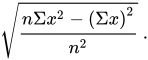
However, the first form keeps better numerical accuracy for large values of x, because squares of differences between x and x leads to less round-off than the differences between the much larger numbers Σ(x2) and (Σx)2 . The built-in Excel function STDEVP, however, uses the less accurate formulation because it is faster computationally.[5]
Both the "compatibility" function STDEVP and the "consistency" function STDEV.P in Excel 2010 return the 0.5 population standard deviation for the given set of values. However, numerical inaccuracy still can be shown using this example by extending the existing figure to include 1015, whereupon the erroneous standard deviation found by Excel 2010 will be zero.
Subtraction of Subtraction Results
[edit]Doing simple subtractions may lead to errors as two cells may display the same numeric value while storing two separate values. An example of this occurs in a sheet where the following cells are set to the following numeric values:



and the following cells contain the following formulas


Both cells and display . However, if cell contains the formula then does not display as would be expected, but displays instead.


The above is not limited to subtractions, try = 1 + 1.405*2^(-48) in one cell, Excel rounds the display to 1,00000000000000000000, and = 0.9 + 225179982494413×2^(-51) in another, same display[d]
above, different rounding for value and display, violates one of the elementary requirements in Goldberg (1991)[8]
who states:
- ... 'it is important to make sure that its use is transparent to the user. For example, on a calculator, if the internal representation of a displayed value is not rounded to the same precision as the display, then the result of further operations will depend on the hidden digits and appear unpredictable to the user' ...
The problem is not limited to Excel, e.g. LibreOffice calc acts similarly.
Round-off error
[edit]User computations must be carefully organized to ensure round-off error does not become an issue. An example occurs in solving a quadratic equation:

The solutions (the roots) of this equation are exactly determined by the quadratic formula:
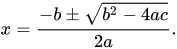
When one of these roots is very large compared to the other, that is, when the square root is close to the value b, the evaluation of the root corresponding to subtraction of the two terms becomes very inaccurate due to round-off (cancellation?).
It is possible to determine the round-off error by using the Taylor series formula for the square root: [9]

Consequently,

indicating that, as b becomes larger, the first surviving term, say ε:

becomes smaller and smaller. The numbers for b and the square root become nearly the same, and the difference becomes small:

Under these circumstances, all the significant figures go into expressing b. For example, if the precision is 15 figures, and these two numbers, b and the square root, are the same to 15 figures, the difference will be zero instead of the difference ε.
A better accuracy can be obtained from a different approach, outlined below.[e] If we denote the two roots by r 1 and r 2, the quadratic equation can be written:

When the root r 1 >> r 2, the sum (r 1 + r 2 ) ≈ r 1 and comparison of the two forms shows approximately:

while

Thus, we find the approximate form:
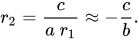
These results are not subject to round-off error, but they are not accurate unless b2 is large compared to ac.

The bottom line is that in doing this calculation using Excel, as the roots become farther apart in value, the method of calculation will have to switch from direct evaluation of the quadratic formula to some other method so as to limit round-off error. The point to switch methods varies according to the size of coefficients a and b.
In the figure, Excel is used to find the smallest root of the quadratic equation x2 + bx + c = 0 for c = 4 and c = 4 × 10⁵. The difference between direct evaluation using the quadratic formula and the approximation described above for widely spaced roots is plotted vs. b. Initially the difference between the methods declines because the widely spaced root method becomes more accurate at larger b-values. However, beyond some b-value the difference increases because the quadratic formula (good for smaller b-values) becomes worse due to round-off, while the widely spaced root method (good for large b-values) continues to improve. The point to switch methods is indicated by large dots, and is larger for larger c-values. At large b-values, the upward sloping curve is Excel's round-off error in the quadratic formula, whose erratic behavior causes the curves to squiggle.
A different field where accuracy is an issue is the area of numerical computing of integrals and the solution of differential equations. Examples are Simpson's rule, the Runge–Kutta method, and the Numerov algorithm for the Schrödinger equation.[10] Using Visual Basic for Applications, any of these methods can be implemented in Excel. Numerical methods use a grid where functions are evaluated. The functions may be interpolated between grid points or extrapolated to locate adjacent grid points. These formulas involve comparisons of adjacent values. If the grid is spaced very finely, round-off error will occur, and the less the precision used, the worse the round-off error. If spaced widely, accuracy will suffer. If the numerical procedure is thought of as a feedback system, this calculation noise may be viewed as a signal that is applied to the system, which will lead to instability unless the system is carefully designed.[11]
Accuracy within VBA
[edit]Although Excel nominally works with 8-byte numbers by default, VBA has a variety of data types. The Double data type is 8 bytes, the Integer data type is 2 bytes, and the general purpose 16 byte Variant data type can be converted to a 12 byte Decimal data type using the VBA conversion function CDec.[12] Choice of variable types in a VBA calculation involves consideration of storage requirements, accuracy and speed.
Footnotes
[edit]- ^ Round-off is the loss of accuracy when numbers that differ by small amounts are subtracted. Because each number has only fifteen significant digits, their difference is inaccurate when there aren't enough significant digits to express the difference.
- ^ To input a number as binary, the number is submitted as a string of powers of 2: 2^(−50)*(2^0 + 2^−1 + ⋯). To input a number as decimal, the decimal number is typed in directly.
- ^ This option is found on the "Excel options"
- ^ Rounding is different in the range above 1 vs. below 1, which impacts on most decimal or binary magnitude changes.
- ^ This approximate method is used often in the design of feedback amplifiers, where the two roots represent the response times of the system. See the article on step response.
References
[edit]- ^ "Floating-point arithmetic may give inaccurate results in Excel". Microsoft support. June 30, 2010. Revision 8.2; article ID: 78113. Retrieved 2010-07-02.
- ^ Dalton, Steve (2007). "Table 2.3: Worksheet data types and limits". Financial Applications Using Excel Add-in Development in C/C++ (2nd ed.). Wiley. pp. 13–14. ISBN 978-0-470-02797-4.
- ^ de Levie, Robert (2004). "Algorithmic accuracy". Advanced Excel for scientific data analysis. Oxford University Press. p. 44. ISBN 0-19-515275-1.
- ^ "Excel addition strangeness". office-watch.com.
- ^ a b de Levie, Robert (2004). Advanced Excel for scientific data analysis. Oxford University Press. pp. 45–46. ISBN 0-19-515275-1.
- ^
Accuracy in Excel:
- "Floating point arithmetic may give inaccurate results". Microsoft support. 6 June 2024. KB 78113. — A detailed explanation with examples of the binary/15 sig fig storage consequences.
- "Why does Excel seem to give wrong answers?". Microsoft Developers' Network (blog). Understanding floating point precision. 10 April 2008. Archived from the original on 30 March 2010. — Another detailed discussion with examples and some fixes.
- Goldberg, David (March 1991). "What every computer scientist should know about floating point". Computing Surveys (edited reprint). doi:10.1145/103162.103163. E19957-01 / 806-3568 – via Sun Microsystems. — Focuses upon examples of floating point representations of numbers.
- "Visual Basic and arithmetic precision". Microsoft support. Q279 / 7 / 55. — Oriented toward VBA, which does things a bit differently.
- Liengme, Bernard V. (2008). "Mathematical limitations of Excel". A guide to Microsoft Excel 2007 for scientists and engineers. Academic Press. p. 31 ff. ISBN 978-0-12-374623-8 – via Google Books.
- ^ Altman, Micah; Gill, Jeff; McDonald, Michael (2004). "§2.1.1 Revealing example: Computing the coefficient standard deviation". Numerical Issues in Statistical Computing for the Social Scientist. Wiley-IEEE. p. 12. ISBN 0-471-23633-0.
- ^ Goldberg, David (March 1991). "What every computer scientist should know about floating point". Computing Surveys (edited reprint). doi:10.1145/103162.103163. E19957-01 / 806-3568 – via Sun Microsystems. — more or less 'the holy book' of fp-math
- ^ Gradshteyn, I.S.; Ryzhik, I.M.; Geronimus, Yu.V.; Tseytlin, M.Yu.; Jeffrey, A. (2015) [October 2014]. "1.112. Power series". In Zwillinger, Daniel; Moll, Victor Hugo (eds.). Tables of Integrals, Series, and Products. Translated by Scripta Technica, Inc. (8 ed.). Academic Press, Inc. p. 25. ISBN 978-0-12-384933-5. LCCN 2014010276. ISBN 0-12-384933-0
- ^ Blom, Anders (2002). Computer algorithms for solving the Schrödinger and Poisson equations (Report). Department of Physics. Lund University.
- ^ Hamming, R.W. (1986). "Chapter 21 – Indefinite integrals – feedback". Numerical Methods for Scientists and Engineers (2nd ed.). Courier Dover Publications. p. 357. ISBN 0-486-65241-6. — This book discusses round-off, truncation and stability extensively. For example, see chapter 21, page 357.
- ^ Walkenbach, John (2010). "Defining data types". Excel 2010 Power Programming with VBA. Wiley. pp. 198 ff & Table 8-1. ISBN 978-0-470-47535-5.
Numeric precision in Microsoft Excel
View on GrokipediaOverview of Numeric Storage
IEEE 754 Double-Precision Format
Microsoft Excel employs the IEEE 754 double-precision floating-point format, also known as binary64, for the internal storage of all numeric values. This 64-bit standard allocates 1 bit for the sign, 11 bits for the biased exponent, and 52 bits for the significand (mantissa), with an implicit leading 1 bit for normalized numbers, resulting in 53 bits of precision overall.[5][6] The exponent uses a bias of 1023 to represent a range from approximately -308 to +308 in decimal magnitude, enabling the storage of very large or small numbers while maintaining relative precision.[1] Regardless of the apparent type—such as integers, decimals, or dates (stored as floating-point serial numbers counting days from January 1, 1900)—Excel converts and retains all numbers in this double-precision format internally, independent of cell formatting or display settings.[7][1] This uniform approach ensures consistent arithmetic operations but introduces potential limitations when decimal values lack exact binary equivalents.[7] The format delivers about 15 to 17 significant decimal digits of precision for typical values within its range, as the 53-bit significand corresponds to roughly log10(253) ≈ 15.95 decimal digits.[6] Microsoft Excel was designed around the IEEE 754 specification to standardize floating-point handling, aligning with established practices in computing hardware and software.[1] For example, the decimal 1.0 stores exactly in binary as 1.0 × 20, with sign bit 0, biased exponent 1023 (binary01111111111), and all mantissa bits 0 (implicit leading 1). By contrast, 0.1 requires an infinite repeating binary expansion of 0.020011 0011 0011 ... (where the pattern "0011" repeats), which double precision approximates by rounding to 52 mantissa bits after the implicit 1, yielding a value slightly larger than 0.1—specifically, 0.1000000000000000055511151231257827021181583404541015625 in decimal.[8] This inexactness arises because many decimal fractions, like 0.1 (or 1/10), cannot be finitely expressed as sums of negative powers of 2.[8]
Significant Digits and Display Limits
Microsoft Excel maintains a precision limit of 15 significant decimal digits for numeric values stored internally, meaning that any number exceeding this threshold will have its trailing digits rounded or altered to fit within this boundary. For instance, entering the number 10000000000000001 (1 followed by 15 zeros and ending in 1) results in it being stored and displayed as 10000000000000000 due to this limitation. This precision constraint arises from Excel's use of the IEEE 754 double-precision floating-point format for storage, which inherently supports approximately 15 decimal digits of accuracy regardless of the number's magnitude.[9][10][1] While Excel allows users to format cells to display up to 30 decimal places, the internal representation remains limited to 15 significant digits, with any additional displayed digits beyond this point typically appearing as zeros or being non-computational artifacts of the formatting. This distinction is crucial, as the extra decimal places do not reflect actual stored precision but merely visual extension for presentation purposes. For large numbers, the effective precision further diminishes; integers greater than approximately 10^15 lose accuracy in their least significant digits. A classic example is entering 1234567890123456, which Excel stores and displays as 1234567890123450, effectively rounding the final digit to zero. The overall range for numeric values extends to a maximum of about 9.99999999999999 × 10^307 for positive numbers, beyond which overflow errors occur, but precision reliably holds only up to the 15-digit limit within this range.[11][2][12] Users have the option to enable "Set precision as displayed" in the Advanced settings (accessible via File > Options > Advanced > When calculating this workbook), which rounds all stored values to match the number of decimal places currently displayed in cells, thereby permanently discarding any excess precision. This feature, available since early versions of Excel, has been explicitly cautioned against in official documentation since at least Excel 2007, as it irreversibly alters data accuracy and can lead to unintended calculation errors if later disabled. The 15-digit precision limit has remained consistent since Excel 97 and persists unchanged in modern iterations, including Excel 365 as of 2025.[3][10][13]Sources of Precision Errors
Binary Representation of Decimal Fractions
In binary floating-point representation, fractional numbers are expressed as sums of negative powers of 2, such as , which can be represented exactly with a finite number of bits.[14] However, decimal fractions like cannot be exactly represented because 10 factors into 2 and 5, requiring a denominator that includes powers of 5, which leads to an infinite repeating binary expansion: , where the pattern "1001" repeats indefinitely.[15] This infinite series is truncated and rounded to fit the 52-bit mantissa of the IEEE 754 double-precision format used by Excel, resulting in an approximation of $0.1000000000000000055511151231257827021181583404541015625$.[14] This approximation introduces a small but nonzero error in the stored value, which manifests in basic arithmetic operations. For instance, adding 0.1 to itself ten times in Excel yields approximately 0.9999999999999999 rather than exactly 1.0, as each addition propagates the underlying representation error without cancellation.[1] Such issues commonly affect decimal fractions whose denominators include prime factors other than 2, such as 0.3 (), , or other values prevalent in financial calculations (e.g., percentages, interest rates) and scientific data (e.g., measurements in tenths or thirds).[1] The root of this precision limitation in Excel traces to the IEEE 754-1985 standard for binary floating-point arithmetic, which defines the double-precision format and has been universally adopted in computing hardware and software.[16] Excel, released in 1985, has adhered to this standard from its inception, maintaining consistent behavior in numeric storage and computation across versions.[1]Accumulation of Rounding Errors
In Microsoft Excel, which adheres to the IEEE 754 double-precision floating-point standard, each arithmetic operation introduces a small rounding error measured in units in the last place (ulp), typically on the order of 10^{-15} to 10^{-16} for numbers around unity. These errors arise because decimal fractions like 0.1 cannot be represented exactly in binary, leading to an approximation that is then rounded to the nearest representable value using the round-to-nearest, ties-to-even mode specified by IEEE 754. Over multiple operations, such as repeated additions, these individual errors propagate and accumulate, potentially magnifying the total discrepancy, though the growth is generally linear with the number of operations rather than exponential. For instance, summing 10,000 instances of 0.0001 results in approximately 0.999999999999996 instead of exactly 1, with an accumulated error of about 4 × 10^{-13}.[1] A classic illustration occurs when summing 0.1 one hundred times, which should yield 10 but internally computes to roughly 9.999999999999998 due to the repeated addition of the inexact binary representation of 0.1 (error per term ≈ 5.55 × 10^{-17}), visible in the formula bar or when further processed. This accumulation becomes more pronounced in long chains of additions or subtractions involving numbers of varying magnitudes, as larger values can mask smaller ones during alignment in the floating-point adder, exacerbating the relative error contribution from minor terms. The IEEE 754 round-to-nearest mode contributes to this by consistently biasing results toward the closest even mantissa in tie cases, which over many operations can lead to a systematic drift rather than random cancellation.[1][17] In financial applications, such as totaling cents across thousands of transactions, these errors can manifest as slight discrepancies in column sums, though the total error remains typically below 0.01 even after summing hundreds of thousands of currency values rounded to two decimals, due to the inherent precision limits. For example, aggregating transaction amounts like 0.01 or 0.05 repeatedly may yield a final total off by a fraction of a cent, prompting the need for explicit rounding in intermediate steps to maintain accuracy in reports.[18]Catastrophic Cancellation in Subtractions
Catastrophic cancellation, a form of subtractive cancellation in floating-point arithmetic, arises when subtracting two nearly equal numbers, causing the leading significant digits to cancel out and leaving the result dominated by the relative rounding errors inherent in the operands. This leads to a severe loss of precision, as the absolute error remains similar to that of the inputs, but the result's magnitude is much smaller, amplifying the relative error. The phenomenon is well-documented in numerical analysis and stems from the limited mantissa length in binary floating-point representations.[19] In Microsoft Excel, which employs the IEEE 754 double-precision format providing about 15 decimal digits of precision, catastrophic cancellation manifests prominently during subtractions of close values. For example, the formula=(43.1 - 43.2) + 1 yields 0.899999999999999 rather than the expected 0.9, because the intermediate subtraction stores an approximate -0.1 with rounding error, which propagates and cancels with the subsequent addition. This error arises from the binary approximation of decimal fractions like 0.1, which cannot be represented exactly in double precision.[1]
A illustrative case in Excel involves approximations from transcendental functions like square roots, which introduce small errors that become exposed through cancellation. Consider the expression (SQRT(850) + 1)^2 - (SQRT(850))^2 - 2 * SQRT(850) - 1, which algebraically simplifies to 0. However, due to the imprecise computation of SQRT(850) (approximately 29.154759474226502 in double precision), the subtractions cancel the dominant terms, resulting in a nonzero value around 10^{-14}, reflecting the residual error from the square root approximation. This demonstrates how cancellation reveals underlying representation and computation inaccuracies.[19][1]
Chaining subtractions, such as (a - b) - (c - d) where the intermediate results are nearly equal, can compound the issue, as each step potentially amplifies propagated errors from prior cancellations. In such sequences, the precision loss accumulates more rapidly than in isolated operations, particularly if the intermediates share similar magnitudes.[19]
This error type poses challenges in real-world applications within Excel, such as engineering computations requiring precise differences between large quantities or iterative numerical solvers like those for root-finding, where small discrepancies can derail convergence. Unlike some numerical software packages that support extended or arbitrary precision modes to mitigate such issues, Excel's fixed double-precision implementation lacks native higher-precision options, making careful formula reformulation essential for accuracy.[1]
Impact on Specific Functions
Statistical and Financial Functions
Microsoft Excel's SUM function, which performs sequential addition of values in the specified order, is susceptible to precision loss from accumulated rounding errors inherent in IEEE 754 double-precision floating-point arithmetic. For instance, repeatedly summing small decimal values like 0.0001 ten thousand times results in approximately 0.999999999999996 instead of the exact 1, as each addition introduces a tiny representation error that compounds over iterations.[1] A well-known example illustrating this issue occurs when adding 0.1 and 0.2, where the formula=0.1 + 0.2 yields 0.30000000000000004 rather than 0.3, due to the inexact binary representation of these decimal fractions.[1] While simple pairwise sums like 0.06 + 0.01 may coincidentally produce the exact 0.07 in some cases because of favorable rounding in binary storage, larger datasets often reveal discrepancies, such as totals off by fractions of a cent after summing numerous invoice amounts formatted to two decimals.[1]
Statistical functions in Excel, including STDEV and VAR, are also affected by these precision limitations, as intermediate calculations involving means and squared deviations can amplify rounding errors, leading to slight overestimations or underestimations in results. For a simple integer dataset such as {1, 2, 3, ..., 10}, where the exact population variance is 8.25 and standard deviation is approximately 2.872281323, Excel's computations may introduce minor deviations in the displayed or further-used values due to the 15-digit precision cap, though these are typically negligible for small, integer-based sets.[1] In datasets with decimals, such as repeated 0.1 values, the standard deviation calculation can exhibit inconsistencies if the inputs are treated as text or if floating-point errors accumulate during deviation computations.[20]
Financial functions like PV, FV, and IRR exhibit heightened sensitivity to numeric precision because they rely on iterative algorithms or series summations that propagate small input errors from inexact binary representations, such as for decimal interest rates like 0.1.[1] Starting with Excel 2016, advanced functions such as FORECAST.ETS incorporate exponential triple smoothing (ETS) algorithms that apply internal adjustments for trend and seasonality, helping to reduce the impact of precision errors in time-series forecasting compared to earlier linear methods.[21]
Date and Time Calculations
In Microsoft Excel, dates and times are stored as serial numbers in the IEEE 754 double-precision floating-point format, where the integer portion represents the number of days elapsed since January 1, 1900 (in the 1900 date system used on Windows) or January 1, 1904 (in the 1904 date system used on macOS).[22] The time component is represented as a decimal fraction of a day, ranging from 0 (midnight) to less than 1 (just before midnight), such that 0.5 corresponds to noon.[22] This combined date-time serial number is treated as a single double-precision value, inheriting the format's limitations on exact representation of certain decimal fractions. Due to the binary nature of double-precision storage, which provides approximately 15 decimal digits of precision, date and time calculations in Excel can suffer from rounding errors, particularly in the fractional part representing sub-day intervals. Due to the double-precision format, these calculations can represent fractional days with high precision, sufficient for less than 1 microsecond resolution (approximately 10^{-11} days or 0.86 μs) for current dates, though certain decimal fractions may not be exact in binary, leading to small rounding errors in sub-second intervals.[23] For instance, repeatedly adding 1 second (1/86400 day) a thousand times can result in cumulative rounding errors that cause the total to skip or approximate certain ticks, deviating from the expected value by fractions of a second. Additionally, for very large serial dates exceeding 2^{53} (approximately 9 \times 10^{15}, corresponding to dates around the year 285,421 AD), the integer day component loses exact precision, as double-precision cannot represent all integers beyond this threshold without rounding. A persistent issue in Excel's date system stems from treating 1900 as a leap year, incorrectly inserting February 29, 1900, as a valid day (serial number 60), which shifts all subsequent dates by one day compared to the Gregorian calendar. This "leap year bug" originated in the 1980s for compatibility with Lotus 1-2-3 and has been retained since Excel 1.0 (released in 1985) to avoid disrupting legacy files, despite 1900 not being a leap year.[24] Functions like NOW(), which returns the current date and time as a serial number, and TIME(), which constructs a time fraction, can exhibit these precision limitations in formulas; for example, arithmetic operations involving NOW() may round fractional seconds inconsistently when displayed or further calculated. In scenarios requiring high temporal resolution, such as logging events to the millisecond, these rounding effects become evident, often necessitating workarounds like storing times in separate integer-based columns for seconds or milliseconds. In recent versions like Excel 365 (as of 2025), Power Query offers improved handling of fractional seconds in date-time data types, supporting up to seven decimal places for seconds (sub-millisecond precision) during data import and transformation via functions like #datetime and custom format strings. However, core worksheet calculations and functions remain governed by the traditional double-precision serial number system, without changes to inherent rounding behaviors.[25]Precision in VBA and Macros
Data Types in VBA
In Visual Basic for Applications (VBA), numeric data types determine the storage, range, and precision of values used in macros and automation scripts within Microsoft Excel. The primary floating-point types are Double and Single, which follow the IEEE 754 standard and thus inherit the same binary representation challenges as Excel's worksheet calculations, such as limited precision for certain decimal fractions.[26][27] Double, the most commonly used, provides approximately 15 decimal digits of precision and occupies 8 bytes, with a range from -1.79769313486231E308 to 1.79769313486231E308.[26] Single offers lower precision of about 7 decimal digits and uses 4 bytes, ranging from -3.402823E38 to 3.402823E38, but it is rarely employed due to the availability of the more precise Double.[27] For integer operations, VBA includes the Long type, a 32-bit signed integer that stores exact whole numbers without decimals, using 4 bytes and supporting values from -2,147,483,648 to 2,147,483,647.[28] This type ensures no rounding errors for integers within its range, making it suitable for counters or indices where fractional parts are unnecessary. In contrast, the Currency type addresses precision needs in financial computations by using a fixed-point representation: it stores values as 64-bit integers scaled by 10,000, allowing exactly 4 decimal places and up to 15 total digits, with a range of -922,337,203,685,477.5808 to 922,337,203,685,477.5807.[29] Unlike floating-point types, Currency avoids binary approximation errors for decimal values, providing exact arithmetic for monetary amounts.[29] VBA also supports the Decimal data type for higher precision requirements, implemented as a Variant subtype requiring 16 bytes. It provides up to 28 significant digits of precision using a 96-bit fixed-point format with a configurable scale (0 to 28 decimal places), offering a range from approximately -4.9E-324 to 4.9E-324 (scale 28) to +/-79,228,162,514,264,337,593,543,950,335 (scale 0). This type enables exact representation of decimal fractions without floating-point rounding errors, making it ideal for scientific or financial calculations needing greater accuracy than Currency, though variables must be declared as Variant and converted using CDec.[30] By default, undeclared variables in VBA are of type Variant, which for numeric values automatically subtypes to Double during arithmetic operations, inheriting its precision limitations unless explicitly converted.[31] For instance, the expression0.1 + 0.2 in a Double or Variant (numeric) yields approximately 0.30000000000000004 due to floating-point representation, whereas declaring the variables as Currency results in exactly 0.3, demonstrating the fixed-point type's advantage for decimal accuracy.[1][29] VBA's numeric data types, including their precision characteristics, have remained consistent since the integration of Visual Basic 6.0 technology in 1998, with no native support for arbitrary-precision arithmetic.[32]
Differences from Worksheet Calculations
When transferring numeric values between Excel worksheets and VBA, the underlying representation plays a critical role in preserving precision. Excel worksheets store numeric values internally as IEEE 754 double-precision floating-point numbers, which VBA's Double data type also employs, ensuring that assigning a worksheet value to a VBA Double variable maintains the exact binary representation without loss.[33][32] However, assigning a worksheet Double value to a VBA Currency variable, which is a fixed-point type scaled to four decimal places, results in rounding to the nearest 0.0001, potentially altering the value if it exceeds this precision.[32] Conversely, transferring from VBA Currency back to a worksheet or Double can introduce floating-point approximation errors, as the exact decimal representation may not align perfectly with binary floating-point storage.[32] VBA computations utilize the same floating-point unit (FPU) as Excel worksheets, both adhering to double-precision arithmetic, but differences arise in execution order and method. For instance, a VBA loop that iteratively sums values from a range accumulates rounding errors sequentially based on the iteration sequence, whereas Excel's SUM function may employ optimized aggregation techniques, such as pairwise summation, leading to divergent results for the same dataset due to the non-associative nature of floating-point addition.[33] This discrepancy highlights how procedural control in VBA can amplify precision variations compared to declarative worksheet formulas. Notable anomalies occur in specific operations between VBA and worksheets. The VBA Round function implements banker's rounding, where values ending in exactly 0.5 round to the nearest even integer (e.g., 2.5 rounds to 2, while 1.5 rounds to 2), differing from Excel's ROUND worksheet function, which uses arithmetic rounding by always rounding 0.5 cases upward (e.g., both 1.5 and 2.5 round up).[34] For date and time handling, both systems use compatible serial number representations starting from January 1, 1900, but VBA functions like DateSerial are timezone-unaware, potentially causing inconsistencies when interfacing with worksheet dates that assume local system time without explicit adjustment.[35] A practical example illustrates these differences: consider a VBA subroutine that loops through a range of double-precision values (e.g., {1.1, 2.2, 3.3}) and sums them iteratively, which might yield 6.599999999999999 due to cumulative floating-point errors, whereas the equivalent worksheet formula =SUM(A1:A3) could return 6.6 through internal optimizations.[33] Unlike Excel worksheets, which offer a "Set precision as displayed" option to force calculations based on formatted values and mitigate rounding discrepancies, VBA lacks this built-in feature, requiring developers to implement manual rounding or type conversions to achieve similar behavior.[1]Mitigation and Best Practices
Rounding Techniques
Excel provides several built-in functions to explicitly round numerical values, allowing users to control precision and mitigate the effects of floating-point arithmetic errors, such as those arising from the binary representation of decimal fractions.[1] The primary function for this purpose is ROUND, which rounds a number to a specified number of decimal places using the syntax ROUND(number, num_digits), where num_digits indicates the number of digits to which the value should be rounded.[36] For instance, the expression ROUND(0.1 + 0.2, 1) evaluates to 0.3, correcting the underlying floating-point sum of approximately 0.30000000000000004 to the expected decimal result.[1] This function rounds halfway cases away from zero.[36] For scenarios requiring directional control, Excel offers ROUNDUP and ROUNDDOWN functions. ROUNDUP rounds a number up, away from zero, to the specified number of decimal places, using the syntax ROUNDUP(number, num_digits); for example, ROUNDUP(3.14159, 3) returns 3.142.[37] Conversely, ROUNDDOWN rounds down, toward zero, with the same syntax; applying ROUNDDOWN(3.14159, 3) yields 3.141.[38] Additionally, MROUND enables rounding to the nearest multiple of a given significance value, following the syntax MROUND(number, multiple); it rounds up if the remainder exceeds half the multiple, as in MROUND(17, 5) returning 20.[39] Beyond functions, Excel includes workbook-level settings to influence precision, though they come with caveats. The "Set precision as displayed" option, found in File > Options > Advanced > When calculating this workbook, forces calculations to use the displayed value's precision rather than the full stored value, effectively truncating underlying floating-point inaccuracies across the entire workbook.[10] However, enabling this permanently alters stored values upon recalculation, potentially leading to cumulative errors and is generally discouraged for ongoing workbooks.[1] In contrast, per-cell number formatting—such as setting two decimal places via the Format Cells dialog—only affects visual display and does not influence underlying calculations or stored precision.[40] A practical application of these techniques is in financial summaries, where wrapping aggregate functions in ROUND ensures consistent decimal output; for example, ROUND(SUM(A1:A10), 2) truncates the total to two decimal places, preventing minor rounding discrepancies from accumulating in reports.[36] These methods are best applied post-calculation to limit the propagation of precision errors without altering source data, providing targeted control in precision-sensitive contexts like accounting or scientific modeling.[1]Avoiding Precision Loss
To minimize precision loss in Microsoft Excel spreadsheets, designers should prioritize integer-based representations for financial data, such as storing monetary values in cents by multiplying dollar amounts by 100 and performing calculations on these integers.[41] This approach avoids the inherent inaccuracies of floating-point arithmetic for decimal-heavy operations like currency handling. Additionally, limiting chained floating-point operations—such as successive additions or multiplications in formulas—reduces cumulative rounding errors; instead, break computations into discrete steps using intermediate integer or exact formats where possible. For scenarios requiring exact fractional representations, Excel's built-in fraction number format allows users to input and display values as proper or improper fractions (e.g., 1/3 or 5/8) while preserving their exact mathematical form during calculations, up to the limits of the underlying double-precision storage.[42] As an alternative to native worksheet calculations, the Decimal Number data type in Power Query—introduced with Excel 2016—supports decimal values with up to 15 significant digits of precision, enabling more controlled handling of precise decimal inputs during data transformation and loading workflows.[43][44] This type is particularly useful for importing and processing large datasets where exact decimal fidelity is needed before outputting to Excel sheets, though it aligns with double-precision limits once loaded. For even greater control, external libraries supporting arbitrary-precision decimals can be integrated via Component Object Model (COM) interfaces in VBA, allowing custom functions to bypass Excel's 15-digit constraint for specialized computations.[44] In VBA programming, the Currency data type is recommended for monetary calculations, as it stores values as 64-bit fixed-point numbers scaled by 10,000 (effectively providing four decimal places of exact precision) and avoids the rounding errors common in Double or Single floating-point types.[29] To further mitigate accumulation errors in summations, implement the Kahan summation algorithm, a compensated summation method that tracks and corrects lost low-order bits using an auxiliary variable. The algorithm proceeds as follows:sum = 0
c = 0 // compensation variable
for each value x in the sequence:
y = x - c
t = sum + y
c = (t - sum) - y
sum = t
sum = 0
c = 0  // compensation variable
for each value x in the sequence:
    y = x - c
    t = sum + y
    c = (t - sum) - y
    sum = t