


Community hub
Recent from talks
Contribute something
Nothing was collected or created yet.
Multi-booting
View on Wikipedia | This article has multiple issues. Please help improve it or discuss these issues on the talk page. (Learn how and when to remove these messages)
|


Multi-booting is the act of installing multiple operating systems on a single computer, and being able to choose which one to boot. The term dual-booting refers to the common configuration of specifically two operating systems. Multi-booting may require a custom boot loader.
Usage
[edit]Multi-booting allows more than one operating system to reside on one computer; for example, if a user has a primary operating system that they use most frequently and an alternate operating system that they use less frequently. Multi-booting allows a new operating system to configure all applications needed and migrate data before removing the old operating system, if desired. Another reason for multi-booting can be to investigate or test a new operating system without switching completely.
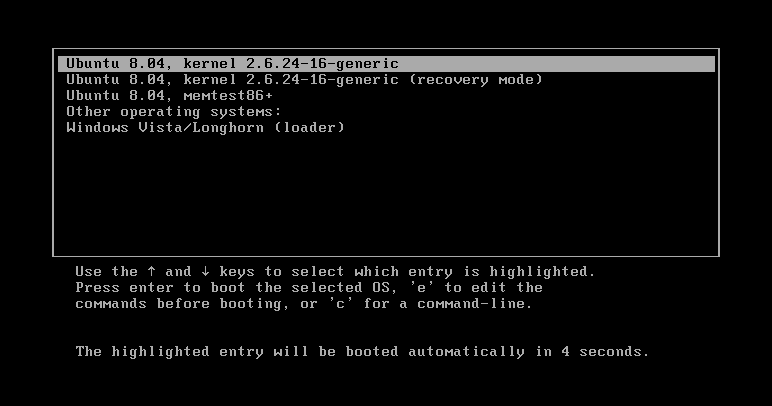
Multi-booting is also useful in situations where different software requires different operating systems. A multi-boot configuration allows a user to use all of their software on one computer. This is often accomplished by using a boot loader such as NTLDR, Windows Boot Manager, LILO, or GRUB which can boot more than one operating system.
Multi-booting is also used by software developers when multiple operating systems are required for development or testing purposes. Having these systems on one machine is a way to reduce hardware costs.
Multi-booting also allows a user to switch between private and work dedicated systems to maintain access integrity and separation between the two user environments, even if the same operating system is used for each of them.
A possible alternative to multi-booting is virtualization, where a hypervisor is used to host one or more virtual machines running guest operating systems.
Technical issues
[edit]Number of operating systems per volume (logical drive)
[edit]In an OS/2 dual-boot configuration, the C drive can contain both DOS and OS/2. The user issues the BOOT command[1] from the DOS or OS/2 command line to do the necessary copy, move and rename operations and then reboot to the specified system on C:. Other systems provide similar mechanisms for alternate systems on the same logical drive.
Number of operating systems per storage device
[edit]In a multi-boot computer, each of the multiple operating systems can reside on its own storage device, or some storage devices might contain more than one operating system in different partitions. The bootloader loaded by the PC displays a menu of choices and loads the selected OS from the PBR of that drive.
An example of a computer with one operating system per storage device is a dual-booting computer that stores Windows on one disk drive and Linux on another disk drive. In this case a multi-booting bootloader is not strictly necessary because the user can choose to enter a one-time boot menu (quite often F-12).[2] immediately after power-up and pick the desired OS from the list.
A dual-booting PC that has both Windows and Linux on the same physical disk, but where the PC does not allow selective booting. In this case, a bootloader is necessary. The disk should be partitioned to give each OS its own partitions on the drive, as each OS may need to a different format. For example, if a user intends to install both Windows and Linux, with the Windows partition formatted NTFS format and the Linux partition formatted ext4 format.
Partitioning
[edit]The basic concept involves partitioning a disk to accommodate each planned installation, usually including separate partitions for boot, root, data storage and backups.[3]
MBR loader
[edit]An MBR loader, such as Air-Boot,[4] replaces the standard boot code in track 0 with code that displays a selection menu and loads the selected system. Some, e.g., Air-Boot, can be configured either automatically or by the user at boot time, rather than requiring an external configuration menu.
Linux boot loaders
[edit]Linux loaders, such as GNU GRUB[5] and LILO, can reside in the MBR or in a PBR. They use configuration files in /boot to control their selection menus.
OS/2 Boot Manager
[edit]The OS/2 Boot Manager must be installed in a primary partition. The OS/2 partitioning utilities can configure up to four systems in the menu, each of which can be either in a primary partition or in a logical volume within the extended logical partition. It is possible to include a boot loader such as GRUB in the OS/2 Boot Manager menu, and it is possible to include the OS/2 Boot Manager in the menu for another boot loader. Newer loaders such as Air-Boot, GRUB and LILO offer more flexibility.
UEFI loading
[edit]Modern computer systems (Intel Macs and newer PCs) use Unified Extensible Firmware Interface aka UEFI.[6][7] Unlike BIOS aka Legacy, UEFI does not rely on a partition's boot sector, the PC's UEFI firmware loads a small boot loader, a .efi file in the EFI System Partition aka ESP directly,[8] and the OS kernel is then loaded by this boot loader.
Microsoft Windows and Linux
[edit]One popular multi-boot configuration is to dual-boot Linux and Windows operating systems, each contained within its own partition. Windows does not facilitate or support multi-boot systems, other than allowing for partition-specific installations, and no choice of boot loader is offered. However, most current Linux installers accommodate dual-booting (although some knowledge of partitions is desirable). Commonly installations proceed without incident but upon restart, the boot loader will recognize only one of the two operating systems.[9]
There are some advantages to installing a Linux boot manager/loader (usually GRUB) as the primary bootloader pointed to by the master boot record. Windows operating systems will be found by properly installed Linux bootloaders, but Windows boot managers do not recognize Linux installations (nor does Windows deal natively with Linux file systems). The MBR boot code can be backed up and restored with dd, available on System Rescue CD.
It is often recommended that Windows be installed to the first primary partition. The boot loaders of both Windows and Linux identify partitions with a number derived by counting the partitions. (Note, both Windows and Linux count the partitions according to the ordering of the partitions in the partition table, which may be different from the order of the partitions on the disk.) Adding or deleting a partition at the end of a hard drive will have no effect on any partitions prior to it. However, if a partition is added or deleted at the beginning or middle of a hard drive, the numbering of subsequent partitions may change. If the number of the system partition changes, it requires boot loader reconfiguration in order for an operating system to boot and function properly.
Windows must be installed into a primary partition (and in older systems this must be the first partition). Linux can be installed into a partition in any position on the hard drive and can also be installed into logical partitions (within the extended partition). If Linux is installed into a logical partition within the extended partition, it is unaffected by changes in the primary partitions.
Neutral MBR
[edit]An alternative to storing GRUB in the MBR is keeping Windows' or other generic PC boot code in the MBR, and installing GRUB or another bootloader into a primary partition other than that of Windows, thus keeping the MBR neutral.[10] Operating system selection at boot time consequently depends on the bootloader configured within the primary partition that has the boot or "active" flag set on its partition table entry, which could be a bootloader of DOS, OS/2, eComStation, ArcaOS[11] or BSD, in addition to Linux or Windows.
With the boot flag set on the Windows primary, the Windows Boot Manager can be used to chainload another installed bootloader through use of a program like EasyBCD.[12] This means the active partition's boot manager will first prompt the user for selection what OS to boot, then load another if necessary, such as GRUB, even a bootloader installed to a logical partition, and then GRUB will load the Linux kernel as it normally would were GRUB installed to the MBR.
The active partition could also be one that exists for no purpose other than choosing an operating system to boot, such as the boot manager that shipped with IBM's OS/2 Warp and its derivatives.
Apple's Boot Camp
[edit]Boot Camp allows owners of Intel-based Apple Macintosh computers to install Windows XP, Vista, 7, 8, and 10 on their Macs. The software was initially available in beta version as a download from Apple's website (which was compatible with Mac OS X version 10.4 (Tiger)), and later came bundled with Mac OS X since version 10.5 (Leopard).
Boot Camp allows non-destructive disk partitioning and resizing of HFS+ filesystems, boot menu options, and an option to burn a CD with necessary device drivers. Since Windows XP is incompatible with Extensible Firmware Interface (the successor to legacy BIOS), the firmware on early Intel Macs needs to be updated to support BIOS emulation first. BIOS emulation is achieved with a compatibility support module (CSM). Apple does not support non-Windows partition formats or drivers so therefore configuring other operating systems is not directly possible through Boot Camp itself. However, any operating system which can utilize the BIOS emulation of Intel Macintosh can be made to work, including non-XP versions of Windows. The Ubuntu Linux distribution is particularly popular for this purpose because they provide an option to use proprietary device drivers along with open source drivers.
See also
[edit]- Booting
- Comparison of boot loaders
- GNU GRUB
- EasyBCD – NeoSmart technologies' free program to configure multi-booting on Windows
- Ext2Fsd support for ext2/3/4 under Microsoft Windows
- Multiboot Specification
- Virtualization
- Windows To Go
- XOSL – a free, graphical, open source boot loader
References
[edit]- ^ "OS/2 commands by name", OS/2 command reference (First ed.), IBM, 1999,
Switches between the DOS and OS/2 operating systems that are on the same hard disk (drive C).
- ^ "List of PC brands with their corresponding hot-keys". www.disk-image.com. LSoft Technologies Inc. Archived from the original on 2020-11-11. Retrieved 2025-10-24.
- ^ Ward, Brian (2004). How Linux Works: What Every SuperUser Should Know. No Starch Press. p. 39. ISBN 9781593270353.
- ^ m_kiewitz (14 November 2015). "AiR-Boot". SourceForge. Retrieved 24 October 2025.
- ^ Kiper, Daniel (31 August 2021). "GNU GRUB - GNU Project". www.gnu.org. Boston, MA: Free Software Foundation, Inc. Retrieved 24 October 2025.
- ^ "Intel Platform Innovation Framework for EFI". Intel. Archived from the original on 2011-08-21. Retrieved 2025-10-24.
- ^ "OpenBIOS - coreboot". coreboot.org. Archived from the original on 2013-03-18. Retrieved 2025-10-24.
- ^ "UEFI - OSDev Wiki". wiki.osdev.org. Archived from the original on 2020-11-12. Retrieved 2025-10-24.
- ^ "Booting problem of Linux in Windows boot loader - [Solved] - Open source software". Tom's Hardware. 15 April 2014. Retrieved 2 April 2018.
- ^ "openSUSE Bugs/grub". openSUSE Bugs/grub. 28 January 2010. Retrieved 22 January 2017.
- ^ "ArcaOS". Blue Lion, by Arca Noae. 13 November 2016. Retrieved 22 January 2017.
- ^ "How to add an entry for a Linux distribution in Windows' boot menu". Linux BSD OS. 21 July 2012. Retrieved 10 July 2016.
External links
[edit]- "Multiboot Specification".
- "Dual, triple, quad boot a Macbook with Mac OS X, Ubuntu Linux, Windows XP, and Windows Vista". Archived from the original on 2011-08-18.
- "Installing Windows XP:Dual-booting versus single booting".
- "YUMI Multiboot USB Creator ▷ Make Multi Bootable USB Drives". 13 March 2011.
Multi-booting
View on GrokipediaFundamentals
Definition and Overview
Multi-booting, also known as multiboot, refers to the installation of multiple operating systems on the same computer hardware, enabling users to select and boot into any one of them at startup without relying on virtualization techniques.[5][6] This setup contrasts with single-boot configurations, where only one operating system is present and boots automatically, while dual-boot is a specific instance limited to two operating systems; multi-booting generalizes this to two or more, often managed through dedicated software.[1][5] A key component in multi-booting is the boot loader, which intercepts the startup process to display a menu of available operating systems and loads the kernel of the chosen one into memory for execution.[6][1] The basic workflow begins with the power-on self-test (POST), where the computer's firmware verifies essential hardware components like the CPU, memory, and storage devices.[1] Following POST, the firmware—typically BIOS for legacy systems or UEFI for modern ones—locates the boot device, executes the master boot record or equivalent, and hands control to the boot loader, which then facilitates OS selection and initialization.[1][6] Examples of multi-boot setups include triple-booting Windows, a Linux distribution like Fedora, and macOS on compatible hardware such as a MacBook Pro, where each OS resides on separate partitions.[7][8] Implementing multi-booting requires prerequisites such as hardware fully supported by all intended operating systems, adequate storage space divided into multiple partitions or volumes, and drivers that do not conflict across the different OS environments.[1][5]Historical Development
The origins of multi-booting trace back to the early 1980s with the advent of personal computers like the IBM PC, where operating systems such as MS-DOS relied on simple boot sectors in the master boot record (MBR) to initiate loading from a single partition.[9] These boot sectors, typically 512 bytes in size, contained basic code to locate and execute the operating system's loader, but multi-booting required manual intervention, such as using bootable floppies to switch between MS-DOS and emerging alternatives like early versions of OS/2.[10] By the late 1980s, OS/2's development by IBM and Microsoft introduced rudimentary dual-boot capabilities through partition-specific boot sectors, allowing users to select between DOS and OS/2 at startup via keyboard prompts.[11] The formal introduction of a dedicated boot manager came with OS/2 2.0 in 1992, which featured the OS/2 Boot Manager—a graphical interface for selecting and configuring multiple operating systems on different partitions, marking the first widespread tool for managed multi-booting on desktop PCs.[12] In the 1990s, multi-booting gained momentum with the rise of Linux, as the LILO (LInux LOader) bootloader, developed by Werner Almesberger and first released in 1992, enabled seamless dual-booting alongside Windows by installing in the MBR and supporting chainloading of other OS boot sectors.[13] LILO's configuration file allowed users to specify boot options for multiple kernels or OSes, facilitating the popular Windows-Linux dual-boot setups, though it was constrained by the BIOS 1024-cylinder limit, which restricted booting from partitions beyond approximately 8 GB on larger drives due to legacy INT 13h BIOS calls.[14] This limitation prompted workarounds like LBA mode extensions in later LILO versions, but it highlighted the era's hardware-software mismatches in multi-boot environments. The 2000s brought significant advancements with the GNU GRUB bootloader, initially developed in 1995 by Erich Boleyn as the GRand Unified Bootloader and adopted by the GNU Project in 1999, released as GNU GRUB 0.90 in 2001, which overcame many BIOS constraints by supporting Logical Block Addressing (LBA) for drives larger than 8 GB and offering a more flexible menu-driven interface for multi-booting various OSes, including Windows, Linux, and BSD variants.[15] GRUB's stage-based loading and filesystem awareness allowed it to read configurations from ext2/3 partitions, reducing reliance on the MBR and enabling complex setups across multiple drives. In 2006, Apple introduced Boot Camp beta software for Mac OS X Tiger (version 10.4 or later), a utility that simplified partitioning Intel-based Macs for dual-booting macOS and Windows XP or Vista, complete with drivers for hardware compatibility, thus extending multi-booting to consumer Apple hardware.[16] From the late 2000s onward, the adoption of the Unified Extensible Firmware Interface (UEFI), standardized in version 2.0 in January 2006, revolutionized multi-booting by replacing the legacy BIOS with a modular firmware that supported larger address spaces and the GUID Partition Table (GPT), which superseded MBR for disks exceeding 2 TB and allowed up to 128 primary partitions.[17] UEFI's widespread implementation accelerated around 2012 with Windows 8's native support, enabling faster boot times and Secure Boot—a feature introduced in UEFI 2.3.1 in 2011 to verify bootloader integrity against malware, though it initially posed challenges for unsigned Linux distributions, leading to community workarounds like custom key enrollment.[18] The shift from hard disk drives (HDDs) to solid-state drives (SSDs) in the 2010s further enhanced multi-boot reliability, as SSDs' lack of mechanical parts reduced boot sector corruption risks and improved partitioning speed without the fragmentation issues common in HDDs.[19] By 2025, UEFI-GPT combinations dominate modern multi-boot configurations, supporting diverse ecosystems while maintaining backward compatibility via CSM (Compatibility Support Module) for legacy BIOS setups.Usage and Applications
Common Scenarios
One common scenario for multi-booting involves software developers who require access to proprietary development tools available only on Windows, such as Visual Studio, alongside open-source environments and tools like GCC on Linux distributions.[20] This setup enables seamless switching between ecosystems for cross-platform coding, testing, and debugging without relying on resource-intensive virtualization.[21] In gaming and productivity contexts, users frequently dual-boot Windows to leverage its superior support for DirectX-based games and specialized software like Adobe Creative Suite, while booting into Linux or macOS for lightweight, efficient tasks such as web browsing, document editing, or server management.[22] Windows provides optimized performance for resource-heavy applications, whereas Linux offers stability and lower overhead for everyday computing.[23] Enterprise IT administrators and educational institutions commonly employ multi-booting to test operating system updates, security patches, and compatibility across environments before deployment.[24] For instance, IT professionals might boot into different versions of Windows or Linux to simulate production scenarios, while students use it to access institution-restricted software on Windows alongside open tools on Linux.[25] Hardware-specific cases include Apple's Boot Camp utility, which allows users to install Windows on Intel-based Macs to run applications incompatible with macOS, such as certain professional software or games requiring DirectX.[26] On servers, multi-booting facilitates virtualization testing by enabling native boots into hypervisors like VMware ESXi or KVM on separate partitions to evaluate performance and configuration without full hardware duplication.[27] As of 2025, community methods allow multi-booting with Chrome OS Flex for enhanced cloud integration and web-based workflows alongside traditional OSes, though Google does not officially support this configuration; users can boot into the lightweight environment optimized for Google services via unofficial guides.[28][29] Similarly, Android-x86 setups are used in multi-boot configurations to emulate mobile applications on desktops, providing a native Android experience for testing or productivity without virtualization overhead.[30] These scenarios often require careful partitioning to allocate space for each OS.[31]Advantages and Limitations
Multi-booting provides each operating system with direct and exclusive access to the computer's hardware, enabling optimal performance without the overhead associated with virtualization layers. This native hardware utilization allows for full exploitation of system resources, such as CPU, GPU, and storage, which is particularly beneficial for resource-intensive applications like 3D rendering or gaming.[2][32] Unlike virtual machines, multi-booting avoids emulation costs, resulting in near-100% hardware efficiency and faster execution speeds for demanding tasks.[32] Another key advantage is the isolation of operating environments, where each OS runs independently on its own partition, reducing interference and allowing users to test software or configurations, while maintaining separate data stores to minimize cross-contamination risks.[33] This setup also facilitates environment-specific workflows, such as using one OS for development and another for proprietary applications.[2] However, multi-booting introduces limitations related to storage management, as partitioning the drive to accommodate multiple OSes carries risks of data loss through accidental overwriting during installation or resizing operations.[34][35] Boot processes can be delayed by menu selections and potential driver conflicts upon switching OSes, requiring manual reconfiguration or reboots that disrupt workflows.[33] Additionally, each OS demands separate maintenance, including updates and backups, increasing administrative overhead. Compared to virtualization solutions like VMware, multi-booting delivers superior speed and hardware performance but sacrifices convenience, as switching requires full system reboots rather than seamless transitions.[33][32] It is also more cost-effective than maintaining dual hardware setups, though the initial partitioning and configuration are more setup-intensive.[33] From a security perspective, multi-booting offers reduced risk of malware propagating across OSes due to filesystem separation, but it lacks the inherent isolation of virtual machines and requires manual updates for each environment to mitigate vulnerabilities.[36][35] While this can limit cross-OS threats, shared hardware access heightens potential for bootloader infections if not properly secured.[36]Storage and Partitioning
Partition Tables and Schemes
Multi-booting requires dividing a storage drive into logical sections known as partitions, each of which can host an operating system, filesystem, or data storage independently. This division allows multiple operating systems to coexist on the same physical drive without interference, enabling the boot process to select and load from a specific partition. Primary partitions are the basic units that can directly contain bootable operating systems or filesystems, but they are limited to a maximum of four per drive in traditional schemes. To overcome this, extended partitions can be created, which serve as containers for multiple logical partitions; logical partitions function similarly to primary ones but are nested within the extended structure, allowing for an effectively unlimited number beyond the primary limit.[37][38] The two primary partition table formats used in multi-booting setups are the Master Boot Record (MBR) and the GUID Partition Table (GPT), each with distinct capabilities and limitations. MBR, the older standard, uses a 512-byte boot sector to store partition information and supports up to four primary partitions or three primaries plus one extended partition for additional logical ones; it is constrained to disks up to 2 terabytes due to its 32-bit addressing and lacks redundancy, making it vulnerable to corruption. In contrast, GPT employs 64-bit logical block addressing to support up to 128 partitions by default (with no theoretical upper limit beyond hardware constraints) and disk sizes up to approximately 9.4 zettabytes, while including redundant partition tables at the disk's beginning and end for improved data integrity via CRC32 checksums. GPT is the preferred scheme for modern multi-boot configurations on large drives, though MBR remains necessary for compatibility with legacy BIOS systems.[39][38] Filesystem compatibility is crucial in multi-booting to ensure each operating system can access its designated partition while allowing optional shared data volumes. Windows primarily uses NTFS for its partitions, providing robust features like file compression, encryption, and journaling for reliability. Linux distributions commonly employ ext4, which offers high performance, extents for efficient large-file storage, and backward compatibility with older ext versions. macOS utilizes APFS for modern installations, succeeding the older HFS+ with advantages in encryption, snapshots, and space sharing, though HFS+ may still appear in hybrid setups. For shared data across operating systems, FAT32 is frequently used due to its universal read/write support, despite limitations like a 4 GB file size cap and lack of native permissions. These choices ensure isolation for OS-specific needs while facilitating cross-platform access.[40][41] Various tools facilitate partitioning in multi-boot environments, but operations like resizing carry inherent risks of data loss if not performed carefully. On Linux, fdisk is a command-line utility for creating, deleting, and modifying MBR or GPT partitions, while GParted provides a graphical interface for resizing, moving, and formatting partitions across multiple filesystems without data loss in most cases. Windows offers Disk Management, a built-in snap-in accessible via the Control Panel, for initializing disks, creating volumes, and extending or shrinking partitions on both basic and dynamic disks. Before any resizing or modification, full backups are essential, as errors during these processes—such as power interruptions or filesystem inconsistencies—can render data inaccessible, potentially requiring recovery tools or professional intervention.[38][42][43][44] In multi-drive multi-booting scenarios, each drive can host independent partitions and operating systems, with booting configured through BIOS or UEFI firmware settings to prioritize or select the desired drive. Users access these settings during system startup (often via keys like F2, Del, or Esc) to adjust the boot order, enabling the firmware to load the bootloader from a secondary drive's EFI system partition or MBR as needed. This approach avoids partitioning a single drive across multiple OSes, reducing complexity and risk, though compatibility requires ensuring all drives use appropriate partition tables (e.g., GPT for UEFI).[45]Managing Multiple OS per Drive or Volume
Managing multiple operating systems on a single drive or volume involves navigating partition constraints and storage limitations to ensure stable installations and booting. Each operating system generally requires a dedicated partition for its root filesystem, allowing only one operating system per partition to avoid filesystem overlaps and corruption risks.[46] Logical volume management systems, such as LVM in Linux distributions, enable the creation of multiple logical volumes within a single volume group, which can host components of different OS installations on the same physical volume. However, this approach introduces booting complications, as the initial bootloader stages often cannot access LVM volumes without additional configuration, such as generating an initramfs image that includes LVM modules; consequently, a separate non-LVM boot partition is recommended to simplify multi-boot detection and recovery.[47][48] At the storage device level, the Master Boot Record (MBR) partitioning scheme restricts installations to up to four primary partitions per drive, limiting multi-boot setups to four primary partitions per drive unless using one extended partition to contain additional logical partitions for more OS installations. The GUID Partition Table (GPT), in contrast, supports up to 128 primary partitions per drive, facilitating unlimited OS installations on a single device as long as the firmware and bootloader are compatible, such as in UEFI environments.[46] Solid-state drives (SSDs) and hard disk drives (HDDs) differ in handling multi-OS workloads due to SSDs' built-in wear-leveling, which evenly distributes write operations across NAND flash cells to prevent premature failure from repeated boots and updates across partitions; HDDs lack this feature, relying on mechanical platters where localized writes can accelerate sector degradation in intensive multi-boot use.[49] Alternative strategies for simulating multi-boot without extensive partitioning include chroot environments in Linux, which restrict a process to a subdirectory as its apparent root filesystem, enabling the execution of another OS-like setup (e.g., a different distribution) within the host kernel without rebooting, though it does not provide full isolation or hardware access. For Windows-centric setups, the Windows Subsystem for Linux (WSL) offers a partial alternative by running Linux distributions in a lightweight virtualized environment directly on Windows, eliminating the need for separate partitions or reboots while supporting command-line tools and development workflows.[50][51] Optimization practices emphasize allocating minimum viable partition sizes to balance space efficiency and functionality, such as 20 GB for a basic Linux root partition to accommodate the OS, essential packages, and updates, or 60 GB for Windows to handle system files and applications in multi-OS configurations. Hibernation across OS requires careful management to prevent conflicts, as resuming from one OS's hibernated state while another has accessed its swap or filesystem can lead to data corruption; effective solutions include dedicating separate swap partitions per OS and disabling fast startup or mounting of hibernated volumes.[52][53] A representative case of quad-booting on a single 1 TB SSD utilizes GPT partitioning for flexibility: an EFI system partition of 500 MB, followed by root partitions of 250 GB for Windows 11, 200 GB each for two Linux distributions (e.g., Garuda and Ubuntu), and a 300 GB shared data volume, allowing seamless switching via a unified bootloader while leveraging the SSD's speed for quick boots.[54]Boot Process and Loaders
Boot Loaders Explained
Boot loaders function as the essential software intermediary in multi-booting systems, bridging the firmware and the operating system kernels by loading the selected kernel into memory, initializing basic hardware, and transferring control to initiate OS execution. In multi-boot environments, they enable users to choose from multiple installed operating systems, ensuring compatibility across diverse setups by detecting and presenting bootable partitions or volumes. This role is critical for seamless transitions during system startup, preventing direct firmware-OS interactions that could lead to instability.[55][56] Boot loaders typically operate in staged processes to optimize for constrained initial memory and storage access. Stage 1 consists of a compact binary, often limited to 446 bytes or less, that performs minimal initialization—such as setting up the processor mode—and loads Stage 2 from a predetermined disk location, like the post-MBR gap or a dedicated filesystem. Stage 2, with expanded capabilities, accesses filesystems to present a boot menu, loads the kernel along with necessary modules (e.g., initrd), and passes parameters to the OS. For multi-booting with nested loaders, chainloading allows the primary loader to invoke a secondary one by loading its executable and jumping to its entry point, facilitating integration of OS-specific boot mechanisms without overwriting existing configurations.[57][58][59] Boot loaders are categorized as primary or secondary based on their scope in multi-boot scenarios. Primary boot loaders, such as GRUB, reside at the system level to manage the overall boot menu and coordinate multiple OS options, while secondary ones are OS-specific and activated via chainloading for targeted kernel loading. They also vary by licensing: open-source variants like GRUB, maintained by the GNU Project, offer flexibility and community-driven enhancements, whereas proprietary examples, including those integrated with commercial OSes, prioritize vendor-specific optimizations and security features. For instance, GRUB serves as a primary loader in many Linux multi-boot setups.[60][61] Configuration of boot loaders involves editing text-based files to define OS entries and behaviors. In legacy GRUB, the menu.lst file specifies entries with kernel paths, root devices, and boot arguments; modern GRUB2 uses grub.cfg, generated from scripts in /etc/grub.d/ and settings in /etc/default/grub, to list multi-boot options. Key parameters include the timeout duration for menu display (e.g., in seconds) and the default OS index, which can be set to auto-boot a preferred system after inactivity. Changes require regenerating the config file, often via tools like update-grub, to ensure accurate partition detection.[62][63] Error handling in boot loaders addresses failures like partition mismatches or corrupted files, with common issues including the "no such partition" error, triggered when UUIDs or device paths in the config no longer match the disk layout—often after resizing or deleting volumes in multi-boot setups. This drops the system into rescue mode, a minimal command-line interface (e.g., grub rescue>) for manual intervention, such as listing devices with 'ls', setting root and prefix, and loading modules to restore booting. Recovery options include booting from live media to reinstall the loader or edit configs, mitigating risks in dynamic multi-OS environments.[64][65] The handover from firmware to the boot loader occurs when the firmware completes its initialization—such as hardware enumeration and memory testing—and loads the boot loader's code into RAM at a designated address, then transfers execution via a jump instruction, supplying data like boot device identifiers and memory maps for subsequent OS use. This process ensures the boot loader inherits a stable hardware state, ready for kernel loading in multi-boot contexts.[66][55]Legacy Methods (MBR and BIOS)
The Master Boot Record (MBR) is a 512-byte sector located at the beginning of a storage device, serving as the initial boot structure in legacy BIOS environments. It consists of executable boot code occupying the first 446 bytes (offsets 0x0000 to 0x01BD), which is responsible for locating and loading the operating system; a partition table spanning 64 bytes (offsets 0x01BE to 0x01FD) that describes up to four primary partitions; and a two-byte signature (0x55AA at offsets 0x01FE to 0x01FF) that indicates a valid boot sector. Within each 16-byte partition table entry, the first byte acts as the active partition flag, set to 0x80 for the bootable partition or 0x00 otherwise, allowing the BIOS to identify the primary boot volume.[67][68] The Basic Input/Output System (BIOS) imposes several hardware and addressing limitations on MBR-based systems, primarily due to its reliance on the INT 13h interrupt for disk access. This interrupt uses a 10-bit field for cylinder addressing in the CH register, capping the addressable space at 1024 cylinders, combined with limits of 256 heads and 63 sectors per track, resulting in a maximum bootable volume size of approximately 8.4 GB under traditional CHS (Cylinder-Head-Sector) geometry. Furthermore, the 32-bit LBA (Logical Block Addressing) mode in extended INT 13h functions restricts the total addressable disk size to 2^32 sectors of 512 bytes each, equating to 2 TB, beyond which MBR cannot reliably partition or boot without workarounds like dynamic disks. These constraints stem from the original IBM PC design in 1981 and persisted in 16-bit real-mode BIOS implementations.[69][70][71] In the legacy boot sequence, the process begins with the BIOS performing Power-On Self-Test (POST) to initialize hardware and enumerate boot devices according to the firmware's priority order. Upon selecting a storage device, the BIOS loads the first sector (the MBR) into memory at physical address 0x00007C00 and verifies its validity via the 0x55AA signature before transferring control to the boot code. The MBR code then scans the partition table for the active partition, loads that partition's boot sector (Volume Boot Record) into the same memory location, and executes it to continue the chain toward the operating system loader. This sequence relies entirely on 16-bit real-mode execution and basic disk interrupts, without support for modern features like secure boot.[72] For multi-booting in legacy MBR/BIOS setups, operating systems or bootloaders typically achieve dual- or multi-boot configurations by overwriting the MBR with a multi-OS menu, such as installing GRUB to replace the default boot code and chainload other OS boot sectors as needed. This overwriting process, common during OS installations, risks rendering previous boot configurations inaccessible if not backed up, as each new installer assumes control of the MBR without preserving alternatives. Additionally, the MBR's prominence exposes systems to boot sector viruses, which infect by overwriting the boot code with malicious payloads that activate before the OS, potentially spreading via removable media; historical examples include the Michelangelo virus, which targeted the MBR in the early 1990s. Mitigation often involves antivirus scans or manual MBR restoration using tools like fdisk.[73][74] By the 2020s, MBR and BIOS methods have been largely deprecated in favor of UEFI and GPT for new hardware, with Intel guiding motherboard manufacturers to eliminate legacy BIOS compatibility support starting in 2020 to prioritize security and larger storage addressing. However, these legacy approaches remain in use on older hardware, including pre-2010 PCs and certain embedded or low-cost systems as of 2025, where upgrading firmware is impractical or unnecessary for basic multi-boot needs.[75][76]Modern Methods (UEFI and GPT)
The Unified Extensible Firmware Interface (UEFI) represents a modular firmware standard that has largely replaced the legacy Basic Input/Output System (BIOS) in modern computing systems. Initially developed by Intel, the EFI specification version 1.10 was released in 2005, evolving into the UEFI specification managed by the UEFI Forum to provide a standardized interface between operating systems and platform firmware.[77][78] UEFI supports advanced features such as graphical user interface (GUI) boot menus for user-friendly selection of operating systems, compatibility with drives larger than 2 terabytes through integration with modern partitioning schemes, and Secure Boot to verify the integrity of bootloaders and operating system kernels against unauthorized modifications. These capabilities enable more flexible and secure initialization of hardware before handing control to the operating system. UEFI integrates seamlessly with the GUID Partition Table (GPT), a partitioning scheme that uses globally unique identifiers (GUIDs) to define disk layouts, allowing for up to 128 primary partitions per drive compared to the four-partition limit of legacy systems. Central to this integration is the EFI System Partition (ESP), a dedicated FAT32-formatted partition identified by the GUID C12A7328-F81F-11D2-BA4B-00A0C93EC93B, which stores bootloaders and essential firmware files.[79] Unlike legacy BIOS boot sectors that rely on simple binary (.bin) files in the master boot record, UEFI employs portable executable (.efi) files within the ESP's /EFI/BOOT/ directory, enabling platform-independent boot code execution across x86, x86-64, ARM, and other architectures.[80] This structure facilitates multi-booting by allowing multiple operating systems to share the same ESP while maintaining isolated boot environments. The UEFI boot sequence begins after the power-on self-test (POST), where the firmware initializes essential hardware such as storage controllers and input devices. It then consults non-volatile random-access memory (NVRAM) variables to retrieve the configured boot order—a prioritized list of boot entries stored persistently across power cycles.[81] The firmware scans for the first valid entry, typically loading the default bootloader from the ESP at the fallback path /EFI/BOOT/BOOTX64.EFI (for 64-bit x86 systems) or equivalent for other architectures; this executable, such as bootx64.efi, then presents a boot menu or directly chains to the selected operating system loader. If no specific entry matches, the UEFI shell—a command-line environment—may launch for manual intervention, providing diagnostic tools and scripting capabilities.[82] In multi-booting scenarios, UEFI offers native support for over 100 boot entries in NVRAM, enabling seamless management of multiple operating systems without overwriting each other's configurations, unlike legacy chainloading methods that risk conflicts. This scalability, combined with UEFI's driver model for on-the-fly hardware detection, contributes to faster boot times on solid-state drives (SSDs) due to optimized initialization and reduced legacy compatibility overhead.[81] For instance, users can prioritize entries for Windows, Linux distributions, or recovery tools via the firmware's built-in menu, enhancing usability in diverse environments. As of 2025, UEFI has seen enhancements in Secure Boot to better accommodate multi-OS setups, including the rotation of Microsoft signing keys used by Linux shims—boot intermediaries like shim.efi that bridge unsigned open-source loaders with Microsoft's certificate authority. The keys signed in 2011 are scheduled to expire starting in June 2026, prompting distributions to adopt updated 2023 certificates for continued compatibility without disabling Secure Boot.[83] These updates maintain cryptographic verification chains while supporting hybrid environments. Additionally, ARM-based UEFI implementations have advanced for multi-platform use, with the EDK II open-source toolkit now widely adopted for building firmware on Arm Fixed Virtual Platforms and development boards, enabling consistent booting across x86 and ARM ecosystems in servers and embedded devices.[84] The UEFI Forum's 2025 Developers Conference highlighted ongoing standardization efforts to further unify firmware behaviors across architectures.[85]Specific Implementations
Linux Boot Loaders
Linux boot loaders facilitate multi-booting by managing the initial loading of kernels and operating systems, often supporting both legacy BIOS and modern UEFI firmware in diverse hardware environments. These tools, primarily open-source and developed within the Linux community, provide flexibility for users to configure boot menus, detect multiple installations, and recover from boot failures. Among them, GRUB stands as the dominant choice due to its robustness and broad compatibility, while historical options like LILO illustrate early evolution, and minimalist alternatives like systemd-boot cater to UEFI-centric setups. GRUB, or GRand Unified Bootloader, is the standard boot loader for most Linux distributions, with version 2 (GRUB 2) serving as the current implementation since its initial release in 2009, superseding the legacy GRUB version 1 (last updated in 2005). GRUB 2 supports both BIOS and UEFI systems, including secure boot via integration with tools like shim, enabling seamless multi-booting across architectures. Configuration occurs through scripts in/etc/grub.d/, which generate the primary file /boot/grub/grub.cfg via grub-mkconfig; users can customize entries manually in files like 40_custom for specific boot options. GRUB supports theming through declarative theme files that define graphical elements such as fonts, colors, and images, enhancing the boot menu's visual appeal. In cases of configuration errors or missing files, GRUB enters rescue mode, providing a command-line interface with basic commands like ls, set, and insmod for manual intervention and recovery.
LILO (LInux LOader), introduced in the early 1990s, was one of the first boot loaders designed specifically for Linux, serving as the default for many distributions until the early 2000s. It operates primarily on BIOS systems, relying on map files—generated during installation—to record the physical disk locations of kernel images and other boot files, allowing compatibility with various file systems without direct filesystem support in the loader itself. Development of LILO ceased around 2015, rendering it deprecated in favor of more versatile tools due to limitations with modern features like GPT partitioning, Btrfs, and RAID arrays. Despite its obsolescence, LILO remains historically significant for illustrating the transition from simple, BIOS-bound loaders to dynamic, multi-protocol alternatives in Linux multi-booting.
For UEFI-only environments emphasizing simplicity, systemd-boot (formerly gummiboot) offers a lightweight boot manager that executes EFI images directly from the EFI System Partition (ESP), avoiding complex scripting in favor of plain-text configuration files. Integrated into the systemd suite, it pairs well with initramfs generators like dracut, where kernel and initrd paths are specified in entry files under /loader/entries/ using keywords such as linux and initrd. systemd-boot presents a textual menu for boot selection, editable via the e key for kernel parameters, and defaults to automatic booting without a timeout unless configured otherwise in /loader/loader.conf. Its minimal design suits embedded or containerized Linux setups, focusing on UEFI standards without BIOS legacy support.
GRUB enhances multi-OS support by employing os-prober, a utility that scans disks for other bootable operating systems and generates corresponding menu entries during configuration updates. This enables automatic detection of installations like Windows, integrating them into the GRUB menu without manual intervention. Additionally, GRUB facilitates chainloading, where it loads another boot loader (e.g., via the chainloader command) to hand off control to proprietary or alternative systems, ensuring compatibility in mixed environments.
Installation and maintenance of GRUB involve the grub-install command to embed the boot loader binaries onto the target device, such as # grub-install /dev/sda for BIOS or with UEFI-specific options like --target=x86_64-efi. Following installation, update-grub—a wrapper for grub-mkconfig—regenerates the configuration file by scanning the system, incorporating os-prober results and custom scripts to reflect changes like new kernels or partitions. For systemd-boot, installation uses bootctl install to set up directories on the ESP and register with the UEFI firmware.
Windows Boot Manager
The Windows Boot Manager (BOOTMGR) serves as the primary bootloader for Windows operating systems starting from Windows Vista and Windows Server 2008, replacing the earlier NTLoader (NTLDR) used in Windows NT through Windows Server 2003.[86] NTLoader relied on a plain-text configuration file called boot.ini to define boot options and support up to nine operating system entries on Master Boot Record (MBR)-based systems.[86] In contrast, the Windows Boot Manager introduced the Boot Configuration Data (BCD) store, a binary database that provides greater flexibility for multi-booting by allowing the addition, modification, and prioritization of boot entries for multiple Windows installations or other operating systems.[86] Prior to Windows 8, the Windows Boot Manager operated primarily in BIOS/MBR environments, loading from the active partition's root directory as bootmgr.exe and using the BCD store located in the \Boot folder to manage boot menus and timeouts.[86] It supports multi-booting by automatically detecting and adding entries for coexisting Windows installations during setup or upgrades, while entries for non-Windows operating systems require manual configuration via tools like BCDEdit.[87] The Boot Manager also integrates with the Windows Recovery Environment (WinRE), a diagnostic and repair toolset accessible from the boot menu for troubleshooting multi-boot issues, such as corrupted BCD entries. From Windows 8 onward, the Windows Boot Manager enhanced support for Unified Extensible Firmware Interface (UEFI) systems, utilizing bootmgfw.efi in the EFI System Partition and maintaining the BCD store for configuration.[86] Boot entries are edited using the BCDEdit command-line tool, which allows administrators to create new entries (e.g.,bcdedit /create /d "Custom OS"), set defaults (bcdedit /default {identifier}), adjust display order (bcdedit /displayorder {id1} {id2}), and configure timeouts (bcdedit /timeout 30).[88] This evolution culminated in Windows 11 (released in 2021), which mandates Secure Boot—a UEFI feature that verifies the integrity of boot components, including the Boot Manager, to prevent unauthorized code execution during startup.[89]
For third-party integration in multi-boot setups, tools like EasyBCD provide a graphical interface to simplify BCD modifications, enabling users to add entries for Linux, macOS, or legacy systems without command-line expertise.[90] EasyBCD also facilitates handling Windows upgrades, which can overwrite the BCD store and disrupt multi-boot configurations, by allowing backups, restores, and reconfigurations to preserve access to other operating systems.[90]
OS/2 and Other Legacy Managers
The OS/2 Boot Manager, introduced with OS/2 version 2.0 in March 1992, was one of the earliest graphical boot loaders designed for multi-booting on x86 systems. It provided a menu-driven interface allowing users to select and boot from multiple operating systems installed on the same or different drives, overcoming BIOS limitations that restricted booting to primary partitions on the first disk. Unlike prior dual-boot setups that required sharing a FAT partition between OS/2 and DOS, the Boot Manager enabled independent installations on extended partitions formatted as FAT or HPFS, supporting up to 32 bootable partitions across the first two physical disks. This made it particularly useful for dual-booting OS/2 with MS-DOS or early Windows versions, where the Boot Manager itself resided in a small primary partition (typically 1-2 MB) created during installation via the interactive FDISK utility. As a successor to OS/2, eComStation (eCS) maintained and extended the original Boot Manager while introducing updates for modern hardware compatibility. Released starting in 2005 and last major version eCS 2.1 in 2011, eComStation preserved the core multi-boot functionality for legacy environments but added support for larger drives and improved device recognition. ArcaOS, the current evolution of eComStation released by Arca Noae as of version 5.1 in 2023 and updated to 5.1.1 in February 2025, integrates native UEFI support, allowing installation and booting on GPT-partitioned disks exceeding 2 TB without relying on legacy BIOS or CSM mode. This UEFI compatibility, including chainloading from other boot loaders, enables dual-booting with contemporary systems while retaining the OS/2 kernel from Warp 4.52. Other legacy operating systems employed simpler boot mechanisms for multi-booting, often relying on chainloading or basic menus. FreeDOS, a free implementation of MS-DOS released in 1994, uses customizable boot sectors installed via tools like SYS to enable booting from primary or logical partitions in multi-boot setups, commonly chainloaded from external managers like NTLDR for compatibility with Windows. BeOS, introduced in 1995, featured Bootman, a lightweight boot manager that installed to the master boot record or a partition and supported chainloading to other OSes such as Windows or Linux via a text-based menu; its successor Zeta (2005-2006) inherited this approach for similar multi-boot scenarios on compatible hardware. On the Amiga platform, multi-booting relics from the 1980s-1990s systems like the Amiga 3000 allowed partition selection through an early boot menu accessed by holding both mouse buttons during startup, enabling users to choose between Workbench versions or other bootable volumes without dedicated loaders. In contemporary contexts, these legacy managers retain relevance primarily through emulation in virtual machines such as QEMU or VMware, where OS/2 and eComStation derivatives can run on modern Linux or Windows hosts to preserve applications and workflows. Enthusiasts also deploy them on retro hardware for gaming and preservation, with ArcaOS providing migration paths via updated drivers and compatibility tools that facilitate data transfer to Linux environments.Apple's Boot Camp
Boot Camp is Apple's proprietary software utility designed to enable the installation and dual-booting of Microsoft Windows on Intel-based Macintosh computers alongside macOS. Introduced in April 2006 as a public beta shortly after Apple's transition to Intel processors, it addressed user demand for native Windows compatibility on Mac hardware by creating a dedicated partition for Windows installation.[91][92] The installation process utilizes the Boot Camp Assistant application, included in macOS, which resizes the existing macOS volume to create a new partition formatted for Windows, typically using the GUID Partition Table (GPT) scheme common to Apple systems. Users then install Windows from an external USB drive containing the Windows installation media, with the Assistant optionally downloading necessary support software. Upon completion, the Mac's Extensible Firmware Interface (EFI) presents a startup selection screen, allowing users to choose between macOS and the Windows partition by holding the Option key during boot.[93][94] Boot Camp has progressed through multiple versions since its debut, with the most recent major release, Boot Camp 6 in the mid-2010s, providing official support for Windows 10 on compatible Intel Macs into the 2020s. While unofficial workarounds enable Windows 11 installation on supported hardware, Apple does not provide native compatibility for it via Boot Camp Assistant. On Apple Silicon Macs featuring M-series chips, introduced starting in 2020, Boot Camp is unavailable due to architectural differences; virtualization solutions like Parallels Desktop are the preferred method for running Windows by 2025.[95][96][97] A core feature is the automated installation of Boot Camp drivers and services, known as Boot Camp Services, which integrate Windows with Mac-specific hardware for optimal functionality, including support for the trackpad, keyboard, audio, and graphics adapters.[98] These services also facilitate shared access to files between the macOS and Windows partitions via a bridged network or direct volume mounting. Furthermore, the trackpad options can be configured through the Boot Camp Control Panel.[99] Notable limitations include Boot Camp's exclusivity to Apple hardware; it cannot be used to install macOS on standard PCs. Early Secure Boot conflicts with Windows installations on Macs equipped with the T2 Security Chip were mitigated through firmware updates, allowing users to enable Secure Boot in Startup Security Utility without preventing access to the Windows partition.[100][101]Challenges and Solutions
Compatibility Issues
Multi-booting setups often encounter hardware conflicts, particularly with graphics processing units (GPUs) featuring hybrid configurations like NVIDIA Optimus, where driver mismatches between operating systems can lead to instability, such as random freezes or failure to detect the discrete GPU.[102] Similarly, Wi-Fi chipsets, such as certain Broadcom or Intel models, may lack native support in Linux distributions, resulting in non-functional wireless networking after switching from Windows unless proprietary drivers are installed or firmware is loaded.[103] Software compatibility issues frequently arise with filesystem mounting; for instance, older Linux kernels or versions of the ntfs-3g driver may mount Windows NTFS partitions as read-only to prevent corruption, especially if filesystem errors are detected or Windows hibernation metadata is present.[104] Hibernation resume failures across operating systems are common in multi-boot environments, as booting into one OS while another is hibernated can corrupt shared filesystems like the EFI System Partition, necessitating the use of sleep hooks to unmount them beforehand or disabling hibernation entirely.[105] Secure Boot introduces significant hurdles, as it is mandated by default in modern Windows installations (e.g., Windows 11), requiring Linux kernels and bootloaders to be signed; unsigned components fail to load, but solutions like shim.efi—a signed bootloader that chainloads GRUB—allow compatibility by enrolling Machine Owner Keys (MOK) during boot via MokManager.[106] Firmware mismatches exacerbate problems, with BIOS (legacy) and UEFI modes being incompatible for chainloading bootloaders in multi-boot scenarios; systems pre-installed with Windows typically use UEFI/GPT, and mixing modes (e.g., installing Linux in BIOS/MBR) can lock out partitions or prevent detection.[107] Additionally, Windows Fast Startup—a hybrid shutdown/hibernation feature—can hide partitions from Linux by leaving the NTFS volume in a locked state, making it appear dirty or inaccessible until disabled viapowercfg /H off in Windows.[108]
Troubleshooting multi-boot issues often involves booting from a Live USB environment to diagnose partition visibility and repair boot entries using tools like efibootmgr or ntfsfix; best practices include creating separate /home partitions for user data to facilitate OS reinstalls without data loss and ensuring consistent firmware modes across installations.[109] Specific fixes for Windows-Linux dual booting, such as disabling Fast Startup, are detailed in dedicated guides.[103]
Dual Booting Windows and Linux
Dual booting Windows and Linux allows users to run both operating systems on the same computer, selecting one at boot time via a menu such as GRUB. This setup is popular for combining Windows' compatibility with proprietary software and gaming with Linux's open-source flexibility and customization. The process requires careful partitioning and bootloader configuration to avoid conflicts, particularly since Windows installers can overwrite existing bootloaders.[103][110] The recommended installation order is to install Windows first, as its installer typically overwrites the Master Boot Record (MBR) or UEFI boot entries, potentially erasing other bootloaders. After completing the Windows installation, users should shrink the Windows NTFS partition using the built-in Disk Management tool to create unallocated space for Linux, avoiding errors from resizing mounted partitions during Linux setup. Then, boot from a Linux live USB (e.g., Ubuntu) and install Linux in the free space, ensuring GRUB is configured to detect and chainload Windows.[103][110][111] For partitioning, UEFI systems should reuse the existing Windows EFI System Partition (ESP), typically formatted as FAT32 and around 100-500 MB, mounting it as /boot/efi during Linux installation to share boot files without conflicts. Linux requires at least a root (/) partition (ext4, 20-50 GB recommended) and optionally a swap partition sized to match or exceed RAM for hibernation support. Avoid resizing the first few partitions (e.g., EFI, Microsoft Reserved) to prevent boot failures, and use tools like GParted from the live environment only on unmounted drives.[103][109][112] GRUB, the default bootloader for most Linux distributions, integrates with Windows through the os-prober tool, which automatically detects Windows installations during configuration. To enable this, install os-prober if needed (e.g.,sudo apt install os-prober on Ubuntu/Debian-based systems), set GRUB_DISABLE_OS_PROBER=false in /etc/default/grub, and regenerate the GRUB config with [sudo](/page/Sudo) grub-mkconfig -o /boot/grub/grub.cfg. For manual Windows entries or UEFI recovery, use bcdedit in Windows Command Prompt (admin) to list or modify Boot Configuration Data (BCD) entries, such as bcdedit /enum to verify paths. This ensures GRUB presents a menu with both OS options at boot.[103][113][114]
Common pitfalls include BitLocker encryption on Windows, which ties keys to the Trusted Platform Module (TPM) and can trigger recovery prompts if boot order changes or Secure Boot is toggled during Linux installation; users must suspend BitLocker (manage-bde -protectors -disable C:) or save the 48-digit recovery key beforehand. Time synchronization issues arise from differing defaults—Linux uses UTC while Windows uses local time—leading to clock drifts; resolve by setting Windows to UTC via registry edit (reg add "HKEY_LOCAL_MACHINE\SYSTEM\CurrentControlSet\Control\TimeZoneInformation" /v RealTimeIsUniversal /d 1 /t REG_DWORD /f) or using timedatectl in Linux to sync hardware clocks.[103][115][116]
As of 2025, Windows 11 mandates TPM 2.0 for installation and security features like BitLocker, but dual booting remains feasible if Linux distributions support TPM (e.g., via systemd-cryptenroll for LUKS integration) without clearing the module used by Windows. Ubuntu 25.04 includes an enhanced installer with a "Something else" option and built-in wizard for detecting Windows partitions, automating alongside installations while preserving Secure Boot compatibility.[117][118][119]
Windows updates can also disrupt dual-boot configurations. For example, the August 2024 Windows security update caused boot failures for Linux installations in Secure Boot-enabled dual-boot setups by interfering with EFI boot entries, affecting many users until Microsoft issued a patch in May 2025.[120]