


Community hub
Recent from talks
Contribute something
Nothing was collected or created yet.
Tree view
View on Wikipedia | This article includes a list of references, related reading, or external links, but its sources remain unclear because it lacks inline citations. (April 2021) |

A tree view is a graphical widget (graphical control element) within a graphical user interface (GUI) in which users can navigate and interact intuitively with concise, hierarchical data presented as nodes in a tree-like format.[1][2] It can also be called an outline view.
Appearance
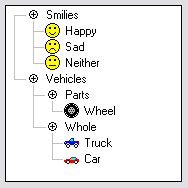
[edit]A tree view is usually a vertical list of nodes arranged in a tree-like structure.[1][2] Each node represents a single data item, displayed as an indented line of text or a rectangular box. The indentation (and sometimes a line drawn between nodes) is used to indicate levels of hierarchy. Every treeview has a root node from which all nodes descend. Below the root node and indented to the right are its child nodes. Each node has exactly one parent node and can have zero or more child nodes. If a node (other than the root node) has a child or children, it is called a branch node. If it has no child, then it is a leaf node.[3] This creates a hierarchical tree-like structure, with branches and subbranches emerging downward and rightwards. The nodes can be differentiated by different colors, icons and fonts to represent the nested relationship between parent nodes and child nodes.[2] An item can be expanded to reveal subitems, if any exist, and collapsed to hide subitems.
Features
[edit]Interactivity
[edit]Tree view allows users to interact with hierarchical data in a variety of ways, such as :
- expanding and collapsing nodes to reveal or to hide their child nodes and thus navigate through the tree structure according to one's needs.
- search and filter nodes based on specific criteria such as date.
- renaming or deleting using context menus.
- copying and moving (dragging and dropping) nodes to other sections of the tree to rearrange them.
- opening a node in a separate window.
Customizability
[edit]Tree views can be customized for visual appeal and efficiency in the following ways:
- Input methods : Tree views can be customized to support various input methods such as mouse, keyboard, and touch input so that users can interact using their preferred method. Users can use their mouse to click on a node to select it, move their mouse to drag and then release the mouse button to drop nodes to rearrange them. They can also use keyboard shortcuts to navigate and interact with the tree.
- Look and feel : Developers (and sometimes users) can tailor the look and feel of tree views as well to match specific visual requirements of certain applications. Icons, fonts and colors used to display nodes, animations and effects to represent node expansion and collapse, and custom behaviors for drag and drop actions can be implemented. The context menu options can be customized for an application so that users can only perform specific actions on nodes.
- Accessibility : tree views can offer accessibility features for users with disabilities.
Advantages
[edit]Tree views offer the following advantages :
- They display hierarchical data in a concise and easy-to-follow format, so that users can easily walk through and interact with the data.
- They are customizable, so their appearance and behavior can be tailored to meet specific requirements of an application.
- They are interactive and allow the use of different input methods.
- They are flexible and potent navigational tools which can be used in a variety of applications (such as file managers)
Disadvantages
[edit]- If the nested or hierarchical relationship of items is not to be emphasized, then tree view would not be the optimal choice. A regular list would be more appropriate.
- For large amounts of data or deeply nested hierarchies, tree views can become visually disorderly and difficult to navigate, leading to inefficiency and productivity loss because users would spend more time walking through the structure than working with the data.
- They are more complex and thus more difficult to maintain than simpler structures like lists and tables.
- For the developers, customization options with animations and complex behaviors can increase time spent on implementation and debugging.
Application
[edit]Tree views are used in situations where hierarchical data needs to be displayed and navigated in a graphical interface. For example, they have been used in:
- file managers to display the hierarchical structure of directories and files residing in a computer file system so that users can navigate the directory tree and open, close and manage their files more efficiently.
- email clients to display the hierarchical structure of email folders and messages, helping users to view and reply to email messages, and manage their inbox.
- organizational charts to display the hierarchical structure of an organization's employees and departments.
- network topologies
- programming frameworks for building graphical applications.
- XML documents to present hierarchical data.
- outliner applications (as extended tree view), where each node consists of editable text.
See also
[edit]- Directory (file systems) - an example of application of tree views
- File manager
- Genealogy software
References
[edit]- ^ a b Alan D. Moore (2021), Python GUI Programming with Tkinter: Design and build functional and user-friendly GUI applications, Packt Publishing Ltd, p. 238
- ^ a b c "Tree view". Microsoft Learn. 16 March 2023. Retrieved 19 April 2023.
- ^ "How to Use Trees". The Java™ Tutorials. Retrieved 19 April 2023.
External links
[edit]Tree view
View on GrokipediaDefinition and Appearance
Visual Structure
A tree view widget presents data in a hierarchical structure as a vertical list, with the root node positioned at the top and subsequent child nodes arranged below their respective parents.[1][2] This layout ensures a clear top-down flow that mirrors the logical organization of the data, facilitating easy navigation through nested levels.[4] Branch nodes, which contain child items, are distinguished from leaf nodes through the inclusion of expand/collapse icons, such as plus/minus symbols or directional arrows (e.g., chevrons pointing right when collapsed and down when expanded).[2][4] These icons provide a visual cue for the potential presence of sub-items without revealing them initially.[1] The depth of each node in the hierarchy is represented by progressive indentation levels, typically measured in pixels (e.g., 19 pixels per level in standard Windows implementations), which visually offsets child nodes from their parents.[6] For enhanced clarity, many tree views incorporate connecting lines or branches that link parent and child nodes, forming a diagrammatic outline of the structure.[7][1] Tree views are typically rendered using simple text labels for nodes, optionally accompanied by small icons (e.g., folder or file symbols) to denote node types, in a layout that emphasizes structural hierarchy over decorative elements.[4][8]Core Elements
The node serves as the basic unit in a tree view, representing a single item within the hierarchical structure and typically comprising a visible label for identification, an optional icon to denote type or status, and underlying metadata for additional context or functionality.[2][1] Nodes are distinguished by type: parent nodes, also known as branch nodes, which support one or more child nodes to form nested levels; and leaf nodes, which lack children and serve as endpoints in the hierarchy.[2][1] This distinction enables the representation of complex relationships, such as folders containing subfolders in a file system. Essential attributes of nodes ensure structural integrity and usability, including a unique node ID for reference and manipulation, a text label for user-readable display, and a child collection to manage subordinate nodes dynamically.[2] Additional properties, such as expansion state for parents, further support hierarchy navigation without altering core composition.[1] Early tree views in 1980s graphical user interfaces, emerging alongside foundational GUI systems, relied on simple text-based nodes to outline hierarchical data before advanced visual enhancements became standard.[9]Functionality and Features
Interactivity Mechanisms
Tree views provide essential interactivity to enable users to navigate and manipulate hierarchical data dynamically. A core mechanism is the expand/collapse functionality, which allows users to reveal or hide child nodes beneath a parent. This is typically activated by clicking an expand/collapse glyph or icon adjacent to the parent node, such as a chevron or plus/minus symbol.[2] Keyboard shortcuts further support accessibility, where pressing the right arrow key expands a collapsed node (with focus remaining on the parent) or moves to the first child if already expanded, while the left arrow key collapses an open node or navigates to the parent if focused on a child.[1] These interactions are often accompanied by events that developers can hook into for custom behaviors, such as loading child data on demand.[2] Selection mechanisms in tree views vary by mode to accommodate different user needs. In single selection mode, only one node can be selected at a time, typically by clicking the node or pressing the Enter key when focused, which is useful for straightforward navigation tasks.[4] Multiple selection mode extends this capability, often using checkboxes for independent toggling of nodes, including parent-child relationships, and can be enabled via properties like SelectionMode="Multiple".[2] Extended selection builds on multiple mode by incorporating keyboard modifiers: holding Ctrl allows non-contiguous selections by clicking individual nodes, while Shift enables contiguous selections from the current focus, such as Shift combined with arrow keys to select a range.[10] These modes ensure compatibility with standard UI conventions, with Space often toggling selection independently of focus.[1] Drag-and-drop operations enhance tree views by permitting users to rearrange nodes or transfer them between trees, facilitating tasks like file organization. Users initiate a drag by clicking and holding a node, then dropping it onto a target node or area, with visual cues like insertion lines indicating valid positions.[11] Features such as auto-scroll during drag, expansion of collapsed targets on hover, and restrictions to specific nodes improve usability and prevent errors.[11] This mechanism requires enabling properties like AllowDrop="True" and handling associated events for validation and execution.[2] Search and filtering capabilities allow dynamic navigation in large trees by highlighting or isolating relevant nodes. Incremental search, or type-ahead, enables users to type characters rapidly to move focus to matching nodes, starting with the next item whose label begins with the input sequence.[1] Dedicated filtering, often via an external input field, applies criteria to show only nodes meeting conditions, such as text matches or attributes, while hiding others; this can include built-in events for custom logic like case-sensitive or fuzzy matching.[11] These features maintain the tree's hierarchy, often expanding parents of filtered matches to ensure context, and support real-time updates as users refine queries.Customization Options
Tree views provide a range of styling options to align with aesthetic preferences and branding requirements. Developers can modify themes, colors, fonts, and icon sets for nodes through dedicated APIs or style sheets in various frameworks. For example, Qt's QTreeView uses style sheets to customize branch lines, item backgrounds, and text colors, enabling precise control over visual elements like indentation and selection highlights.[12] In JavaFX, the TreeView component leverages CSS to adjust font families, sizes, and node icons, allowing for thematic consistency across applications.[13] Web-based implementations, such as MUI X Tree View in React, support custom icon slots for expand, collapse, and end nodes, facilitating the use of bespoke icon libraries.[14] Behavioral customizations enhance user experience by fine-tuning interactions and data presentation. Animation speeds for expand and collapse operations can be adjusted to balance responsiveness and visual feedback; Telerik's RadTreeView, for instance, offers configurable animation types like linear expansion with variable durations.[15] Sorting rules for child nodes may be customized using comparators for alphabetical, numerical, or domain-specific ordering, as seen in .NET's TreeView where a TreeViewNodeSorter property enables overriding default text-based sorting.[16] These tweaks, including brief references to modifiable expand/collapse icons, allow developers to optimize hierarchy navigation without altering core interactivity. Input adaptations ensure accessibility across devices and modalities. Tree views commonly support mouse interactions for node selection and expansion, keyboard navigation via arrow keys and spacebar for traversal, and touch gestures like taps and swipes on mobile interfaces.[1] Frameworks like GTK's TreeView integrate with system-level input handling to accommodate these methods seamlessly.[17] Integration with broader themes, such as dark mode or right-to-left (RTL) languages, extends customization to cultural and environmental contexts. Dark mode support inverts colors for low-light viewing, with libraries like Qt-Material applying predefined palettes to QTreeView elements including node text and backgrounds.[18] For RTL languages, tree views can reverse hierarchy flow and text alignment; Kendo UI TreeView achieves this by loading RTL-specific CSS files that mirror node indentation and expansion directions.[19]Benefits and Drawbacks
Key Advantages
Tree views provide a space-efficient means of representing deep hierarchies by utilizing expandable and collapsible nodes, allowing users to view only the relevant levels of information at any given time without cluttering the interface. This approach maximizes screen real estate, particularly for complex structures that could otherwise span multiple pages or require excessive scrolling in flat lists.[20] The intuitive navigation offered by tree views mirrors natural tree structures, enabling users to quickly expand branches to access sub-items through familiar parent-child relationships. This design facilitates rapid traversal of hierarchical data, reducing cognitive load and improving task efficiency compared to linear representations.[20] Tree views achieve scalability for large datasets containing thousands of nodes by incorporating lazy loading techniques, where child nodes are loaded on demand rather than all at once, preventing performance degradation and memory overload. Such mechanisms ensure smooth operation even with extensive hierarchies, as demonstrated in scalable layout algorithms that handle hierarchies up to hundreds of thousands of nodes efficiently.[20][21] By visually encoding relationships through indentation and nesting, tree views enhance the discoverability of data interconnections, aiding users in comprehending overall structure and dependencies at a glance. This clarity supports better decision-making in analytical tasks involving hierarchical information.[20]Primary Disadvantages
Tree views encounter significant challenges when scaling to very deep or broad hierarchies, often resulting in visual clutter and user scrolling fatigue. As the number of levels or nodes increases, users must repeatedly expand and collapse branches while navigating extensive lists, which can obscure overall context and demand excessive vertical scrolling. This issue is particularly pronounced in applications with thousands of items, where the interface becomes overwhelming and slows task completion.[22] On smaller screens, such as mobile devices, these scalability problems intensify due to limited space and imprecise touch interactions. Compact node icons and dense layouts make it difficult for users to accurately select elements, leading to frustration and higher error rates in navigation. Alternatives like card-based or faceted search interfaces are frequently recommended to address these constraints in responsive designs.[23] Tree views are poorly suited for representing flat or non-hierarchical data structures, where their enforced parent-child relationships add unnecessary complexity. In scenarios involving loosely connected or similarity-based items, such as tag clouds or peer-to-peer networks, users benefit more from linear lists or grid layouts that avoid imposing artificial nesting. This rigidity can mislead users into perceiving dependencies that do not exist in the underlying data.[22] Maintaining tree views with dynamic data introduces substantial complexity, as frequent updates to node states—such as insertions, deletions, or expansions—require synchronized rendering to prevent inconsistencies or lags. In real-time applications, like collaborative editors, this often demands optimized algorithms for partial refreshes, yet broad hierarchies still risk computational overhead and disrupted user flows during changes.[24] The multi-level nature of tree views can impose cognitive overload, especially when users must process numerous nesting decisions across deep structures. This mental effort peaks on constrained displays, where partial visibility forces constant reorientation and increases the likelihood of abandonment. To mitigate, some implementations limit depth or integrate search aids, though these do not fully resolve the inherent demands on working memory.[23]Technical Implementations
Data Structures and Algorithms
Tree views rely on hierarchical data structures to represent and manipulate nested information efficiently. At their core, these implementations utilize n-ary trees, where each node stores relevant data—such as labels or identifiers—and maintains pointers or references to an arbitrary number of child nodes, enabling flexible representation of varying branch factors in the hierarchy.[25][26] This structure allows for dynamic expansion and collapse of branches without altering the overall organization. Efficient navigation and manipulation of tree views depend on traversal algorithms that systematically visit nodes. Depth-first traversal, often implemented recursively, is commonly used for expansion operations, as it delves deeply into one subtree before backtracking, mirroring the user-driven unfolding of nested levels.[27] In contrast, breadth-first traversal, typically using a queue, facilitates level-order searching across the tree, enabling operations like finding nodes at specific depths or scanning siblings before descending.[28] These algorithms ensure responsive interactions by processing only necessary portions of the structure during user queries. To optimize performance with large datasets, tree views incorporate lazy loading techniques, which defer the retrieval and rendering of child nodes until a parent node is explicitly expanded by the user.[29] This approach minimizes initial memory usage and computation, loading subtrees on demand via asynchronous calls, thereby preventing bottlenecks in rendering expansive hierarchies. The height of a tree, which influences layout and scrolling behaviors in the view, is calculated recursively to capture the longest path from the root to a leaf. The formula is defined as: This recursive computation propagates from leaves upward, allowing efficient determination of the tree's overall height and informing UI adjustments like vertical spacing or collapse thresholds.[30] Nodes in these structures may also include attributes for UI rendering, such as text labels or icons, to enhance visual representation.Framework-Specific Examples
In desktop applications, the Windows Forms TreeView control, part of the .NET Framework, enables developers to display hierarchical data as a series of expandable nodes, similar to the file explorer in Windows.[31] Developers can add nodes programmatically using theNodes.Add method, as shown in the following C# example:
TreeView treeView1 = new TreeView();
TreeNode node1 = new TreeNode("Parent Node");
treeView1.Nodes.Add(node1);
TreeNode childNode = new TreeNode("Child Node");
node1.Nodes.Add(childNode);
TreeView treeView1 = new TreeView();
TreeNode node1 = new TreeNode("Parent Node");
treeView1.Nodes.Add(node1);
TreeNode childNode = new TreeNode("Child Node");
node1.Nodes.Add(childNode);
<TreeView ItemsSource="{Binding Items}">
    <TreeView.ItemTemplate>
        <HierarchicalDataTemplate ItemsSource="{Binding Children}">
            <TextBlock Text="{Binding Name}" />
        </HierarchicalDataTemplate>
    </TreeView.ItemTemplate>
</TreeView>
<TreeView ItemsSource="{Binding Items}">
    <TreeView.ItemTemplate>
        <HierarchicalDataTemplate ItemsSource="{Binding Children}">
            <TextBlock Text="{Binding Name}" />
        </HierarchicalDataTemplate>
    </TreeView.ItemTemplate>
</TreeView>
<ul>) styled with CSS and enhanced via JavaScript libraries for interactivity. The jsTree library, a jQuery plugin, provides a robust solution for rendering interactive trees from HTML, JSON, or AJAX data sources, including drag-and-drop and search capabilities.[34] An initialization example in JavaScript is:
$('#tree').jstree({
    'core': {
        'data': [
            'Root node',
            {
                'text': 'Child node 1',
                'children': ['Grandchild 1']
            }
        ]
    }
});
$('#tree').jstree({
    'core': {
        'data': [
            'Root node',
            {
                'text': 'Child node 1',
                'children': ['Grandchild 1']
            }
        ]
    }
});
OutlineGroup(items, children: \.children) { item in
    Text(item.name)
}
OutlineGroup(items, children: \.children) { item in
    Text(item.name)
}
ExpandableListView widget supports two-level hierarchies with group headers that expand to reveal child items, suitable for categorized data like menus or file explorers.[37] It requires an ExpandableListAdapter to manage group and child views, as in this Kotlin example:
val adapter = object : BaseExpandableListAdapter() {
    override fun getGroupCount() = groups.size
    override fun getChildrenCount(groupPosition: Int) = groups[groupPosition].children.size
    // Implement getGroupView, getChildView, etc.
}
expandableListView.setAdapter(adapter)
val adapter = object : BaseExpandableListAdapter() {
    override fun getGroupCount() = groups.size
    override fun getChildrenCount(groupPosition: Int) = groups[groupPosition].children.size
    // Implement getGroupView, getChildView, etc.
}
expandableListView.setAdapter(adapter)
role="tree" for the container and role="treeitem" for individual nodes, which inform screen readers about the hierarchical structure.[38] The aria-expanded attribute toggles between "true" and "false" to indicate collapse/expand states, as in this HTML snippet:
<ul role="tree" aria-label="File hierarchy">
    <li role="treeitem" aria-expanded="false" tabindex="0">
        <span>Parent Folder</span>
        <ul role="group">
            <li role="treeitem">Child File</li>
        </ul>
    </li>
</ul>
<ul role="tree" aria-label="File hierarchy">
    <li role="treeitem" aria-expanded="false" tabindex="0">
        <span>Parent Folder</span>
        <ul role="group">
            <li role="treeitem">Child File</li>
        </ul>
    </li>
</ul>