Recent from talks
Nothing was collected or created yet.
Ver (command)
View on Wikipedia| ver | |
|---|---|
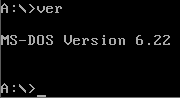
![]() Running ver on MS-DOS | |
| Developers | DEC, TSC, Heath Company, Microsoft, IBM, DR, Novell, Toshiba, JP Software, ReactOS Contributors |
| Operating system | OS/8, FLEX, HDOS, DOS, MSX-DOS, FlexOS, SpartaDOS X, 4690 OS, OS/2, Windows, ReactOS, KolibriOS, SymbOS, DexOS |
| Platform | Cross-platform |
| Type | Command |
In computing, ver (short for version) is a command in various command-line interpreters (shells) such as COMMAND.COM, cmd.exe and 4DOS/4NT. It prints the name and version of the operating system, the command shell, or in some implementations the version of other commands. It is roughly equivalent to the Unix command uname.
Implementations
[edit]
ver command on ReactOSThe command is available in FLEX, HDOS,[1] DOS, FlexOS,[2] SpartaDOS X,[3] 4690 OS,[4] OS/2,[5] Windows,[6] and ReactOS.[7] It is also available in the open-source MS-DOS emulator DOSBox, in the KolibriOS Shell[8] and in the EFI shell.[9]
TSC FLEX
[edit]In TSC's FLEX operating system, the VER command is used to display the version number of a utility or program.[10] In some versions the command is called VERSION.[11][12]
DOS
[edit]The command is available in MS-DOS versions 2 and later.[13] MS-DOS versions up to 6.22 typically derive the DOS version from the DOS kernel. This may be different from the string printed on start-up. The argument "/r" can be added to give more information and to list whether DOS is running in the HMA (high memory area).
PC DOS typically derives the version from an internal string in command.com (so PC DOS 6.1 command.com reports the version as 6.10, although the kernel version is 6.00.)
DR DOS 6.0 also includes an implementation of the ver command.[14] DR-DOS reports whatever value the environment variable OSVER reports.
PTS-DOS includes an implementation of this command that can display, modify, and restore the DOS version number.[15]
IBM OS/2
[edit]OS/2 command.com reports an internal string, with the OS/2 version. The underlying kernel here is 5.00, but modified to report x0.xx (where x.xx is the OS/2 version).
Microsoft Windows
[edit]
winver command on Windows 11Windows 9x command.com report a string from inside command.com. The build version (e.g. 2222), is also derived from there.
Windows NT command.com reports either the 32-bit processor string (4nt, cmd), or under some loads, MS-DOS 5.00.500, (for all builds). The underlying kernel reports 5.00 or 5.50 depending on the interrupt. MS-DOS 5.00 commands run unmodified on NT.
Microsoft Windows also includes a GUI (Windows dialog) variant of the command called winver, which shows the Service Pack or Windows Update installed (if any) as well as the version. In Windows before Windows for Workgroups 3.11, running winver from DOS reported an embedded string in winver.exe.
Windows also includes the setver command that is used to set the version number that the MS-DOS subsystem (NTVDM) reports to a DOS program.[16] This command is not available on Windows XP 64-Bit Edition.[17]
DOSBox
[edit]In DOSBox, the command is used to view and set the reported DOS version. It also displays the running DOSBox version. The syntax to set the reported DOS version is the following:
VER SET <MAJOR> [MINOR]
The parameter MAJOR is the number before the period, and MINOR is what comes after.
Versions can range from 0.0 to 255.255. Any values over 255 will loop from zero. (That is, 256=0, 257=1, 258=2, etc.)[18]
Others
[edit]AmigaDOS provides a version command. It displays the current version number of the Kickstart and Workbench.[19] The DEC OS/8 CCL ver command prints the version numbers of both the OS/8 Keyboard Monitor and CCL.[20]
Syntax
[edit]C:\WINDOWS\system32>ver
Microsoft Windows [Version 10.0.10586]
Some versions of MS-DOS support an undocumented /r switch, which will show the revision as well as the version.
Version list
[edit]The following table lists version numbers from various Microsoft operating systems:[21][22][23]
| Official | OS | Version number |
|---|---|---|
| Windows 1.0 | 1.04 | |
| Windows 2.0 | 2.11 | |
| Windows 3.0 | 3 | |
| Windows NT 3.1 | 3.10.528 | |
| Windows for Workgroups 3.11 | 3.11 | |
| Windows NT 3.5 | 3.50.807 | |
| Windows NT 3.51 | 3.51.1057 | |
| Windows 95 | 4.00.950 | |
| Windows 95 OSR2 | 4.00.1111 | |
| Windows 95 OSR2.1 | 4.03.1212-1214 | |
| Windows 95 OSR2.5 | 4.03.1214-1216 | |
| Windows NT 4.0 | 4.00.1381 | |
| Windows 98 | 4.10.1998 | |
| Windows 98 SE | 4.10.2222 | |
| - | Windows ME Beta | 4.90.2380.2 |
| - | Windows ME Beta 2 | 4.90.2419 |
| Windows ME | 4.90.3000 | |
| - | Windows NT 5.0 Beta | 5.00.1515 |
| - | Windows 2000 Beta 3 | 5.00.2031 |
| - | Windows 2000 RC2 | 5.00.2128 |
| - | Windows 2000 RC3 | 5.00.2183 |
| X | Windows 2000 | 5.00.2195 |
| X | Windows 2000 Professional | 5.0.2195 |
| - | Windows XP RC1 | 5.1.2505 |
| Windows XP | 5.1.2600 | |
| Windows XP SP1 | 5.1.2600.1105-1106 | |
| Windows XP SP2 | 5.1.2600.2180 | |
| Windows XP SP3 | 5.1.2600 | |
| Windows .NET Server interim | 5.2.3541 | |
| - | Windows .NET Server Beta 3 | 5.2.3590 |
| Windows .NET Server RC1 | 5.2.3660 | |
| Windows .NET Server 2003 RC2 | 5.2.3718 | |
| - | Windows Server 2003 Beta | 5.2.3763 |
| Windows XP Professional x64 Edition Windows Server 2003 Windows Home Server |
5.2.3790 | |
| Windows Server 2003 SP1 | 5.2.3790.1180 | |
| Windows Server 2003 | 5.2.3790.1218 | |
| Windows Longhorn | 6.0.5048 | |
| - | Windows Vista Beta 1 | 6.0.5112 |
| - | Windows Vista CTP | 6.0.5219 |
| - | Windows Vista TAP Preview | 6.0.5259 |
| - | Windows Vista CTP December | 6.0.5270 |
| - | Windows Vista CTP February | 6.0.5308 |
| - | Windows Vista CTP Refresh | 6.0.5342 |
| - | Windows Vista April EWD | 6.0.5365 |
| - | Windows Vista Beta 2 Preview | 6.0.5381 |
| - | Windows Vista Beta 2 | 6.0.5384 |
| - | Windows Vista Pre-RC1 Build 5456 | 6.0.5456 |
| - | Windows Vista Pre-RC1 Build 5472 | 6.0.5472 |
| - | Windows Vista Pre-RC1 Build 5536 | 6.0.5536 |
| - | Windows Vista RC1 | 6.0.5600.16384 |
| - | Windows Vista Pre-RC2 | 6.0.5700 |
| - | Windows Vista Pre-RC2 Build 5728 | 6.0.5728 |
| - | Windows Vista RC2 | 6.0.5744.16384 |
| - | Windows Vista Pre-RTM Build 5808 | 6.0.5808 |
| - | Windows Vista Pre-RTM Build 5824 | 6.0.5824 |
| - | Windows Vista Pre-RTM Build 5840 | 6.0.5840 |
| Windows Vista | 6.0.6000 | |
| Windows Vista RTM | 6.0.6000.16386 | |
| Windows Vista SP1 Windows Server 2008 SP1 |
6.0.6001 | |
| Windows Vista SP2 Windows Server 2008 SP2 |
6.0.6002 | |
| Windows 7 Windows Server 2008 R2 |
6.1.7600 | |
| Windows 7 Windows Server 2008 R2 RTM |
6.1.7600.16385 | |
| X | Windows 7 SP1 Windows Server 2008 R2 SP1 |
6.1.7601 |
| Windows Home Server 2011 | 6.1.8400 | |
| - | Windows Server 2012 Developer Preview Windows 8 Developer Preview |
6.2.8102 |
| Windows 8 Windows Server 2012 |
6.2.9200 | |
| Windows 8 RTM | 6.2.9200.16384 | |
| Windows Phone 8 | 6.2.10211 | |
| Windows 8.1 Windows Server 2012 R2 |
6.3.9200 | |
| Windows 8.1 Update 1 Windows Server 2012 R2 |
6.3.9600 | |
| - | Windows 10 Technical Preview 1 | 6.4.9841 |
| - | Windows 10 Technical Preview 2 | 6.4.9860 |
| - | Windows 10 Technical Preview 3 | 6.4.9879 |
| - | Windows 10 Technical Preview 4 | 10.0.9926 |
| - | Windows 10 Technical Preview 5 | 10.0.10041 |
| - | Windows 10 Technical Preview 6 | 10.0.10049 |
| X | Windows 10 Threshold 1 (Windows 10 RTM) | 10.0.10240 |
| X | Windows 10 Threshold 2 (November Update, Version 1511) | 10.0.10586 |
| X | Windows 10 Redstone 1 (Anniversary Update, Version 1607) Windows Server 2016 |
10.0.14393 |
| - | Windows 10 Insider Preview | 10.0.14915 |
| X | Windows 10 Redstone 2 (Creators Update, Version 1703) | 10.0.15063 |
| X | Windows 10 Redstone 3 (Fall Creators Update, Version 1709) | 10.0.16299 |
| X | Windows 10 Redstone 4 (April 2018 Update, Version 1803) | 10.0.17134 |
| X | Windows 10 Redstone 5 (October 2018 Update, Version 1809) | 10.0.17763 |
| X | Windows 10 19H1 May 2019 (Version 1903) | 10.0.18362 |
| X | Windows 10 19H2 November 2019 (Version 1909) | 10.0.19002 |
| X | Windows 10 20H1 May 2020 (Version 2004) | 10.0.19041 |
| X | Windows 10 20H2 October 2020 (Version 20H2) | 10.0.19042 |
| X | Windows 10 21H1 May 2021 (Version 2009) | 10.0.19043 |
| X | Windows 10 21H2 November 2021 (Version 21H2) | 10.0.19044 |
| X | Windows 10 22H2 October 2022 (Version 22H2) | 10.0.19045 |
| X | Windows 11 October 2021 (RTM) | 10.0.22000 |
| X | Windows 11 September 2022 (Version 22H2) | 10.0.22621 |
| X | Windows 11 October 2023 (Version 23H2) | 10.0.22631 |
| X | Windows 11 October 2024 (Version 24H2) | 10.0.26100 |
See also
[edit]References
[edit]- ^ "Software Reference Manual HDOS SYSTEM Chapter 2 General Operations" (PDF). Heath Company. Archived from the original (PDF) on 2017-08-07. Retrieved 2020-02-08.
- ^ FlexOS™ User's Guide bitsavers.org Archived 2019-09-25 at the Wayback Machine
- ^ "SpartaDOS X 4.48 User Guide" (PDF). Archived (PDF) from the original on 2021-10-10. Retrieved 2019-03-17.
- ^ https://archive.org/details/4690OSV6r2UsersGuide/page/n169 [permanent dead link]
- ^ "JaTomes Help - OS/2 Commands". Archived from the original on 2019-04-14. Retrieved 2019-07-21.
- ^ "Microsoft TechNet Ver article". 11 September 2009. Archived from the original on 2018-02-03. Retrieved 2018-04-02.
- ^ "Reactos/Reactos". GitHub. 4 November 2021.
- ^ "Shell - KolibriOS wiki".
- ^ "EFI Shells and Scripting". Intel. Retrieved 2013-09-25.
- ^ "FLEX 9.0 User's Manual" (PDF). Archived (PDF) from the original on 2021-07-25. Retrieved 2019-06-10.
- ^ "FLEX User's Manual (miniFLEX)" (PDF). Archived (PDF) from the original on 2021-07-25. Retrieved 2019-06-10.
- ^ "FLEX 2.0 User's Manual" (PDF). Archived (PDF) from the original on 2021-07-25. Retrieved 2019-06-10.
- ^ Wolverton, Van (2003). Running MS-DOS Version 6.22 (20th Anniversary Edition), 6th Revised edition. Microsoft Press. ISBN 0-7356-1812-7.
- ^ "DR DOS 6.0 User Guide Optimisation and Configuration Tips" (PDF). Archived from the original on 2019-09-30. Retrieved 2019-08-13.
- ^ "PTS-DOS 2000 Pro User Manual" (PDF). Buggingen, Germany: Paragon Technology GmbH. 1999. Archived (PDF) from the original on 2018-05-12. Retrieved 2018-05-12.
- ^ "MS-DOS subsystem commands". Archived from the original on 2019-04-13. Retrieved 2019-04-21.
- ^ "Setver | Microsoft Docs". 11 September 2009. Archived from the original on 2019-08-15. Retrieved 2019-08-15.
- ^ "Commands - DOSBoxWiki". Archived from the original on 2019-08-14. Retrieved 2019-08-14.
- ^ Rugheimer, Hannes (1988). AmigaDOS quick reference. Abacus. ISBN 9781557550491.
- ^ "Concise Command Language" (CCL)."OS/8 Handbook" (PDF). April 1974. Retrieved 28 November 2017.
- ^ "VER output values". robvanderwoude.com.
- ^ "Windows Version Numbers". gaijin.at.
- ^ "Operating System Version - Win32 apps". 5 November 2021.
Further reading
[edit]- Wolverton, Van (1990). MS-DOS Commands: Microsoft Quick Reference, 4th Revised edition. Microsoft Press. ISBN 978-1556152894.
- Kathy Ivens; Brian Proffit (1993). OS/2 Inside & Out. Osborne McGraw-Hill. ISBN 978-0078818714.
- Frisch, Æleen (2001). Windows 2000 Commands Pocket Reference. O'Reilly. ISBN 978-0-596-00148-3.
External links
[edit]Ver (command)
View on Grokipediaver command is an internal command in the Microsoft Windows Command Prompt (cmd.exe) that displays the current operating system's version number, including major, minor, and build details.[1] It originated as part of the MS-DOS command interpreter and has been retained in Windows for backward compatibility, functioning similarly across versions from MS-DOS through modern Windows releases.[2] Unlike more comprehensive tools like systeminfo or winver, ver provides a concise output focused solely on the OS version string, making it a quick diagnostic option for scripts or troubleshooting.[1]
Syntax and Usage
The command has no parameters beyond the optional help flag:ver
ver
ver in cmd.exe outputs a line such as "Microsoft Windows [Version 10.0.19045.5011]", reflecting the OS name and version details.[1] For help, use ver /?, which displays basic usage information.[1] It is not supported in PowerShell; instead, PowerShell users should employ $PSVersionTable.OS or [Environment]::OSVersion.Version for equivalent functionality.[1]
Remarks and Compatibility
Thever command does not include release identifiers or service pack details, limiting its output compared to graphical methods like the Settings app or winver dialog.[3] It remains available in all Windows versions supporting cmd.exe, from Windows NT through Windows 11, but is considered a legacy tool in favor of modern APIs for version querying.[1] In MS-DOS environments, it simply reported the DOS version, such as "MS-DOS Version 6.22".[2]
Introduction
Purpose and Functionality
Thever command is a command-line utility in Microsoft DOS and Windows operating systems that displays the name and version of the operating system or command shell.[1][4] In DOS environments, it outputs the MS-DOS version number, such as "MS-DOS Version 6.22," while in Windows, it typically shows output like "Microsoft Windows [Version 10.0.19045]."[2] Since Windows 10, the output uses the kernel version numbering, displaying "Version 10.0.xxxx" for both Windows 10 and Windows 11 (e.g., "Microsoft Windows [Version 10.0.26100.3775]" for Windows 11 25H2 as of November 2025).[1] This functionality extends to related components in some implementations, providing a straightforward way to retrieve version information directly from the shell.[3]
The primary uses of the ver command include system diagnostics, verifying the operating system version to assess software compatibility, and troubleshooting in command-line environments.[3] For instance, administrators and scripts often invoke ver to check the OS build for ensuring applications run correctly or to diagnose environment-specific issues without requiring elevated privileges.[5] It serves as a quick tool for confirming the runtime environment during batch processing or remote sessions.[3]
Introduced in early PC operating systems like MS-DOS to offer immediate access to version data without relying on graphical interfaces or manual file inspections, the command remains a staple for command-line users.[2] In contrast to Unix-like systems' uname -a command, which outputs kernel, hardware, and processor details, ver emphasizes concise version strings tailored to Microsoft ecosystems.[3]
Historical Context
The origins of the ver command trace back to early operating systems in the 1970s and 1980s, including Digital Equipment Corporation's (DEC) OS/8, which introduced a VERSION command to display the version numbers of the OS/8 Monitor and the Concise Command Language (CCL) program.[6] Similarly, in the late 1970s, Technical Systems Consultants' (TSC) FLEX operating system for the Motorola 6800 microprocessor featured a VER command that displayed the version number of a specified utility or program, such as CAT, using the syntax VER,Implementations
DOS and Derivatives
The ver command was introduced in MS-DOS 2.0, released in 1983, as an internal utility to display the operating system's version number on the screen.[13] In PC DOS 2.00, the contemporaneous IBM variant, executing the command produced output such as "IBM Personal Computer DOS Version 2.00" or the extended form "The IBM Personal Computer DOS Version 2.00 (C) Copyright IBM Corp 1981, 1982, 1983".[13] This simple text-based response supported the new features of DOS 2.0, including fixed disk and subdirectory handling, and was accessible via the command prompt in 16-bit real-mode environments without any graphical interface.[10] In later iterations of PC DOS, the command continued to report specific IBM-branded versions, such as "PC DOS Version 7.00" following the release of PC DOS 7 in April 1995.[14] Starting with DOS 5.0 in 1991, an undocumented /R switch enhanced the ver command's output by including the DOS revision number and details on memory loading, such as whether the DOS module resided in low memory, the High Memory Area (HMA), or ROM.[15] This switch, applicable to both MS-DOS and PC DOS derivatives, provided diagnostic utility for system configuration without altering the core syntax of simply typing "ver".[16] Derivatives like DR-DOS and Novell DOS extended the command's functionality with more detailed, multi-line outputs to reflect their enhanced features, such as improved memory management and networking. For instance, in DR-DOS 6.0, the ver command displayed "DR DOS Version 6.00" followed by a copyright line like "(C) Copyright 1991 Digital Research Inc.", offering users a clearer view of the OEM-specific build.[11] Novell DOS, succeeding DR-DOS, maintained this format for compatibility while integrating server-oriented details in its version reporting.[17] The ver command operated exclusively in 16-bit DOS environments, which lacked any built-in graphical user interface until the introduction of Windows 3.0 in 1990, a shell that layered a GUI atop the underlying DOS system.[18] Modern open-source implementations, such as FreeDOS—initiated in 1994 to preserve DOS compatibility—emulate the original ver behavior to ensure seamless execution of legacy 16-bit software.[19] In FreeDOS, the command typically mirrors MS-DOS outputs like "MS-DOS Version x.xx" for broad compatibility, though the /R option reveals FreeCOM shell details, such as build date and swap configuration.[20]OS/2 and Windows NT
The ver command in IBM OS/2, introduced in 1987 with version 1.0, provided essential version reporting for the operating system's 16-bit protected mode kernel, displaying outputs such as "OS/2 Version 1.00" to indicate the base release level. As OS/2 evolved into 32-bit architectures, the command incorporated additional kernel details for diagnostic purposes, particularly in later releases like IBM OS/2 Warp 4.0 from 1996, which output "IBM OS/2 Warp 4.0 (14.00.0)" to reflect the enhanced Workplace Shell and kernel revision 14.[21] This reporting mechanism supported the system's transition from dual 16/32-bit compatibility to full 32-bit operation, aiding developers and administrators in verifying subsystem integrity, including elements of the Presentation Manager graphical interface integrated since OS/2 1.1.[22] In the Windows NT lineage, the ver command first appeared with Windows NT 3.1 in 1993, marking Microsoft's entry into enterprise 32-bit computing with outputs like "Windows NT Version 3.1 (Build 1381)" that emphasized the NT kernel's version and build number for precise system identification.[23] Unlike DOS-derived systems, NT's ver focused on kernel versioning to facilitate server diagnostics and stability tracking in networked environments, reflecting the platform's design for robustness over consumer simplicity. To address legacy DOS application compatibility in this 32-bit environment, Microsoft introduced the setver.exe utility with Windows NT 3.5 in 1994, allowing administrators to override the reported DOS version number via a version table in MSDOS.SYS, ensuring older software could query a simulated environment without native 16-bit DOS support.[24] The integration of ver in both OS/2 and Windows NT underscored their shared roots in 32-bit multitasking while diverging in emphasis: OS/2's outputs often bundled Presentation Manager specifics for GUI-centric workflows, whereas NT prioritized build numbers for server-side troubleshooting and hotfix verification. Setver.exe proved vital during NT's early adoption for bridging 16-bit app gaps but was discontinued in later NT versions post-2000 as 32-bit native development matured and DOS emulation shifted toward virtualized solutions.[25] This evolution highlighted the platforms' pivot from DOS heritage—maintained briefly for compatibility—to standalone 32-bit ecosystems.Microsoft Windows Command Prompt
Thever command in the Microsoft Windows Command Prompt (cmd.exe), available since Windows NT 3.1 in 1993 and continuing through modern versions, outputs the operating system version in the format "Microsoft Windows [Version major.minor.build]". This displays the NT kernel version number, which serves as the effective OS identifier rather than the marketing name; for instance, Windows 11 reports as Version 10.0 despite its distinct branding.[1][26] The command is commonly used in batch scripts for conditional logic based on OS version, such as enabling compatibility checks or feature detection.[3]
The output format and version numbers have evolved alongside Windows releases starting from consumer-oriented editions. Windows XP (2001) displays Version 5.1.2600, reflecting its foundational NT 5.1 kernel. Windows Vista (2006) shows Version 6.0.6000, introducing the NT 6.0 kernel with enhanced security features. Windows 10 (2015) uses Version 10.0.10240 for its initial release, establishing the ongoing 10.0 major version for subsequent updates. In Windows 11 version 25H2 (2025), the ver command reports Version 10.0.26200, with the November 2025 Patch Tuesday cumulative update KB5068861 advancing the build to 10.0.26200.7171 while preserving the core reporting mechanism without alterations to version display logic.[26][27][28]
For more detailed version information, including edition and installation ID, users can invoke the graphical winver utility, which has been available since Windows 3.1 in 1992 and provides a dialog with build specifics beyond the command-line output. In PowerShell, there is no native ver equivalent; it must be executed via cmd /c ver to retrieve the same information.[1][29]
Emulators and Other Systems
In emulators such as DOSBox, released in 2002, the ver command displays the emulated DOS version along with the DOSBox emulator version itself. This functionality aids in running legacy DOS software that checks the reported OS version before execution. Users can adjust the emulated version using the SETVER subcommand, for instance, by enteringVER SET 5 0 to mimic DOS 5.0 for compatibility with applications designed for Windows 95 environments.
ReactOS, an open-source project initiated in 1998 to emulate Windows NT compatibility, includes a ver command that displays version information in a format akin to Windows NT systems.[30] This output supports testing of NT-based applications by providing expected version strings, ensuring seamless integration during development and verification processes.[30]
The EFI Shell, introduced around 2005 as part of the UEFI specification, features a ver command that outputs the UEFI firmware version details. For example, ver reveals the shell version and firmware build, while ver -terse provides a concise firmware revision, essential for pre-boot diagnostics and firmware management in modern hardware environments.[31]
AmigaDOS, debuting in 1985 with the Amiga 1000, offers a version command variant that reports the current Kickstart ROM and Workbench GUI versions.[32] This allows developers and users to verify system compatibility for Amiga-specific software, distinguishing it from x86 DOS implementations by focusing on Amiga hardware firmware levels.[32]
Historically, the DEC OS/8 operating system from 1974 includes a ver command in its Concise Command Language (CCL) that prints the version numbers of the OS/8 Keyboard Monitor and CCL itself.[6] Executing VERSION yields output like "OS/8 V3D CCL V01A," supporting early minicomputer users in confirming software revisions for PDP-8 compatibility.[6]
In FreeDOS, an open-source DOS-compatible system, the ver command shows the kernel and shell versions, with the `/?" option displaying built-in help for syntax and options. Similarly, vDOS, a DOS emulator optimized for Windows, supports ver to report the emulated DOS version, often used alongside its HELP command for detailed usage.[33] These implementations facilitate guest OS verification within virtual machines, where ver confirms the emulated environment matches legacy application requirements.
During the 2020s, emulators like DOSBox-X have seen enhancements for Windows 11 compatibility, including refined ver command support to emulate specific DOS versions for testing legacy software that performs OS checks. This enables developers to validate application behavior in virtualized DOS setups without native 16-bit support, which Windows 11 discontinued.
Syntax and Usage
Basic Syntax
Thever command is invoked by simply typing ver at the command prompt in compatible command-line interpreters, such as COMMAND.COM in MS-DOS or cmd.exe in Microsoft Windows, to display the operating system's version information.[1][10] This basic form requires no input arguments or parameters, producing an immediate output of the version string followed by a return to the command prompt upon successful execution.[1][10]
In platform-agnostic usage, the command operates within DOS-derived shells like those in MS-DOS versions 1.0 and later or Windows Command Prompt, but attempting to run it in Unix-like shells (e.g., Bash) results in a "command not found" error since it is not a native Unix command.[10][34] Upon successful invocation, the command returns an exit code of 0, indicating normal completion without errors.[2] While the core syntax remains consistent across DOS implementations, minor variations in output formatting may occur depending on the specific DOS version or derivative.[10]
Options and Variations
The ver command in most implementations supports few or no options, prioritizing a parameter-free invocation for straightforward version reporting across DOS derivatives and compatible systems. This design ensures broad compatibility, though select variants introduce switches for diagnostic or configuration purposes. In MS-DOS versions 5.0 and later, the undocumented /R switch extends the output to include the DOS revision level and the memory location of the DOS module, such as indicating if DOS is loaded in the High Memory Area (HMA). For instance, on MS-DOS 7.10, ver /R might display "Windows 98 [Version 4.10.2222] Revision A DOS is in HMA." The /? switch, available in various DOS variants, invokes basic help text describing the command's function.[35] The Microsoft Windows Command Prompt implementation of ver remains optionless, outputting solely the operating system version without switches or parameters. Users seeking detailed version data, including build numbers and service packs, must turn to alternatives like the WMIC command: wmic os get version, which provides structured output via Windows Management Instrumentation but operates independently of ver.[1][36] In emulators such as DOSBox, ver gains configurability with the set parameter, enabling users to override the reported DOS version for software compatibility; the syntax is ver setOutput and Version Information
Example Outputs Across Platforms
Thever command produces outputs that differ across platforms, reflecting the underlying operating system's naming conventions and version schemes, though all typically include a major and minor version component, often with a build number where applicable.[1] In MS-DOS 6.22, released in 1994, executing ver displays a simple single-line string indicating the edition and version.
MS-DOS Version 6.22
MS-DOS Version 6.22
OS/2 Version 20.00 (IBM OS/2 2.00)
ver command yields a formatted string prefixed with the OS name and enclosed in brackets, emphasizing the NT kernel's version numbering scheme (major 10, minor 0, followed by the build).[27]
Microsoft Windows [Version 10.0.26200]
ver command displays both the emulated DOS version and the DOSBox version. For instance, with default settings (emulating DOS 5.00) in DOSBox 0.74.3, the output is:
DOSBox version 0.74.3
IBM PC DOS version 5.00
DOSBox version 0.74.3
IBM PC DOS version 5.00
DOSBox version 0.74.3
IBM Personal Computer DOS Version 3.30
DOSBox version 0.74.3
IBM Personal Computer DOS Version 3.30
DR DOS Version 6.00
DR DOS Version 6.00
ver command adapts to each platform's conventions while consistently conveying core version details for compatibility and diagnostics.
Version Number Formats and Interpretation
Thever command in MS-DOS and its derivatives reports the operating system version in a major.minor format, such as "MS-DOS Version 6.22," where the major number indicates the primary release (e.g., 6 for MS-DOS 6.x) and the minor number specifies the update level (e.g., 22 for the final retail edition released in 1994).[2] This simple two-part structure was designed for early compatibility checks by applications relying on DOS interrupt 21h function 30h to query the version, ensuring programs could verify support for features introduced in specific releases, such as multitasking in version 5.0 or long filename support in 6.0.[41]
In Windows NT-based systems, including Windows 10 and 11, the ver command outputs a more detailed format: "Microsoft Windows [Version major.minor.build]," such as "Version 10.0.19041," omitting the revision number in display but including it internally (e.g., 10.0.19041.1).[3] Here, the major version denotes the OS family (10 for both Windows 10 and 11, reflecting shared kernel architecture since Windows 11 builds on the Windows 10 codebase), the minor version typically remains 0 for consumer editions, and the build number tracks cumulative updates and feature releases (e.g., 19041 for Windows 10 version 20H1).[42] For interpretation, build numbers below 22000 generally indicate Windows 10, while 22000 and above signify Windows 11, though the major version stays at 10; as of November 2025, Windows 11 version 25H2 uses build 26200.7171 following the KB5068861 update.[28] This format aids in identifying patch levels for security and compatibility, with Windows 10 having reached end-of-support on October 14, 2025, after which no further builds receive free updates.[43]
For compatibility, legacy DOS applications often parse the ver output or query the DOS version API to enforce minimum requirements, such as needing version 3.3 for extended memory support; in Windows environments emulating DOS, the setver.exe utility allows overriding the reported version for specific executables (e.g., setver oldapp.exe 5.00) to trick incompatible programs into running on newer hosts without actual downgrading.[44] Notably, Windows 11 internally reports as version 10.0 via ver to maintain binary compatibility with Windows 10 software, requiring alternative commands like wmic os get caption,version for distinguishing the edition and full details.[42]
