




Pixel density
View on Wikipedia | This article needs additional citations for verification. (May 2023) |
Pixels per inch (ppi) and pixels per centimetre (ppcm or pixels/cm) are measurements of the pixel density of an electronic image device, such as a computer monitor or a television set's display, or image digitizing device such as a camera or image scanner. Horizontal and vertical density are usually the same, as most devices have square pixels, but differ on devices that have non-square pixels. Pixel density is not the same as resolution — where the former describes the amount of detail on a physical surface or device, the latter describes the amount of pixel information regardless of its scale. Considered in another way, a pixel has no inherent size or unit (a pixel is actually a sample), but when it is printed, displayed, or scanned, then the pixel has both a physical size (dimension) and a pixel density (ppi).[1]
Basic principles
[edit]Since most digital hardware devices use dots or pixels, the size of the media (in inches) and the number of pixels (or dots) are directly related by the 'pixels per inch'. The following formula gives the number of pixels, horizontally or vertically, given the physical size of a format and the pixels per inch of the output:

Pixels per inch (or pixels per centimetre) describes the detail of an image file when the print size is known. For example, a 100×100 pixel image printed in a 2 inch square has a resolution of 50 pixels per inch. Used this way, the measurement is meaningful when printing an image. In many applications, such as Adobe Photoshop, the program is designed so that one creates new images by specifying the output device and PPI (pixels per inch). Thus the output target is often defined upon creating the image.
Outputting to a different device
[edit]When moving images between devices, such as printing an image that was created on a monitor, it is important to understand the pixel density of both devices. Consider a 23″ HD monitor (20″ wide), that has a known, native resolution of 1920 pixels (horizontal). Let us assume an artist created a new image at this monitor resolution of 1920 pixels, possibly intended for the web without regard to printing. Rewriting the formula above can tell us the pixel density (PPI) of the image on the monitor display:

Now, let us imagine the artist wishes to print a larger banner at 48″ horizontally. We know the number of pixels in the image, and the size of the output, from which we can use the same formula again to give the PPI of the printed poster:

This shows that the output banner will have only 40 pixels per inch. Since a printer device is capable of printing at 300 ppi, the resolution of the original image is well below what would be needed to create a decent quality banner, even if it looked good on a monitor for a website. We would say more directly that a 1920 × 1080 pixel image does not have enough pixels to be printed in a large format.
Printing on paper
[edit]Printing on paper is accomplished with different technologies. Newspapers and magazines were traditionally printed using a halftone screen,[2] which would print dots at a given frequency, the screen frequency, in lines per inch (LPI) by using a purely analog process in which a photographic print is converted into variable sized dots through interference patterns passing through a screen. Modern inkjet printers can print microscopic dots at any location, and don't require a screen grid, with the metric dots per inch (DPI). These are both different from pixel density or pixels per inch (PPI) because a pixel is a single sample of any color, whereas an inkjet print can only print a dot of a specific color either on or off. Thus a printer translates the pixels into a series of dots using a process called dithering. The dot pitch, smallest size of each dot, is also determined by the type of paper the image is printed on. An absorbent paper surface, uncoated recycled paper for instance, lets ink droplets spread — so has a larger dot pitch.[3]
Often one wishes to know the image quality in pixels per inch (PPI) that would be suitable for a given output device. If the choice is too low, then the quality will be below what the device is capable of—loss of quality—and if the choice is too high then pixels will be stored unnecessarily—wasted disk space. The ideal pixel density (PPI) depends on the output format, output device, the intended use and artistic choice. For inkjet printers measured in DPI it is generally good practice to use half or less than the DPI to determine the PPI. For example, an image intended for a printer capable of 600 dpi could be created at 300 ppi. When using other technologies such as AM or FM screen printing, there are often published screening charts that indicate the ideal PPI for a printing method.[4]
Using the DPI or LPI of a printer remains useful to determine PPI until one reaches larger formats, such as 36" or higher, as the factor of visual acuity then becomes more important to consider. If a print can be viewed close up, then one may choose the printer device limits. However, if a poster, banner or billboard will be viewed from far away then it is possible to use a much lower PPI.[citation needed]

Computer displays
[edit]The PPI/PPCM of a computer display is related to the size of the display in inches/centimetres and the total number of pixels in the horizontal and vertical directions. This measurement is often referred to as dots per inch, though that measurement more accurately refers to the resolution of a computer printer.
For example, a 15-inch (38 cm) display whose dimensions work out to 12 inches (30.48 cm) wide by 9 inches (22.86 cm) high, capable of a maximum 1024×768 (or XGA) pixel resolution, can display around 85 PPI, or 33.46 PPCM, in both the horizontal and vertical directions. This figure is determined by dividing the width (or height) of the display area in pixels by the width (or height) of the display area in inches. It is possible for a display to have different horizontal and vertical PPI measurements (e.g., a typical 4:3 ratio CRT monitor showing a 1280×1024 mode computer display at maximum size, which is a 5:4 ratio, not quite the same as 4:3). The apparent PPI of a monitor depends upon the screen resolution (that is, the number of pixels) and the size of the screen in use; a monitor in 800×600 mode has a lower PPI than does the same monitor in a 1024×768 or 1280×960 mode.
The dot pitch of a computer display determines the absolute limit of possible pixel density. Typical circa-2000 cathode-ray tube or LCD computer displays range from 67 to 130 PPI, though desktop monitors have exceeded 200 PPI, and certain smartphone manufacturers' flagship mobile device models have been exceeding 500 PPI since 2014.
In January 2008, Kopin Corporation announced a 0.44 inch (1.12 cm) SVGA LCD with a pixel density of 2272 PPI (each pixel only 11.25 μm).[5][6] In 2011 they followed this up with a 3760-DPI 0.21-inch diagonal VGA colour display.[7] The manufacturer says they designed the LCD to be optically magnified, as in high-resolution eyewear devices.
Holography applications demand even greater pixel density, as higher pixel density produces a larger image size and wider viewing angle. Spatial light modulators can reduce pixel pitch to 2.5 μm, giving a pixel density of 10,160 PPI.[8]
Some observations indicate that the unaided human generally can't differentiate detail beyond 300 PPI.[9] However, this figure depends both on the distance between viewer and image, and the viewer’s visual acuity. The human eye also responds in a different way to a bright, evenly lit interactive display from how it does to prints on paper.
High pixel density display technologies would make supersampled antialiasing obsolete, enable true WYSIWYG graphics and, potentially enable a practical "paperless office" era.[10] For perspective, such a device at 15 inch (38 cm) screen size would have to display more than four Full HD screens (or WQUXGA resolution).
The PPI pixel density specification of a display is also useful for calibrating a monitor with a printer. Software can use the PPI measurement to display a document at "actual size" on the screen.
Calculation of monitor PPI
[edit]
PPI can be calculated from the screen's diagonal size in inches and the resolution in pixels (width and height). This can be done in two steps:
- Calculate diagonal resolution in pixels using the Pythagorean theorem:
- Calculate the PPI:


where
- is width resolution in pixels
- is height resolution in pixels
- is diagonal size in pixels.
- is diagonal size in inches (this is the number advertised as the size of the display).


For example:
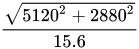
- For 15.6-inch screen with a 5120×2880 resolution you get = 376.57 PPI.
- For 50-inch screen with a 8192×4608 resolution you get = 188 PPI.
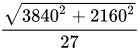
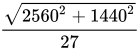
- For 27-inch screen with a 3840×2160 resolution you get = 163 PPI.
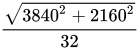
- For 32-inch screen with a 3840×2160 resolution you get = 138 PPI.
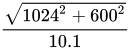
- For an old-school 10.1-inch netbook screen with a 1024×600 resolution you get = 117.5 PPI.
- For 27-inch screen with a 2560×1440 resolution you get = 108.8 PPI.
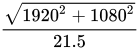
- For a 21.5-inch (546.1 mm) screen with a 1920×1080 resolution you get = 102.46 PPI;

These calculations may not be very precise. Frequently, screens advertised as “X inch screen” can have their real physical dimensions of viewable area differ, for example:
- Apple Inc. advertised their mid-2011 iMac as a "21.5 inch (viewable) [...] display,"[11] but its actual viewable area is 545.22 mm or 21.465 inches.[12] The more precise figure increases the calculated PPI from 102.46 (using 21.5) to 102.63.
- The HP LP2065 20 inch (50.8 cm) monitor has an actual viewable area of 20.1 inch (51 cm).[13]
- In a more significant case, some monitors such as the Dell UltraSharp UP3216Q (3840×2160 px) are advertised as a 32-inch "class" monitor (137.68 PPI), but the actual viewing area diagonal is 31.5 inches, making the true PPI 139.87.[14]
Calculating PPI of camera view screens
[edit]Camera manufacturers often quote view screens in 'number of dots'. This is not the same as the number of pixels, because there are 3 'dots' per pixel – red, green and blue. For example, the Canon 50D is quoted as having 920,000 dots.[15] This translates as 307,200 pixels (×3 = 921,600 dots). Thus the screen is 640×480 pixels.[16]
This must be taken into account when working out the PPI. 'Dots' and 'pixels' are often confused in reviews and specs when viewing information about digital cameras specifically.
Scanners and cameras
[edit]"PPI" or "pixel density" may also describe image scanner resolution. In this context, PPI is synonymous with samples per inch. In digital photography, pixel density is the number of pixels divided by the area of the sensor. A typical DSLR, circa 2013, has 1–6.2 MP/cm2; a typical compact has 20–70 MP/cm2.
For example, Sony Alpha SLT-A58 has 20.1 megapixels on an APS-C sensor having 6.2 MP/cm2 since a compact camera like Sony Cyber-shot DSC-HX50V has 20.4 megapixels on an 1/2.3" sensor having 70 MP/cm2. The professional camera has a lower PPI than a compact camera, because it has larger photodiodes due to having far larger sensors.
Smartphones
[edit]Smartphones use small displays, but modern smartphone displays have a larger PPI rating, such as the Samsung Galaxy S7 with a quad HD display at 577 PPI, Fujitsu F-02G with a quad HD display at 564 PPI,[17] the LG G6 with quad HD display at 564 PPI or – XHDPI or Oppo Find 7 with 534 PPI on 5.5-inch display – XXHDPI (see section below).[18] Sony's Xperia XZ Premium has a 4K display with a pixel density of 807 PPI, the highest of any smartphone as of 2017.[19]
Logical DPI values on Android
[edit]Android supports the following logical DPI values for controlling how large content is displayed:[20]
| Name | Full name | Scale factor | DPI |
|---|---|---|---|
| ldpi | Low DPI | 0.75x | ~120 |
| mdpi | Medium DPI | 1x | ~160 |
| tvdpi | TV DPI | 1.33x | ~213 |
| hdpi | High DPI | 1.5x | ~240 |
| xhdpi | Extreme high DPI | 2x | ~320 |
| xxhdpi | Extreme x2 high DPI | 3x | ~480 |
| xxxhdpi | Extreme x3 high DPI | 4x | ~640 |
Metrication
[edit]The digital publishing industry primarily uses pixels per inch but sometimes pixels per centimeter is used, or a conversion factor is given.[21][22][23]
The PNG image file format only allows the meter as the unit for pixel density.[24]
Image file format support
[edit]The following table show how pixel density is supported by popular image file formats. The cell colors used do not indicate how feature-rich a certain image file format is, but what density support can be expected of a certain image file format.
Even though image manipulation software can optionally set density for some image file formats, not many other software uses density information when displaying images. Web browsers, for example, ignore any density information. As the table shows, support for density information in image file formats varies enormously and should be used with great care in a controlled context.
| Format | Units of measurement[a] | Raster/vector | Multi-page | Per-page size | Size in lengths for image or page | Density |
|---|---|---|---|---|---|---|
| Exif | Length | Raster | PPI or PPCM, 8 bytes (64bit rational unsigned) each for horizontal and vertical directions[25] | |||
| AI | Length or pixel | Both | No | Explicit for length. No for pixel | Implicit for included raster images | |
| EPS | Length | Both | Yes | Yes | Explicit | Explicit DPI (PPI) for rasterized images, fonts or effects |
| GIF | Pixel | Raster | Yes | No | No | No |
| ICO | Pixel | Raster | Yes | Yes | No | No |
| JPEG | Pixel | Raster | No | Implicit when density is set | Optional PPI or PPCM, 2 bytes each for horizontal and vertical directions[26] | |
| Length | Both | Yes | Yes | Explicit | Explicit DPI (PPI) for rasterized images, fonts or effects | |
| PNG | Pixel | Raster | No | Implicit when density is set | Optional PPM, 4 bytes each horizontal and vertical directions[27] | |
| PPM | Pixel | Raster | Yes | No | No | No |
| PSD and PSB | Length or pixel | Both | No | Explicit for length. No for pixel | Optional | |
| SVG | Length or pixel | Both | Yes | No | Explicit for length.[b] No for pixel | Implicit for included raster images |
| TIFF | Pixel | Both | Yes | Yes | Implicit when density is set | Optional PPI or PPCM, two 32-bit unsigned integers each for horizontal and vertical directions[30] |
| WebP | Pixel | Raster | Yes | Unknown | Unknown | WEBP has no tags/attributes of its own which specify density on the output medium. But WEBP uses Resource Interchange File Format as its container format which supports Metadata to be included as XMP and EXIF chunks. And EXIF supports resolution, see entry in this table. Practical example: GraphicConverter v11.7.1 correctly shows resolution information for WEBP files with EXIF metadata. |
| XCF | Pixel | Both | No | No | Optional PPI, 32-bit float each for horizontal and vertical directions[31] | |
| Format | Units of measurement | Raster/vector | Multi-page | Per-page size | Size in lengths for image or page | Density |
- ^ Length refers to horizontal and vertical size in inches, centimeters, etc., whereas pixel refers only to the number of pixels found along the horizontal and vertical dimension.
- ^ Support in SVG differs. The standard supports the floats pixelUnitToMillimeterX, pixelUnitToMillimeterY, screenPixelToMillimeterX and screenPixelToMillimeterY for use in CSS2.[28] Inkscape SVG supports density for PNG export only inkscape:export-xdpi and inkscape:export-ydpi.[29] Adobe stores it even differently.
See also
[edit]- Computer monitor DPI standards – the origins of 96 DPI/PPI as Microsoft/Windows standard and 72 DPI/PPI as (former) Apple/Macintosh standard
- Resolution independence
- Retina display
- 1:1 pixel mapping
- PenTile
References
[edit]- ^ Alvy Ray Smith (11 Nov 1996). "A Pixel Is Not A Little Square" (PDF).
- ^ "Haltone: Atlas of Analytical Signatures of Photographic Processes" (PDF). The Getty Conservation Institute. 2013.
- ^ David Creamer (2003). "Understanding Resolution and the meaning of DPI, PPI, SPI & LPI" (PDF).
- ^ David Creamer (2003). "Understanding Resolution and the meaning of DPI, PPI, SPI & LPI" (PDF).
- ^ "Kopin unveils smallest color SVGA display". optics.org. 11 January 2008. Retrieved 6 June 2008.
- ^ "Company Debuts World's Smallest Color SVGA Display" (PDF). SID, Information Display magazine May 2008 Vol. 24, No. 05. 31 May 2008. Archived from the original (PDF) on 14 May 2008. Retrieved 6 June 2008.
- ^ "Innovations". kopin corporation. Retrieved 22 May 2014.
- ^ Horizontally scanning holography to enlarge both image size and viewing zone angle Archived 2013-01-20 at the Wayback Machine Naoya Okada and Yasuhiro Takaki, Proc. SPIE Vol. 7233 723309-1
- ^ "Apple Retina Display". Jonesblog. 24 June 2010. Retrieved 25 September 2011.
- ^ "Electronic displays for information technology". IBM Journal of Research and Development Volume 44, Number 3, 2000. 10 November 1999. Retrieved 6 June 2008.
- ^ Apple iMac Tech Specs Archived 2012-10-18 at the Wayback Machine, Apple Inc. Accessed on 27 January 2012.
- ^ LM215WF3 LCD Product Specification, LG Display. Accessed on 27 January 2012.
- ^ HP LP2065 20-inch (50.8 cm) LCD Monitor - Specifications and Warranty Archived 2008-04-10 at the Wayback Machine (Hewlett-Packard Company official website)
- ^ "Electronics & Accessories | Dell USA".
- ^ dpreview.com, Canon EOS 50d
- ^ Techcrunch.com, dots vs pixels
- ^ 村上万純 (October 7, 2014). "富士通が最新のドコモスマホやタブレットを披露 5G通信の取り組みも".
- ^ Richard Lai (February 12, 2014). "Oppo's next smartphone due in March with 2K and 1080p display options".
- ^ "Sony Xperia XZ Premium - Full phone specifications". www.gsmarena.com. Retrieved 2016-05-27.
- ^ "Support different pixel densities". Android Developers. Retrieved 2024-01-15.
- ^ "Web Graphics Basics".
- ^ "Utads.com Glossary of Terms". Archived from the original on 2012-09-28. Retrieved 2011-03-22.
- ^ "Resolution, dpi and ppi". Archived from the original on 2012-08-10. Retrieved 2011-03-22.
- ^ "PNG file format, pHYs chunk".
- ^ Exif 2.32, CIPA DC-008 Translation 2019, p.35-36
- ^ JPEG File Interchange Format, Version 1.02 - JPEG File Interchange Format Specification
- ^ Chapter 11. PNG Options and Extensions - Physical Pixel Dimensions (pHYs)
- ^ Scalable Vector Graphics (SVG) 1.1 (Second Edition)
- ^ Inkscape source files
- ^ TIFF Revision 5.0 - ResolutionUnit
- ^ Documentation of the XCF file format
Pixel density
View on GrokipediaFundamentals
Definitions and Units
Pixel density refers to the number of pixels or equivalent dots concentrated within a unit of physical length, serving as a key metric for resolution in digital imaging, displays, and output processes.[6] This measure quantifies how tightly packed the discrete elements of an image or medium are, directly influencing the perceived detail and sharpness when rendered on physical devices.[7] A pixel, derived from "picture element," represents the smallest individually addressable unit in a digital image or display, typically a single colored dot that contributes to the overall visual composition.[8] In raster-based systems, pixels form a grid where each holds intensity values for color channels, enabling the representation of continuous tones through spatial arrangement.[9] The most common unit for pixel density in displays and general digital contexts is pixels per inch (PPI), which counts the pixels along a one-inch linear segment of a screen or image file.[10] For printing and scanning applications, dots per inch (DPI) is standard, denoting the density of ink dots deposited by printers or samples captured by scanners per inch.[11] In specialized halftone printing techniques, lines per inch (LPI) measures the number of repeating halftone lines—each comprising varying dot sizes—per inch, controlling the granularity of tonal reproduction in offset or screen printing.[12] These inch-based units trace their origins to 19th-century advancements in printing presses and typography, where the inch became a standardized imperial measure for type sizes, line spacing, and mechanical components in Anglo-American printing industries.[13] For metric conversions, 1 inch is defined as exactly 2.54 centimeters, allowing pixel density in pixels per centimeter (PPCM) to be calculated as PPCM = PPI ÷ 2.54, facilitating international standardization in digital workflows.Key Differences Between Related Terms
Pixel density, often quantified using terms like PPI (pixels per inch), DPI (dots per inch), and LPI (lines per inch), is frequently misunderstood due to overlapping usage in digital and print contexts. PPI specifically measures the number of pixels packed into one inch of a display or digital image, determining the sharpness of visuals on screens where pixels are light-emitting or addressable elements.[14] In contrast, DPI refers to the density of ink or toner dots placed by a printer on physical media, focusing on output resolution rather than input pixels.[15] LPI, meanwhile, denotes the frequency of halftone lines in printing plates or screens, typically ranging from 150 to 200 for commercial offset printing on coated paper, which modulates how dots create tones without directly relating to pixel counts.[16] The misuse of DPI to describe display resolutions stems from historical conventions in early computing and printing software, where terms from print workflows carried over to digital interfaces; for instance, the original Macintosh screens at 72 PPI aligned closely with halved printer DPI values (e.g., 144 DPI printers yielding effective 72 dots per inch), fostering interchangeable terminology despite technical inaccuracies.[17] This carryover persists in some software and documentation, leading to confusion in non-print environments where pixels, not dots, define density.[18] A key conceptual distinction lies between logical resolution, which is software-defined and device-independent (e.g., CSS pixels or density-independent pixels in mobile apps), and physical pixel density, which is hardware-limited by the actual PPI of the display. Logical resolutions abstract away physical variations to ensure consistent sizing across devices, often using scaling factors like device pixel ratio (DPR), whereas physical density directly impacts perceived sharpness.[19] Examples of such misuse appear in mobile development, such as Android's density buckets (e.g., ldpi approximated at 120 DPI, mdpi at 160 DPI), which categorize logical densities for resource scaling rather than precise physical measurements; actual device PPI can deviate significantly (e.g., a "hdpi" device at ~240 logical DPI might have 300+ physical PPI), causing developers to overlook hardware realities if treating these as exact physical values.[19] Mismatched units in file handling exacerbate scaling errors in software; for example, an image with embedded 72 PPI metadata intended for web display, if misinterpreted as 72 DPI for printing, may upscale dramatically to achieve desired physical size, resulting in pixelation or oversized output, as the software calculates print dimensions based on incorrect density assumptions.[20] Conversely, high-PPI images downscaled for low-DPI printers without resampling can lead to inefficient file sizes or moiré patterns in halftone processes, underscoring the need for unit-specific workflows to avoid quality degradation.[21]| Term | Context | Measurement | Typical Use Case |
|---|---|---|---|
| PPI | Digital displays and images | Pixels per inch | Screen sharpness (e.g., 300 PPI for high-res photos on monitors)[14] |
| DPI | Printing output | Dots of ink/toner per inch | Printer resolution (e.g., 600 DPI for laser printers)[15] |
| LPI | Print halftoning | Lines per inch in screens | Offset printing tones (e.g., 175 LPI for magazines)[16] |
Calculation Methods
General Formulas for Pixel Density
Pixel density, often expressed in pixels per inch (PPI), quantifies the number of pixels within a given physical area of a display or image output device.[5] The core formula for calculating PPI in rectangular devices derives from the diagonal measurement, which provides a standardized metric accounting for both horizontal and vertical pixel counts. This approach ensures a consistent density value regardless of aspect ratio. The foundational equation for PPI is:Device-Specific Computation Examples
To compute pixel density for monitors, the general pixels-per-inch (PPI) formula is adapted by measuring only the visible display area, excluding bezels, and calculating horizontal and vertical densities separately before averaging. Horizontal PPI is determined by dividing the horizontal resolution in pixels by the screen's physical width in inches, while vertical PPI uses the vertical resolution divided by the height in inches; the overall PPI is then the average of these values or, equivalently, the diagonal pixel count divided by the diagonal size in inches. For instance, a monitor with a 1920-pixel width and 23.5-inch width yields a horizontal PPI of approximately 82, verified by physical measurement of the active area with a ruler or caliper. Other examples include a 34-inch ultrawide monitor with 3440 × 1440 resolution, which has a diagonal pixel count of approximately 3730 pixels, yielding about 110 PPI when divided by the 34-inch diagonal; the same resolution on a 45-inch monitor results in approximately 83 PPI; a 32-inch 4K monitor (3840 × 2160) achieves around 138 PPI; and a 21.5-inch monitor with 1920 × 1080 resolution has a diagonal pixel count of pixels, yielding approximately 102.46 PPI when divided by the 21.5-inch diagonal.[24][25][5][2] For camera sensors, effective PPI in a viewfinder or for legacy film comparisons is calculated by dividing the sensor's resolution by its physical dimensions converted to inches, providing a metric to equate digital capture to analog film's resolving power. A full-frame sensor measuring 1.42 inches wide with 6000 horizontal pixels results in an effective horizontal PPI of about 4220, though this is rarely used in modern digital workflows and serves mainly for archival digitization benchmarks against 35mm film's typical 2000–4000 PPI equivalent. Verification involves consulting the sensor's datasheet for exact dimensions (e.g., 36 mm width = 1.417 inches) and totalizing pixels across the active area, excluding any masked borders.[26][27][28] Printer DPI is derived from nozzle density in the printhead (nozzles per inch) combined with paper feed resolution, but in practice, it simplifies to the output resolution setting where DPI equals the number of pixels assigned per inch of media. For an inkjet printer with 300 nozzles per inch and a 1200 dpi feed resolution, the addressable positions reach 360,000 per square inch, though effective DPI is typically 300–1200 depending on the print mode and drop control. This is verified by printing a test pattern of known pixel dimensions on measured media length and counting dots with a loupe or software analysis.[29][30] Software tools facilitate precise computation, including operating system APIs like Windows' GetDpiForMonitor, which retrieves the effective DPI for a specific display based on its resolution and scaling awareness. Online calculators, such as those inputting resolution and dimensions, output PPI instantly for verification against manual measurements. These tools ensure accuracy by accounting for multi-monitor setups or non-square pixels, with APIs returning values like 96 DPI for standard displays or higher for Retina equivalents.[31][32][5] A practical case study is calculating PPI for a 27-inch 4K monitor (3840 × 2160 resolution). First, compute the diagonal pixel length using the Pythagorean theorem: pixels. Divide by the diagonal size: PPI. Verification steps include confirming the resolution via display settings, measuring the physical diagonal with a tape (ensuring bezel exclusion), and cross-checking with an online tool or API call, which matches the result and highlights suitability for sharp viewing at typical distances.[2][5]Applications in Output Devices
Printing Processes
In printing processes, pixel density, typically measured in dots per inch (DPI), determines the sharpness and detail of reproduced images on physical media, with higher DPI enabling finer gradations and reduced visible artifacts. For high-quality photographic prints, a minimum of 300 DPI is standard to achieve crisp results without fuzziness or jagged edges, as this resolution allows for sufficient ink dots to render smooth tones and textures. Line art and text-heavy materials, such as technical drawings, can suffice with 150 DPI, where the focus is on clean edges rather than continuous tones. However, optimal DPI varies with viewing distance; for large-format applications like billboards viewed from afar, 72 DPI is adequate, whereas for printing large posters or banners viewed from a distance, a DPI range of 150-300 is sufficient, with many printers accepting 150-200 DPI without visible loss of quality, as the human eye cannot discern individual dots at such scales, prioritizing scalability over fine detail.[33][34][35] A key challenge in printing is dot gain, where ink spreads on the substrate upon absorption, effectively reducing the intended pixel density and causing darker tones or loss of highlight detail. This phenomenon, common in offset and digital printing, is mitigated through overcompensation in raster image processor (RIP) software, which adjusts halftone dot sizes—such as imaging a 50% tint as 45% to counteract a 5% gain—ensuring the final output matches the design intent. Raster graphics, composed of fixed pixel grids, degrade in quality when scaled beyond their native DPI, leading to pixelation or blurring in prints, whereas vector graphics, defined by mathematical paths, scale indefinitely without density loss, maintaining sharpness regardless of output size. This distinction is crucial for print production, as raster files require embedding at or above the target DPI to avoid interpolation artifacts. Halftoning techniques further relate pixel density to lines per inch (LPI), the frequency of halftone dot rows; for magazine printing, 150 LPI is typical to balance detail with press capabilities, requiring printer DPI to be at least 1.5 to 2 times higher for accurate sampling. Alternatives like frequency-modulated (FM) screening use stochastic dot distributions instead of fixed grids, allowing higher effective densities without moiré patterns and suiting glossy stocks. Material considerations, particularly paper type, influence optimal DPI: coated or glossy papers, with their smooth, less absorbent surfaces, support higher DPI (up to 300 or more) for vibrant, high-contrast images by minimizing ink spread, while uncoated stocks demand lower settings around 150 DPI to prevent excessive dot gain and maintain legibility.Display Technologies
Pixel density, measured in pixels per inch (PPI), plays a crucial role in determining the sharpness of images on display technologies, as it directly influences the ability to resolve fine details without visible pixelation. The human eye's resolution limit for individuals with 20/20 vision is approximately 1 arcminute, which corresponds to the minimum separable angle for distinguishing details. At a typical viewing distance of 12 inches, this acuity equates to a pixel density of about 286 PPI, beyond which individual pixels become indistinguishable to the average observer.[36][37][38] Various display technologies leverage pixel density to enhance visual quality, though each has unique characteristics affecting effective resolution. In liquid crystal displays (LCDs), subpixel rendering exploits the separate red, green, and blue subpixels within each pixel to increase the apparent horizontal resolution by up to three times the nominal PPI, improving text clarity and reducing aliasing without altering the physical pixel count. Organic light-emitting diode (OLED) displays, being self-emissive, achieve perfect blacks by completely turning off individual pixels, resulting in infinite contrast ratios that enhance perceived depth and detail, but they face the same physical limits on pixel density as LCDs due to manufacturing constraints on subpixel size. Apple's Retina displays set a benchmark with PPI thresholds exceeding 300, ensuring that at standard viewing distances, content appears sharp enough to match or surpass human visual acuity limits.[39][40] Low pixel densities in displays can lead to visual artifacts such as moiré patterns, where interfering periodic structures between the content and the pixel grid produce unwanted interference fringes, particularly noticeable in fine textures or patterns. Operating systems mitigate these issues through supersampling techniques, rendering content at higher internal resolutions before downsampling to the display's native PPI, which reduces aliasing and improves smoothness at the cost of increased computational load. In backlit displays like LCDs, higher PPI configurations increase power draw due to the greater number of transistors and drive circuitry required per unit area, exacerbating energy consumption in power-sensitive applications.[41] Historically, cathode ray tube (CRT) displays operated at low pixel densities around 72 PPI, limited by electron beam scanning and phosphor dot spacing, which was sufficient for early computing but resulted in visible pixelation at close distances. Advances in manufacturing have propelled modern premium screens to 500+ PPI, as seen in high-end smartphones and VR headsets, enabling immersive experiences where detail rivals print media.[42]Applications in Input Devices
Scanning Mechanisms
In scanning devices, pixel density is primarily expressed as dots per inch (DPI), distinguishing between optical resolution—determined by the scanner's hardware optics and sensor, which captures genuine detail—and interpolated resolution, which uses software algorithms to artificially increase pixel count without adding real information.[43] Flatbed scanners commonly provide optical resolutions ranging from 300 to 1200 DPI, with higher-end models reaching up to 2400 DPI, influencing the resulting digital file size; for instance, scanning an 8.5 by 11-inch document at 300 DPI yields a 2550 by 3300 pixel image.[43][44] Scanning mechanisms rely on sensor technologies that dictate linear pixel density through the step size of the sensor's movement across the document. Charge-coupled device (CCD) sensors employ a reduction lens to project a larger image onto larger pixels (typically 10 μm × 10 μm), enabling higher effective resolutions like 600 DPI with a deeper focal depth of 3–5 mm, suitable for varied document thicknesses.[45] In contrast, contact image sensor (CIS) technology uses a 1:1 Selfoc lens placed close to the document (0.1–0.3 mm focal distance) with smaller pixels and LED illumination, resulting in shallower depth of field and generally lower pixel densities, though it supports cost-effective scanning of flat media.[45] To enhance sharpness, oversampling techniques involve scanning at twice the target DPI—such as 4000 DPI instead of 2000 DPI—followed by downsampling, which reduces noise and allows sharpening algorithms to preserve higher-frequency details up to half the sampling rate (e.g., 78 line pairs per mm at 4000 DPI).[46] High DPI scanning of printed originals can introduce moiré artifacts, where the scanner's grid interferes with the halftone dot patterns in the source material, creating unwanted interference fringes; this is mitigated by adjusting resolution slightly off multiples of the print's line screen, such as using 500 DPI instead of 600 DPI.[47] At extreme resolutions beyond 600–1200 DPI, artifacts like amplified dust specks and sensor noise become prominent, often outweighing detail gains in document scans.[44] The TWAIN protocol standardizes scanner interactions, enabling applications to query and set DPI capabilities from 100 to 1200 DPI or higher, depending on the device's hardware limits, through manufacturer drivers that expose full resolution options.[48]Digital Imaging Sensors
In digital imaging sensors, pixel density refers to the number of pixels packed into a given physical area of the sensor, often expressed in pixels per inch (PPI) or megapixels per square millimeter. This density is determined by dividing the total number of pixels by the sensor's physical dimensions, where smaller sensors with high megapixel counts result in higher PPI but smaller individual pixel sizes, typically measured in micrometers (μm). For instance, a compact 1/2.3-inch sensor (approximately 6.17 mm × 4.55 mm) equipped with a 20-megapixel (MP) resolution yields pixel sizes around 1.2 μm, translating to an extremely high PPI of over 20,000, which enhances detail capture in bright conditions but increases susceptibility to noise due to reduced light-gathering capacity per pixel.[49][50] Higher densities like this prioritize resolution over low-light performance, as smaller pixels collect less photons, amplifying read noise and thermal noise, particularly in ISO ranges above 800.[51] The evolution of pixel density in camera sensors has progressed dramatically since the early days of digital photography. Initial consumer digital cameras in the late 1990s and early 2000s featured charge-coupled device (CCD) sensors with resolutions around 1 MP, such as the Kodak DCS100 from 1991, which had low density (pixel sizes ~10-20 μm) on larger formats, limiting detail but minimizing noise for basic imaging. By the mid-2000s, complementary metal-oxide-semiconductor (CMOS) sensors emerged, enabling higher densities; for example, 6-8 MP APS-C sensors became standard in DSLRs around 2005, improving dynamic range through back-illuminated designs. The 2010s saw full-frame sensors reach 18-24 MP, balancing density with noise control, while medium-format options hit 50 MP by 2015. Entering the 2020s, mirrorless cameras pushed boundaries with 60-100 MP full-frame and medium-format sensors, like the Fujifilm GFX 100 II (102 MP) and Hasselblad X2D 100C, achieving PPI equivalents that support massive prints while leveraging stacked CMOS for faster readout and reduced rolling shutter. By 2025, densities continue to climb, with models exceeding 100 MP in mirrorless systems, driven by demands for cropping flexibility and large-scale reproduction.[52][53] Crop factor, defined as the ratio of a full-frame sensor's diagonal (43.27 mm) to that of a smaller sensor, significantly influences effective pixel density by compressing the imaging area, which raises PPI for equivalent field of view and resolution. A sensor with a 2x crop factor (e.g., Micro Four Thirds) effectively doubles the linear pixel density compared to full-frame for the same megapixels, allowing tighter framing without telephoto lenses but exacerbating noise from smaller pixels. However, this higher density encounters diffraction limits sooner, where light bending at the aperture reduces sharpness when the Airy disk (diffraction pattern) approaches pixel size. For a 24 MP full-frame sensor (pixel pitch ~5.9 μm), diffraction becomes noticeable around f/8, with the Airy disk diameter (≈10.7 μm at f/8 for 550 nm light) covering about 1.8 pixels and starting to blur fine details, limiting effective resolution to about 18-20 MP; smaller sensors with higher crop factors (e.g., 1.5x APS-C) hit this limit at wider apertures like f/5.6 due to even denser pixels.[54][55][56] Techniques like pixel binning and pixel shift address density limitations without altering hardware. Pixel binning combines charge from adjacent pixels (e.g., 2x2 or 4x4 groups) during readout, effectively reducing resolution to create larger virtual pixels that boost signal-to-noise ratio by 2-4 times in low light, common in scientific CCD sensors and modern CMOS for video modes. Pixel shift, conversely, enhances effective density by capturing multiple exposures while micro-shifting the sensor (via in-body stabilization) by sub-pixel amounts—typically 0.5-1 pixel offsets in four to eight shots—then aligning and merging them to eliminate Bayer filter interpolation artifacts and achieve resolutions up to 4x native, such as 240 MP from a 61 MP sensor. These methods improve image quality for static subjects, with pixel shift particularly impactful in high-resolution mirrorless cameras for landscape and studio work.[57][58] For on-camera viewfinders and LCD preview screens, pixel density is calculated from the display's resolution and physical size, often downsampling the sensor's full output to fit, resulting in effective PPI that influences preview sharpness. A typical 3-inch LCD with 1.04 million dots (e.g., 720x480 effective pixels) yields ~300-400 PPI, providing a clear but non-critical view of the sensor's cropped or full-frame image; higher-end electronic viewfinders (EVFs) at 5.76 million dots on 0.5-inch panels reach 5,000+ PPI for immersive previews. This display PPI ensures accurate composition without revealing sensor noise at 100% zoom, bridging input density to output rendering.[5]Device-Specific Implementations
Computer and Monitor Displays
In computer and monitor displays, pixel density plays a crucial role in determining image sharpness and user interface clarity, particularly in desktop and laptop environments where viewing distances typically range from 20 to 30 inches. Standard resolutions often reference a logical density of 96 pixels per inch (PPI) as the Windows default for scaling purposes, ensuring consistent UI element sizing across applications regardless of physical display characteristics.[59] However, physical pixel densities in common monitors vary; for instance, a 27-inch 1080p (1920x1080) display yields approximately 81-82 PPI, a 21.5-inch 1920x1080 display yields approximately 102 PPI, while a 27-inch 4K (3840x2160) monitor achieves around 163 PPI, providing noticeably sharper text and graphics at typical desk distances.[60][5] Similar variations in pixel density occur in laptop computers, where screen sizes are generally smaller and viewing distances are typically shorter than for desktop monitors. For 4K (3840x2160) displays, the pixel density decreases with increasing screen size: approximately 339 PPI for 13-inch, 315 PPI for 14-inch, 294 PPI for 15-inch, and 275 PPI for 16-inch laptops. The higher densities in 13- and 14-inch 4K laptops provide very high pixel density, often considered "retina" quality, resulting in exceptionally sharp images and fine detail at typical laptop viewing distances, while 15- and 16-inch models are still sharp but exhibit lower density.[61] Due to this low pixel density, 27-inch monitors at 1080p resolution are generally avoided for general use, as they result in noticeable pixelation or graininess, particularly at viewing distances of 20 to 30 inches (arm's length or about 70 cm), where individual pixels are noticeable. The optimal viewing distance to avoid seeing individual pixels is around 107 cm (42 inches), based on standard assumptions of human visual acuity. This results in a less sharp image compared to 1440p (approximately 109 PPI) on the same size. Such monitors are available with 240 Hz refresh rates for competitive FPS gaming, where high frame rates are prioritized for smoother motion and reduced input lag, though many prefer higher resolutions for better clarity at close distances.[62][2][63] In first-person shooter (FPS) gaming, at identical resolutions such as 1080p or 1440p, smaller monitor sizes yield higher PPI, resulting in sharper and clearer images that are crucial for precise aiming and spotting distant enemies; for example, a 24-inch 1080p monitor achieves approximately 92 PPI for sharp visuals, while a 32-inch 1080p monitor drops to about 69 PPI, appearing softer; similarly, 1440p provides sharper details on 24- to 27-inch monitors (around 122 PPI and 109 PPI, respectively) than when stretched over a 32-inch screen (about 92 PPI).[64][65] Monitors generally offer higher pixel densities compared to televisions of similar resolutions due to their smaller screen sizes, providing advantages in text sharpness and user interface clarity at typical desk viewing distances. For example, a 27-inch 1440p monitor achieves approximately 108 PPI, while a 32-inch 4K monitor reaches about 138 PPI, resulting in crisper text, UI elements, and details.[66][67] In contrast, a 48-inch 4K TV has around 93 PPI, which can appear softer or fuzzier when viewed up close, such as from a desk distance.[68] This higher density in monitors reduces eye strain and enhances precision for tasks like reading or graphic design.[69][70] High-DPI (HiDPI) scaling technologies address the challenges of higher physical densities by rendering interfaces at effective resolutions that maintain usability. On macOS, the Retina display standard employs 2x integer scaling for screens around 220 PPI, doubling the logical pixel count to eliminate visible pixelation while keeping UI elements proportionally sized, as seen in displays like the Apple Studio Display.[71] In contrast, Windows uses ClearType subpixel rendering to enhance text legibility on HiDPI setups, with adjustments available through the ClearType Tuner to optimize font smoothing and reduce blurring on monitors exceeding 150 PPI, though it requires per-application DPI overrides for non-native support.[72] Multi-monitor configurations introduce complexities when pixel densities differ across displays, leading to UI inconsistencies such as mismatched window sizes, misaligned cursors, and uneven text scaling that can disrupt workflow. For example, pairing a 1080p monitor at ~92 PPI with a 4K display at 163 PPI often results in elements appearing disproportionately large or small when dragged between screens, exacerbated by Windows' per-monitor DPI scaling limitations. In contrast, pairing monitors with similar pixel densities can provide a more consistent visual experience; for instance, a 34-inch 3440x1440 ultrawide monitor at approximately 110 PPI with a 27-inch 2560x1440 monitor at about 109 PPI minimizes differences in sharpness and UI scaling, while a larger 45-inch 3440x1440 ultrawide monitor at approximately 83 PPI may introduce more noticeable variations when paired with higher-density displays, facilitating compatible multi-monitor setups depending on size choices.[2][66][61] Tools like DisplayFusion mitigate these issues by enabling unified taskbars, custom wallpapers, and resolution synchronization across monitors, allowing users to maintain consistent densities through profile switching and hotkeys.[73][74] From an ergonomic perspective, pixel densities above 100-150 PPI are generally recommended for reducing eye strain during prolonged use, as they provide sharper text and minimize visible pixel edges and jagged artifacts at standard viewing distances.[75] As of 2025, trends in computer monitors emphasize 8K resolutions (7680x4320) to push pixel densities beyond 300 PPI on smaller panels, such as the Dell UltraSharp UP3218K at approximately 280 PPI on a 32-inch screen, targeting professional applications like video editing and CAD where ultra-fine detail enhances precision. Recent advancements include micro-LED displays achieving over 300 PPI with improved brightness and efficiency.[76] However, these gains exhibit diminishing returns for average users, as human vision with 20/20 acuity can resolve details up to approximately 94-120 pixels per degree (PPD) in the fovea, beyond which additional density provides limited perceptual benefits at typical distances without specialized viewing conditions.[77]Mobile Devices and Smartphones
In mobile devices and smartphones, pixel density has evolved significantly to enhance visual clarity on compact screens, with 2025 flagship models commonly achieving 400-500 pixels per inch (PPI) or higher. For instance, the Samsung Galaxy S25 Ultra features a 6.9-inch Dynamic AMOLED 2X display with a resolution of 1440 x 3120 pixels, delivering approximately 498 PPI for sharp text and vibrant colors.[78] Similarly, Apple's iPhone 17 employs a Super Retina XDR OLED display at 460 PPI on its 6.3-inch screen, where "Super Retina" denotes Apple's threshold for high-density screens exceeding approximately 450 PPI, ensuring content appears indistinguishable from print at typical viewing distances.[79] The Google Pixel 9 Pro XL features a 6.8-inch Super Actua display with a resolution of 1344 x 2992 pixels, resulting in approximately 486 PPI.[80] These trends reflect a push toward denser panels to support immersive media consumption and detailed interfaces in portable form factors, with ongoing adoption of micro-LED in premium devices for better power efficiency. Software ecosystems in mobile platforms abstract physical pixel density to maintain consistent user experiences across varying hardware. In Android, developers use density-independent pixels (dp), a virtual unit equivalent to one pixel on a baseline medium-density screen of 160 dots per inch (dpi), allowing UI elements to scale uniformly; the system categorizes densities into buckets such as mdpi (160 dpi), hdpi (240 dpi), and xhdpi (320 dpi) to provide appropriate resources without distortion. Furthermore, many Android devices allow users to manually toggle the display resolution, such as switching between FHD+ and QHD+ modes, which directly impacts the effective pixel density to balance visual quality, performance, and battery life.[81] On iOS, the framework employs points as an abstract unit, where one point maps to 1 pixel at @1x scale on non-Retina displays, but to 2x2 pixels at @2x (Retina) or 3x3 at @3x for higher densities, enabling seamless rendering on devices like the iPhone 17's 460 PPI panel. Historically, logical DPI in smartphones has served as a bridge between physical and effective densities, but modern systems prioritize these scalable units for developer efficiency. Higher pixel densities facilitate more precise touch interactions, as finer pixel grids allow touch coordinates to map to sub-pixel accuracy, improving gesture recognition and enabling support for stylus input on devices like tablets. This precision is particularly beneficial for multitouch gestures, such as pinch-to-zoom or precise drawing, where densities above 400 PPI reduce input errors compared to lower-resolution screens. However, the increased number of pixels in high-PPI displays elevates power consumption, as each subpixel requires illumination, leading to faster battery drain during intensive use; low-temperature polycrystalline oxide (LTPO) technology counters this by dynamically adjusting refresh rates from 1Hz to 120Hz, potentially saving 5-15% more power than traditional low-temperature polycrystalline silicon (LTPS) panels. Foldable smartphones introduce variable pixel densities depending on configuration, balancing portability with expanded viewing areas. For example, the Samsung Galaxy Z Fold7 has a cover display at approximately 422 PPI and an inner unfolded screen of 368 PPI across its 8-inch panel, optimizing for different usage modes while maintaining readability; 2025 models feature improved under-display layers to further minimize crease artifacts.[82]Additional Considerations
Metric Equivalents and International Standards
Pixel density measurements originally defined in imperial units, such as pixels per inch (PPI) or dots per inch (DPI), require conversion to metric equivalents for international consistency, where pixels per centimeter (PPCM) is commonly used. The standard conversion formula is PPCM = PPI / 2.54, derived from the exact definition of 1 inch equaling 2.54 centimeters.[83] For example, a common print resolution of 300 DPI corresponds to approximately 118 PPCM (300 / 2.54 ≈ 118.11).[84] International standards organizations have adapted pixel density specifications to metric systems while often retaining DPI terminology for compatibility. The International Organization for Standardization (ISO) 12647 series, particularly ISO 12647-3:2013 for coldset offset newspaper printing, specifies process parameters including resolutions in DPI but applies them within a metric framework for global print production, recommending high resolutions like 1270 DPI for certain imaging plates to ensure quality across metric-based workflows.[85] Similarly, the International Electrotechnical Commission (IEC) 61966 series, such as IEC 61966-2-1 for sRGB color spaces in displays, defines color management for multimedia systems. Display specifications, such as those in Energy Star, incorporate pixel density considerations in metric-compatible environments, supporting device characterizations up to standards like 5000 pixels per square inch equivalents in international testing.[86] Regional variations emphasize metric units in specifications to align with local measurement systems. In the European Union, standards for applications like video surveillance prefer centimeter-based metrics, defining identification requirements in terms of millimeters per pixel (inverse of PPCM), such as no more than 4 mm per pixel for clear subject identification (equating to at least 25 PPCM or 250 pixels per meter), per EN 62676-4:2025.[87] Japan's Japanese Industrial Standards (JIS), which harmonize with ISO and IEC, use metric units for display and print resolutions; for instance, JIS guidelines for medical imaging displays reference metric densities in acceptance tests, aligning with international metric norms without imperial dependencies.[88] Challenges arise from legacy software hardcoded to imperial units, complicating migrations to metric systems. Many older Windows applications assume fixed DPI scaling based on inches, leading to rendering issues on high-density metric-oriented devices without proper virtualization or compatibility modes.[59] Tools like ImageMagick address these by supporting density conversions, automatically translating DPI to PPCM (e.g., 290 PPI to 114 PPCM) during image processing for formats like PNG, enabling seamless metric adaptations without altering pixel data. As of 2025, the World Wide Web Consortium (W3C) has advanced support for metric-native resolution queries in CSS through the Media Queries Level 5 specification, allowing developers to use units like dpcm directly in media features for responsive design, such as @media (resolution: 118dpcm) to target high-density displays without imperial conversions.Support in Digital File Formats
Digital image file formats incorporate pixel density information primarily through metadata tags, which define the intended resolution for display or printing without altering the underlying pixel data. These tags allow software to interpret the physical dimensions of an image, enabling consistent scaling across applications. Common units include dots per inch (DPI) for imperial measurements and pixels per centimeter (PPCM) for metric, with formats specifying how these values are encoded to prevent ambiguity in workflows. In the Tagged Image File Format (TIFF), pixel density is stored in the XResolution and YResolution fields, which are rational numbers (numerator/denominator) indicating pixels per unit, typically DPI or PPCM. These fields are paired with a ResolutionUnit tag (value 1 for none, 2 for inches, or 3 for centimeters) to clarify the measurement system, ensuring precise interpretation in professional imaging applications. For JPEG files, pixel density metadata is embedded in the Exchangeable Image File Format (EXIF) structure within the APP1 marker segment, reusing TIFF-like tags such as XResolution and YResolution to record camera-specific DPI values, limited to 64 KB total for compatibility with standard JPEG decoders.[89] The Portable Network Graphics (PNG) format uses the pHYs ancillary chunk to encode pixel density, specifying pixels per unit (X and Y axes as unsigned integers) along with a unit specifier byte (0 for unknown, 1 for meters enabling PPCM calculation, or 2 for inches for DPI). This chunk allows flexible resolution assignment without affecting the lossless compression of the image data. In Portable Document Format (PDF), pixel density for embedded images is not stored as explicit DPI tags but derived from the image's width/height in user space units and the document's coordinate system, often specified via the /UserUnit key or image dictionary attributes to guide print resolution, ensuring scalability in vector-based layouts.[90] Interpretation of these metadata tags can vary across software, leading to scaling discrepancies. For instance, Adobe Photoshop assumes a default of 72 DPI for images lacking resolution tags and may rescale based on mismatched XResolution and YResolution values, while GIMP defaults to 96 DPI on Windows or 72 DPI on other platforms and ignores inconsistent tags without warning, potentially causing output errors in cross-platform workflows. Regarding compression, pixel density metadata has no direct impact on the encoded image data in lossy formats like JPEG, where file size depends solely on pixel dimensions and quantization tables; setting a higher DPI tag does not increase file size or alter visual quality, as it remains extraneous metadata. In lossless formats such as PNG or uncompressed TIFF, density tags similarly do not affect compression ratios, though workflows may resample images to match specified densities, indirectly influencing size without quality benefits.[91] Tools like ExifTool facilitate editing of pixel density metadata across formats, allowing commands such as-XResolution=300 -YResolution=300 -ResolutionUnit=2 to set 300 DPI in inches for TIFF or JPEG files, preserving the original pixel data. In prepress workflows, validation software such as Enfocus PitStop Pro inspects these tags during PDF processing to ensure compliance with print standards, flagging mismatches that could lead to incorrect scaling on output devices.