Recent from talks
Contribute something
Nothing was collected or created yet.
App Installer
View on Wikipedia| App Installer | |
|---|---|
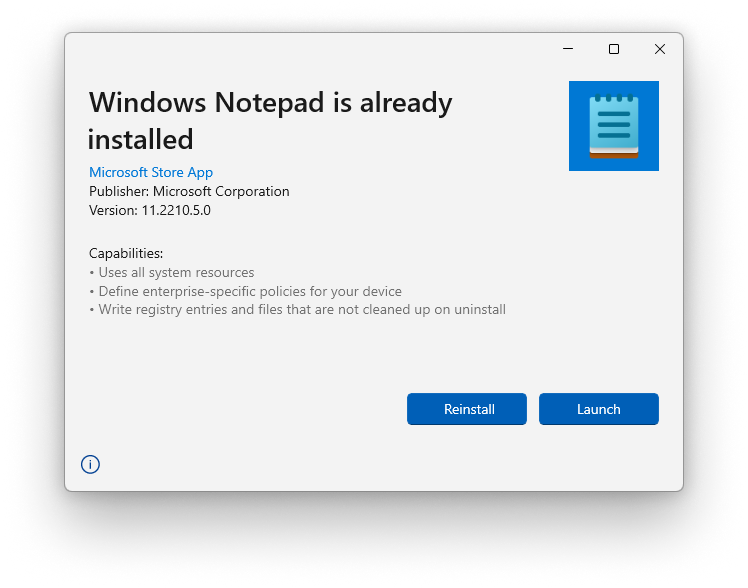
App Installer running on Windows 11 | |
| Developer | Microsoft |
| Initial release | 2016 |
| Stable release | |
| Operating system | Windows 10, 11 |
| Type | Installer |
App Installer is a software component of Windows 10, introduced in the 2016 Anniversary Update, used for the installation and maintenance of applications packaged in .appx or .appxbundle installation packages; they are loosely relational databases with an XML app manifest.[3] The .appx and .appxbundle files contain either a Win32 or a Universal Windows Platform app, icons for the Start menu and taskbar, a virtualized version of any Windows Registry keys needed, and any other assets needed for the installed app to function.[4]
Alternatives
[edit]The only other Windows components capable of installing APPX packages are Microsoft Store and Windows PowerShell. However, the latter requires Developer Mode to be turned on. App Installer provides a more user-friendly interface that is opened by clicking on the installation package.[5]
Design
[edit]The design for App Installer is similar to the one for the classic Windows Installer, which installs stand-alone MSI files. It shows the app name, the developer, the Start menu tile, and a set of capabilities enabled by the app manifest. If the user clicks the Install button at the bottom right corner, the App Installer checks the app's digital certificate. Unlike a standalone installer, App Installer refuses to install an app without a valid digital certificate.[6] If the certificate is valid, the app displays a blue installation progress bar. It shows the user a button to launch the app once it is fully installed.
Customisability
[edit]App Installer is physically more flexible than Windows Installer. It can be resized and viewed in full-screen mode and the background changes based on the system-wide light or dark mode. Apps installed with App Installer can be updated through the Windows Store. It is also possible to update an app with an App Installer by opening the package with a higher version number than the one installed. Since APPX installations are sandboxed, unlike traditional software, running multiple installations at once is possible.[7]
Installation
[edit]MSIX packages are designed to have a stable installation progress. Along with the ability to uninstall, MSIX packages share files across the system to save space. The packages are currently supported for installations and updates across Windows Desktop, Server, and Enterprise. These packages can be entirely self-contained or fetch files from a remote location to complete the install. All distributed apps are required to be signed by a key from a trusted Certificate Authority.[8]
References
[edit]- ^ "App Installer". Microsoft Apps. Retrieved 2025-10-02.
- ^ "Windows Package Manager 1.11.510". GitHub. 2025-09-26. Retrieved 2025-10-02.
- ^ Dean, Madeleine (28 April 2016). "Microsoft Desktop App Installer to improve the install of .appx apps". Windows Report.
- ^ Surur (May 2, 2016). "Microsoft Desktop App Installer now available in the Windows Store". MSPoweruser.
- ^ Hassan, Mehedi (April 25, 2016). "Microsoft Desktop App Installer will make installing apps with .appx files a lot easier". MSPoweruser.
- ^ Hoffman, Chris. "How to Convert a Windows Desktop App to a Universal Windows App". How-To Geek.
- ^ "App Installer". Windows Store. Microsoft.
- ^ dianmsft (2021-12-30). "What is MSIX? - MSIX". Microsoft Learn. Retrieved 2023-09-12.
App Installer
View on GrokipediaHistory and Development
Initial Release
App Installer was introduced as a built-in component of the Windows 10 Anniversary Update (version 1607), which was released on August 2, 2016.[4][5] This update marked the debut of App Installer as a dedicated tool for sideloading .appx packages, allowing users and developers to install applications directly without relying on the Microsoft Store.[1][6] The primary purpose of App Installer at launch was to streamline the deployment of Universal Windows Platform (UWP) apps by enabling their installation outside the Store ecosystem, thereby supporting greater flexibility for enterprise and developer use cases.[7] It facilitated the handling of essential app elements during installation, such as icons, registry keys for file associations and protocols, and other assets defined in the app's package manifest. This capability addressed the need for seamless integration of UWP apps into the Windows environment without Store mediation, promoting broader adoption amid Microsoft's expanding UWP platform in 2016.[7][8] In its initial form, App Installer provided a simple graphical user interface that activated upon double-clicking an .appx or .appxbundle file, guiding users through the installation process.[1] Key security measures included validation of the package's digital certificate to verify authenticity and prevent unauthorized installations, ensuring compliance with Windows' signing requirements for sideloaded apps. This basic functionality laid the foundation for easier app distribution, aligning with Microsoft's broader initiatives to enhance UWP accessibility for developers and organizations during the platform's early growth phase.[7]Key Updates and Versions
App Installer was first introduced as version 1.0 in the Windows 10 Anniversary Update (version 1607) in August 2016, enabling users to install Universal Windows Platform (UWP) applications packaged as .appx files directly by double-clicking them, without requiring PowerShell commands.[9] A significant enhancement arrived with the Windows 10 Fall Creators Update (version 1709) in October 2017, which introduced the .appinstaller XML file format. This XML-based configuration allowed developers to define automated updates, related app sets, and distribution details, facilitating easier sideloading and maintenance of apps outside the Microsoft Store.[2][5] In 2018, App Installer gained support for the newly launched MSIX package format, marking Microsoft's shift from the older .appx standard to a more unified packaging solution compatible with both modern UWP and traditional desktop applications. This update aligned App Installer with broader ecosystem changes, including initial capabilities for packaging existing Win32 executables within MSIX containers.[3][10] By 2020, App Installer expanded its scope through integration with the Windows Package Manager (winget) preview, which introduced robust support for installing and managing traditional Win32 applications via command-line tools, broadening its utility beyond UWP and MSIX to legacy desktop software.[11] With the release of Windows 11 in October 2021, App Installer was fully integrated into the new operating system, including adaptations for its Fluent Design themes such as dark and light mode support to match the OS aesthetic.[3] Recent developments from 2023 to 2025 focused on security enhancements, including the December 2023 disablement of the ms-appinstaller URI scheme by default to mitigate exploitation risks identified in CVE-2021-43890, where attackers abused it for unauthorized app installations. Subsequent updates introduced improved sandboxing for MSIX packages and refined protocol handling for secure distribution over HTTPS, HTTP, and SMB shares. The latest version, 1.26.510.0, was released on September 26, 2025, incorporating these security APIs for programmatic app modifications while maintaining backward compatibility.[12][2][13]Design and Architecture
Core Components
App Installer operates as a system-level component deeply integrated into the Windows Shell, enabling seamless installation of packaged applications through double-click activation on supported files. This integration leverages Windows APIs from the AppX packaging framework to handle package extraction, validation, and registration processes, ensuring that applications are deployed efficiently without requiring additional user intervention beyond file association.[1][14] At its core, App Installer comprises several key elements that facilitate secure and reliable installation. The package validator performs integrity and security checks, including validation of digital certificates to confirm that the package is signed with a trusted certificate by the device, thereby preventing unauthorized or tampered installations. The dependency resolver identifies and manages required bundled assets, such as optional packages or related sets defined in the installation manifest, ensuring all prerequisites are resolved and installed prior to the main application. Complementing these is the installer engine, which executes the deployment in a sandboxed environment, extracting contents and registering the application with the system while maintaining isolation.[15][5][16] App Installer's functionality is closely tied to the MSIX framework, which provides essential virtualization capabilities for app isolation. Through MSIX, the installer handles virtualization of the file system and registry, directing application writes to private virtual stores that prevent interference with the host system or other apps; for instance, file modifications are redirected to an app-specific data folder, and registry changes are isolated in a virtual hive, both of which are cleaned up upon uninstallation. This relation ensures that installed applications run in lightweight containers, enhancing security and compatibility.[17] The component supports both file-based protocols for local installations, such as direct handling of package files, and network-based protocols for remote deployments via configuration files that specify download locations and update mechanisms.[1]Supported Package Formats
App Installer primarily supports the .appx and .appxbundle package formats, introduced with Windows 8 in 2012 for Windows Store applications and later adapted for Universal Windows Platform (UWP) applications in Windows 10.[18] These formats enable the packaging of UWP apps with built-in security features, such as code signing and dependency management, allowing for straightforward sideloading without requiring the Microsoft Store.[1] The .appx format represents a single architecture-specific package, while .appxbundle aggregates multiple .appx files for broader device compatibility, such as supporting both x86 and x64 architectures in one file.[19] In 2018, Microsoft introduced the .msix and .msixbundle formats as the modern evolution of .appx, extending support to both UWP and traditional Win32 desktop applications while maintaining backward compatibility with existing .appx installations.[17] The .msix format provides enhanced virtualization for Win32 apps, isolating them from the host system to improve security and reliability, and .msixbundle similarly bundles multiple .msix packages for multi-architecture deployment.[20] App Installer processes these formats seamlessly, treating .msix as the preferred standard for new developments due to its unified handling of diverse application types.[3] The .appinstaller file, an XML-based manifest introduced in Windows 10 version 1709 (Fall Creators Update) in 2017, serves as a configuration layer for defining installation sources, update endpoints, and dependencies across related app sets.[2] This file specifies URIs for downloading packages (such as .msix or .appx), enables automatic updates via HTTP/HTTPS, and outlines repair mechanisms, allowing App Installer to orchestrate complex deployments without manual intervention.[21] For example, it can reference multiple bundles to ensure all dependencies are installed in the correct order, enhancing the reliability of distributed app ecosystems.[22] App Installer is compatible with Windows 10 version 1607 (Anniversary Update) and later, including all subsequent feature updates, as well as Windows 11, where it is pre-installed as a system component.[3] Full functionality, including .appinstaller file processing and web-based installations, requires Windows 10 version 1709 or higher, with Developer Mode enabled for sideloading outside the Microsoft Store.[4] On Windows Server editions like 2019 LTSC, the App Installer must be manually installed to enable double-click deployment of supported packages.[20] A key limitation of App Installer is its exclusive focus on modern packaged formats like .appx, .msix, and .appinstaller, excluding traditional .exe or .msi installers to prioritize security through containerization and signed packages.[1] This design ensures apps run in isolated environments, reducing risks from legacy installers that can modify system files directly, though it necessitates repackaging for compatibility with non-UWP/Win32 apps.[17]Features
Installation Capabilities
App Installer facilitates the deployment of Windows applications by allowing users to initiate installation through a simple double-click on supported package files, such as .msix, .appx, or .appinstaller formats.[1] This action launches the App Installer user interface, which orchestrates the core installation process without requiring additional tools like PowerShell.[1] The process begins with validation of the package's digital signature to confirm its integrity and origin, ensuring only trusted content proceeds.[15] Following validation, App Installer resolves any dependencies, such as required frameworks or optional packages, by automatically detecting and incorporating them as needed.[23] For bundled packages, like an .msixbundle containing an application along with its supporting framework (e.g., .NET Runtime or Visual C++ libraries), the installation occurs atomically, treating the entire set as a single unit to prevent partial deployments.[23] The contents are then extracted and deployed into a user-specific sandboxed environment, known as an app container, which isolates the application's files, registry, and processes to enhance security and prevent interference with the host system.[17] Security is integral to the installation workflow, with App Installer enforcing code signing requirements for all packages; unsigned files trigger prominent warnings to alert users of potential risks, such as malware.[15] Additionally, it integrates with Microsoft Defender SmartScreen to scan and evaluate the reputation of downloaded packages, blocking or flagging those from untrusted sources.[15] This combination helps mitigate threats during the initial deployment phase. In cases of failure, App Installer provides clear, user-friendly error messages to guide troubleshooting. For instance, missing dependencies elicit notifications prompting installation of required components, while insufficient permissions—such as untrusted certificates—result in prompts to import the certificate into the trusted store.[5] Signature validation errors display details on the need for admin rights or certificate trust, and issues like incompatible Windows versions or inaccessible files are explained with actionable steps, ensuring users can address problems efficiently.[5]Update and Maintenance Functions
App Installer facilitates automatic updates for installed applications through the.appinstaller file, which includes an UpdateUri element specifying the location of the latest package version, accessible via protocols such as HTTPS, HTTP, or SMB.[2] Upon application launch, if the OnLaunch setting is enabled, App Installer checks for updates against the UpdateUri; alternatively, scheduled checks occur at intervals defined by the HoursBetweenUpdateChecks attribute, with a default of 24 hours, or via background tasks every 8 hours without user interface interruption.[24][25] These settings can be overridden in the .appinstaller file or configured globally through Windows Settings, PowerShell cmdlets like Set-AppxPackageAutoUpdateSettings, or enterprise management via Configuration Service Provider (CSP) policies.[24]
For maintenance, App Installer supports repair operations by downloading packages from the RepairUri or fallback RepairUris if the primary source is unavailable, restoring the application to its last known good state.[24][26] Uninstallations of App Installer-managed applications are handled through integration with Windows Settings under Apps & features, where users can select and remove packages, ensuring standard system-wide management without requiring App Installer intervention.[27] Dependency updates are managed via the <Dependencies> element in the .appinstaller file, which lists required packages; during updates, App Installer verifies and installs any missing or outdated dependencies to maintain application integrity.[26]
Versioning in App Installer adheres to semantic versioning as defined in the MSIX package manifest, where the .appinstaller file's version attribute must match the target package to enable seamless upgrades.[2] The ForceUpdateFromAnyVersion attribute allows for flexible updates, including downgrades or non-monotonic version changes, while failures during update installation trigger automatic rollback to the previous version to prevent partial deployments.[26][5]
App Installer supports differential (delta) updates in MSIX packages, downloading only modified files to reduce bandwidth and time compared to full package replacements.[28]
Customization
User Interface Options
The App Installer presents a straightforward dialog-based user interface that displays key details about the package to be installed, including the application name, icon, Microsoft Store signature status, publisher name, version number, installation source, and requested capabilities. This design enables users to evaluate the package's trustworthiness and requirements before proceeding.[29] Interactive components within the dialog include a primary Install button—which dynamically updates to "Reinstall" for downgrade or reinstall scenarios—a Cancel button for aborting the process, and an optional checkbox labeled "Launch when ready" to automatically open the app post-installation. If the package originates from a web download, an additional notification warns users about potential internet connectivity needs during installation. The dialog emphasizes critical information to facilitate secure and informed user choices.[29] As a Universal Windows Platform (UWP) application integrated into Windows, the App Installer automatically adapts its visual theme to match the system's light or dark mode settings, ensuring consistency with user preferences established since Windows 10. The interface incorporates Windows accessibility standards, supporting high-contrast themes for improved visibility, full keyboard navigation for operation without a mouse, and compatibility with screen readers such as Narrator to assist users with visual or motor impairments. Localization is handled natively, with the user interface rendering in the user's preferred Windows display language from a set of supported languages, aligning seamlessly with system-wide settings without requiring additional configuration.Configuration Settings
App Installer supports advanced configuration through registry keys and Group Policy objects, allowing administrators to customize its behavior for enterprise environments. The primary registry path for these settings isSoftware\Policies\Microsoft\Windows\AppInstaller, where policies can be applied via Mobile Device Management (MDM) solutions or Active Directory.[30] For instance, the SourceAutoUpdateInterval policy controls the frequency of automatic update checks in minutes; setting it to 0 disables auto-updates entirely, while unconfigured values revert to default intervals.[30] Administrators can disable the EnableHashOverride policy to prevent overriding of SHA256 hash validation, enforcing installation of only verified packages and blocking tampered or unsigned files in controlled deployments.[30]
Developer settings for App Installer are tied to Windows features, particularly for sideloading and testing. Enabling Windows Developer Mode, accessible via Settings > Update & Security > For developers, allows installation of apps from any source, including those distributed via App Installer files, without requiring trusted certificates; this is essential for development workflows but should be disabled in production to mitigate risks.[31] For enterprise deployment, configurations such as EnableAdditionalSources and EnableAllowedSources permit specifying trusted update sources, ensuring compliance with organizational policies while supporting offline distribution through tools like Microsoft Store for Business.[1][30]
The .appinstaller file schema provides granular control over update behaviors and installation logic. Developers can specify custom URIs for update checks within the <UpdateSettings> element, directing App Installer to poll specific endpoints for new versions.[25] Forced installs are achieved using the UpdateBlocksActivation attribute (set to true), which prevents app launch until updates are applied, provided ShowPrompt is also enabled for user notification; this requires Windows 10 version 1903 or later.[25] Dependency overrides are handled via ForceUpdateFromAnyVersion, allowing updates or downgrades across version boundaries regardless of compatibility checks, useful for rapid deployments but increasing potential for instability.[25] Additional options include HoursBetweenUpdateChecks (0-255 hours, default 24) for on-launch update frequency and AutomaticBackgroundTask for silent checks every 8 hours.[25]
Security policies can integrate App Installer deployments with Windows tools like AppLocker to impose restrictions. Enforcement can be enabled for executables and DLLs via Group Policy or PowerShell scripts like New-AppLockerPolicy.[32] For certificate-based security, disabling policies such as EnableBypassCertificatePinningForMicrosoftStore enforces strict validation, ensuring only trusted publishers can distribute updates.[30] These integrations help prevent unauthorized executions in enterprise settings.
Usage
Installing the App Installer
App Installer is pre-installed on Windows 10 version 1709 and later, as well as on Windows 11, enabling users to install MSIX packages by double-clicking the file without additional setup.[3] For systems running earlier versions of Windows 10, such as version 1607 through 1703, it may not be available by default and requires manual installation.[3] Updates to App Installer are delivered as an optional app through the Microsoft Store, identifiable by the product ID 9NBLGGH4NNS1, allowing users to maintain the latest version for improved compatibility and features.[33] The minimum system requirements for App Installer include Windows 10 version 1709 (Fall Creators Update) or later, as this version introduced support for MSIX packaging and enhanced sideloading capabilities essential to its functionality. Administrative privileges are required for system-wide installation or provisioning, such as deploying it to all users on a device, while per-user installations can be performed without elevation if sideloading is enabled. For manual installation on systems where App Installer is missing or outdated, users can download the .msixbundle package from the Microsoft Store for offline deployment, particularly in enterprise environments.[3] Alternatively, if the package file is available locally, it can be installed using PowerShell with theAdd-AppxPackage cmdlet, run as an administrator for broader deployment:
Add-AppxPackage -Path "C:\Path\To\Microsoft.AppInstaller.msixbundle"
Add-AppxProvisionedPackage instead, which necessitates elevated permissions.[34]
Common troubleshooting for "App Installer not found" or recognition errors involves enabling Developer Mode, which activates sideloading without needing a developer license. To do this, navigate to Settings > Update & Security > For developers (or Privacy & security > For developers on Windows 11) and select Developer Mode, then restart the device. If issues persist on editions like Windows 10 LTSC, where the Microsoft Store may be absent, first install the Store app via PowerShell or offline packages, followed by enabling Developer Mode to facilitate App Installer deployment.[5] Verification can be done by checking for the App Installer executable at C:\Program Files\WindowsApps\Microsoft.AppInstaller*\AppInstaller.exe or running Get-AppxPackage *AppInstaller* in PowerShell.
Deploying Applications
App Installer facilitates the deployment of MSIX-packaged applications through straightforward user interactions, enabling end-users to install apps without requiring advanced technical knowledge. The typical user workflow begins with downloading an .msix or .msixbundle file, or an .appinstaller file, from a trusted source such as a web server or shared network location. Upon double-clicking the file, App Installer launches automatically, displaying a prompt that requests user confirmation for installation; this includes details on the app's publisher and permissions required, such as access to files or system resources. If approved, the installation proceeds with a progress indicator, handling any optional packages or dependencies automatically, provided they are specified in the package manifest. This process supports sideloading on Windows 10 and later versions, bypassing the Microsoft Store for direct distribution.[1] For developers, deploying applications involves creating an .appinstaller file to bundle the main package with updates, optional components, and dependencies, which can be generated using Visual Studio or manually via a text editor. In Visual Studio, after packaging the app as an MSIX, developers select the "Create App Installer File" option during publishing, specifying update URIs (up to 10 fallback locations) and repair settings to enable automatic maintenance post-installation. The resulting .appinstaller file, along with the MSIX packages, is then hosted on a web server like Azure, IIS, or AWS for distribution via HTTP/HTTPS links. Users access the deployment by clicking the hosted .appinstaller URI, which triggers a seamless installation of the related set, ensuring all components are verified against the specified publisher certificate before proceeding.[21] In enterprise environments, App Installer supports managed deployments through silent installations and integration with tools like Microsoft Intune, allowing IT administrators to push applications to devices without user intervention. Silent installs can be executed via PowerShell cmdlets, such asAdd-AppPackage with the -Path parameter pointing to the .msix file, often scripted for batch deployment across organizational networks; this requires the App Installer to be pre-installed on target devices. For broader management, Intune treats MSIX packages as line-of-business apps, where administrators upload the package to the Intune console, assign it to user or device groups, and leverage automatic metadata population for deployment—Intune handles the installation silently upon policy enforcement, supporting features like dependency resolution and certificate validation. This approach is particularly useful in hybrid work scenarios, ensuring compliance with enterprise security policies.[35]
Best practices for deploying with App Installer emphasize security and reliability to prevent installation failures or vulnerabilities. Always verify package signatures using a valid certificate from a trusted authority, matching the publisher details in the .appinstaller file to the MSIX manifest to avoid rejection during installation. Prior to distribution, test dependencies—such as framework packages like Microsoft.VCLibs—on representative devices to confirm compatibility across architectures (e.g., x64 or ARM64) and Windows versions, adjusting URIs for any required downloads. Hosting files on secure, accessible servers with HTTPS ensures reliable access, and limiting update checks to at least 24 hours minimizes network overhead while keeping apps current.
Alternatives
Microsoft Store
The Microsoft Store is the official digital distribution platform for Universal Windows Platform (UWP) and MSIX-packaged applications on Windows 10 and 11 devices. It functions as a centralized hub where users can browse, discover, and install apps through a user-friendly interface, while also managing installations and delivering updates automatically to maintain app security and functionality. This ecosystem supports a vast library of apps, reaching over a billion Windows customers across more than 240 markets and 110 languages as of August 2025.[36][37] In contrast to App Installer, which enables sideloading of MSIX packages outside official channels, the Microsoft Store provides significant advantages through its curated ecosystem. All apps undergo a mandatory review process, including quality checks and policy compliance verification, ensuring only vetted content is available and reducing risks associated with untrusted sources. The platform conducts automatic security scans for malware, applies digital signatures and encryption, and enforces sandboxing to protect users, thereby eliminating the need for manual sideloading that could expose devices to potential threats. These features promote a safer, more reliable experience for end-users compared to direct package installations.[36] Notable differences from App Installer include the requirement for a Microsoft account to access and install apps, which authorizes the device and associates downloads with user profiles for seamless management across devices. The Store also facilitates in-app purchases and other monetization tools, allowing developers to integrate billing directly within apps—a capability absent in sideloading workflows. Distribution is restricted to developers who complete the Store's approval process, limiting availability to certified apps and fostering a controlled environment unlike the permissive nature of sideloading.[38][36] Although App Installer offers a way to bypass the Store for installing MSIX packages in scenarios like enterprise deployments or testing, the Microsoft Store is positioned as the primary channel for consumer-facing applications, leveraging its integrated discovery, update, and security infrastructure for optimal user adoption.[1][36]Command-Line Tools
Command-line tools provide scriptable methods for installing and managing applications packaged in .appx or .msix formats, offering alternatives to graphical interfaces for automation in enterprise environments.[39] PowerShell'sAdd-AppxPackage cmdlet enables the installation of signed .appx or .msix packages to a user account, supporting both local files and dependencies for comprehensive app deployment.[34] For sideloading such packages outside the Microsoft Store, the device must have Developer Mode enabled, which allows the registration of unpackaged or custom applications without Store policies.[39] This cmdlet is particularly useful for scripting installations in controlled settings, such as during system provisioning.[40]
Microsoft's Winget, introduced in preview in 2020 as part of the Windows Package Manager, serves as a command-line interface for discovering, installing, upgrading, and removing applications across Windows devices.[41] It integrates with the Microsoft Store source (--source msstore) for broader package access, including MSIX-based apps, but for direct installation of local .msix packages, PowerShell cmdlets like Add-AppxPackage are recommended. Winget supports local installations via YAML manifest files using the --manifest option, though this is more general and not MSIX-specific.[42]
These tools excel in automation and batch operations, enabling administrators to deploy applications across multiple machines without interactive user input, which is essential for server environments or large-scale enterprise setups.[43] For instance, Winget's export and import commands facilitate batch installations by generating lists of required apps for consistent device configuration.[44] PowerShell scripts can similarly chain Add-AppxPackage calls for dependency management, streamlining provisioning in non-desktop scenarios.[40]
However, command-line tools like PowerShell and Winget are less user-friendly than graphical options, requiring familiarity with syntax and parameters for effective use, which can increase the learning curve for non-technical users.[45] While Winget offers broader support for various installer types beyond MSIX, its scope extends to traditional executables and scripts, potentially introducing more variables in App Installer-specific workflows compared to dedicated MSIX handling.[45]