Hubbry Logo
search
logo
1437883

Magnifier (Windows)

logo
Community Hub0 Subscribers
Read side by side
from Wikipedia
Magnifier
DeveloperMicrosoft
Included withWindows 98 and later
TypeScreen magnification application

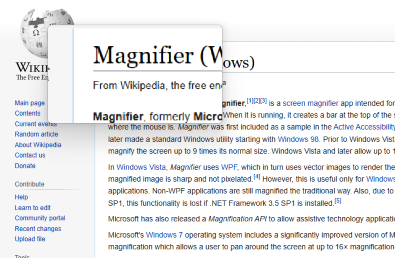
Magnifier, formerly Microsoft Magnifier,[1][2][3] is a screen magnifier app intended for visually impaired people to use when running Microsoft Windows. When it is running, it creates a bar at the top of the screen that greatly magnifies where the mouse is. Magnifier was first included as a sample in the Active Accessibility SDK/RDK for Windows 95 and later made a standard Windows utility starting with Windows 98. Prior to Windows Vista, Magnifier could be used to magnify the screen up to 9 times its normal size. Windows Vista and later allow up to 16× magnification.

In Windows Vista, Magnifier uses WPF, which in turn uses vector images to render the content. As a result, the rendered magnified image is sharp and not pixelated.[4] However, this is useful only for Windows Presentation Foundation applications. Non-WPF applications are still magnified the traditional way. Also, due to a change introduced in WPF 3.5 SP1, this functionality is lost if .NET Framework 3.5 SP1 is installed.[5]

Microsoft has also released a Magnification API to allow assistive technology applications to use the Magnifier engine.[6]

Microsoft's Windows 7 operating system includes a significantly improved version of Magnifier. It features full-screen magnification which allows a user to pan around the screen at up to 16× magnification.

The Windows 10 icon of Magnifier

However, the full screen feature has also been criticized due to its incompatibility with the high contrast color schemes found in the Windows 7 beta release.[7] This issue remains in the final Windows 7 release. Besides this, when the magnifier zooms, the text will appear blurry or pixelated because it is not being directly rendered at the larger size; instead, the smaller sized rendering is being enlarged as a raster image. ClearType sub-pixel anti-aliasing is also magnified as a result of this, so if ClearType is active, the magnified text may appear to have unexpected colors at the edges of non-horizontal lines. Some third party magnification software compensates for this effect by applying scaling filters to the enlarged image.

The magnifier also features a lens mode similar to that found in the existing version[which?] of the software. Lens mode is improved, however, as now the magnifying window will follow the cursor around the screen rather than remain in a fixed position. Finally the magnifier is much easier to access by using the Windows key and +/- to control the zoom level without the need to start the application first.[8] Pressing the Win+Esc combination will exit the magnifier.

References

[edit]
[edit]
Revisions and contributorsEdit on WikipediaRead on Wikipedia
from Grokipedia
Magnifier is a built-in accessibility utility in Microsoft Windows operating systems that enlarges selected portions or the entire screen to assist users with visual impairments in viewing text, images, and interface elements more clearly.[1] It supports adjustable zoom levels from 1x to 16x, multiple display views, color inversion for contrast enhancement, and smooth edge rendering to reduce pixelation.[1] Accessible via keyboard shortcuts or through Settings > Accessibility > Magnifier, it follows user interactions like mouse movement, keyboard focus, or text cursor for dynamic magnification.[1] Originally introduced as a basic screen enlarger in Windows 98 as part of the operating system's accessibility tools, Magnifier provided limited functionality until significant improvements in Windows Vista (2006), which added the underlying Magnification API for better performance and integration.[2][3] Windows 7 (2009) further enhanced it with three primary views—full screen (enlarging the entire display), docked (magnifying a fixed top or bottom panel), and lens (a movable floating window)—along with options to track input devices and invert colors.[3] These features have been refined in subsequent versions, including Windows 10 and 11, where Magnifier remains pre-installed and configurable for startup, zoom increments, and exclusion of specific apps from magnification; further refinements in 2025 updates include new buttons for quick zoom resets.[1][4] Magnifier includes advanced capabilities like a built-in reading mode that uses text-to-speech to vocalize on-screen content, available since Windows 10 version 2004 and activated by keyboard shortcut, with navigation options for sentences and compatibility with screen readers such as Narrator.[5][6] Users can customize tracking preferences for mouse, keyboard, or cursors.[5] This evolution underscores Microsoft's ongoing commitment to inclusive design, making Magnifier a core tool for low-vision accessibility alongside features like high contrast themes and Narrator integration.[7]

History

Origins and Early Versions

Magnifier originated as a sample application included in the Microsoft Active Accessibility (MSAA) SDK for Windows 95, designed primarily for developers to test and demonstrate screen magnification capabilities as part of broader accessibility efforts. This early implementation required separate installation via the SDK add-on and served as a basic tool to enlarge portions of the screen, laying the groundwork for assistive technologies aimed at users with low vision.[8] With the release of Windows 98, Magnifier was standardized as a built-in utility, transitioning from a developer sample to an accessible feature for general users. It featured a fixed magnification window capable of up to 9× zoom, with basic tracking modes that followed the mouse cursor, keyboard focus, or text editing cursor to keep the enlarged view relevant. Color inversion was supported to enhance contrast, and magnification levels could be adjusted via keyboard shortcuts like Windows key + Up/Down Arrow, though the tool was limited to windowed mode without full-screen options. Early users noted issues such as noticeable flickering during mouse movement and delays in updating the magnified view, which could disrupt usability.[9][10] In Windows 2000, Magnifier received minor enhancements for improved usability, including options to start the application minimized and to automatically display the magnification window upon launch, reducing initial setup friction. These changes built on the Windows 98 foundation while maintaining the same core zoom and tracking functionalities.[9] Windows XP refined Magnifier further, expanding zoom scaling from 100% to 900% in 100% increments for more granular control, alongside retained support for color inversion to aid visibility on varied displays. The tool integrated with the system's Accessibility Options in the Control Panel (accessible via Display Properties), allowing users to configure and launch it alongside other aids like high-contrast themes. Despite these advances, criticisms persisted regarding flickering during magnification updates and the exclusive reliance on windowed mode, which obscured parts of the underlying screen without alternatives like lens or full-screen views—features that would emerge in subsequent versions.[11][12][13][9]

Advancements from Vista Onward

Windows Vista marked a significant evolution for Magnifier, introducing it as a built-in accessibility tool with an expanded maximum zoom level of 16×, allowing users to enlarge screen content up to sixteen times its original size.[14] Initially, the tool leveraged Windows Presentation Foundation (WPF) to provide sharper, vector-based rendering for magnified content in compatible applications, though this capability was restricted to WPF-based software.[15] However, following the release of .NET Framework 3.5 SP1, this vector rendering was discontinued in favor of bitmap magnification, resulting in pixelated output for WPF content under zoom.[15] In Windows 7, Magnifier underwent a comprehensive overhaul, introducing three versatile magnification modes: full-screen, which enlarges the entire display; lens, which creates a movable circular or square overlay following the cursor; and docked, which magnifies a resizable portion of the screen while keeping the rest at normal scale.[16] Quick access was enhanced with dedicated keyboard shortcuts, including Windows key + Plus to zoom in, Windows key + Minus to zoom out, and combinations like Ctrl + Alt + F for full-screen mode, Ctrl + Alt + L for lens mode, and Ctrl + Alt + D for docked mode.[1] The lens mode specifically tracked the cursor position and allowed size adjustments, such as via Ctrl + Alt + R to resize the lens dynamically.[17] Windows 8 and 8.1 further refined Magnifier with improved touch support, enabling intuitive zoom gestures like pinch-to-zoom on touch-enabled devices for more fluid interaction.[18] Integration with the modern PC Settings app streamlined configuration, allowing users to access options directly from touch-friendly interfaces. Zoom levels could now be adjusted in customizable increments of 25%, 50%, 100%, or 150%, supporting magnification up to the 1600% maximum while maintaining the 16× ceiling.[1] Across these versions, general enhancements included the addition of a "Smooth edges of images and text" option in Magnifier settings, which applied interpolation to mitigate pixelation and improve readability during magnification.[19] Performance also saw improvements for multi-monitor configurations, with better handling of magnification across extended displays in lens and docked modes.[20]

Recent Updates in Windows 10 and 11

In Windows 10, Magnifier underwent refinements to better align with evolving accessibility needs, including deeper integration with the Ease of Access settings—later rebranded as Accessibility—for streamlined configuration and startup options.[1] High-DPI display support was enhanced through edge smoothing toggles, reducing pixelation during magnification on modern screens.[1] Zoom controls allowed for finer increments, selectable via the settings menu, enabling more precise adjustments beyond default steps like 100% or 200%.[1] Windows 11 built on these foundations with targeted enhancements for low-vision users, introducing a dedicated reading mode that incorporates built-in text-to-speech powered by Narrator voices to vocalize on-screen content.[5] The "Read from here" functionality lets users initiate scanning and narration from a specific cursor position (via Ctrl + Alt + Enter) or mouse pointer (via Ctrl + Alt + left-click), with options to pause, resume, or navigate sentences using shortcuts like Ctrl + Alt + K for the next sentence.[5] Adjustable zoom increments are accessible directly through Settings > Accessibility > Magnifier, supporting values such as 25%, 50%, 100%, 150%, 200%, 400%, 800%, and 1600% for tailored magnification.[1] Following the 2021 updates, Windows 11 added efficiency-focused shortcuts, such as Ctrl + Alt + Minus to zoom out and Win + Ctrl + M for immediate access to settings.[21] In late 2024, a new Ctrl + Alt + Minus shortcut was introduced in preview builds to toggle seamlessly between the current zoom level and 1×, with a corresponding toolbar button for mouse users. Some users reported performance variability in Magnifier after the Windows 11 24H2 update (released in 2024), particularly lag in lens and docked modes depending on system configuration.[22] Color filtering options, accessible via Accessibility > Color filters, were refined to assist users with color blindness (e.g., deuteranopia or protanopia presets), and these can be toggled alongside Magnifier using Win + Ctrl + C for quick activation.[23]

Core Features

Magnification Modes

Magnifier in Windows provides three primary magnification modes—full-screen, lens, and docked—each designed to offer distinct ways of enlarging screen content for users with low vision. These modes were introduced with Windows 7 and have remained core features through subsequent versions, including Windows 10 and 11.[24][1] In full-screen mode, the entire desktop is zoomed to the selected magnification level, effectively enlarging all on-screen elements while hiding unmagnified areas outside the current view. Users can pan across the desktop using the mouse or arrow keys to navigate the magnified content, making this mode suitable for gaining an overview of the whole screen without localized focus. This approach ensures a seamless, immersive enlargement but requires active panning to access off-screen portions.[1][25] Lens mode creates a movable overlay that magnifies a localized area around the cursor, appearing as a circular or rectangular window that follows mouse movements, keyboard input, or the text cursor. The shape and size of the lens are adjustable via settings, allowing users to customize the magnified region for precise inspection of small details, such as text or icons, while keeping the rest of the screen at normal scale. This mode is particularly useful for targeted magnification without disrupting the overall desktop layout.[1][25] Docked mode divides the screen into two panes: one showing the normal view and the other displaying the magnified content, typically positioned as a resizable panel at the top or bottom with an adjustable divider. The magnified pane enlarges the area under the cursor or keyboard focus, supporting configurations to follow mouse, keyboard, or text cursor inputs, which enables efficient reading or editing in applications while maintaining visibility of the unmagnified context. The divider's position and pane sizes can be resized for optimal workflow.[1][25] Users can switch between these modes using the Magnifier toolbar or keyboard combinations such as Ctrl + Alt + F for full-screen, Ctrl + Alt + L for lens, and Ctrl + Alt + D for docked, with cycling available via Ctrl + Alt + M; this functionality has been available since Windows 7.[1][26][24] Input tracking options allow configuration to follow the mouse cursor, keyboard focus, or both simultaneously, including text cursor tracking for enhanced support in reading applications like word processors or web browsers. These settings are accessed through the Magnifier options in Windows Settings under Accessibility.[1][26] Zoom levels, ranging from 1x to 16x (1600%) depending on the mode, are applied uniformly within each selected view to control the degree of enlargement.[1][27]

Zoom Controls and Shortcuts

In modern versions of Windows, Magnifier supports zoom levels ranging from 100% to 1600%, allowing users to enlarge screen content significantly for better visibility.[1] The zoom increments can be customized in the settings to 25%, 50%, 100%, 200%, or 400%, determining the step size when adjusting magnification via keyboard or mouse inputs.[28] These options enable users to select finer or coarser adjustments based on their needs, accessible through the Magnifier settings by pressing Windows logo key + Ctrl + M.[1] Primary keyboard shortcuts provide quick access to zoom functions across all magnification modes. Pressing the Windows logo key + Plus sign (+) activates Magnifier if it is off and zooms in by the selected increment; Windows logo key + Minus sign (-) zooms out accordingly.[21] To exit Magnifier entirely, use Windows logo key + Esc.[21] For mouse-based adjustments, Ctrl + Alt + mouse scroll wheel allows zooming in or out, offering a continuous fine control independent of the keyboard increment setting.[21] The Magnifier toolbar, which appears when the tool is active, includes intuitive on-screen controls for zoom management. A slider enables direct selection of the zoom level from the available range, while dedicated buttons allow zooming in and out.[1] Additional buttons facilitate switching between magnification modes, and a toggle for "Smooth edges of magnified content" reduces visual jaggedness by applying anti-aliasing to enlarged elements, improving readability at higher zoom levels.[1] Precision features enhance control during zooming, particularly in full-screen and lens modes. In full-screen mode, the mouse pointer can be centered on the magnified view via settings or by double-tapping the screen (on touch devices), ensuring focused navigation; alternatively, Ctrl + Alt + Spacebar temporarily displays the entire screen for orientation.[21] Panning is supported with Ctrl + Alt + arrow keys to move the view without altering zoom.[21] Multi-monitor setups are supported, with zoom levels applying globally across all displays to maintain consistency.[29] In lens mode, the magnifying lens can be dragged freely between screens for targeted enlargement on specific monitors, while full-screen or docked modes extend the magnification uniformly.[20]

Text-to-Speech Integration

In Windows 11, Magnifier integrates built-in text-to-speech functionality powered by the Narrator screen reader, enabling users to have text in magnified areas read aloud, either as selected content or in continuous mode for enhanced accessibility.[30][5] This feature allows low-vision users to combine visual magnification with audio output, scanning and vocalizing text from the current cursor position or mouse location without needing to exit the Magnifier tool.[31] The "Read from here" function serves as the primary activation method: users position the cursor on desired text and press Ctrl + Alt + Enter to start reading, which scans and vocalizes content line-by-line or paragraph-by-paragraph, with the magnified view automatically following the spoken text for synchronized audio-visual support.[5][31] Alternatively, users can Ctrl + Alt + left-click at a specific spot or select the "Read from here" button on the Magnifier toolbar to initiate the process; reading pauses or resumes with the same shortcut, stops upon any key press, and supports navigation via Ctrl + Alt + K for the next sentence or Ctrl + Alt + H for the previous.[5] This operates effectively in docked or lens magnification modes for targeted reading of specific screen sections, and it integrates seamlessly with Magnifier's color inversion filters to provide high-contrast visual aids alongside audio narration.[31][1] Voice customization for Magnifier's text-to-speech is handled through Windows Accessibility settings, where users can adjust reading speed and volume via sliders, select from available Narrator voices (including natural-sounding options), and choose among multiple languages supported by Narrator's installed voices.[30][31] The default modifier keys (Ctrl + Alt) can also be changed in Magnifier settings to avoid conflicts with Narrator, ensuring smooth operation when both tools are used together.[5] As of 2025, enhancements to Narrator have improved the accuracy of text-to-speech in Magnifier for web content and PDFs through better scan mode navigation and continuous reading capabilities, while AI-driven features on Copilot+ PCs provide contextual awareness for more precise pronunciation and descriptions in dynamic applications.[30][32] These updates, including February 2025 improvements to list and table scanning and May 2025 AI image descriptions that extend to textual context, enhance overall readability when combined with Magnifier's zoom modes.[32]

Usage Guide

Activating and Basic Operation

Magnifier can be activated through several methods in Windows 10 and 11. The quickest way is to press the Windows logo key plus the plus sign (+) on the keyboard, which launches the tool immediately.[1] Alternatively, users can search for "Magnifier" in the Start menu to open it directly, or navigate to Start > Settings > Accessibility > Magnifier and toggle the Magnifier switch to on.[1] By default, Magnifier opens in full-screen mode, magnifying the entire display and following the mouse pointer, keyboard focus, or text cursor as configured.[26] Upon activation, the initial interface displays a toolbar at the top of the screen featuring zoom level buttons for adjusting magnification, view mode selection buttons (for full screen, docked, or lens views), and a settings gear icon for accessing further options. As of the March 2025 update for Windows 11, the toolbar also includes buttons to reset zoom to fit the screen and restore to the previous or preferred magnification level.[33][1] The toolbar allows immediate control over zoom increments, which can be customized in the settings to values such as 100%, 125%, or higher.[1] Magnifier minimizes to the taskbar rather than the system tray, enabling quick recall without closing the application entirely. For basic navigation in full-screen mode, users can pan the magnified view by pressing Ctrl + Alt plus the arrow keys to move in the desired direction.[21] With a mouse, dragging along the edges of the screen in full-screen view shifts the focus area, similar to touch gestures where one finger drags the borders.[21] To temporarily display an unmagnified view of the screen while Magnifier remains active, press Ctrl + Alt + Minus (-) to switch to 1x magnification; pressing it again restores the previous zoom level.[34] To exit Magnifier entirely, press the Windows logo key plus Esc.[1] Startup options allow Magnifier to launch automatically. In Settings > Accessibility > Magnifier, users can check the box for "Start Magnifier after sign-in" to enable it upon logging in, or "Start Magnifier before sign-in" for the login screen.[1] For compatibility with high contrast modes, Magnifier includes a color inversion feature activated by pressing Ctrl + Alt + I, which reverses colors to enhance visibility in high-contrast environments; pressing it again reverts the change.[21] If Magnifier becomes unresponsive, users can restart it by opening Task Manager (via Ctrl + Shift + Esc), locating the Magnifier process under the Processes tab, ending the task, and relaunching via the activation methods above.[35] For optimal performance, ensuring display adapter drivers are up to date is recommended, as outdated drivers can affect rendering in magnification tools like Magnifier.[36]

Customizing Views and Settings

Users can adjust the Magnifier view by resizing the lens or docked window using drag handles or keyboard shortcuts such as Ctrl+Alt+R for mouse-based resizing in lens mode and Shift+Alt+arrow keys for keyboard-based adjustments.[21] Additionally, the follow options can be configured via the toolbar dropdown or in Settings > Accessibility > Magnifier > View, allowing Magnifier to track the mouse pointer, keyboard focus, text cursor, or Narrator cursor.[1] The Magnifier settings panel, accessible by pressing Windows key + Ctrl + M, provides toggles for features including edge smoothing of images and text, color inversion via Ctrl+Alt+I, and adjustments to zoom increments through a dropdown menu (e.g., 25% to 400%).[1] Users can increase magnification up to the supported maximum of 16x by repeatedly pressing Windows key + Plus sign or using the zoom controls.[37] Magnifier integrates with other accessibility tools, such as linking to Narrator for combined use where Magnifier can follow the Narrator cursor, and users can enable automatic startup with Windows sign-in via checkboxes in Settings > Accessibility > Magnifier.[1] Hotkeys for activation and controls, including Windows key + Plus sign to turn on and zoom, and Windows key + Esc to exit, are predefined but can be used alongside Narrator announcements for navigation.[21] Display preferences in Magnifier align with Windows system settings, supporting multiple languages as part of the overall Windows localization and matching the light or dark mode theme in Windows 11 for consistent appearance.[38] While direct user-level exclusion of specific apps from magnification is not available in standard settings, developers can implement app-specific exclusions using the Magnification API.[39] Configurations for Magnifier, including view preferences and zoom settings, are stored persistently in the Windows Accessibility settings, allowing users to maintain tailored setups for different usage scenarios without dedicated profile switching.[1]

Technical Aspects

Underlying Technology

The underlying technology powering Magnifier in Windows relies on the Magnification API, a set of Win32 functions introduced in Windows Vista to enable real-time screen magnification and color transformations for accessibility applications. This API facilitates the capture and scaling of screen content by applying affine transformation matrices, which define zoom levels, offsets, and rotations without requiring developers to manually handle pixel-level operations.[2] Upon its debut in Windows Vista, Magnifier shifted from legacy GDI-based rendering—used in earlier accessibility tools for basic bitmap capture and overlay—to integration with Windows Presentation Foundation (WPF) for vector-based rendering in compatible applications. This allowed for crisp, non-pixelated magnification of WPF content, leveraging the API's direct access to rendered surfaces via the Desktop Window Manager (DWM). For legacy GDI or non-vector applications, it employed bitmap scaling techniques, capturing screen regions through functions like BitBlt from gdi32.dll to create magnified overlays.[40][41] In modern iterations from Windows 10 onward, Magnifier adopts a hybrid bitmap-vector approach to ensure compatibility across diverse applications, combining WPF/DWM vector handling where available with bitmap methods for broader support. Input handling integrates with core Windows APIs, hooking into mouse, keyboard, and touch events through Magnification API functions like MagSetInputTransform to apply inverse transformations, ensuring precise cursor alignment and event routing under magnification. To maintain smooth operation at high zoom levels, processing is distributed across threads for screen capture, scaling, and display updates, preventing UI freezes by offloading intensive tasks from the main thread. Magnifier further leverages UI Automation (UIA) for tracking UI elements within applications, enabling features like element-based navigation and integration with the Windows shell for seamless overlay management.[42]

Developer Accessibility API

The Magnification API provides developers with programmatic interfaces to create and control screen magnification functionality in Windows applications, primarily targeting assistive technologies for users with visual impairments. Implemented in the Magnification.dll library, the API exposes functions for initializing magnification, managing window filters, applying transformations, and handling custom scaling, enabling the development of custom magnifiers that can operate in full-screen, lens, or docked modes. Available since Windows Vista, it requires inclusion of the Magnification.h header and linking against Magnification.lib, with support extending to Windows 11 but without compatibility under WOW64 for 32-bit applications on 64-bit systems.[43][44] Initialization begins with the MagInitialize function, which creates and sets up the necessary run-time objects for magnification; this call is mandatory prior to invoking other API functions to ensure proper resource allocation. Developers can then use MagSetWindowFilterList to specify a list of window handles for magnification or exclusion, allowing precise control over which screen elements are affected and preventing unintended magnification of system UI components. For querying the current magnification state, functions such as MagGetWindowTransform retrieve the transformation matrix, which includes zoom level, offset, and rotation details, while MagSetWindowTransform applies updates to these parameters in windowed modes like lens or docked views. Similar capabilities for full-screen magnification are handled by MagGetFullscreenTransform and MagSetFullscreenTransform, introduced in Windows 8 to support broader screen coverage.[45][39] Custom rendering is facilitated through MagSetImageScalingCallback, which registers a user-defined callback function that the system invokes during image scaling and filtering operations, allowing developers to implement specialized effects such as anti-aliasing or custom interpolation for smoother magnified output. This callback integrates with the API's transformation pipeline, where the provided function receives source and destination rectangles to perform pixel-level adjustments. Additionally, the API supports color effect modifications via functions like MagSetColorEffect, enabling enhancements such as color inversion, grayscale conversion, or contrast adjustments to aid low-vision users, with effects applicable to both windowed and full-screen scenarios. These features collectively allow third-party assistive applications to replicate or extend core Magnifier behaviors without direct access to the built-in tool.[46] The API's design emphasizes integration with Windows graphics subsystems for efficient rendering, potentially leveraging underlying technologies like Direct2D for transformation handling. Documentation, including detailed function references and usage guidelines, is hosted on Microsoft Learn and has been accessible since the API's inception, with comprehensive C++ code samples available in the Windows SDK to demonstrate implementation of full-screen and windowed magnifiers. These samples illustrate registration of scaling callbacks, transformation queries, and filter list management, providing a foundation for developers building accessibility-focused tools.[44][47]

Limitations and Criticisms

Performance and Rendering Issues

Windows Magnifier exhibits rendering artifacts such as pixelation and blurriness when magnifying content beyond 400%, even with smoothing enabled, as the tool relies on bitmap scaling rather than vector rendering for most applications. This issue stems from the magnification process capturing and interpolating pixel data, which introduces visual degradation at non-integer zoom levels or extreme magnifications.[15][48] A notable decline in sharpness occurs with Windows Presentation Foundation (WPF) applications following updates after Windows Vista, where earlier versions leveraged vector-based scaling through the Desktop Window Manager (DWM) and MILCORE.DLL for crisp rendering. In subsequent releases, including Windows 7 and later, WPF's adoption of custom pixel shaders and a separated MIL layer (wpf_gfx_vXXXX.dll) decoupled this integration, resulting in pixelated snapshots instead of smooth vector magnification. This change was attributed to scheduling conflicts preventing updates to core Windows components like MILCORE.DLL.[15] Latency issues manifest as noticeable delays in full-screen mode, particularly on older hardware such as 2015-era CPUs like the Intel Core i7-6700K, where mouse cursor movement lags behind input due to the tool's overlay mechanism. These delays intensify with high refresh rates or active animations, and persist even in safe mode or after clean installs, contrasting with smoother performance in Windows 7; similar issues have been reported after the 24H2 update in lens and full-screen modes as of late 2024.[49][50] Resource consumption rises significantly in lens mode on multi-monitor setups, with GPU utilization reaching 99-100% during routine tasks like web browsing, potentially causing 10–20% frame rate drops in video playback. This stems from the Desktop Window Manager's complex shaders, especially when "Smooth edges of images and text" is active, leading to reduced performance from 60 fps to around 30 fps on resolutions like 1440p; the effect is less pronounced at 1080p but remains unoptimized for integrated GPUs.[51] Flickering was reported as an issue in earlier versions of Windows 10, particularly with certain DirectX-based applications after the 20H2 update, arising from repeated capture-render cycles that cause blackouts or rapid flashes on the primary screen during mouse movement in docked mode across dual-monitor configurations. This could be temporarily mitigated by enabling color inversion.[52] To address these issues, users can disable hardware acceleration in browser applications to reduce glitches, though results vary; additionally, turning off "Smooth edges of screen fonts" in Magnifier settings, setting display scaling to 100% or 125%, lowering refresh rates to 60 Hz, updating graphics drivers, and performing a clean boot may improve responsiveness, particularly after updates like 24H2. These optimizations target shader overhead and overlay conflicts but do not fully resolve underlying capture inefficiencies.[22][53]

Compatibility and Usability Concerns

Magnifier encounters compatibility challenges with graphics-intensive applications, particularly those utilizing OpenGL or Direct3D rendering. Users have reported black screens or misalignment when attempting to magnify full-screen games, often requiring a switch to windowed mode for functionality, an issue persisting into 2025.[54][55] Similar issues arise with certain Intel graphics drivers in Windows 11, where lens and docked modes display blank areas instead of magnified content, necessitating driver updates for resolution.[56] These problems stem from Magnifier's interception of display output, which conflicts with hardware-accelerated rendering in such apps. On hardware fronts, Magnifier provided limited support for touch-only devices prior to Windows 8, lacking intuitive gesture controls and edge-based navigation that were later added to accommodate touchscreen interactions.[57] In Windows 7 and earlier, users on touch hardware faced cumbersome operation reliant on keyboard or mouse inputs, hindering seamless workflows for mobile or tablet-based accessibility needs. Usability concerns include integration gaps in reading features, where the text-to-speech functionality fails on certain browsers like Chrome and Firefox due to user-reported compatibility limitations as of early 2025, restricting reliable narration in web-based workflows.[58] Additionally, Magnifier's toolbar can prove difficult to interact with at lower zoom levels, as icons remain small and challenging to target precisely, exacerbating accessibility barriers for low-vision users who require magnification primarily for fine details. In competitive gaming contexts, Magnifier has faced player scrutiny for providing potential advantages through on-demand zooming, though official rules vary by game and no widespread esports bans were identified.

References

User Avatar
No comments yet.