Recent from talks
Nothing was collected or created yet.
Computer maintenance
View on Wikipedia
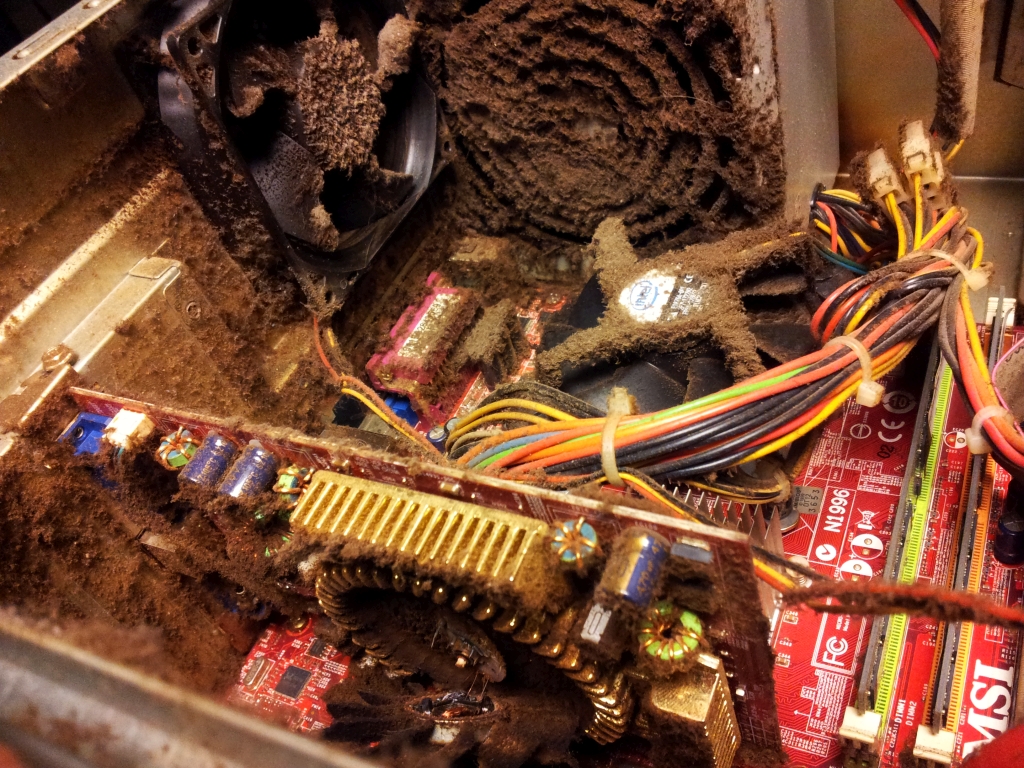
Computer maintenance is the practice of keeping computers in a good state of repair. A computer containing accumulated dust and debris may not run properly.
PC Components
[edit]Keyboard
[edit]The crumbs, dust, and other particulate that fall between the keys and build up underneath are loosened by spraying pressurized air into the keyboard, then removed with a low-pressure vacuum cleaner. A plastic-cleaning agent applied to the surface of the keys with a cloth is used to remove the accumulation of oil and dirt from repeated contact with a user's fingertips. If this is not sufficient for a more severely dirty keyboard, keys are physically removed for more focused individual cleaning, or for better access to the area beneath. Finally, the surface is wiped with a disinfectant.

Monitor
[edit]A monitor displays information in visual form, using text and graphics. The portion of the monitor that displays the information is called the screen. Like a television screen, a computer screen can show still or moving pictures and It's a part of Output Devices.
Mouse
[edit]The top surface of the mouse is wiped with a plastic cleanser to remove the dirt that accumulates from contact with the hand, as on the keyboard. The bottom surface is also cleaned to ensure that it can slide freely. If it is a mechanical mouse, the trackball is taken out, not only to clean the ball itself, but to scrape dirt from the runners that sense the ball's movement and can become jittery or stuck if impeded by grime.
Tower/desktop unit
[edit]Internal components accumulate dust brought in by the airflow maintained by fans to keep the PC from overheating. A soft brush may remove loose dirt; the remainder is dislodged with compressed air and removed with a low-pressure vacuum. The case is wiped down with a cleaning agent. A pressurized blower or gas duster can remove dust that cannot be reached with a brush.[1]
Data care
[edit]Backing up
[edit]Important data stored on computers may be copied and archived securely so that, in the event of failure, the data and systems may be reconstructed. When major maintenance such as patching is performed, a backup is recommended as the first step in case the update fails and reversion is required.
Disk cleanup may be performed as regular maintenance to remove these. Files may become fragmented and so slow the performance of the computer. Disk defragmentation may be performed to combine these fragments and so improve performance.
Legal issues
[edit]In the US, the Digital Millennium Copyright Act specifically exempts computer-maintenance activities, so copies of copyright files may be made in the course of maintenance provided that they are destroyed afterwards.[2]
Software
[edit]Operating system
[edit]Operating-system files such as the Windows registry may require maintenance. A utility such as a registry cleaner may be used for this. Also inbuilt Disk defragmenter will also help.
Software updates
[edit]Softwares packages and operating systems may require regular updates to correct software bugs and to address security weaknesses.
Software updates in computer maintenance[3] are essential for maintaining the functionality and efficiency of systems. These updates often include enhancements that improve the overall performance and stability of software and operating systems. They also introduce new features and capabilities, ensuring that the software remains compatible with evolving technological standards and user needs. Regularly updating software is a key practice in keeping computer systems up-to-date and running smoothly.
Security
[edit]Maintaining security involves vulnerability management and installation and proper operation of antivirus software like Kaspersky, Avast Antivirus, McAfee and Many are available.
References
[edit]- ^ Acosta, Jeremy. "Basic Computer Maintenance". Games and Gears. Archived from the original on 2017-12-14. Retrieved 2017-02-22.
- ^ Kent D. Stuckey (1996), Internet and online law, pp. 6–47
- ^ Marcin, Wieclaw (11 January 2023). "Software Updates as an Important Part of PC Maintenance".
Computer maintenance
View on GrokipediaHardware Maintenance
Cleaning Procedures
Cleaning procedures for computer hardware involve the careful removal of dust, debris, and contaminants from internal components to prevent overheating, reduced performance, and premature failure. Dust accumulation can insulate heatsinks and obstruct airflow, leading to elevated temperatures that trigger CPU throttling—where the processor reduces its clock speed to prevent damage—resulting in noticeable slowdowns; this issue is particularly common in dusty laptops and desktops.[5] Regular cleaning maintains optimal thermal efficiency and extends hardware lifespan, particularly for desktops and laptops exposed to environmental particles. These methods focus on non-abrasive tools to avoid scratching delicate surfaces. A step-by-step guide to cleaning internal components begins with preparation: power off the computer, unplug it from the power source, and allow it to cool completely before opening the case. For desktops, remove the side panel in a well-ventilated area, wearing a dust mask to avoid inhaling particles. Use compressed air cans, held upright and at a distance of 6-8 inches, to blow dust from fans, heatsinks, and the motherboard—short bursts prevent moisture buildup from the propellant. Hold fan blades in place with a finger or plastic tool to avoid over-spinning, which could damage bearings. For stubborn dust on heatsinks and CPU/GPU fans, employ a soft-bristled brush to gently dislodge particles, followed by compressed air. On the motherboard, direct air along edges and into RAM slots, avoiding direct blasts on chips. In laptops where RAM modules are accessible via a bottom panel, it is generally safe to remove them for more thorough cleaning of the slots and contacts with compressed air or soft tools, provided proper precautions against electrostatic discharge (ESD) are observed: ground yourself by touching a grounded metal object or using an anti-static wrist strap, handle modules by their edges, and reinsert them securely after cleaning. This step is often unnecessary for basic vent and fan cleaning through external vents. However, opening the laptop may void the warranty on some models; consult the device's manual or seek professional assistance if unsure.[6] For detailed cleaning of connectors or residue, apply 99% isopropyl alcohol to a lint-free cloth or cotton swab, wiping gently without excess liquid to prevent short circuits. Reassemble only after ensuring all components are dry, then test the system. To address overheating, specifically clean vents and fans with compressed air.[6][7] Electrostatic discharge (ESD) poses a significant risk during cleaning, as static can instantly damage sensitive electronics like integrated circuits. To mitigate this, ground yourself by touching an unpainted metal surface on the computer's chassis before handling parts, or use an anti-static wrist strap connected to a grounded outlet or the case's metal frame. Work on a non-static surface, such as an anti-static mat, and avoid wearing wool or synthetic clothing that generates static. These precautions ensure static electricity is safely dissipated, protecting components from invisible discharges that may not be felt but can cause latent failures.[8][9] Frequency of cleaning depends on environmental factors and usage. For desktops in dusty environments, such as homes with pets or near open windows, perform internal cleaning every 2-3 months to prevent rapid accumulation. In standard conditions, quarterly cleaning suffices for desktops. Laptops, with limited airflow, require internal cleaning every 3-6 months, though external vents should be dusted monthly using compressed air. To further prevent overheating, use laptops on a hard, flat surface to improve airflow and avoid blocking vents with soft materials like beds or cushions.[10] Heavy users, like gamers, may need more frequent sessions to address heat-intensive operation. Adhering to these intervals helps avoid performance degradation linked to dust-related issues in routine monitoring.[4][9] Improper cleaning techniques can lead to severe hardware damage. Excessive liquid from isopropyl alcohol or improper cloths may cause short circuits, corroding circuit boards or connectors. Static discharge without grounding has fried entire systems, such as motherboards or CPUs, in cases where users handled parts on carpeted floors, resulting in total failure without visible signs. Dust buildup, if ignored, exemplifies risks like GPU overheating, where clogged fans reduce cooling efficiency by up to 20-30 degrees Celsius, potentially throttling performance or causing thermal shutdowns. Always prioritize dry methods and ESD protection to minimize these hazards.[9][11]Component Inspection
Component inspection is a critical aspect of computer maintenance, focusing on the systematic examination of internal hardware to detect potential failures before they lead to system instability or complete breakdown. This process combines visual assessments for physical damage and functional tests to verify operational integrity, helping users identify issues like overheating, electrical faults, or mechanical wear in components such as the CPU, RAM, motherboard, and power supply. Regular inspections can extend hardware lifespan and prevent data loss, particularly in environments with high dust accumulation or heavy usage. For the CPU, begin by visually checking the processor for bent pins or socket damage upon removal from the motherboard, and inspect the thermal interface material for signs of degradation, such as drying, cracking, or separation from the heat spreader, which can impair heat transfer and cause overheating.[12] Functional testing involves monitoring temperatures during load using software like HWMonitor; temperatures exceeding 90°C under stress may indicate paste failure or other issues.[13] If dust buildup obscures visibility, a preliminary cleaning may be necessary to ensure accurate assessment. RAM inspection requires both visual and functional approaches: examine modules for bent pins, corrosion on contacts, or physical cracks, which can disrupt data flow and cause errors.[14] For functional verification, reseat the modules to check for loose connections and run stress tests to detect intermittent faults; corrupted data or system crashes during these tests signal potential failure.[15] On the motherboard, look for bulging or leaking capacitors, which appear as domed or discolored tops, a common indicator of electrolytic failure that can cause voltage instability.[16] Check for corrosion on traces or connectors, especially in humid environments, and ensure all cables and slots are securely seated without bent pins or burn marks.[17] This historical issue, known as the capacitor plague of the early 2000s, affected many motherboards due to faulty electrolyte formulas, leading to widespread leaks and system failures between 2002 and 2007.[18] Power supply inspection starts with a visual scan for bulging capacitors, burnt components, or loose wiring inside the unit, followed by checking fan blades for dust obstruction or imbalance.[19] Functionally, test output voltages at the 24-pin connector using a multimeter set to DC mode; expected readings are +3.3V (±5%), +5V (±5%), +12V (±5%), and -12V (±10%), with deviations indicating instability.[20] Essential tools for these inspections include a digital multimeter for precise voltage measurements on the power supply and connectors, avoiding guesswork in diagnosing electrical issues.[20] Thermal imaging cameras can reveal hot spots on components like the CPU or motherboard, where temperatures above 80°C in idle states suggest poor contact or failing parts.[21] For RAM, diagnostic software such as MemTest86 provides comprehensive error detection by running algorithms that stress memory cells for faults.[22] Common signs of component failure include unusual clicking or grinding noises from hard drives, signaling mechanical issues like head crashes; intermittent boot failures, often due to power supply fluctuations; and diagnostic error beeps from the motherboard, such as continuous short beeps indicating power problems.[23][19] Proactive replacement timelines help mitigate risks: reapply thermal paste on the CPU every 2-3 years to maintain efficient cooling, especially under heavy loads.[24] Computer fans, including those on the CPU cooler and case, typically require replacement every 5 years based on average usage, as bearing wear leads to noise and reduced airflow.[25]Peripherals Care
Peripherals, such as keyboards, monitors, mice, and trackpads, require regular maintenance to maintain functionality, prevent hardware degradation, and ensure user safety. Proper care involves gentle cleaning methods to remove dust and debris, periodic adjustments to mitigate wear, and adherence to manufacturer guidelines to avoid damage from liquids or improper handling. This upkeep extends device lifespan and reduces the risk of connectivity issues or physical strain. Keyboard maintenance begins with removing and cleaning keycaps to eliminate accumulated dirt and oils. Keycaps can be gently pried off using a keycap puller or flat tool, then soaked in warm soapy water or wiped with a microfiber cloth dampened in isopropyl alcohol (70% concentration) before air-drying completely. For mechanical keyboards, lubricating switches with a thin layer of synthetic grease, such as Super Lube, can reduce friction and noise in squeaky keys, applied sparingly via a brush after disassembling the switch housing. Troubleshooting sticky keys from spills requires immediate disconnection from power, blotting excess liquid with absorbent material, and using compressed air or isopropyl alcohol on q-tips to clean affected areas, followed by thorough drying for at least 24-48 hours to prevent corrosion. Monitor care focuses on safe surface cleaning and settings optimization to protect display panels. Screens should be wiped with a dry or slightly dampened microfiber cloth in a single direction to remove fingerprints and dust, avoiding paper towels or abrasive materials that could scratch the coating; for stubborn smudges, a solution of distilled water and mild soap can be used sparingly. Anti-static sprays formulated for electronics may be applied lightly to reduce dust attraction, but only those without alcohol or ammonia to prevent coating degradation. To prevent burn-in on OLED and LCD panels, brightness should be adjusted to 50% or lower during prolonged static content viewing, and built-in features like pixel shift or logo luminance adjustment activated, as these mitigate uneven pixel wear over time. Mouse and trackpad maintenance targets sensors, buttons, and cables to ensure precise input. The optical sensor can be cleaned by blowing out debris with compressed air or gently wiping with a dry microfiber cloth, avoiding direct contact to prevent scratches. For button issues from debris buildup, partial disassembly using a screwdriver to access the microswitches allows removal of particles with isopropyl alcohol and a soft brush, reassembling carefully to maintain click tension. In wired models, cables should be inspected for fraying at stress points near the connector or body; if damage is evident, the cord can be replaced by soldering a new USB cable, following the original routing to avoid pinching. Common issues with peripherals include ergonomic strain and connection failures. Adjusting keyboard and mouse height so elbows form a 90-degree angle with wrists straight reduces repetitive strain injury (RSI) risk, as supported by workstation guidelines promoting neutral postures. USB port wear from frequent insertions can lead to intermittent connections after approximately 1,500 cycles for standard USB 2.0 connectors, necessitating gentle plugging and periodic inspection for looseness.Storage Device Handling
Proper handling of storage devices is essential to prolong their operational life and minimize the risk of data loss, encompassing mechanical hard disk drives (HDDs), solid-state drives (SSDs), optical media, and external storage units.[26] These devices are susceptible to physical wear, environmental factors, and operational stresses that can lead to failure rates around 1.7% annually for enterprise HDDs, as reported by Backblaze based on over 270,000 drives monitored through 2023.[26] Before performing any maintenance, integrating backup strategies ensures data integrity in case of unforeseen issues.[26] For HDDs, regular monitoring using Self-Monitoring, Analysis, and Reporting Technology (S.M.A.R.T.) is crucial to detect emerging issues like bad sectors, where the raw attribute value tracks the count of remapped defective areas to prevent data corruption.[27] Vibration can accelerate wear on HDD platters and heads, so placing drives in stable environments and using vibration-dampening mounts helps mitigate this risk during operation.[28] Unlike SSDs, HDDs benefit from periodic defragmentation to reorganize fragmented files and improve access times, as their mechanical nature makes contiguous data placement more efficient.[29] SSD maintenance focuses on preserving NAND flash endurance through features like the TRIM command, which informs the drive controller of deleted data blocks for efficient garbage collection, thereby reducing unnecessary writes and maintaining performance over time.[30] Wear-leveling algorithms distribute write operations evenly across memory cells to avoid premature failure of individual cells, a process integrated into the SSD firmware to balance usage.[31] Consumer SSDs typically carry terabytes written (TBW) ratings of 300-600 TB for 1 TB capacities, indicating the total data volume writable before potential wear-out; for instance, the Western Digital SN550 1 TB model is rated at 600 TBW.[32] Defragmentation should be avoided on SSDs, as it induces extra write cycles that accelerate NAND degradation without performance gains.[33] Optical media, such as CDs and DVDs, require careful handling to prevent scratches on the data surface, which can be achieved by holding discs by the edges and storing them in protective cases away from direct sunlight or heat sources.[34] For optical drives, cleaning the laser lens periodically with a lens-cleaning kit or compressed air removes dust buildup that impairs readability, ensuring the lens is gently wiped with a microfiber cloth if needed, without applying pressure that could damage the mechanism.[35] External storage drives, often connected via USB, demand precautions like secure cable connections and avoidance of sudden movements to prevent disconnection errors or physical damage.[36] Compatibility checks for USB 3.0 or higher interfaces are vital, as these provide faster data transfer rates and backward compatibility with USB 2.0 ports, though optimal performance requires matching host capabilities.[36]Software Maintenance
Operating System Tuning
Operating system tuning involves adjusting configurations to enhance performance, stability, and resource efficiency without altering core software components. This process focuses on built-in tools and settings to manage system resources, reduce overhead, and maintain compatibility, particularly in environments where hardware-software interactions may degrade over time. Regular tuning prevents issues like prolonged boot times, excessive disk usage, and inefficient memory allocation, contributing to overall system longevity. On Windows systems, managing startup programs is a key tuning practice to minimize boot delays. Users can access the Startup tab in Task Manager or navigate to Settings > Apps > Startup to disable unnecessary applications, which directly reduces the time required for initial loading by limiting background processes.[37] Microsoft recommends this approach as it avoids resource contention during boot without risking system instability. Regarding registry maintenance, direct cleaning with third-party tools is discouraged due to potential risks of data corruption; instead, the built-in Disk Cleanup utility (accessible via cleanmgr.exe) removes temporary files and system caches that can indirectly alleviate registry bloat from accumulated remnants.[38][39] For Linux distributions like Ubuntu, package manager maintenance ensures efficient software handling and disk space optimization. Runningapt update refreshes the local package index from repositories, allowing subsequent checks for outdated or obsolete packages without immediate installation, which helps maintain a lean system state.[40] Log file rotation, typically managed by the logrotate utility, automates the compression, archiving, and deletion of old logs to prevent excessive disk consumption; configurations in /etc/logrotate.conf specify rotation frequency, such as weekly cycles with retention for four weeks, freeing space while preserving audit trails.[41][42]
On macOS, tuning addresses indexing and hardware-software synchronization for smoother operation. Rebuilding the Spotlight index resolves search inefficiencies caused by corrupted metadata; this is done by adding the volume to Spotlight's Privacy list in System Settings and removing it to trigger reindexing, which can take time but restores full functionality.[43] Clearing font caches involves using Font Book's "Reset Fonts" option under Settings > Advanced, which deactivates user-installed fonts and rebuilds system caches to fix display issues without manual file deletion.[44] For hardware-software interplay, resetting the System Management Controller (SMC) via power button sequences or the NVRAM/PRAM with Command-Option-P-R at startup clears low-level settings that affect power management and boot parameters, improving stability on Intel-based Macs. For Macs with Apple silicon, there is no dedicated SMC or NVRAM reset procedure; instead, shutting down the Mac and waiting at least 30 seconds before restarting can resolve similar power management and startup issues.[45][46]
Performance tuning often includes virtual memory adjustments, such as optimizing the pagefile on Windows for systems with ample RAM. Virtual memory acts as an extension of physical RAM, using disk space for paging; on machines with 16 GB or more of RAM, reducing the pagefile size from the default (typically 1.5 times RAM) to a fixed minimum—based on peak commit charge—minimizes disk I/O overhead while ensuring crash dump compatibility, though Microsoft advises system-managed sizing for most users unless monitoring shows excessive paging.[47][48] This conceptual allocation balances efficiency and reliability, with tools like Resource Monitor providing metrics to guide adjustments.
Update Management
Update management involves the systematic application of software patches and upgrades to operating systems and applications, addressing vulnerabilities, bugs, and performance enhancements while minimizing disruptions. This process ensures systems remain secure and functional by delivering fixes from vendors like Microsoft or open-source communities. Effective management balances timeliness with stability, often through configurable policies that allow organizations to control deployment timing. As of October 14, 2025, Windows 10 has reached end of support, after which no free security updates or patches are provided; users must upgrade to Windows 11 or enroll in the paid Extended Security Updates (ESU) program for continued protection.[49] Automated updates streamline the process by downloading and installing patches without user intervention, reducing the risk of oversight and ensuring consistent application across devices. For instance, Windows Update offers options such as automatic downloading followed by scheduled installation, which can defer quality updates for up to 30 days to allow for internal review. Pros of automation include faster deployment and lower administrative burden, as it "can significantly reduce the time and effort required" for patching large networks. However, cons involve potential compatibility issues if untested updates are applied broadly, necessitating deferral settings like the 35-day pause feature in consumer editions to temporarily halt installations during critical periods. In contrast, manual updates provide greater control, enabling administrators to select and verify patches individually, though this approach is time-intensive and less scalable for enterprises, as it "may not scale well" in diverse environments. Verification of downloaded updates is essential to confirm integrity and authenticity, typically using cryptographic checksums such as MD5 or SHA-256 hashes provided by vendors. These hashes allow users to compute the digest of a file and compare it against the official value, detecting tampering or corruption during transmission; for example, Microsoft recommends verifying update hashes to ensure secure delivery. If an update fails or causes instability, rollback procedures restore the previous state, such as Windows' built-in feature to revert feature updates within 10 days via Settings > Update & Security > Recovery, or using System Restore points for broader recovery. The 2017 WannaCry ransomware attack, which exploited the unpatched EternalBlue vulnerability in Windows SMB, underscores the consequences of delayed updates; Microsoft had released the MS17-010 patch on March 14, 2017, yet over 200,000 systems worldwide were affected in May due to non-application, highlighting the need for prompt deployment. Best practices emphasize scheduling updates during low-usage periods, such as overnight maintenance windows, to minimize productivity impacts. For critical systems, testing patches in isolated virtual environments prior to full rollout verifies compatibility without risking production assets, as recommended for enterprise patch management. Organizations should also maintain inventories of applied updates and monitor for failures, integrating these steps to enhance overall operating system stability.Driver and Firmware Updates
Drivers are essential software components that facilitate communication between the operating system and hardware devices, such as graphics cards, printers, and network adapters. Regular updates to drivers maintain hardware-software compatibility, enhance performance, resolve bugs, and patch security vulnerabilities. Official sources for driver updates include manufacturer websites; for instance, NVIDIA provides updates through its GeForce Experience application, which automatically detects and installs the latest Game Ready Drivers for optimal gaming and application performance. Similarly, AMD and other vendors offer dedicated download portals on their sites. On Windows systems, users can access drivers via Device Manager for manual updates or reinstallations, where right-clicking a device allows searching for updated software automatically or browsing to a downloaded file.[50] Windows Update also delivers recommended hardware drivers as part of its optional updates, ensuring seamless integration without third-party intervention.[51] Third-party tools like Snappy Driver Installer Origin offer a portable solution for scanning, downloading, and installing drivers offline, particularly useful after a clean operating system installation where internet access is limited. This open-source tool supports a vast driver repository and allows users to select from multiple versions, including both signed and unsigned options. However, caution is advised with unsigned drivers, as they lack digital signatures from trusted authorities and may introduce security risks or system instability, such as blue screen of death (BSOD) errors due to incompatibility or malicious code.[52] Microsoft recommends sourcing drivers exclusively from official channels to avoid such issues, emphasizing that unsigned or improperly signed drivers can lead to unpredictable behavior and heightened vulnerability exposure.[53] Firmware updates target low-level software embedded directly in hardware components, such as the Basic Input/Output System (BIOS) or Unified Extensible Firmware Interface (UEFI) on motherboards, which initialize hardware during boot and provide runtime services. These updates address critical issues like power management flaws, add support for new processors, or mitigate security threats, but they carry significant risks, including permanent device failure (bricking) if the process is interrupted by power loss or system crashes. Manufacturers like Intel outline procedures involving downloading the latest firmware from their support pages, verifying compatibility with the specific hardware model, and using built-in flashing utilities—such as those accessed via a bootable USB—while strongly advising against interruptions and recommending backups of current settings.[54] ASUS and Gigabyte similarly warn of boot failure risks and provide step-by-step guides, including disabling flash protection in the BIOS setup before initiating the update.[55][56] A notable example of firmware update necessity arose from the 2018 vulnerabilities in Intel's Converged Security and Management Engine (CSME), including CVE-2018-3659 and CVE-2018-3643, which exposed systems to potential remote code execution and privilege escalation due to flaws in the firmware's debugging interface. Intel released firmware patches to mitigate these issues, recommending users apply them promptly through manufacturer tools to prevent exploitation.[57] Prior to updating, verifying the firmware version via system utilities ensures the target revision addresses known problems without regressing functionality. Compatibility checks are crucial before applying driver or firmware updates, especially for major operating system transitions. For Windows 11, released in 2021, hardware must support Trusted Platform Module (TPM) 2.0, and corresponding drivers—particularly for CPUs and storage—need to enable this feature for secure boot and encryption capabilities. Microsoft specifies that TPM 2.0 is a mandatory requirement, with users checking and enabling it in UEFI settings or via tools like the PC Health Check app to confirm driver alignment.[58][59] Driver updates for Windows 11 often integrate briefly with broader OS update management to streamline deployment.Data Management
Backup Strategies
Backup strategies are essential components of computer maintenance, aimed at safeguarding data against loss from hardware failures, cyberattacks, or human error by creating redundant copies in a structured manner. A widely recommended approach is the 3-2-1 backup rule, which stipulates maintaining three copies of data: the original plus two backups, stored on two different types of media, with at least one copy kept offsite to mitigate risks like physical disasters.[60] For example, users can implement this by keeping the primary data on an internal hard drive, a second copy on an external HDD, and a third in a cloud service like Google Drive, ensuring accessibility and protection across locations.[60] Built-in operating system tools facilitate these strategies, such as Windows Backup and Restore on Microsoft Windows, which allows users to create complete system images and file backups to external drives or network locations.[61] Similarly, Time Machine on macOS provides automated, incremental backups to connected storage devices, preserving versions of files over time for easy restoration.[62] Backup types vary to balance efficiency and completeness: full backups capture all selected data in a single operation, ideal for comprehensive snapshots but resource-intensive, while incremental backups only record changes since the last backup, reducing storage needs and backup duration.[63] Effective scheduling optimizes these processes, typically involving weekly full backups for thorough coverage and daily incremental or differential backups for critical files to minimize data loss intervals.[64] To protect sensitive information in backups, encryption using the AES-256 standard is recommended, as it provides robust security against unauthorized access during storage or transmission.[65] Legal considerations in backup strategies include compliance with regulations like the General Data Protection Regulation (GDPR), effective since 2018, which requires organizations handling EU personal data to implement secure backup mechanisms that support data protection principles such as integrity and availability.[66] Additionally, backups should only include licensed software to avoid copyright infringement, as U.S. law permits archival copies solely for legally owned programs.[67] These practices ensure backups not only preserve data but also align with broader data management goals, including potential recovery efforts.Data Recovery Techniques
Data recovery techniques encompass a range of methods aimed at retrieving lost, deleted, or corrupted data from storage devices, distinguishing between logical issues—such as file system errors or accidental deletions—and physical damage like mechanical failures. These approaches prioritize non-destructive procedures to preserve remaining data integrity, often beginning with software analysis before escalating to hardware interventions if necessary. While backups serve as the primary preventive measure against data loss, recovery techniques focus on reactive restoration when such safeguards are unavailable or insufficient.[68] Software tools form the foundation of data recovery for logical errors, enabling users to scan and reconstruct file systems without altering the original storage medium. Recuva, developed by Piriform, is a widely used free utility for Windows that recovers deleted files from hard drives, USB drives, and memory cards by scanning for traces of removed data and restoring them to a specified location.[69] For partition recovery, TestDisk, an open-source tool, analyzes disk structures to locate and rebuild lost partitions, supporting multiple file systems including FAT, NTFS, and ext2/ext3/ext4, and can rewrite partition tables to make non-booting disks accessible again.[70] On NTFS volumes, the built-in Windows commandchkdsk /f performs safe file system checks by scanning for and repairing logical inconsistencies, such as bad sectors or cross-linked files, while locking the drive to prevent further writes during the process; users should run it from an elevated command prompt or bootable media to avoid interruptions.[71]
Hardware recovery techniques are employed when software methods fail, typically involving specialized environments and equipment to address physical damage on mechanical hard disk drives (HDDs). Cleanroom procedures, conducted in ISO-certified Class 5 or better facilities, allow technicians to open sealed drives under controlled conditions with filtered air, low humidity, and anti-static measures to prevent dust contamination of platters during repairs like head swaps or platter transplants.[72] Professional services, such as those provided by DriveSavers, utilize these cleanrooms alongside proprietary tools to evaluate and extract data from physically compromised devices, including those affected by water, fire, or impact damage, often achieving results where DIY attempts would exacerbate harm.[73]
Common recovery scenarios highlight inherent limitations, particularly with overwritten data and modern storage technologies. The Gutmann method, which proposes 35 overwrite passes to securely erase data, has been widely debunked as a myth for contemporary drives, as a single overwrite suffices for most post-1990s magnetic media due to advancements in recording density that render residual magnetic traces unrecoverable by standard forensic means.[74] For solid-state drives (SSDs) introduced after 2010, the TRIM command—enabled by default in operating systems—complicates recovery by notifying the drive controller to erase deleted blocks immediately, making post-deletion data retrieval significantly harder or impossible compared to traditional HDDs, as the SSD's wear-leveling and garbage collection further obscure file remnants.[75]
Success rates for data recovery vary by damage type, with professional services achieving high effectiveness for logical errors like deletions or corruption (often over 90%), where software tools can restore most files if acted upon promptly.[76] In contrast, physical damage yields more variable rates, generally lower than for logical issues and depending on the severity (typically 70-90% for recoverable cases), as hardware interventions carry risks of incomplete extraction due to irreparable component failure.[77] These figures, drawn from 2020s forensic analyses, underscore the importance of early intervention to maximize recoverability.
Storage Optimization
Storage optimization involves techniques to enhance the efficiency and effective capacity of computer storage devices, ensuring optimal performance without risking data loss. These methods focus on reclaiming unused space, selecting appropriate file systems, and implementing compression strategies to manage growing data volumes on hard disk drives (HDDs) and solid-state drives (SSDs). By regularly applying these practices, users can prevent storage bottlenecks that lead to slowdowns or system instability.[78] Disk cleanup is a foundational technique for freeing up space by removing unnecessary files. Built-in tools like Windows' Storage Sense and Disk Cleanup automatically identify and delete temporary files, system caches, and unused applications, often reclaiming gigabytes of space on cluttered drives. For instance, Storage Sense can be configured to run periodically, targeting categories such as temporary files and large unused items to maintain free space above a user-defined threshold. Partitioning best practices further aid optimization by separating the operating system from user data; this involves creating distinct volumes for the OS (typically 100-200 GB) and data storage, which simplifies backups and OS reinstallations without affecting personal files. Microsoft recommends using Disk Management to create such partitions during initial setup or via tools like the New Simple Volume wizard, enhancing data organization and recovery ease.[79][80] To address duplicates, third-party tools like CCleaner can scan and remove redundant files, which accumulate from downloads, backups, or syncing errors, potentially recovering 5-15% of drive space depending on usage patterns. File system selection plays a critical role in optimization: NTFS, the default for Windows, offers journaling for improved crash recovery by logging changes before they are committed, reducing the risk of data corruption during power failures or errors. In contrast, exFAT provides better cross-platform compatibility for external drives but lacks NTFS's journaling, making it suitable for non-critical storage like USB devices where recovery is less prioritized. On macOS, APFS enhances efficiency with features like space sharing across volumes and snapshots for quick recovery points, along with strong encryption and fast crash protection through optimized copy-on-write mechanisms.[81][82] Compression and deduplication further boost capacity by reducing file sizes. Windows NTFS supports built-in compression, which can shrink text-heavy data like documents by 20-50% through algorithms that eliminate redundancies, though it may slightly impact access speeds on SSDs. Data Deduplication, available in Windows Server and client editions via ReFS or NTFS, identifies identical chunks across files and stores them once, achieving 30-50% savings on user documents and general file shares—ideal for environments with repetitive content like emails or logs. For macOS, APFS inherently supports compression at the volume level, integrating seamlessly with snapshots to maintain efficiency without manual intervention. These features tie into broader data management by complementing backup strategies, where optimized storage ensures more room for regular snapshots.[78][81] Monitoring tools are essential for proactive optimization, tracking usage trends to avoid fragmentation and capacity issues. CrystalDiskInfo, a free utility, monitors drive health via S.M.A.R.T. attributes, displaying usage percentages, temperatures, and alerting users when capacity exceeds 80%—a threshold where performance degradation often begins due to increased fragmentation. Regular checks with such tools help schedule cleanups before thresholds are reached, preserving long-term storage health.[83]Security Practices
Malware Protection
Malware protection encompasses the strategies, tools, and practices designed to detect, prevent, and mitigate malicious software that can compromise computer systems by stealing data, disrupting operations, or enabling unauthorized access.[84] The evolution of malware dates back to the 1980s, with the Brain virus marking the first known infection of IBM PC platforms in 1986, created by two Pakistani brothers to protect their medical software from piracy but inadvertently spreading via floppy disks.[85] This boot sector virus infected up to 100,000 disks and set the stage for more sophisticated threats, evolving into modern zero-day exploits that target unknown vulnerabilities before patches are available.[86] By 2023, global malware attacks had reached 6.06 billion incidents, highlighting the escalating scale of these threats.[87] Common malware types include viruses, self-replicating programs that attach to legitimate files and spread when executed; trojans, deceptive software that masquerades as benign applications to deliver payloads like backdoors; and ransomware, which encrypts files and demands payment for decryption keys. A prominent ransomware example is the 2023 MOVEit breach, where the Cl0p group exploited a zero-day vulnerability in Progress Software's MOVEit Transfer tool, affecting over 2,000 organizations and compromising data for approximately 60 million individuals.[88] More recently, as of 2025, ransomware attacks have surged by 34% globally, particularly targeting critical infrastructure like manufacturing and healthcare, with emerging AI-assisted malware complicating detection efforts.[89][90] To remove such infections, users should first boot the system into safe mode to limit malware activity, then run antivirus scans and delete suspicious files or processes identified in tools like Task Manager.[91] Antivirus software forms the cornerstone of malware protection, employing signature-based detection to match files against databases of known threat patterns and heuristic analysis to identify suspicious behaviors in unknown code, such as unusual API calls or code obfuscation.[92] Solutions like ESET NOD32 use both methods for real-time scanning of downloads, emails, and system files, while Malwarebytes emphasizes heuristic and behavioral detection to catch evolving threats beyond static signatures.[93] Best practices include conducting full system scans periodically or when potential threats are suspected to catch dormant infections, avoiding downloads from untrusted sources to prevent initial compromise, and enabling automatic updates for threat signature databases as part of broader software maintenance.[94] For enterprise environments, Endpoint Detection and Response (EDR) tools provide advanced monitoring by continuously analyzing endpoint behavior for anomalies, enabling rapid isolation and remediation of threats.[95]Network Security Measures
Network security measures are essential for protecting computers from unauthorized access and threats transmitted over local and wide-area networks. These practices involve configuring protective barriers, securing wireless connections, maintaining network hardware, and actively monitoring for anomalies to ensure the integrity of data in transit and at rest. Firewall setup forms a foundational element of network security by controlling inbound and outbound traffic based on predetermined security rules. On Windows systems, the Windows Defender Firewall allows users to create inbound and outbound rules that specify allowed applications, ports, and IP addresses, thereby blocking unauthorized connections while permitting legitimate ones. For instance, rules can be configured to allow traffic only from trusted IP ranges or to restrict specific ports commonly targeted by attackers. To identify potential vulnerabilities, port scanning tools like Nmap can be employed to detect open ports on a system or network device; Nmap sends packets to probe these ports and classifies them as open, closed, or filtered, helping administrators close unnecessary exposures before exploitation occurs. Wi-Fi security protocols are critical for safeguarding wireless networks against eavesdropping and unauthorized entry. The WPA3 protocol, introduced by the Wi-Fi Alliance in 2018, enhances protection through individualized data encryption and resistance to offline dictionary attacks, making it more secure than its predecessor WPA2 for both personal and enterprise environments. Complementary measures include MAC address filtering, which restricts network access to devices with pre-approved hardware addresses listed in the router's configuration, providing an additional layer of control although it can be bypassed by spoofing. When connecting to public networks, using a virtual private network (VPN) such as OpenVPN is recommended to encrypt traffic end-to-end, preventing interception of sensitive data like login credentials or financial information. Router maintenance is vital to prevent exploitation of common network entry points. Regularly updating router firmware addresses known vulnerabilities and improves overall stability, with best practices including checking manufacturer websites monthly and applying patches during off-peak hours to minimize disruption. Disabling Wi-Fi Protected Setup (WPS) is advised due to its susceptibility to brute-force attacks on the PIN authentication method, which can allow attackers to gain unauthorized access without the passphrase. A notable example is the 2016 Mirai botnet, which infected hundreds of thousands of IoT devices, including routers, by exploiting default usernames and passwords, leading to massive distributed denial-of-service attacks that disrupted major internet services. Ongoing monitoring through intrusion detection systems (IDS) helps detect and respond to potential threats in real time. Basic IDS implementations, such as network-based systems, analyze traffic patterns for signs of malicious activity like unusual port scans or protocol anomalies, generating alerts for further investigation. Complementing this, logging suspicious network traffic—such as denied connection attempts or unexpected data volumes—enables security reviews by capturing timestamps, source/destination IPs, and packet details in centralized logs, facilitating forensic analysis and policy refinement to strengthen defenses.Access Control Implementation
Access control implementation in computer maintenance involves configuring systems to restrict unauthorized entry to hardware, software, and data, thereby protecting against both digital and physical threats. This process ensures that only authenticated users can interact with resources, minimizing risks of data breaches or misuse. Effective implementation combines user authentication mechanisms, permission settings, and compliance measures to maintain system integrity over time. User accounts form the foundation of access control, requiring robust password policies to prevent unauthorized login attempts. According to NIST Special Publication 800-63B, passwords should be at least eight characters long without mandatory composition rules like uppercase letters or numbers, emphasizing length and usability to reduce user errors while enhancing security.[96] Administrators maintain these by enforcing policies through operating system tools, such as Windows Local Security Policy or Linux PAM modules, and regularly auditing for compliance. Multi-factor authentication (MFA) adds a second verification layer, such as a token or app-generated code, beyond passwords; NIST recommends MFA for all users where feasible, using factors like possession-based authenticators to verify identity against phishing risks.[96] Biometric authentication enhances user account security on portable devices like laptops by using unique physical traits for verification. Fingerprint scanners, integrated via Windows Hello, allow setup through device settings where users register multiple fingers for reliable unlocking, storing encrypted templates in secure hardware like Trusted Platform Modules to prevent data extraction.[97] For physical safeguards, Kensington locks provide a mechanical deterrent against theft; these cable locks attach to standardized security slots on laptops and desktops, anchoring devices to fixed objects in public or office environments to protect hardware access.[98] File permissions enforce granular control over data access at the operating system level. On Linux systems, the chmod command modifies permissions using symbolic or octal notation, such aschmod 644 file.txt to grant read/write to the owner and read-only to others, ensuring sensitive files remain protected from unintended modifications.[99] Windows NTFS uses Access Control Lists (ACLs) for similar purposes, where administrators set allow/deny entries for users or groups on files and folders via the Security tab in properties, supporting inheritance to streamline enterprise configurations.[100] In enterprise settings, role-based access control (RBAC) extends these by assigning permissions to predefined roles like "admin" or "viewer," as outlined in NIST's RBAC model, which reduces administrative overhead by linking user duties to system rights without individual tweaks.[101]
Legal compliance integrates access controls with logging for regulated environments. The Health Insurance Portability and Accountability Act (HIPAA) of 1996 mandates audit controls under its Security Rule to log access to electronic protected health information (ePHI), requiring systems to record user activities, timestamps, and attempts for review to detect unauthorized entries.[102] Maintenance routines include periodic log reviews and retention, often for six years, to align with standards like 45 CFR § 164.312(b).
Preventive Measures
Routine Monitoring
Routine monitoring involves regularly observing key system indicators to detect potential issues before they escalate, ensuring optimal hardware and software functionality in computers. This practice helps maintain stability by tracking resource utilization, environmental conditions, and operational logs on a daily or weekly basis. Effective monitoring relies on built-in operating system tools and third-party utilities to provide real-time and historical data, allowing users to identify anomalies such as overheating or excessive resource consumption early. In 2025, AI-enhanced tools like Azure Monitor can provide predictive analytics for proactive maintenance.[103][104] On Windows systems, Task Manager serves as a primary tool for monitoring CPU and RAM usage, displaying real-time graphs of processor load, memory allocation, and active processes to pinpoint high-utilization culprits. Similarly, macOS's Activity Monitor offers comparable functionality, tracking CPU activity, memory pressure, and disk usage through intuitive tabs that highlight resource-intensive applications. For Linux environments, htop provides an interactive, ncurses-based interface for viewing CPU, memory, and process details, enabling scrolling and filtering for efficient oversight. Additionally, Windows Event Viewer is essential for reviewing system logs, where administrators can filter application, security, and system events to monitor error occurrences and diagnostic messages.[104][105][106][107] Key metrics to track include CPU temperatures, which should ideally remain below 80°C under load to prevent thermal throttling and hardware degradation, as sustained higher temperatures can reduce component lifespan. To monitor these temperatures, free tools such as HWMonitor can be used to read hardware sensor data in real-time and detect overheating early.[108] Uptime statistics, measurable via commands likeuptime on Linux or performance counters in Task Manager on Windows, indicate system reliability by showing continuous operation duration and reboot frequency. Error rates, such as failed process executions or disk read/write failures, should be monitored to maintain low thresholds, using log analysis in tools like Event Viewer. High disk I/O anomalies, for instance, can signal impending storage issues if rates exceed baseline norms during routine tasks.[109][110][111]
Automation enhances routine monitoring through scripts that generate daily health reports and send alerts for deviations, such as email notifications for elevated disk I/O via tools like PowerShell on Windows or Bash on Linux. For example, a cron-scheduled Bash script can check CPU load, memory usage, and disk health, emailing summaries to administrators. Periodic benchmarks using Cinebench establish performance baselines by rendering complex scenes to stress-test CPU capabilities, allowing users to compare scores over time and detect degradation from factors like dust accumulation, which may trigger physical cleaning.[112][113][114]
Performance Optimization
Performance optimization in computer maintenance involves techniques to enhance system speed and responsiveness by efficiently managing resources and reducing bottlenecks. Resource management plays a central role, beginning with disabling unnecessary visual effects in operating systems like Windows, which can free up CPU and GPU cycles otherwise dedicated to animations and transparency. For instance, adjusting settings to "best performance" mode reduces graphical overhead, leading to smoother operation on lower-end hardware.[115] Managing background processes is equally important; using Task Manager to disable startup programs prevents resource-intensive applications from launching automatically, thereby decreasing boot times and ongoing CPU utilization.[116] Overclocking provides another avenue for performance gains by increasing CPU or GPU clock speeds beyond manufacturer defaults, but it requires adequate cooling to mitigate heat buildup, which can otherwise cause instability or hardware degradation. Intel recommends using high-quality coolers and monitoring temperatures to ensure safe operation, as elevated voltages generate additional thermal load.[117] AMD similarly advises voltage oversight via tools like Ryzen Master to avoid risks such as system crashes.[118] Caching and indexing optimizations further contribute by clearing accumulated temporary data that hampers efficiency. Clearing browser caches removes stored images, scripts, and files from sessions, which can prevent loading delays caused by corrupted or outdated entries, thereby improving page rendering speeds in browsers like Firefox and Chrome.[119][120] Rebuilding the Windows search index resolves fragmentation issues in the search database, often resulting in faster query responses and overall system fluidity, particularly after prolonged use.[121] Hardware upgrades complement these software tweaks; adding RAM is advisable if current capacity is below 16GB, as it enables better multitasking and reduces reliance on slower virtual memory. As of 2025, 16GB is recommended as the baseline for basic tasks.[122] Benchmarking tools allow users to quantify improvements from these optimizations through before-and-after comparisons. UserBenchmark, for example, runs standardized tests on CPU, GPU, and RAM to generate percentile rankings against similar hardware, helping identify bottlenecks and verify gains such as reduced load times or higher frame rates.[123] While exact improvements vary by system, optimizations like RAM additions or process management commonly yield noticeable enhancements in everyday tasks. Platform-specific techniques, such as enabling zram on Linux, offer tailored benefits for low-RAM environments by compressing swap space in memory rather than disk, which minimizes I/O latency and preserves performance under memory pressure. This approach significantly reduces access delays compared to traditional swapping, making it suitable for resource-constrained setups.[124] Routine monitoring can briefly inform these efforts by pinpointing initial bottlenecks, guiding targeted optimizations.[121]Basic Troubleshooting
Basic troubleshooting involves systematic steps to diagnose and resolve common computer issues, such as boot failures or network disruptions, using built-in tools without requiring specialized software. These methods focus on isolating problems through minimal interventions, allowing users to restore functionality independently in most cases. For boot problems, one initial step is to enter safe mode, which loads Windows with a minimal set of drivers and services to identify software conflicts. To access safe mode from within Windows, open Settings, navigate to Update & Security > Recovery, select Advanced startup, and click Restart now; after reboot, choose Troubleshoot > Advanced options > Startup Settings > Restart, then press 4 or F4 for Safe Mode. If the system fails to boot normally, interrupt the startup process three times by forcing a shutdown during the Windows logo to trigger the Automatic Repair screen, from which safe mode can be selected via the same startup options path.[125][126] Hardware-related boot issues can often be isolated by disconnecting external peripherals one by one. Begin by powering off the computer, unplugging all non-essential devices such as USB drives, printers, and external hard drives, then attempt to boot; if successful, reconnect devices individually to identify the faulty one, as incompatible or malfunctioning peripherals can prevent system startup. This approach addresses common causes like power draw conflicts or driver incompatibilities without opening the hardware casing.[126] Connectivity issues, such as sudden loss of internet access, can be addressed by resetting the IP configuration. Open Command Prompt as administrator and runipconfig /release to free the current IP address, followed by ipconfig /renew to obtain a new one from the DHCP server; this refreshes network settings and resolves temporary lease problems. If the issue persists due to recent driver updates, perform a driver rollback: in Device Manager, expand Network adapters, right-click the affected adapter, select Properties > Driver tab, and click Roll Back Driver if available, reverting to the previous stable version that may have caused the network drop.[127][50]
Common error types include the Blue Screen of Death (BSOD), where analysis of minidump files provides clues to the cause. These files, located in C:\Windows\Minidump, can be examined using the Windows Debugger (WinDbg) tool from Microsoft; download and install WinDbg, open a dump file via File > Open Crash Dump, set symbols to Microsoft's server (e.g., srvc:\symbolshttps://msdl.microsoft.com/download/symbols), and run the command !analyze -v for a detailed report on the faulting module or driver. A frequent BSOD code is 0x0000007B (INACCESSIBLE_BOOT_DEVICE), indicating the operating system cannot access the boot partition, often due to storage driver issues or hardware changes like SATA mode mismatches.[128][129]
During troubleshooting, briefly check for malware infections using built-in security tools to rule out software interference.
Escalation to professional help is necessary if basic steps fail, such as when hardware diagnostics (e.g., via built-in memory or disk checks) report persistent errors or the system remains unbootable after peripheral tests and safe mode attempts. Post-2020 trends show increased adoption of remote support services, which generally resolve issues faster than on-site visits by allowing technicians to access the system virtually for advanced diagnostics.[130]