Hubbry Logo
Fn keyFn keyMain
Open search
Fn key
Community hub
Fn key
logo
8 pages, 0 posts
0 subscribers
Be the first to start a discussion here.
Fn key
Fn key
from Wikipedia
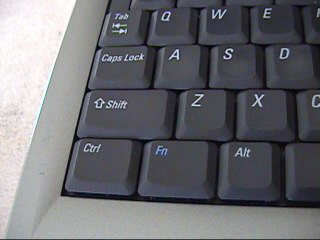
Fn key on a Dell Inspiron 1150 laptop
Fn key on a USB Raspberry Pi keyboard

The Fn key, short form for function, is a modifier key on many keyboards, especially external keyboards, and is not available for mobile devices. For use in a compact layout, combine keys which are normally kept separate. Alt + Fn is typically found on laptops due to their keyboard size restrictions. It is also found on many full-sized "multimedia" keyboards as the F-Lock key. It is mainly for the purpose of changing display or audio settings quickly, such as brightness, contrast, or volume, and is held down in conjunction with the Caps Lock to change the settings.

Compact layouts

[edit]

Typically, in a compact layout the main area of the keyboard (containing the letter keys) is kept in much the same layout as with a full-sized keyboard, and the numeric keypad is moved to share a group of central keys. This allows typists to enter text without having to learn a new layout. The symbol that is accessed through pressing Fn is often printed on the key in a smaller font, a box, or different colour (usually blue but sometimes orange). [citation needed]

Apple iBook compact layout (UK)

This 78-key UK layout is taken from the Apple iBook. Characters in blue are accessed through the Fn key, but functions on the top row can be accessed without Fn key in Mac OS X.

Technical details

[edit]

Fn is a modifier key, and works like other modifiers keys, such as Ctrl, Shift, Alt and AltGr. For a standard modifier key, the microcontroller inside the keyboard sends a scancode for the modifier itself, which is then interpreted by the operating system and combined with other simultaneous key-presses. The Fn key is a form of meta-modifier key, in that it causes the operating system to see altered scancodes when other keys on the keyboard are pressed. However, because the operating system has no notion of the Fn key, the key can not normally be remapped in software, unlike all other standard keyboard keys.

While it is more common for the Fn key processing to happen directly in the keyboard micro-controller, offering no knowledge to the main computer of whether the Fn key was pressed, some manufacturers, like Lenovo, perform this mapping in BIOS, allowing remapping the Fn key for the built-in keyboard;[1] and Apple, in which the Fn key is mappable and serves other uses too, as triggering the Dictation function by pressing the Fn key twice, and changing the input source if there are multiple or showing the emoji and symbols menu by pressing the Fn key once.

In addition to being mapped to standard keyboard keys like Scroll Lock and Num Lock, the Fn key combinations may also be mapped to control system interfaces to change the LCD brightness, VGA output, or speaker volume on most laptop computers.

Microsoft Windows added native support for Fn keys since Windows 2000 and Windows Me.

Fn and Control key placement

[edit]

There is not yet an agreed-upon standard for the placement of the Fn key, although most manufacturers have elected to place it alongside a shrunken and/or displaced left Control key. Because the Control key is most frequently associated with OS and application shortcuts (such as Control+S to save a document, or Control+Shift+Escape to launch the Task Manager in modern versions of Microsoft Windows), altering its size and placement is often regarded as inconvenient for users accustomed to the larger left Control key on IBM PC-style keyboards commonly used for desktop computers.[2][3][4][5][6]

The majority of portable computer manufacturers today (including HP, Dell, and Samsung) currently place the Fn key between the left Control key and the left Windows key, making it the second key from the left on the bottom row of the keyboard. This usually means that the Control key is reduced in size, but allows it to remain in the lowest-left position on the keyboard.

Conversely, Lenovo currently arrange keyboards on their ThinkPad computers with the Fn key as the lowest-left, making Control the second-from-left on the bottom row. This arrangement is currently unique to ThinkPads amongst all laptops shipped with Windows, but it is one that has been in place since the modern ThinkPad product line was introduced by IBM in 1992. IBM designers chose this arrangement at least in part because it allowed the laptop's ThinkLight to be turned on in the dark simply by feeling for the keys in two of the keyboard's corners.[7] Notably, ThinkPads did not include Windows keys on any of their keyboards until 2006, which meant that though the left Control key was displaced by the Fn key, neither it nor the left Alt key needed to be made smaller. The inclusion of Windows keys on ThinkPad models from mid-2006 onwards was achieved mainly by shrinking the left Alt key, which means that ThinkPad keyboards now generally have larger left Control keys than those of many other manufacturers, and are unique in preserving on laptops the Control, Windows, and Alt key arrangement used on most desktop keyboards. Many laptops place the Fn key at a less convenient position (and with a smaller size) within the top row of functions keys F1 to F12 and other "multimedia" or manufacturer-specific device/power control key.

Apple also place the Fn key at the bottom left of the keyboard, displacing and shrinking the left Control key, though this is less controversial as macOS, the main operating system for most Apple laptops, is much less reliant on the Control key for shortcuts and modifiers than Windows or Unix-like operating systems, as the Command key is used more often for shortcuts and modifiers.

This inconsistency between manufacturers, and the overall issue of Control key shrinkage, has long been a point of contention between laptop purchasers and users, which is aggravated by the fact that on most keyboards the Fn key is mapped at the hardware level and so cannot be remapped (that is, reconfigured or virtually "moved") at the OS level.[8] Lenovo, however, have since circa 2011 allowed users to reverse the Fn and left Control key arrangement via a BIOS setting.[9]

Other manufacturers have chosen to map the Fn key not to the left of the space bar but instead to the right, so that the space bar can be better centered with the rest positions (alphabetic keys F and J on Latin layouts), without sacrificing the width of the left Control and left Alt key (already reduced by the insertion of the left Win key between them), while keeping AltGr on the right large enough for more frequent use on international layouts; in that case, the Fn key just replaces the second Win key (which is optional and in fact not needed) of extended PC keyboards. Other manufacturers have placed the Fn key at end of row B, immediately to the right of the second Shift key which is larger than necessary for typing text, in order to map the second Win key next to the right of AltGr, or to preserve the conventional placement of Japanese input mode keys.

A different solution, which side-steps the Fn key placement issue altogether, is to remap the Caps-Lock key as Control.[10] This emulates the layout of the IBM Model F keyboard for the original IBM PC, which placed the Caps-Lock key where right Control is found on modern keyboards, a location that is favoured by some Vim and Emacs users because of its prominent location and long-time use on Unix workstations. There can be up to 24 function keys on a keyboard, labeled F1 through F24.[11]

Common Fn key features

[edit]

Fn key features vary from keyboard to keyboard, but the common ones are the following:

  • Adjust or mute audio output
  • Increase/decrease display's brightness or contrast
  • Activate an external monitor for giving a presentation
  • Activate Stand By mode
  • Hibernate
  • Sleep/Wake up
  • Eject a CD/DVD
  • Lock the keyboard[12]
  • Toggle keyboard illumination (if any)
  • Toggle built-in display (if any; usually without notifying the OS)
  • Toggle touchpad (if any)
  • Toggle built-in camera (if any)
  • Toggle Bluetooth
  • Toggle Wi-Fi
  • Launching a character map and/or emoji keyboard (prevalent on iOS and MacOS keyboards since the late 2010s; denoted with an additional globe symbol)
  • Lock the device
  • Screenshot
  • Open default web browser, email client, calculator, or media app.
  • Pause and fast-forward media.
  • Open the OS' search menu.
  • Changing the input source

References

[edit]
[edit]
Revisions and contributorsEdit on WikipediaRead on Wikipedia
from Grokipedia
The Fn key, short for "function," is a primarily found on and compact keyboards that activates secondary or alternative functions assigned to other keys, such as the F1–F12 function keys or , enabling efficient use of limited space by providing quick access to hardware controls like screen , audio , media playback, and toggles. When pressed and held in combination with another key—similar to the —it overrides the primary function of that key to execute the embedded secondary action, which is often indicated by icons or smaller print on the keycaps. This design allows manufacturers to dual-purpose keys without expanding the keyboard layout, making it essential for portable computing. The Fn key originated in the mid-1990s as laptops evolved to prioritize portability, with its earliest known implementation on the 360PE in 1994, where it facilitated controls for emerging features like audio and display adjustments. It gained prominence on Apple hardware starting with the series in 1998, becoming a fixture in the lower-left corner of keyboards and later extending to external compact models like Apple's 2007 Wireless Keyboard. Over time, its adoption spread across brands, including devices and various PC s, where it standardizes access to system-level shortcuts while allowing customization through settings or software. Common secondary functions activated by the Fn key include increasing or decreasing screen brightness (often Fn + F5/F6), muting or adjusting volume (Fn + F10–F12), and navigating pages (Fn + for Page Up/Down), though exact mappings vary by device manufacturer, operating system, and model—for instance, on many laptops across Windows, macOS, and Linux distributions such as Ubuntu, Fn + one of the function keys (typically F5, F6, F7, F8, or F9, marked with a touchpad icon often depicting a finger or crossed-out touchpad symbol) toggles the on or off as a hardware-level feature, while on some systems Fn controls keyboard . Many modern keyboards feature an "Fn lock" option, activated by Fn + Esc or a dedicated key, to toggle between default behaviors and standard F-key operations without requiring constant modifier use, enhancing usability for tasks like gaming or programming. Despite its hardware-level integration, the Fn key is not always detectable by software as a standalone modifier, limiting its remapping potential in some applications.

Introduction

Definition and Purpose

The Fn key, short for "function," is a commonly found on and compact keyboards. It activates alternative or secondary functions assigned to other keys when pressed in combination with them, allowing a single key to serve multiple purposes. The primary purpose of the Fn key is to optimize space on smaller keyboards by mapping additional controls—such as media playback, screen brightness adjustments, or toggles—onto existing keys without the need for dedicated buttons or a separate . This design enables manufacturers to produce more compact layouts while maintaining access to essential hardware and system functions. Unlike standard modifiers like Shift or Ctrl, which are recognized natively by the operating system as software-level inputs for tasks such as text capitalization or keyboard shortcuts, the Fn key operates at the hardware level through keyboard firmware. This means it alters key outputs before they reach the OS, and it is not treated as a conventional modifier in software applications. In basic use cases, the Fn key often enables the standard F1 through F12 function keys to perform their traditional software roles—such as opening help menus or executing app-specific commands—on laptops where these keys default to hardware controls like adjustment. For instance, pressing Fn + F5 might refresh a webpage instead of toggling a display mode.

History and Evolution

The Fn key originated in the early as a solution for compact keyboard designs in portable computers, first appearing on laptops in models such as the 500 and 750 series around 1993. It enabled access to essential features such as battery status without requiring additional dedicated keys, addressing the space constraints of early laptops. This innovation was driven by the need for portability in business computing, where full-sized keyboards were impractical. By the late 1990s, the Fn key gained wider adoption, particularly in Apple's lineup. Apple incorporated it starting with the Wallstreet in 1998, positioning it in the lower-left corner to support multimedia controls and system toggles on smaller keyboards. Throughout the , the key became standard across Windows-based laptops. Its expansion to USB and external compact keyboards further solidified its role in non-laptop devices. Key milestones in the highlighted the Fn key's growing importance amid hardware miniaturization. The surge of netbooks around 2008, such as the , emphasized ultra-compact layouts where the Fn key was essential for accessing secondary functions like volume adjustment on reduced key sets. Post-2010, as hybrid 2-in-1 devices and ultrabooks proliferated, the Fn key evolved to complement touch interfaces, providing quick hardware toggles in increasingly slim form factors. This progression reflected broader trends toward 60% and tenkeyless layouts, where the Fn key compensates for omitted rows like dedicated function or navigation keys, enhancing efficiency in mobile and all-in-one computing.

Keyboard Layouts

Compact Layouts

The Fn key enables compact keyboard layouts by serving as a modifier that overlays secondary functions onto existing keys, thereby avoiding the need for additional dedicated hardware and preserving a standard base structure. For instance, this allows integration of features like a through combinations such as Fn plus letter keys, without expanding the keyboard's physical dimensions. In popular formats like 75% and 60% keyboards, the Fn key typically remaps the bottom alphanumeric row to access navigation controls, such as via Fn plus WASD or similar clusters, maximizing utility in reduced key counts. Color-coding conventions are widespread on keycaps, where secondary Fn functions are often denoted by blue icons or smaller engravings to distinguish them from primary labels. These layouts offer key advantages in portability and , significantly shrinking the keyboard footprint—often to under 70% of full-size dimensions—while retaining touch-typing familiarity for users accustomed to traditional arrangements; this makes them prevalent in ultrabooks and mini laptops. An early illustration of this approach appears in the 's 2001 model, which employed a low-profile, compact keyboard design featuring function keys with secondary symbols printed in smaller fonts to indicate Fn-activated operations.

Key Placement Variations

The placement of the Fn key on keyboards lacks a universal standard, resulting in diverse positions relative to other modifier keys such as Ctrl and Alt, depending on the manufacturer and keyboard type. Commonly, it occupies the lower-left corner of keyboards, a convention established since its introduction in Apple's series in 1998. For instance, in the series, the Fn key is situated as the leftmost key in the bottom row, adjacent to and left of the Ctrl key. In contrast, Dell XPS laptops typically position the Fn key immediately to the right of the Ctrl key on the bottom row (between the Ctrl and Windows keys), facilitating quick access alongside standard modifiers. These variations stem primarily from ergonomic priorities, established user habits, and the need for compatibility with operating system shortcuts; for example, displacing the Fn key from the corner allows the more frequently used Ctrl key to benefit from a stable, thumb-accessible position, reducing strain for left-handed users during prolonged navigation tasks. Prevalent configurations reflect design goals across categories: the Fn key serves as the lowest-left key in business-oriented laptops like ThinkPads for streamlined modifier access; it appears on the right side in certain gaming keyboards to minimize interference with left-hand combinations during ; and some ergonomic split keyboards incorporate dual Fn keys—one per half—to enable balanced, ambidextrous operation without compromising reach. Such positioning choices influence , as the Fn key's location near high-traffic areas like Ctrl can provoke accidental activations, particularly in compact layouts where space constraints amplify proximity issues compared to full-size setups; this has drawn user feedback highlighting disruptions to typing flow and shortcut reliability.

Technical Implementation

Mechanism of Operation

The Fn key functions as a hardware modifier that alters the interpretation of subsequent keypresses by the keyboard's controller, enabling secondary functions on keys that otherwise produce primary inputs such as letters or numbers. When pressed, it signals the keyboard's embedded to switch to an alternative input mapping for the duration of the hold or until toggled off, without generating a standard that reaches the operating system. This distinguishes the Fn key from software-based modifiers like Shift or AltGr, which are processed at the OS level after the initial scancode transmission. At the hardware level, the Fn key's operation occurs entirely within the keyboard's or the laptop's (EC), a dedicated low-power chip that manages peripheral inputs independently of the main CPU. The detects the Fn press via a dedicated circuit and applies layer-like remapping to the key matrix, ensuring that combined keypresses (e.g., Fn + F5) trigger predefined actions rather than standard keystrokes. This pre-OS processing allows for efficient, real-time response without software intervention, particularly in compact devices where space constraints limit dedicated keys. Keyboards typically operate the Fn key in hold mode, where its effects persist only while the key is depressed, but many models support a toggle mode via an Fn-lock feature activated by combinations like Fn + Esc. In toggle mode, the secondary functions remain active until deactivated, often indicated by an LED on the Fn key or a dedicated lock to provide visual feedback on the active state. This mode enhances usability for prolonged tasks requiring frequent secondary inputs, such as media control during presentations. The Fn key integrates closely with the laptop's to execute hardware-specific actions, such as adjusting keyboard backlight intensity or screen brightness, directly through low-level signals without involving the operating system. The EC monitors Fn combinations and interfaces with components like the display driver or LED circuits, enabling instantaneous responses even in low-power states like . This hardware-centric approach ensures reliability and power efficiency in portable devices.

Scancodes and Firmware Processing

The Fn key itself does not generate a standard scancode exposed to the operating , as it functions primarily as a firmware-level modifier rather than a conventional input. When pressed in combination with other keys, the keyboard controller or (EC) interprets the input and alters the resulting scancode or HID usage sent to the host . For instance, pressing Fn + F5 on many laptops may suppress the standard F5 scancode (HID usage 0x0007 0x003E on the Keyboard/Keypad page) and instead transmit a dedicated for display brightness adjustment, such as HID usage 0x000C 0x006F (Consumer Page, System Display Brightness Increment). This mapping ensures that secondary functions like media control or hardware toggles are prioritized over behaviors. Firmware plays a central role in Fn key inputs, typically within the keyboard's or the system's EC, which operates independently of the main CPU to enable functionality even before the operating system loads. In systems like ThinkPads, Fn combinations are managed through the HKEY event handler in the or EC , generating notifications via ACPI methods that can be polled or interrupted for boot-time operations such as adjustment or . The EC scans the keyboard matrix at regular intervals (e.g., 10 Hz for certain events) and translates Fn-modified inputs into appropriate signals, often storing state in NVRAM to maintain consistency across power cycles. This pre-OS ensures reliable operation during initialization phases where full HID drivers are unavailable. Compatibility for Fn key handling is facilitated by the USB HID protocol, which accommodates extended usage codes in report descriptors to represent Fn-activated functions without requiring drivers. Standard HID usage tables define mappings for common Fn outcomes, such as controls on the Consumer Page (0x0C), allowing plug-and-play recognition across devices. Windows has supported these extended scancodes natively since Windows 2000 through its USB HID class drivers, converting incoming HID usages to system scan codes for application processing. This enables seamless integration of Fn combinations as virtual key events, like VK_F5 for standard use or custom events for brightness, without additional vendor software in most cases. Edge cases arise in virtualized environments, where Fn key processing is intercepted by the host system's and not passed through to the guest , leading to non-functional combinations unless emulated by the . For example, in setups, Fn-modified keys may require explicit host-side remapping to forward equivalent HID reports to the guest. Similarly, software-based keyboards or on-screen emulations often fail to replicate Fn behavior accurately, as they lack access to hardware-level matrix scanning and may conflict with native driver interpretations of modifier states.

Common Functions

Media and Display Controls

The Fn key commonly enables audio controls on laptops by combining with function keys (F1 through F12) to adjust volume levels, mute sound, and manage media playback. These combinations often feature speaker icons on the respective keys to indicate their purpose. Media navigation functions include play/pause, skipping to the next track, and previous track or stop, allowing users to control audio or video playback without dedicated media buttons; exact mappings vary by manufacturer, such as Fn + F7 for previous, Fn + F8 for play/pause, and Fn + F9 for next on Apple MacBooks. On compact gaming keyboards, which often prioritize space-saving designs without dedicated media keys, these functions are accessed similarly via the Fn key. Users should look closely at the front edge of the keycaps for small printed icons or text indicating secondary Fn functions, such as ▶▶ or → for next track, ◀◀ or ← for previous track, ▶/❚❚ for play/pause, and 🔇 or speaker icons for volume and mute. Common combinations include Fn + F7 for previous track, Fn + F8 for next track, Fn + F9 for play/pause, and Fn + F10/F11/F12 for mute/volume down/volume up. Alternative mappings may involve Fn + arrow keys (left/right for previous/next track, up/down for volume adjustment) or Fn + Ins/Home/End/Page Up/Page Down for media navigation and control. To determine the exact mappings on a specific keyboard, test by holding Fn + suspected keys while playing music or video. Display controls activated by the Fn key primarily handle screen and output switching. adjustments are standard via combinations like Fn + F5 to decrease and Fn + F6 to increase intensity on many models, symbolized by sun icons on the keys for easy identification. Additionally, Fn combinations like Fn + F7 or Fn + F8 toggle between internal display, external monitor, or extended modes, facilitating quick connections to projectors or secondary screens during presentations. These features are implemented in to provide immediate visual adjustments without navigating operating system menus.

System and Hardware Toggles

The Fn key enables users to toggle various system and hardware states on laptops, providing quick access to essential controls without navigating menus or software interfaces. These combinations typically involve pressing Fn alongside a function key (F1–F12) or other modifiers, with mappings varying by manufacturer and model to accommodate compact designs. Common applications include power conservation, , and peripheral activation, enhancing in scenarios. Power management functions allow rapid entry into low-power states or monitoring of energy resources. For instance, on systems from 2017 onward, pressing Fn + 4 initiates , suspending operations while preserving battery life; the system awakens via any key press or the power button. Similarly, combinations like Fn + Insert serve as a or hibernate trigger on various models, suspending active processes to extend runtime during periods of inactivity. Battery status checks are facilitated through dedicated toggles in select configurations, such as on 7560 laptops, where Fn + H switches the indicator light between power status and battery level display, offering visual feedback on charge without opening diagnostic tools. Power saver modes, while often configured via operating , can be indirectly supported by Fn-initiated functions that reduce overall consumption. Input device toggles via the Fn key permit users to enable or disable peripherals for convenience, such as during external use or to prevent accidental inputs. A common example is the touchpad toggle found on many laptops, where pressing Fn combined with a function key (typically F5, F6, F7, F8, or F9) marked with a touchpad icon (often a finger or crossed-out touchpad symbol) disables or enables the built-in touchpad. This hardware-level feature operates independently of operating system settings, allowing quick deactivation to avoid unintended cursor movement and reactivation by repeating the same key combination; accidental presses can cause the touchpad to appear non-functional until re-enabled. Keyboard backlight control is another prevalent input-related function; systems equipped with backlighting use Fn + Spacebar to cycle through off, low, and high brightness levels, improving visibility in dim environments without draining excess power. notebooks similarly employ Fn + the designated backlight key (often F5 or F10) to activate or adjust illumination, with repeated presses incrementing intensity. Additional hardware states managed by Fn combinations include wireless connectivity and lock mechanisms, particularly useful in compact layouts lacking dedicated keys. ThinkPads feature Fn + F8 to enable or disable built-in (Wi-Fi), and Fn + F10 for toggling, facilitating quick compliance with restricted environments like airplanes. In HP notebooks, Fn + F12 often activates , simultaneously disabling Wi-Fi and to conserve energy and adhere to regulations. For compact keyboards without full numeric pads, Fn combinations toggle , converting the main keyboard section into a temporary . activation follows suit with Fn + K on ThinkPads, aiding legacy navigation. Legacy examples include the ThinkLight on older ThinkPads, toggled via Fn + Page Up to illuminate the keyboard area above the display. Modern implementations often integrate Fn with status indicators, such as LED lights for that activate alongside Fn-modified toggles in space-constrained designs.

Variations and Compatibility

Manufacturer Differences

Different manufacturers implement the Fn key with variations in placement, behavior, and additional features tailored to their hardware ecosystems. and keyboards, particularly in series, position the Fn key in the bottom-left corner adjacent to the Ctrl key, leveraging extensive integration with the (EC) for processing key combinations that control system-level functions like and display adjustments. A notable example is the Fn + Spacebar combination, which activates the FullScreen Magnifier for screen zoom functionality on supported models. Apple positions the Fn key at the bottom-left on keyboards, where it primarily serves to access standard F1–F12 functions when combined with the top-row keys, which default to system controls like volume and brightness without requiring Fn. This design integrates seamlessly with macOS, allowing features such as Mission Control via the dedicated F3 key, while supporting gestures on the trackpad as an alternative to certain Fn combinations; notably, lack a traditional Fn-lock toggle, relying instead on software settings for customization. On and HP laptops, the Fn key is commonly placed between the left Ctrl and Windows keys, facilitating quick access in compact layouts. enables Fn key customization through settings, where users can prioritize function key behavior (e.g., media controls as primary) or remap combinations for specific workflows. HP similarly supports Fn toggles via or key combinations like Fn + Left Shift for locking, with unique behaviors such as Fn + PrtSc capturing screenshots or actions on models like the EliteBook series. Other brands emphasize gaming-oriented enhancements; for instance, ROG gaming laptops use Fn combinations to control RGB keyboard lighting and performance modes, adjustable via the Armoury Crate software for per-key illumination profiles. Razer Blade laptops focus on macro programming, where software allows users to assign complex sequences to Fn + key combinations, though the Fn key itself remains non-remappable to preserve hardware stability. Post-2020, firmware updates across manufacturers have trended toward greater Fn customization, including options for key prioritization and software integrations like Armoury Crate or Dell's Command Center, enabling users to redefine combinations for productivity or gaming without hardware modifications.

Operating System Integration

The Fn key's functionality is handled primarily at the firmware level by the keyboard controller or Embedded Controller (EC), which processes Fn combinations and sends corresponding scancodes or events to the operating system for actions like media controls or hardware toggles. Operating systems rely on drivers to interpret these firmware-generated inputs. In Windows, support for these Fn-generated scancodes has been available since Windows 2000 through the Human Interface Device (HID) class driver, which processes inputs from USB and PS/2 keyboards to translate them into system events. This allows the resulting scancodes from Fn-activated functions, such as those for media controls, to be recognized without additional software on compatible hardware. For customization, third-party tools like SharpKeys enable users to remap these scancodes by editing the Windows registry, providing flexibility for non-standard layouts or preferences. macOS offers deep integration of Fn-generated inputs via the IOKit framework, which manages kernel-level device drivers for input hardware and facilitates handling of the sent scancodes or events. By default, inputs like those from Fn + left/right arrow keys adjust volume, while Fn + up/down arrows control display brightness, leveraging IOKit's event dispatching to route these to system audio and graphics subsystems. Accessibility features include options for a "sticky" Fn behavior through Keyboard settings, where modifier keys like Fn can be latched sequentially rather than pressed simultaneously, aiding users with motor impairments via the Sticky Keys toggle. Linux support for Fn key functionality varies by distribution and hardware, often requiring kernel modules such as thinkpad_acpi for ACPI-based event handling on laptops like ThinkPads, which exposes Fn combinations as input events for user-space applications. On non-standard hardware, full functionality demands manual configuration, including loading appropriate modules (e.g., via ) and mapping events in desktop environments like or to ensure scancodes trigger actions like brightness adjustment. In Ubuntu and other Linux distributions, Fn key combinations are commonly used to toggle hardware features such as the touchpad, typically via Fn + one of the function keys (e.g., F5, F6, F7, F8, or F9) marked with a touchpad icon (a finger or crossed-out touchpad symbol). This toggle often operates at the hardware level and functions independently of OS settings. If the touchpad is accidentally disabled and the key combination does not re-enable it, users should first navigate to Settings > Mouse & Touchpad and ensure the touchpad is toggled on. If the issue persists, open a terminal and run xinput list to identify the touchpad device (look for entries containing "Touchpad" or similar), note its ID, and execute xinput enable <ID> (replacing <ID> with the actual number). For some older hardware or driver-related issues, reloading the psmouse module with sudo modprobe -r psmouse && sudo modprobe psmouse may restore functionality. Restarting the system can help in persistent cases. Challenges in Fn key integration arise in virtual environments, where hypervisors like or may fail to emulate Fn-modified scancodes accurately, resulting in unpassed inputs to the guest OS and requiring host-side workarounds or custom drivers. Cross-OS portability issues in dual-boot setups, such as between Windows and , stem from differing driver interpretations of the same hardware scancodes, often necessitating per-OS reconfiguration to maintain consistent Fn behavior. Recent updates in , starting from version 22H2 in 2022, have enhanced support for Fn-generated inputs on touch keyboards by incorporating a traditional layout option that includes an on-screen Fn key, improving for tablet and convertible devices through the touch keyboard settings.

Accessibility Features

The Fn key incorporates several built-in aids designed to assist users with motor impairments. In certain models, such as those from , the Accessibility Utility enables a "sticky" Fn mode, allowing users to press the Fn key once and then activate secondary functions on other keys without holding it down simultaneously, which reduces the need for coordinated two-handed input. Similarly, some support sticky Fn functionality through settings, providing an alternative for users who experience difficulty with combinations. For visual impairments, high-contrast keyboards with yellow-on-black layouts enhance visibility and reduce eye strain for low-vision users relying on keyboard , including keys with secondary Fn functions. Despite these features, the Fn key presents challenges for users with disabilities, particularly in compact designs. Additionally, users with motor impairments, such as tremors or reduced fine motor skills, may experience accidental activations of Fn combinations, leading to unintended system changes like volume adjustments or brightness shifts that disrupt workflow. To address these issues, adaptations through operating system tools and third-party software offer customization options. Windows Ease of Access features, including filter keys, can help ignore brief or repeated unintended presses, though do not apply to the Fn key due to its hardware-level processing. External software like enables users to create custom sequences simulating Fn behaviors or remapping related function keys, allowing for personalized shortcuts that bypass simultaneous presses for those with motor limitations. Microsoft Keyboard Manager further facilitates remapping of function keys accessed via Fn, improving without altering the core Fn hardware. Compliance with accessibility standards emphasizes the Fn key's role in broader keyboard navigation. The (WCAG) 2.1 Success Criterion 2.1.1 requires that all functionality be operable via keyboard without timing dependencies, which influences designs to ensure Fn-enabled controls do not trap users or require non-standard inputs incompatible with assistive technologies. In educational settings, some s feature enlarged Fn keys or adaptive layouts to better accommodate students with disabilities; for instance, specialized keyboards with oversized, high-contrast keys integrate Fn functions more accessibly for young users with visual or motor challenges.

Emerging Developments

Recent advancements in Fn key technology are increasingly incorporating to enable context-aware functionalities. These integrations leverage neural processing units (NPUs) in Ultra and AI processors to process environmental data and suggest optimizations, enhancing user efficiency in dynamic settings. Similarly, the introduction of the dedicated Copilot key on Windows AI PCs from manufacturers such as , , and HP in serves as an AI-specific modifier akin to the Fn key, allowing users to invoke voice controls, real-time collaboration enhancements, and adaptive performance features without navigating menus. Touch and gesture capabilities for the Fn key are evolving through capacitive sensing and haptic innovations, particularly in portable and foldable devices. Capacitive touch elements in foldable Bluetooth keyboards, such as the MUXQMOR model designed for devices like the Samsung Galaxy Z Fold series, enable gesture-based Fn activations for media controls and system toggles on screens up to 11 inches. In premium laptops, haptic feedback is gaining traction; 2025 mechanical keyboard trends highlight advanced switches with integrated haptics for tactile confirmation on Fn presses, as seen in prototypes exploring magnetic Hall effect technology for adjustable actuation and vibration responses. Apple's ongoing development of solid-state haptic buttons, known as Project Bongo and prototyped for iOS devices, aims to replace mechanical buttons with haptic feedback to reduce wear, with projections for implementation in future iPhone models around 2026. Software expansions are facilitating greater flexibility for Fn key usage across ecosystems. Cloud-synced profiles, supported by platforms like Razer Synapse 3 and HyperX NGENUITY, allow users to store and synchronize custom Fn mappings—such as remapped media or productivity shortcuts—across multiple devices via onboard memory and cloud backups. In (VR) and (AR) environments, keyboards emulate Fn functions through gesture-based virtual interfaces; for example, custom VR keyboards in Unity-based applications incorporate hover effects, dynamic color transitions, and haptic feedback via devices like the SenseGlove Nova 2 to simulate Fn layer access for immersive workflows. These developments enable seamless transitions between physical and digital inputs, with AR overlays positioning virtual Fn zones in users' fields of view for hands-free operation. Broader trends point toward modular designs and in Fn-enabled hardware. The rise of programmable modular keyboards, such as the Naya Create (2025), features hot-swappable switches and magnetic add-ons that allow users to customize Fn layers for specific tasks, supporting tri-mode connectivity for versatile programming. Keychron's series exemplifies this with VIA software for on-the-fly Fn remapping, reducing the need for fixed layouts in compact 75% designs. efforts include durable, eco-friendly constructions; the Targus EcoSmart keyboard uses post-consumer recycled materials and harvesting to minimize environmental impact while maintaining robust Fn functionality. Similarly, ZSA's Voyager emphasizes low-profile, repairable modules with sustainable sourcing to extend hardware lifespan. Looking ahead, projections indicate a convergence of Fn key roles with voice controls in smart devices by 2030. envisions AI-driven interfaces where voice commands and supplant traditional keyboard modifiers, integrating Fn-like shortcuts into conversational AI for hands-free system adjustments across laptops, tablets, and IoT ecosystems. This shift, powered by advancements in and , will likely render physical Fn keys supplementary, prioritizing multimodal inputs for enhanced and efficiency.

References

Add your contribution
Related Hubs
User Avatar
No comments yet.