Hubbry Logo
Shell scriptShell scriptMain
Open search
Shell script
Community hub
Shell script
logo
8 pages, 0 posts
0 subscribers
Be the first to start a discussion here.
Contribute something
Shell script
Shell script
from Wikipedia
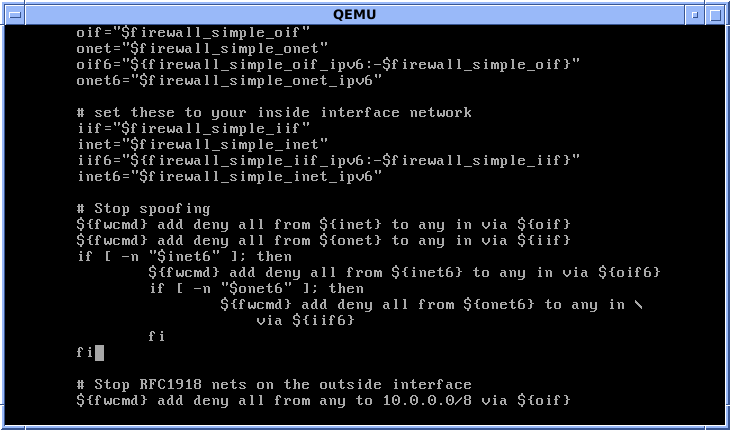
Editing a FreeBSD shell script for configuring ipfirewall

A shell script is a computer program designed to be run by a Unix shell, a command-line interpreter.[1] The various dialects of shell scripts are considered to be command languages. Typical operations performed by shell scripts include file manipulation, program execution, and printing text. A script which sets up the environment, runs the program, and does any necessary cleanup or logging, is called a wrapper.

The term is also used more generally to mean the automated mode of running an operating system shell; each operating system uses a particular name for these functions including batch files (MSDos-Win95 stream, OS/2), command procedures (VMS), and shell scripts (Windows NT stream and third-party derivatives like Take Command/4NT—article is at cmd.exe), and mainframe operating systems are associated with a number of terms.[2]

All Unix-like systems include at least one POSIX shell (typically either bash or the zsh compatibility mode),[3] while many also include a modern shell like fish or nushell.

Capabilities

[edit]

Comments

[edit]

Comments are ignored by the shell. They typically begin with the hash symbol (#), and continue until the end of the line.[4]

Configurable choice of scripting language

[edit]

The shebang, or hash-bang, is a special kind of comment which the system uses to determine what interpreter to use to execute the file. The shebang consists of the characters "#!".[4] In Unix-like operating systems, the characters following the "#!" prefix are interpreted as a path to an executable program that will interpret the script.[5]

Shortcuts

[edit]

A shell script can provide a convenient variation of a system command where special environment settings, command options, or post-processing apply automatically, but in a way that allows the new script to still act as a fully normal Unix command.

One example would be to create a version of ls, the command to list files, giving it a shorter command name of l, which would be normally saved in a user's bin directory as /home/username/bin/l, and a default set of command options pre-supplied.

#!/bin/sh
LC_COLLATE=C ls -FCas "$@"

Here, the first line uses a shebang to indicate which interpreter should execute the rest of the script, and the second line makes a listing with options for file format indicators, columns, all files (none omitted), and a size in blocks. The LC_COLLATE=C sets the default collation order to not fold upper and lower case together, not intermix dotfiles with normal filenames as a side effect of ignoring punctuation in the names (dotfiles are usually only shown if an option like -a is used), and the "$@" causes any parameters given to l to pass through as parameters to ls, so that all of the normal options and other syntax known to ls can still be used.

The user could then simply use l for the most commonly used short listing.

Another example of a shell script that could be used as a shortcut would be to print a list of all the files and directories within a given directory.

#!/bin/sh

clear
ls -al

In this case, the shell script would start with its normal starting line of #!/bin/sh. Following this, the script executes the command clear which clears the terminal of all text before going to the next line. The following line provides the main function of the script. The ls -al command lists the files and directories that are in the directory from which the script is being run. The ls command attributes could be changed to reflect the needs of the user.

Batch jobs

[edit]

Shell scripts allow several commands that would be entered manually at a command-line interface to be executed automatically, and without having to wait for a user to trigger each stage of the sequence. For example, in a directory with three C source code files, rather than manually running the four commands required to build the final program from them, one could instead create a script for POSIX-compliant shells, here named build and kept in the directory with them, which would compile them automatically:

#!/bin/sh
printf 'compiling...\n'
cc -c foo.c
cc -c bar.c
cc -c qux.c
cc -o myprog foo.o bar.o qux.o
printf 'done.\n'

The script would allow a user to save the file being edited, pause the editor, and then just run ./build to create the updated program, test it, and then return to the editor. Since the 1980s or so, however, scripts of this type have been replaced with utilities like make which are specialized for building programs.

Generalization

[edit]

Simple batch jobs are not unusual for isolated tasks, but using shell loops, tests, and variables provides much more flexibility to users. A POSIX sh script to convert JPEG images to PNG images, where the image names are provided on the command-line—possibly via wildcards—instead of each being listed within the script, can be created with this file, typically saved in a file like /home/username/bin/jpg2png

#!/bin/sh
for jpg; do                                  # use $jpg in place of each filename given, in turn
    png=${jpg%.jpg}.png                      # construct the PNG version of the filename by replacing .jpg with .png
    printf 'converting "%s" ...\n' "$jpg"    # output status info to the user running the script
    if convert "$jpg" jpg.to.png; then       # use convert (provided by ImageMagick) to create the PNG in a temp file
        mv jpg.to.png "$png"                 # if it worked, rename the temporary PNG image to the correct name
    else                                     # ...otherwise complain and exit from the script
        printf >&2 'jpg2png: error: failed output saved in "jpg.to.png".\n'
        exit 1
    fi                                       # the end of the "if" test construct
done                                         # the end of the "for" loop
printf 'all conversions successful\n'        # tell the user the good news

The jpg2png command can then be run on an entire directory full of JPEG images with just /home/username/bin/jpg2png *.jpg

Programming

[edit]

Many modern shells also supply various features usually found only in more sophisticated general-purpose programming languages, such as control-flow constructs, variables, comments, arrays, subroutines and so on. With these sorts of features available, it is possible to write reasonably sophisticated applications as shell scripts. However, they are still limited by the fact that most shell languages have little or no support for data typing systems, classes, threading, complex math, and other common full language features, and are also generally much slower than compiled code or interpreted languages written with speed as a performance goal.

The standard Unix tools sed and awk provide extra capabilities for shell programming; Perl can also be embedded in shell scripts as can other scripting languages like Tcl.[6] Perl and Tcl come with graphics toolkits as well.

Typical shell languages

[edit]

Scripting languages commonly found on UNIX, Linux, and POSIX-compliant operating system installations include:

Non-POSIX shells in common use include:

The C and Tcl shells have syntax quite similar to that of said programming languages, and the Korn shells and Bash are developments of the Bourne shell, which is based on the ALGOL language with elements of a number of others added as well.[7] On the other hand, the various shells plus tools like awk, sed, grep, and BASIC, Lisp, C and so forth contributed to the Perl programming language.[8]

Formerly-popular shells include:

Related programs such as shells based on Python, Ruby, C, Java, Perl, Pascal, Rexx etc. in various forms are also widely available.

So called remote shells such as

are really just tools to run a more complex shell on a remote system and have no 'shell' like characteristics themselves.

Other scripting languages

[edit]

Many powerful scripting languages, such as Python, Perl, and Tcl, have been introduced to address tasks that are too large, complex, or repetitive to be comfortably handled by traditional shell scripts, while avoiding the overhead associated with compiled languages like C or Java.[10]

Although the distinction between scripting languages and general-purpose high-level programming languages is often debated, scripting languages are typically characterized by their interpreted nature, simplified syntax, and primary use in automating tasks, coordinating system operations, and writing "glue code" between components.[11] Even when scripting languages such as Python or JavaScript support compilation to bytecode or use JIT to improve performance, they are still commonly referred to as "scripting languages" due to their historical association with automation, lightweight tooling, and scripting environments rather than standalone application development.

Importantly, scripting is a form of programming. While "scripting" may emphasize lightweight, task-oriented automation, the broader term "programming" encompasses both scripting and software development in compiled or structured languages. As such, scripting involves writing code to instruct a computer to perform specific tasks—meeting the fundamental definition of programming.[12]

Life cycle

[edit]

Shell scripts often serve as an initial stage in software development, and are often subject to conversion later to a different underlying implementation, most commonly being converted to Perl, Python, or C. The interpreter directive allows the implementation detail to be fully hidden inside the script, rather than being exposed as a filename extension, and provides for seamless reimplementation in different languages with no impact on end users.

While files with the ".sh" file extension are usually a shell script of some kind, most shell scripts do not have any filename extension.[13][14][15][16]

Advantages and disadvantages

[edit]

Perhaps the biggest advantage of writing a shell script is that the commands and syntax are exactly the same as those directly entered at the command-line. The programmer does not have to switch to a totally different syntax, as they would if the script were written in a different language, or if a compiled language were used.

Often, writing a shell script is much quicker than writing the equivalent code in other programming languages. The many advantages include easy program or file selection, quick start, and interactive debugging. A shell script can be used to provide a sequencing and decision-making linkage around existing programs, and for moderately sized scripts the absence of a compilation step is an advantage. Interpretive running makes it easy to write debugging code into a script and re-run it to detect and fix bugs. Non-expert users can use scripting to tailor the behavior of programs, and shell scripting provides some limited scope for multiprocessing.

On the other hand, shell scripting is prone to costly errors. Inadvertent typing errors such as rm -rf * / (instead of the intended rm -rf */) are folklore in the Unix community; a single extra space converts the command from one that deletes all subdirectories contained in the current directory, to one which deletes everything from the file system's root directory.[17] Similar problems can transform cp and mv into dangerous weapons, and misuse of the > redirect can delete the contents of a file.[18]

Another significant disadvantage is the slow execution speed and the need to launch a new process for almost every shell command executed. When a script's job can be accomplished by setting up a pipeline in which efficient filter commands perform most of the work, the slowdown is mitigated, but a complex script is typically several orders of magnitude slower than a conventional compiled program that performs an equivalent task.

There are also compatibility problems between different platforms. Larry Wall, creator of Perl, famously wrote that "It's easier to port a shell than a shell script."[19]

Similarly, more complex scripts can run into the limitations of the shell scripting language itself; the limits make it difficult to write quality code, and extensions by various shells to ameliorate problems with the original shell language can make problems worse.[20]

Many disadvantages of using some script languages are caused by design flaws within the language syntax or implementation, and are not necessarily imposed by the use of a text-based command-line; there are a number of shells which use other shell programming languages or even full-fledged languages like Scsh (which uses Scheme).

Interoperability among scripting languages

[edit]

Many scripting languages share similar syntax and features due to their adherence to the POSIX standard, and several shells provide modes to emulate or maintain compatibility with others. This allows scripts written for one shell to often run in another with minimal changes.

For example, Bash supports much of the original Bourne shell syntax and offers a POSIX-compliant mode to improve portability. However, Bash also includes a number of extensions not found in POSIX, commonly referred to as bashisms[broken anchor]. While these features enhance scripting capabilities, they may reduce compatibility with other shells like Dash or ksh.

Shell scripting on other operating systems

[edit]

Interoperability software such as Cygwin, the MKS Toolkit, Interix (formerly part of Microsoft Windows Services for UNIX), Hamilton C shell, and UWIN (AT&T Unix for Windows) enables Unix shell programs to run on Windows NT-based systems, though some features may not be fully supported on the older MS-DOS/Windows 95 platforms. Earlier versions of the MKS Toolkit also provided support for OS/2.

In addition, several DCL (Digital Command Language) implementations are available for Windows environments. These include scripting tools like XLNT, which integrates with the Windows command shell and supports automation for CGI programming and Windows Script Host. macOS (formerly Mac OS X) is also Unix-based and includes a POSIX-compliant shell environment by default.[21]

The console alternatives 4DOS, 4OS2, FreeDOS, Peter Norton's NDOS and Take Command (formerly 4NT) which add functionality to the Windows NT-style cmd.exe, MS-DOS/Windows 95 batch files (run by Command.com), OS/2's cmd.exe, and 4NT respectively are similar to the shells that they enhance and are more integrated with the Windows Script Host, which comes with three pre-installed engines, VBScript, JScript, and VBA and to which numerous third-party engines can be added, with Rexx, Perl, Python, Ruby, and Tcl having pre-defined functions in 4NT and related programs. PC DOS is quite similar to MS-DOS, whilst DR DOS is more different. Earlier versions of Windows NT are able to run contemporary versions of 4OS2 by the OS/2 subsystem.

Scripting languages are, by definition, able to be extended; for example, a MS-DOS/Windows 95/98 and Windows NT type systems allows for shell/batch programs to call tools like KiXtart, QBasic, various BASIC, Rexx, Perl, and Python implementations, the Windows Script Host and its installed engines. On Unix and other POSIX-compliant systems, awk and sed are used to extend the string and numeric processing ability of shell scripts. Tcl, Perl, Rexx, and Python have graphics toolkits and can be used to code functions and procedures for shell scripts which pose a speed bottleneck (C, Fortran, assembly language &c are much faster still) and to add functionality not available in the shell language such as sockets and other connectivity functions, heavy-duty text processing, working with numbers if the calling script does not have those abilities, self-writing and self-modifying code, techniques like recursion, direct memory access, various types of sorting and more, which are difficult or impossible in the main script, and so on. Visual Basic for Applications and VBScript can be used to control and communicate with such things as spreadsheets, databases, scriptable programs of all types, telecommunications software, development tools, graphics tools and other software which can be accessed through the Component Object Model.

See also

[edit]

References

[edit]
[edit]
Revisions and contributorsEdit on WikipediaRead on Wikipedia
from Grokipedia
A shell script is a text file containing a sequence of commands written in a shell programming language, designed to be interpreted and executed by a Unix shell such as sh, Bash, or ksh, enabling the automation of repetitive tasks in Unix-like operating systems. The shell itself functions as a command language interpreter that processes input through tokenization, expansions (such as parameter, command, and arithmetic substitutions), redirections for input/output management, and control structures like loops and conditionals, providing a portable framework for scripting as standardized by POSIX.1-2017. Originating from the early Unix development at Bell Labs, shell scripting evolved from Ken Thompson's initial shell in the 1970s, which introduced pipes and redirections, to the Bourne shell (sh) created by Stephen Bourne in 1977, establishing foundational scripting capabilities including variables, functions, and control flow. Subsequent advancements included the C shell (csh) by Bill Joy in 1978, which adopted C-like syntax for interactive use, and the Korn shell (ksh) by David Korn in 1983, which combined features from Bourne and C shells while maintaining backward compatibility. The GNU Bash (Bourne-again shell), released in 1989, became the de facto standard for Linux systems, incorporating POSIX compliance, enhanced interactive features, and scripting extensions like arrays and command history. Shell scripts are widely applied in system administration for tasks such as file backups, log monitoring, process management, and job scheduling via tools like cron, offering efficiency in resource-constrained environments without requiring compilation. Their portability across Unix variants, when adhering to POSIX standards, ensures broad applicability, though dialects like Bash introduce non-standard extensions that may affect compatibility. Despite their power, shell scripts can be error-prone due to subtle syntax issues and lack of strong typing, prompting the use of linters like ShellCheck for validation.

Fundamentals

Definition

A shell script is a containing a sequence of commands intended to be executed by a shell, which is a command-line interpreter in operating systems, to automate repetitive tasks such as system administration, file processing, or program workflows. The shell reads the script file, interprets its contents line by line at runtime, and performs the specified actions without requiring compilation into , distinguishing it from compiled programs that undergo a separate build process prior to execution. Core components of a shell script include commands (such as utilities like ls or echo), arguments passed to those commands, (|) for chaining command outputs as inputs, redirection operators (> for output to files, < for input from files), and environment variables for storing and retrieving data dynamically during execution. These elements enable the script to interact with the operating system environment, manipulate data streams, and control execution flow in a Unix-like context. A typical shell script begins with a shebang line (e.g., #!/bin/sh) to specify the interpreter, followed by the sequence of commands; the shebang's behavior is implementation-defined but commonly used to invoke the appropriate shell. For example:

#!/bin/sh echo "Hello, World!" ls -l

#!/bin/sh echo "Hello, World!" ls -l

This simple structure outputs a greeting and lists directory contents when executed.

History

The concept of a shell as a command interpreter in Unix drew inspiration from the Multics operating system, where early command-line interfaces facilitated user interaction with the system. The first Unix shell, known as the Thompson shell, was developed by Ken Thompson in 1971 and distributed with early versions of Unix from Version 1 (1971) through Version 6 (1975), providing basic command execution and piping capabilities but limited scripting features. This precursor laid the groundwork for more advanced shells by enabling users to chain commands interactively. In 1977, Stephen Bourne at Bell Labs released the Bourne shell (sh), marking the advent of the first full-featured scripting shell for Unix, distributed with Version 7 Unix in 1979. The Bourne shell introduced structured scripting elements like variables, control structures, and functions, making it suitable for automating complex tasks beyond simple command sequences. Building on this, Bill Joy developed the C shell (csh) in 1978 for the Berkeley Software Distribution (BSD) Unix, incorporating C-like syntax for interactive use and job control, which enhanced usability for developers. The KornShell (ksh), created by David Korn at Bell Labs and announced in 1983, extended the Bourne shell with advanced features such as command-line editing and associative arrays, aiming for greater efficiency in both interactive and scripted environments. The GNU Bash (Bourne Again SHell), authored by Brian Fox in 1989 under the Free Software Foundation, emerged to provide a free, POSIX-compliant alternative to proprietary shells, incorporating elements from sh, csh, and ksh while emphasizing portability. Standardization efforts culminated in IEEE Std 1003.2 (POSIX.2) in 1992, which defined a portable shell command language and utilities, ensuring interoperability across Unix-like systems and influencing subsequent shell implementations. Subsequent innovations included the Z shell (zsh), developed by Paul Falstad in 1990 at Princeton University, which combined features from ksh and tcsh for improved customization and autocompletion in scripting. The Friendly Interactive SHell (fish), released in 2005 by Axel Liljencrantz, prioritized user-friendly scripting with syntax highlighting and autosuggestions, diverging from traditional Bourne-style shells. By the 2020s, shell scripting saw renewed prominence in DevOps practices, powering automation in tools like Ansible for configuration management and Docker for container orchestration, with scripts handling deployment pipelines and infrastructure tasks amid cloud-native shifts.

Scripting Languages

POSIX-Compliant Shells

The POSIX Shell and Utilities standard, originally specified in IEEE Std 1003.2-1992, defines requirements for sh-like shells to promote portability in Unix-like environments, including precise command syntax, a core set of built-in utilities, and consistent behavior for scripting. This standard mandates tokenization of input into words and operators, parsing into simple or compound commands, and ordered expansions such as tilde, parameter, command, and arithmetic, followed by field splitting and pathname expansion using patterns like * and ?. Built-in commands required for compliance include cd to change the working directory and update the PWD variable, echo to output arguments to standard output followed by a trailing newline, and special built-ins such as :, break, continue, eval, exec, exit, export, readonly, return, set, shift, times, trap, and unset; and other required built-ins such as test, umask, and wait. Utilities such as command, getopts, and hash must also be supported, ensuring scripts can invoke external programs predictably without reliance on vendor-specific extensions. Common implementations of POSIX-compliant shells include the Bourne shell (sh), which forms the foundational syntax adopted by the standard; GNU Bash in POSIX mode, invoked via the --posix option or set -o posix; and the Debian Almquist Shell (Dash), a lightweight derivative of NetBSD's ash focused on speed and minimalism. In POSIX mode, Bash sets the POSIXLY_CORRECT environment variable, enables alias expansion in non-interactive shells, allows time as a reserved word for timing pipelines, and enforces stricter error handling by exiting on syntax issues or invalid variable assignments, while disabling non-compliant features like tilde expansion in all assignments and history expansion in double quotes. Dash prioritizes performance, executing scripts faster than Bash in most cases due to its reduced feature set and optimized parsing, making it suitable for system initialization and non-interactive use. POSIX compliance uniquely emphasizes standardized I/O redirection, job control, and signal handling to support robust, portable automation. Redirection operators include [n]<word for input from a file, [n]>word for output truncation, and [n]>>word for output appending, applied before command execution to route file descriptors flexibly in pipelines and lists. Job control features, such as the fg built-in to resume a suspended job in the foreground, bg to run it in the background, and jobs to list active jobs with IDs, allow interactive management of asynchronous processes without non-standard extensions. Signal handling via the trap utility enables scripts to intercept POSIX-defined signals like SIGINT (interrupt) or SIGTERM (termination), executing specified commands upon receipt or resetting to default actions, thus facilitating graceful error recovery and cleanup. In distributions, POSIX-compliant shells dominate as the default /bin/sh, with symlinks ensuring compatibility; for instance, and its derivatives like have linked /bin/sh to since the Squeeze release in 2011 for its superior startup speed and lower memory footprint in boot scripts and package management, while distributions such as and typically symlink to Bash in POSIX mode. This configuration reflects Dash's adoption in many major Debian-based systems for non-interactive scripting, underscoring its role in enhancing system efficiency without sacrificing standards adherence.

Non-POSIX Shells

Non-POSIX shells extend the POSIX standard with proprietary features that enhance interactivity and productivity, often at the cost of cross-system compatibility. These shells, such as Zsh and Fish, introduce advanced user interface elements like programmable completions and visual aids, while implementations like Bash add scripting enhancements beyond the POSIX baseline. Zsh, developed in 1990 by Paul Falstad, offers sophisticated command-line editing, spelling correction, and programmable command completion for efficient navigation and execution. It supports customizable themes through prompt configurations, allowing users to tailor the interface for better visual feedback. Fish, released in 2005, emphasizes user-friendliness with built-in syntax highlighting to color-code commands as they are typed and autosuggestions based on history, reducing the need for manual configuration files beyond a simple config.fish. Bash, while largely POSIX-compliant, includes non-standard extensions like associative arrays for key-value storage, declared via declare -A, which enable more complex data handling in scripts. It also supports , such as <(command), allowing commands to treat output as files for piping into other utilities. Tcsh, an extension of the C shell, provides enhanced command-line editing with history mechanisms that permit in-place modification and reuse of previous commands. These extensions improve user experience by streamlining workflows and reducing errors, but they compromise portability since scripts relying on them may fail in strict POSIX environments. Zsh's adoption as the default shell in macOS since Catalina in 2019 reflects its appeal for interactive use, while it remains popular on modern Linux distributions for power users. Community efforts further amplify these shells' capabilities; for instance, Oh My Zsh, an open-source framework launched in the late 2000s, provides over 300 plugins and themes to simplify Zsh customization without deep manual intervention.

Core Features

Comments and Documentation

In shell scripting, comments provide explanatory text that does not affect script execution, enhancing readability and maintainability. According to the POSIX standard, a comment begins with the # character and extends to the end of the line, with the shell discarding the # and all subsequent characters up to but excluding the newline. This single-line syntax is universal across POSIX-compliant shells, such as sh and dash, and is also supported in extended shells like Bash. For multi-line comments, POSIX does not define a native block syntax; instead, developers commonly prefix each line with # to create the effect of a block. An alternative portable method uses a no-op command like : followed by a here-document delimiter, which allows embedding longer explanatory blocks without execution, as here-documents are a POSIX feature for command input. For instance:

: <<'END_COMMENT' This block explains a complex section of the script. It can span multiple lines and include special characters without affecting runtime, as the : command does nothing. END_COMMENT

: <<'END_COMMENT' This block explains a complex section of the script. It can span multiple lines and include special characters without affecting runtime, as the : command does nothing. END_COMMENT

This approach leverages the here-document syntax, where the delimiter (e.g., END_COMMENT) marks the end, and quoting the delimiter prevents variable expansion. Best practices emphasize strategic use of comments to document intent without redundancy. Header comments at the script's beginning should include the script's purpose, author, version, usage instructions, and any dependencies, immediately following the shebang line for clarity. For example:

#!/bin/sh # backup_script.sh - Version 1.2 # Author: Jane Doe <[email protected]> # Purpose: Backs up specified directories to a target location. # Usage: ./backup_script.sh [source_dir] [target_dir] # Dependencies: [tar](/page/Tar), [rsync](/page/Rsync)

#!/bin/sh # backup_script.sh - Version 1.2 # Author: Jane Doe <[email protected]> # Purpose: Backs up specified directories to a target location. # Usage: ./backup_script.sh [source_dir] [target_dir] # Dependencies: [tar](/page/Tar), [rsync](/page/Rsync)

Inline comments are recommended for complex or non-obvious commands, placed on the same line after the code or on preceding lines to explain "why" rather than "what" the code does, keeping them concise to avoid clutter. Comments can also temporarily disable code, such as debugging output, by prefixing lines with #, facilitating testing and . For instance, # echo "Debug: Processing file $filename" comments out a print statement without altering logic. Documentation extends beyond inline comments through integration with external tools. Scripts can embed structured comments compatible with utilities like help2man to generate pages automatically, providing formatted usage details accessible via the man command. Alternatively, header comments serve as a basis for files, ensuring portability and collaboration in projects. The shebang line (#!) functions as a special directive akin to a comment but specifies the interpreter and must remain unquoted and executable.

Variables and Substitution

In shell scripting, variables serve as named storage for , enabling dynamic content and manipulation within scripts. Variables are assigned values using the syntax name=value, where no spaces are permitted around the equals sign, as spaces would be interpreted as command separators. This assignment sets the variable in the current shell environment, and the value can be a , number, or result of expansions. Variables can be unset using the unset command, but once set, they persist until explicitly modified or the shell session ends. To make variables available to child processes, the [export](/page/Export) command is used, either as export name=value to assign and export in one step or export name after prior assignment. Exported variables become environment variables, inheriting to subshells and executed commands, which is essential for configuring runtime environments like PATH or USER. In POSIX-compliant shells, this ensures portability across systems. Variable expansion retrieves the stored value, typically via $name for simple references or ${name} for safer usage, especially when adjacent to other text to avoid ambiguity in . The braced form ${name} is recommended for quoting and preventing unintended word splitting. Command substitution embeds dynamic output by replacing $(command) or the backtick form `command` with the command's standard output, stripping trailing newlines; the $( ) syntax is preferred for its nesting support and readability, and both are POSIX-standard. For example:

output=$(date) echo "Current time: $output"

output=$(date) echo "Current time: $output"

This allows scripts to incorporate real-time data, such as file contents or process results. Parameter expansion provides advanced manipulation of variables, with POSIX-defined forms including ${parameter:-word} to substitute a default value if the parameter is unset or null, ${parameter:=word} to assign and substitute the default, ${parameter:?word} to error out with a message if unset or null, and ${parameter:+word} to use an alternative value if set and non-null. The length of a parameter's value is obtained via ${#parameter}. Bash and similar shells extend this with pattern-based removal, such as ${parameter#pattern} to strip the shortest prefix match or ${parameter%pattern} for the shortest suffix match, aiding in path or string processing. Arithmetic expansion, using $((expression)), evaluates integer expressions like $((2 + 3)) to yield 5. Variables have global scope by default in the current shell but are copied into subshells (e.g., during command substitution or pipelines), where modifications do not propagate back to the , ensuring isolation. Local scoping can be achieved in functions via declarations like local name=value in Bash, though relies on subshell behavior for similar effects. Special parameters provide predefined values: &#36;0 expands to the shell or script name, &#36;1 through &#36;9 (and $n for higher via ${n}) to positional arguments passed to the script or function, and $? to the (0-255) of the last command, crucial for error checking. These are read-only and automatically set at invocation.

Control Structures

Control structures in shell scripts enable and repetition, allowing scripts to respond to conditions and process data iteratively. These constructs form the backbone of procedural logic in POSIX-compliant shells, such as the and its derivatives, where they rely on exit statuses to evaluate conditions. Exit statuses are integers from 0 to 255, with 0 indicating success and non-zero values signaling failure or errors, a convention standardized across systems. Conditional statements primarily use the if construct for binary decisions and the case statement for multi-way branching. The if statement evaluates a compound list—typically a command or the test utility—and executes a then block if the exit status is 0; an optional else or elif block follows for alternatives, terminated by fi. For example:

if test -f /path/to/file; then echo "File exists" else echo "File not found" fi

if test -f /path/to/file; then echo "File exists" else echo "File not found" fi

The test command, invoked as [ expression ], assesses file attributes, string comparisons, or numeric relations, such as -f for file existence or -z for empty strings, returning 0 for true conditions. The case statement matches a word against patterns, executing the corresponding compound list for the first match, and ends with esac. Patterns support wildcards like * and ?, enabling efficient handling of multiple cases, such as:

case &#36;1 in start) echo "Starting service" ;; stop) echo "Stopping service" ;; *) echo "Unknown command" ;; esac

case &#36;1 in start) echo "Starting service" ;; stop) echo "Stopping service" ;; *) echo "Unknown command" ;; esac

This construct is POSIX-mandated and avoids nested if statements for cleaner multi-branch logic. Looping constructs include for, while, and until, each iterating over commands until a termination condition. The for loop assigns a variable to words in a list (or positional parameters if unspecified) and executes the body for each, as in for var in item1 item2; do echo $var; done, with an exit status of 0 if no iterations occur. The while loop repeats while its condition's exit status is 0, and until repeats while non-zero, both suitable for file processing or sentinel-based repetition. For instance:

while read line; do echo "Processing: $line" done < input.txt

while read line; do echo "Processing: $line" done < input.txt

These are core POSIX features, ensuring portability across compliant shells. Bash and other non-POSIX shells extend these with the [[ conditional expression, which supports advanced pattern matching via the =~ operator for POSIX extended regular expressions, without word splitting issues present in [. An example is [[ $var =~ ^[0-9]+$ ]] && echo "Numeric", returning 0 on match. Additionally, Bash introduces the select loop for interactive menus, displaying numbered options from a word list and setting a variable to the user's choice until interrupted or broken. Within loops, break exits the innermost enclosing loop (or nth with an argument), and continue skips to the next iteration, both POSIX built-ins with exit status 0 on success. They enhance control in complex iterations, such as early termination on errors. Unspecified behavior occurs if used outside loops. Error handling leverages exit codes through short-circuit operators: && executes the right command only if the left succeeds (exit 0), while || executes only on failure, enabling concise chaining like command1 && command2 || echo "Failed". This short-circuit evaluation optimizes scripts by avoiding unnecessary executions and propagates errors via the final status.

Functions and Reusability

In shell scripting, functions provide a mechanism for defining reusable blocks of code, promoting modularity and reducing repetition within scripts. According to the POSIX standard, a function is defined using the syntax name() compound-list, where name is a valid shell identifier (not a special built-in utility) and compound-list is a sequence of commands enclosed in braces, such as { commands; }. The function keyword is optional and not part of the POSIX specification but is supported in implementations like Bash for compatibility with other shells. Functions are invoked like simple commands, with any provided operands becoming temporary positional parameters local to the function's execution environment; upon completion, the original positional parameters of the calling context are restored. Parameters to functions are handled through positional parameters, accessible as &#36;1, &#36;2, and so on, up to &#36;9, with $# indicating the number of arguments. For example, a function might process inputs as follows:

greet() { echo "Hello, &#36;1!" } greet "world" # Outputs: Hello, world!

greet() { echo "Hello, &#36;1!" } greet "world" # Outputs: Hello, world!

To provide default values, parameter expansion like ${1:-default} can be used, which substitutes the default if &#36;1 is unset or null. The exit status of a function is determined by the last command executed within it, but the return built-in can explicitly set this status with return , where n is an integer from 0 to 255; without an argument, it uses the status of the prior command. This allows functions to signal success (0) or specific errors to the caller. To enhance reusability across multiple scripts, functions can be organized into library files and incorporated using the POSIX dot command (.), which executes commands from a specified file in the current shell environment. For instance, . ./mylib.sh sources the file mylib.sh, making its functions available as if defined inline. System-wide examples include files in /etc/profile.d/, where administrators place sourced scripts containing shared functions for user sessions, though this is implementation-specific and not mandated by POSIX. Best practices emphasize scoping variables appropriately to prevent global namespace pollution. In POSIX-compliant shells like Dash, variables are globally visible unless manually unset after use, but in extended shells like Bash, the local declaration confines variables to the function's scope, shadowing outer variables without altering them. For example:

myfunc() { local temp="&#36;1" # Scoped to function # Use temp here }

myfunc() { local temp="&#36;1" # Scoped to function # Use temp here }

This avoids unintended side effects in larger scripts. Positional arguments are preferred for simplicity in short functions, but for complex ones, named arguments via associative arrays (Bash extension) or explicit checks improve clarity over relying solely on position. Always quote variables (e.g., "&#36;1") to handle spaces safely, and limit functions to a single responsibility to maintain reusability.

Advanced Capabilities

Shebangs and Language Selection

The shebang, also known as the hashbang or sha-bang, is a special directive at the beginning of a script file that instructs the operating system to execute the script using a specified interpreter. It consists of the characters #! followed immediately by the absolute path to the desired interpreter and optional arguments, such as #!/bin/bash for the Bash shell. This line must be the very first line of the file, with no preceding characters, including spaces or carriage returns, to ensure proper recognition by the kernel during execution. The syntax adheres to Unix conventions, where the kernel reads the shebang line upon attempting to execute the file as a binary and invokes the named interpreter, passing the script path as an argument. In practice, the line is limited to 127 characters on most systems due to the kernel's buffer size for parsing the interpreter path, though some modern implementations like Linux kernel 5.1 extend this to 256 characters. This constraint ensures efficient processing but requires careful path selection to avoid truncation. Introduced in 4.2BSD Unix in August 1983, the shebang mechanism originated from earlier Bell Labs developments between Unix Version 7 and Version 8, enhancing script executability without manual interpreter invocation. It gained widespread adoption in environments like CGI scripts, where web servers rely on the shebang to determine the interpreter for dynamic content generation, such as Perl or Python handlers in HTTP requests. The shebang provides flexibility by allowing scripts to target various interpreters beyond traditional shells, including POSIX-compliant ones like sh, or even non-shell languages to emulate shell-like behavior. For instance, #!/usr/bin/env python enables direct execution of a Python script that processes shell-style commands, bypassing the need for explicit interpreter calls. Portability challenges arise from system-specific interpreter paths; absolute paths like #!/bin/bash may fail if the location varies between distributions. To mitigate this, the #!/usr/bin/env interpreter wrapper is commonly used, as env searches the user's PATH for the executable, improving cross-system compatibility without hardcoding locations. Relative paths are generally avoided, as they depend on the script's execution context and can lead to resolution errors.

Shortcuts and Aliases

In shell scripting, aliases provide a mechanism to create shorthand substitutions for commands, enhancing efficiency by replacing verbose inputs with simpler ones. For instance, the command alias ll='ls -l' defines a temporary alias that substitutes ll with ls -l, allowing users to list files in long format using the shorter form. To make aliases permanent across sessions, they are typically added to the ~/.bashrc file, which Bash sources upon starting an interactive non-login shell. However, aliases have limitations in non-interactive scripts, as they are not expanded unless the expand_aliases shell option is explicitly enabled via shopt. Functions serve as more robust shortcuts in shell scripts, enabling the definition of named routines that encapsulate longer command sequences for reuse. Unlike aliases, functions can accept arguments and support complex logic, making them suitable for replacing intricate command chains with a single invocation. For more advanced function usage, refer to the dedicated section on functions and reusability. Shell scripts also incorporate built-in operators as syntactic shortcuts for command sequencing and conditional execution. The && operator chains commands such that the subsequent one executes only if the previous succeeds, while || runs the next only on failure, facilitating concise error handling. The semicolon ; sequences commands unconditionally, and the ampersand & launches processes in the background, allowing parallel execution without blocking the script. Bash extends shortcut capabilities through parameter expansion, offering shorthand manipulations of variables without external tools. For example, ${var%ext} removes the shortest matching suffix pattern (such as .ext) from the value of var, streamlining tasks like file extension stripping. These expansions prioritize brevity while maintaining POSIX compatibility where applicable, though advanced forms are Bash-specific.

Batch Jobs and Automation

Shell scripts are widely used for batch processing, enabling the automation of repetitive tasks without user intervention. Tools like cron and at facilitate scheduling, allowing scripts to execute at specified times or intervals. Cron handles periodic jobs by examining crontab files every minute to trigger matching entries, while the at command schedules one-time executions at a future time, reading commands from standard input or files. To schedule a cron job, users edit their crontab with crontab -e, specifying fields for minute, hour, day of month, month, and day of week, followed by the script path. For instance, a script running daily at midnight for backups can be added as 0 0 * * * /path/to/backup.sh. The at command, invoked as at [time], queues jobs for later execution, such as at 2am tomorrow < monitor.sh to run a monitoring script. These mechanisms ensure unattended operation, with output typically mailed to the user or redirected to logs. Common automation examples include log rotation, backups, and system monitoring. For log rotation, a shell script can rename current logs, compress older ones, and prune excess files to manage disk space. A basic script might use:

bash

#!/bin/bash LOGFILE="/var/log/app.log" if [ -f "&#36;LOGFILE" ]; then mv "$LOGFILE" "$LOGFILE.$(date +%Y%m%d)" gzip "$LOGFILE.$(date +%Y%m%d)" touch "$LOGFILE" fi

#!/bin/bash LOGFILE="/var/log/app.log" if [ -f "&#36;LOGFILE" ]; then mv "$LOGFILE" "$LOGFILE.$(date +%Y%m%d)" gzip "$LOGFILE.$(date +%Y%m%d)" touch "$LOGFILE" fi

This approach prevents logs from growing indefinitely, often scheduled via cron. Backups leverage tools like rsync within scripts for efficient synchronization. An example script copies directories incrementally:

bash

#!/bin/bash rsync -avz --delete /source/dir/ /backup/dir/

#!/bin/bash rsync -avz --delete /source/dir/ /backup/dir/

The -a flag preserves permissions and timestamps, --delete mirrors the source by removing extraneous files, and -z compresses data during transfer, making it suitable for remote backups. System monitoring scripts check resources like disk usage using df and alert if thresholds are exceeded. For disk space:

bash

#!/bin/bash df -h | grep -E '^/dev/' | awk '{ if (&#36;5+0 > 80) print &#36;0 }' | mail -s "Disk Alert" [email protected]

#!/bin/bash df -h | grep -E '^/dev/' | awk '{ if (&#36;5+0 > 80) print &#36;0 }' | mail -s "Disk Alert" [email protected]

This scans filesystems, filters devices, and emails if usage surpasses 80%, enabling proactive maintenance. Shell scripts integrate utilities via piping for batch data processing, enhancing automation efficiency. Commands like awk and sed transform streams in pipelines; for example, processing access logs:

bash

cat access.log | sed 's/[^a-zA-Z0-9]//g' | awk '{print &#36;1}' | sort | uniq -c | sort -nr

cat access.log | sed 's/[^a-zA-Z0-9]//g' | awk '{print &#36;1}' | sort | uniq -c | sort -nr

Here, sed strips non-alphanumeric characters, awk extracts fields, and sorting counts unique entries, ideal for analyzing large batches without loading everything into memory. For scalability, shell scripts form core steps in CI/CD pipelines. In Jenkins, the sh step executes scripts within declarative pipelines, such as:

groovy

pipeline { agent any stages { stage('Build') { steps { sh 'make' } } } }

pipeline { agent any stages { stage('Build') { steps { sh 'make' } } } }

This runs the shell command make on an agent, integrating builds into automated workflows. Similarly, GitHub Actions uses run for shell scripts in YAML workflows:

yaml

jobs: build: runs-on: ubuntu-latest steps: - name: Run script run: ./deploy.sh

jobs: build: runs-on: ubuntu-latest steps: - name: Run script run: ./deploy.sh

These execute on virtual runners, supporting testing, deployment, and integration at scale. Control structures like loops can iterate over batch items within such scripts.

Generalization and Portability Techniques

Shell scripts can be made more flexible and reusable through parameterization, which allows scripts to accept inputs dynamically rather than hardcoding values. Positional parameters, accessible via special variables like &#36;1, &#36;2, and $@ (which expands to all arguments), enable scripts to process command-line arguments passed at invocation. For instance, a script might use $@ to iterate over all provided files for batch processing. Additionally, configuration files enhance flexibility by separating runtime settings from script logic; these files, often in key-value format, can be sourced using the POSIX dot command (.) to load variables into the current environment. This approach avoids recompilation or modification of the script itself for different deployments. Portability ensures scripts run consistently across POSIX-compliant systems by adhering to standardized features and avoiding vendor-specific extensions. Developers should limit usage to POSIX-defined constructs, such as basic control structures and utilities, while eschewing non-standard elements like Bash arrays or process substitution unless alternatives exist. For option parsing, the getopts utility provides a portable mechanism to handle command-line flags and arguments, setting variables like OPTIND for the next parameter index and OPTARG for option values; it processes short options (e.g., -a) in a loop until options end. Conditional checks, such as if [ -z "&#36;VAR" ] using the POSIX test command, enable runtime detection of missing environment variables or features, allowing fallback behaviors like "conditional compilation" to adapt without breaking portability. These techniques align with guidelines from the POSIX Shell Command Language, promoting source code compatibility across Unix-like systems. Abstraction in shell scripting involves creating reusable components to generalize functionality beyond specific inputs or environments. Generic functions, defined with function_name() { ... }, encapsulate logic that operates on parameters passed as arguments, such as a backup_dir() function that accepts any directory path via &#36;1 and performs operations like copying contents without hardcoding paths. Environment checks further support abstraction; the uname utility, for example, outputs system details like the operating system name (-s flag) or kernel version (-r), allowing scripts to branch logic based on detected platforms (e.g., if [ "&#36;(uname -s)" = "Linux" ]; then ...). This promotes modularity, where functions handle core tasks independently of the calling context. In modern practices, addresses portability challenges by isolating scripts within controlled environments, mitigating differences in host systems. Docker's ENTRYPOINT directive, specified in a Dockerfile, executes a shell script as the container's primary , ensuring consistent behavior regardless of the underlying OS; for example, an entrypoint script can parameterize container startup by processing environment variables or arguments before invoking the main application. This technique, part of Docker's official build , enhances for deployment scripts that might otherwise fail due to varying shell implementations or dependencies.

Development Lifecycle

Writing and Editing Scripts

Shell scripts are typically authored using editors that support for better readability and error detection during development. Common choices include command-line editors like Vi or its enhanced version Vim, which provide modal editing and extensive customization for scripting tasks, and Nano, a user-friendly option suitable for beginners due to its simple interface and on-screen shortcuts. For more advanced environments, integrated development environments (IDEs) such as can be extended with shell-specific plugins, including syntax highlighters, linters like ShellCheck, and formatters to enhance productivity and catch common issues early. A fundamental when writing shell scripts is to begin with a shebang line, which specifies the interpreter to use, such as #!/bin/bash for Bash scripts or #!/usr/bin/env sh for portable compliance; this ensures the script runs with the intended shell regardless of the execution method. For Bash scripts, enabling strict mode with set -euo pipefail is recommended to make the script more robust: -e exits on any command failure, -u treats unset variables as errors, -o pipefail propagates errors through pipelines (a Bash-specific option), and the combination helps prevent subtle bugs in production environments. For -compliant shells, use set -e -u instead. Additionally, integrating from the outset using allows tracking changes, collaborating on scripts, and reverting modifications, with commands like git init to initialize a repository in the script's directory. Scripts should follow a logical structure to promote , starting with the shebang and strict mode options, followed by variable declarations and function definitions, then the main execution logic. For example, in Bash, the main code can be guarded with if [[ "${BASH_SOURCE{{grok:render&&&type=render_inline_citation&&&citation_id=0&&&citation_type=wikipedia}}}" == "${0}" ]]; then ... fi to allow sourcing without running the main code. Sections can be delimited with comments for clarity, such as # Variable Setup or # Main Logic, adhering to the principle that well-organized code reduces debugging time. After authoring, the script file must be made executable using chmod +x script.sh, which sets the execute permission bit for the owner, group, and others, enabling direct invocation via ./script.sh without prefixing the interpreter.

Execution, Testing, and Debugging

Shell scripts are executed in several ways, depending on the desired environment and permissions. To run a script as an executable from the current directory, use ./script.sh after making it executable with chmod +x script.sh, which requires execute permissions on the file. Alternatively, invoke the script via an explicit shell interpreter like sh script.sh or bash script.sh, which does not require execute permissions but reads the file as input to the specified shell. If the script's directory is not in the $PATH environment variable, the full or relative path must be provided; otherwise, the shell searches directories listed in $PATH for a matching executable. Sourcing a script with . script.sh or source script.sh executes it in the current shell context, allowing modifications like variable assignments to persist in the parent environment after completion. In contrast, running the script via ./script.sh or sh script.sh spawns a subshell, isolating changes to variables and functions within that process, which terminates upon script completion without affecting the parent shell. This distinction is critical for scripts intended to configure the environment versus those performing standalone tasks. Testing shell scripts often involves frameworks to verify behavior systematically. shUnit2, an xUnit-inspired framework for Bourne-compatible shells, enables writing test functions prefixed with "test", such as testEquality, and supports setup/teardown routines like setUp and tearDown for environment preparation. It facilitates mocking by allowing test skipping for unsupported features across shells using startSkipping, and checks exit codes through assertions like assertTrue applied to conditional expressions evaluating command outcomes. Exit code verification is fundamental, where scripts conventionally return 0 for success and non-zero for failure, testable via $? immediately after command execution. Debugging techniques range from built-in tracing to external tools. The set -x option enables execution tracing, printing each command and its expanded arguments to as they run, prefixed with +, and can be disabled with set +x for targeted sections. ShellCheck performs static analysis on shell scripts, detecting issues like syntax errors, unused variables, and potential bugs by scanning the code without execution, and is invoked via shellcheck script.sh. For advanced cases involving compiled extensions or deep shell process inspection, GDB can attach to the running shell process, though this is uncommon for pure scripting due to the interpreted nature of shells. Common issues include permission errors, where attempting ./script.sh without chmod +x results in "Permission denied," resolvable by setting execute bits. Undefined variables can cause silent failures or errors; enabling set -u treats unset variables as errors, halting execution upon reference. Logging aids diagnosis by redirecting output with > logfile for standard output or 2> errorlog for errors, while command | tee logfile displays and saves both stdout and stderr simultaneously.

Advantages and Disadvantages

Key Benefits

Shell scripting offers high accessibility due to its use of human-readable files, allowing developers and administrators to quickly and modify scripts without the need for compilation or specialized development environments. This approach enables rapid , as scripts can be written and tested directly in a and executed via the command line on most systems. A primary strength lies in its seamless integration with the operating system, providing native access to commands, filesystems, and processes, which makes it ideal for creating "" that orchestrates multiple tools and utilities. For instance, shell scripts can pipe output from one command to another, automate file manipulations, or manage process lifecycles, facilitating efficient system-level without requiring external libraries. Shell scripting is cost-effective, as it relies solely on the pre-installed shell interpreter available in standard Unix, , and macOS environments, eliminating the need for additional runtime environments or licensing fees. This inherent availability supports widespread adoption in system administration and practices, where scripts handle tasks like and monitoring with minimal overhead. Practical examples illustrate these benefits, such as using shell scripts with the (CLI) to automate cloud resource provisioning and management, enabling scalable deployments in scenarios. Similarly, shell scripts extend tools like through hooks, allowing customizable workflows for commit validation and repository policies directly within the system.

Common Limitations

Shell scripting exhibits several inherent limitations that constrain its applicability, particularly in demanding computational or production environments. One primary drawback is its performance inefficiency for complex computations. Shell scripts frequently spawn external processes for commands like grep, sed, or sort, incurring significant overhead from repeated process creation, which can dominate the overall runtime even for modest workloads. For instance, processing items one by one—common in tasks like parsing log files or system configurations—amplifies this cost, as each invocation restarts the external program, leading to slowdowns that scale poorly with data volume. This makes shell scripting unsuitable for high-volume data processing, where alternatives like compiled languages or optimized tools achieve orders-of-magnitude better efficiency. Error handling in shell scripting is notably weak, primarily due to its "stringly typed" nature, where all variables are treated as strings without explicit type distinctions. This leads to subtle bugs, such as errors when performing arithmetic on non-numeric strings; for example, $((foo + 1)) results in an error rather than a defined numeric operation. The absence of robust exception mechanisms exacerbates this, as errors do not propagate reliably without manual intervention like set -e, and type mismatches often surface only at runtime, complicating detection. Maintainability poses another challenge, with shell scripts often described as "write-only" code due to their cryptic syntax and reliance on pipelines that obscure logic flow. Large scripts become difficult to read and modify, as one-liners using tools like awk or sed resist incremental changes without full rewrites, fostering fragility in evolving systems. Debugging pipelines is particularly arduous, requiring verbose tracing (e.g., set -x) or manual echoes to isolate issues, which scales poorly for interconnected commands and increases the risk of overlooked errors in complex automation. Security risks further limit shell scripting's suitability, especially for sensitive applications, where it lags behind languages like Python in robustness. Unquoted variables are a common vector for injection vulnerabilities, enabling word splitting and globbing that can execute arbitrary code or disclose sensitive data; for example, a user-supplied input containing command separators or globs in an unquoted rm $input could lead to unintended file deletions or execution. These issues, combined with poor input validation and , render shell scripts prone to exploits in user-facing or networked contexts, prompting recommendations to migrate to more secure alternatives for production-grade security.

Interoperability and Extensions

Across Shell Variants

Shell scripts often require consideration of compatibility across various implementations, such as Bash, Zsh, , and the POSIX-compliant (sh), to ensure portability and reliable execution in diverse environments. Compatibility layers facilitate this by allowing one shell to emulate behaviors of another; for instance, Zsh provides the emulate builtin command, which can switch to a Bash emulation mode to handle most Bash syntax and features, though not all advanced extensions are fully supported. Similarly, Bash offers a mode via the --posix option or by setting the POSIXLY_CORRECT , enforcing stricter adherence to standards and disabling Bash-specific extensions during script execution. For testing, shims—such as using (a lightweight -compliant shell often linked as /bin/sh on many systems)—allow developers to simulate a minimal environment and verify script behavior without Bash dependencies. Common pitfalls arise from syntax differences between shells, particularly non-POSIX features in extended shells like Bash that fail in stricter ones like . For example, Bash supports indexed and associative arrays (introduced or enhanced in Bash 4.0), which enable storing and manipulating lists of values, but these are absent in POSIX , leading to errors if used in portable scripts. Other issues include Bash-specific constructs like [[ ... ]] test extensions or (<(command)), which may not parse correctly in or Zsh without emulation. To detect such "bashisms," tools like checkbashisms scan scripts for non-portable syntax, flagging elements like local variables or Bash-style redirects that violate rules. Migration strategies help adapt scripts between variants while minimizing rework. Rewriting with Autoconf generates portable configure scripts that detect host features and adjust shell usage accordingly, ensuring compatibility across Unix-like systems by avoiding shell-specific idioms. Libraries like shFlags provide a standardized way to parse command-line arguments in a POSIX-compatible manner, reducing reliance on Bash's getopts extensions and easing porting to simpler shells like Dash or Zsh. For isolated testing during migration, virtual environments such as Docker containers can replicate specific shell versions (e.g., mounting a Bash 3 image versus a POSIX sh one), allowing safe execution without affecting the host system. The POSIX standard serves as the common ground for interoperability, defining a core set of shell features—like basic control structures, variables, and utilities—that all compliant shells must support, enabling scripts shebanged with #!/bin/sh to run consistently. However, version-specific behaviors complicate this; for example, Bash 4.0 and later introduced features like coprocesses and named pipes for concurrent execution, which enhance scripting but break portability to earlier versions or non-Bash shells unless conditionally guarded.

Integration with Other Languages

Shell scripts frequently integrate with other programming languages by invoking external programs, enabling hybrid solutions that leverage the strengths of multiple tools. For instance, a shell script can call a Python program using a direct command invocation or the exec builtin, which replaces the current shell process with the new one to conserve resources. Similarly, Ruby scripts can be executed from shell via the ruby interpreter, such as ruby myscript.rb, allowing shell to handle system-level tasks while delegating complex logic to . This approach is common in automation pipelines where shell manages file operations and invokes language-specific processors for data manipulation. Conversely, other languages can embed and execute shell commands seamlessly. In Python, the subprocess module provides functions like subprocess.run() to spawn shell scripts as child processes, capturing output and return codes for further processing; for example, subprocess.run(['./myscript.sh'], capture_output=True) runs the script and retrieves its stdout as a string. Perl uses the qx{} operator (or backticks) to execute shell commands and interpolate their output, as in my $output = qx{ls -l};, which runs the command through the default shell and returns the result. Node.js employs the child_process.exec() method from its core module to run shell commands asynchronously, buffering output for callback handling, such as exec('myscript.sh', (error, stdout) => { /* handle */ });. For interactive scenarios, tools like Expect, built on Tcl, automate shell sessions by simulating user input and responses, facilitating integration with command-line interfaces. Common use cases for such integrations include build systems and web applications. In build automation, Makefiles often invoke shell commands alongside compiled languages; GNU Make executes shell recipes defined in its rules, such as compiling C code via gcc while using shell for dependency checks. For web development, CGI scripts in Perl can call shell utilities to process server-side tasks, generating dynamic HTML by combining Perl's form handling with shell's system calls, though this has largely been supplanted by modern frameworks. Integrating shell with other languages presents challenges, particularly in , exchange, and . Errors from processes, such as non-zero exit codes in Python's subprocess.run(), must be explicitly checked to avoid silent failures; for example, the returncode attribute indicates success or failure, but unhandled exceptions can propagate unpredictably across language boundaries. passing typically relies on standard I/O streams, like piping via stdout/stderr, but parsing inconsistencies (e.g., shell escaping issues) can lead to or loss. risks escalate in hybrid environments, especially cloud-based setups in 2025 where containerized services mix languages; using shell=True in Python's subprocess invites command injection if inputs are not sanitized, potentially exposing systems to in multi-tenant architectures. Similarly, Perl's qx{} and exec() commands through the shell, amplifying injection vulnerabilities unless arguments are passed as lists to bypass shell interpretation.

Shell Scripting on Non-Unix Systems

Shell scripting on Windows primarily relies on native tools like Command Prompt (CMD) batch files, which offer basic automation but face significant limitations, such as a maximum command line string length of 8191 characters. Introduced with early Windows versions, batch scripting uses simple commands for tasks like file manipulation and program execution, but lacks advanced features like robust error handling or object manipulation, making it unsuitable for complex scripts. In contrast, Microsoft , released on November 14, 2006, provides a more powerful, object-oriented scripting environment built on the .NET Framework, enabling direct manipulation of system objects rather than text streams for enhanced automation and administration. To bridge the gap for Unix-like shell scripting, the (WSL), first shipped with the Anniversary Update in August 2016, allows running native Linux distributions and shells like Bash directly on Windows without virtualization overhead. On macOS, which is built on the Darwin operating system—a hybrid kernel combining Mach microkernel with BSD subsystems—the core shell environment supports POSIX-compliant scripting via the traditional /bin/sh Bourne shell. Darwin's BSD foundation ensures compatibility with standard Unix tools, allowing scripts to leverage commands like sed, awk, and grep for system tasks. Starting with macOS Catalina (version 10.15) in October 2019, Apple switched the default interactive shell from Bash to Zsh, which offers improved autocompletion, spell correction, and plugin support while maintaining backward compatibility for existing scripts. Beyond desktop environments, POSIX-like shell scripting is enabled on Windows through compatibility layers such as , a DLL-based emulation providing substantial support for running Unix tools and shells without recompiling applications. Similarly, MSYS2 delivers a build environment on Windows, including Bash and package via , facilitating the development and execution of POSIX-compliant scripts alongside native Windows applications. For mobile platforms, serves as an Android and environment, supporting Bash and Zsh for scripting tasks like file and directly on non-rooted devices. Cross-platform tools like Git Bash, bundled with Git for Windows, emulate a lightweight Bash shell using MinGW, allowing Unix-style scripting on Windows with minimal setup for version control and basic automation workflows. However, adapting shell scripts across non-Unix systems introduces challenges, including differing path separators—forward slashes (/) in Unix-like environments versus backslashes () in Windows—which can break file operations unless handled with tools like cygpath. Line ending conventions also pose issues, as Windows uses carriage return-line feed (CRLF) while Unix employs line feed (LF) alone, potentially causing script misinterpretation or execution failures in mixed environments.

References

Add your contribution
Related Hubs
Contribute something
User Avatar
No comments yet.