Hubbry Logo
Caps LockCaps LockMain
Open search
Caps Lock
Community hub
Caps Lock
logo
8 pages, 0 posts
0 subscribers
Be the first to start a discussion here.
Caps Lock
Caps Lock
from Wikipedia
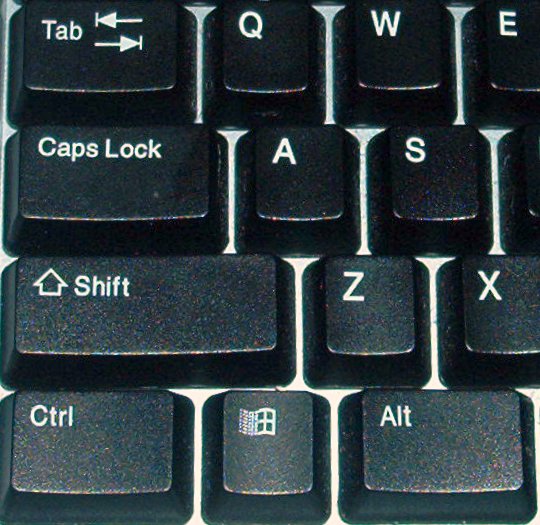
The Caps Lock key on a PC keyboard with US keyboard layout (near upper-left corner, below the Tab key and above the left Shift key)

Caps Lock (⇪ Caps Lock) is a button on a computer keyboard that causes all letters of bicameral scripts to be generated in capital letters. It is a toggle key: each press reverses the previous action. Some keyboards also implement a light to give visual feedback about whether it is on or off. Exactly what Caps Lock does depends on the keyboard hardware, the operating system, the device driver, and the keyboard layout. Usually, the effect is limited to letter keys. Letters of non-bicameral scripts (e.g. Arabic, Hebrew, Hindi) and non-letter characters are generated normally.

History

[edit]
a finger depresses the shift-lock lever
Actuating the shift lock

The Caps Lock key originated as a shift lock on mechanical typewriters. An early innovation in typewriters was the introduction of a second character on each typebar, thereby doubling the number of characters that could be typed, using the same number of keys. The second character was positioned above the first on the face of each typebar, and the typewriter's shift key caused the entire type apparatus to move, physically shifting the positioning of the typebars relative to the ink ribbon. Just as in modern computer keyboards, the shifted position was used to produce capitals and secondary characters.

The shift lock was introduced so the shift operation could be maintained indefinitely without continuous effort. It mechanically locked the typebars in the shifted position, causing the upper character to be typed upon pressing any key. Because the two shift keys on a typewriter required more force to operate and were meant to be pressed by the little finger, it could be difficult to hold the shift down for more than two or three consecutive strokes, therefore the introduction of the shift lock was also meant to reduce finger muscle pain caused by repetitive typing.[citation needed]

Mechanical typewriter shift lock is typically set by pushing both shift and lock at the same time, and released by pressing shift by itself. Computer Caps Lock is set and released by the same key, and the Caps Lock behavior in most QWERTY keyboard layouts differs from the shift-lock behavior in that it capitalizes letters but does not affect other keys, such as numbers or punctuation. Some early computer keyboards, such as the Commodore 64, had a shift lock but no Caps Lock; others, such as the BBC Micro, had both, only one of which could be enabled at a time.[citation needed]

Abolition

[edit]

There are some proposals to abolish the caps-lock key as being obsolete.[1][2][3] Pieter Hintjens, the CEO of iMatix, started a "Capsoff" organization proposing hardware manufacturers delete the Caps Lock key.[1] Google has removed the Caps Lock on the Chromebook keyboard, replacing it with the "Everything Button" (formerly the "Launcher" and "Search" buttons[4]); the caps-lock function is then reproduced using an "alt" key combination.[5][6]

In fact, the current German keyboard layout standard DIN 2137-01:2023-08 (like its preceding edition from 2018) specifies the function of the key as optional, to be replaced by other keys or key combinations. It recommends the function only to be invoked when it is pressed simultaneously with the Control key, while otherwise it acts as a “left AltGr key”, thus enabling touch typists to access all key combinations using AltGr without using two fingers of the same hand, which is considered to be an ergonomic advantage. As a side effect, any inadvertent pressing of this key without pressing another key simultaneously has no effect.

Behavior

[edit]

Caps Lock on an Apple keyboard. The green LED on the key is lit, indicating that Caps Lock is on.

Typical Caps Lock behavior is that pressing the key sets an input mode in which all typed letters are uppercase, if applicable. The keyboard remains in Caps Lock mode and would generate all caps text until the key is pressed again. Keyboards often include a small LED to indicate that Caps Lock is active, either on the key itself or in a dedicated indicators area, where Scroll Lock and Num Lock indicators are also located. On the original IBM PC keyboard, this LED was exclusively controlled by the keyboard. Since the introduction of IBM PC/AT, it is under control of the operating system. Small keyboards, such as netbook keyboards, forgo the indicators to conserve space, instead providing software that gives on-screen or audio feedback.

In most cases, the status of the Caps Lock key only changes the meaning of the alphabet keys, not that of any other key. Microsoft Windows enforces this behavior only when a keyboard layout for a Latin-based script is active, e.g. the "English (United States)" layout but not the "Persian" layout. On certain non-QWERTY keyboard layouts, such as the French AZERTY and the German QWERTZ, Caps Lock still behaves like a traditional Shift lock, i.e., the keyboard behaves as if the Shift key is held down, causing the keyboard to input the alternative values of the keys; example the 5 key generates "%" when ⇪ Caps Lock is pressed. This is not true for the layout "German (IBM)".

Depending on the keyboard layout used, the Shift key, when pressed in combination with a Latin-based letter button while Caps Lock is already on, is either ignored, or reverses the effect of Caps Lock, so that typed characters are in lowercase again. Microsoft Windows enforces the latter. RISC OS offers both – Caps Lock alone chooses the former, Shift-Caps Lock the latter.

While the typical locking behavior on keyboards with a ⇪ Caps Lock key is that of a toggle, each press reversing the shift state, some keyboard layouts implement a combi mode,[example needed] where pressing a Shift key in Caps Lock mode will also release the Caps Lock mode, just as it typically happens in Shift lock mode.

Some keyboard drivers[example needed] include a configuration option to deactivate the Caps Lock key. This behavior allows users to decide themselves whether they want to use the key, or to disable it to prevent accidental activation.

In the Unix communities of the ex-USSR countries, Caps Lock key is traditionally used as input language switcher, convenient for usage with touch typing. Support for this is present in KDE,[7] GNOME and other desktop environments. Default Russian and Ukrainian layouts for FreeBSD specify Caps Lock as input language switcher. In Microsoft Windows, third-party utilities are needed to enable this behavior.[8][9] In such configurations, the original Caps Lock function is reached with the ⇧ Shift+⇪ Caps Lock combination.

Precautions

[edit]

Most apps that request users to input a password do not display it on screen, so as not to expose it to prying eyes. A user who does not pay proper attention to the Caps Lock indicator might type the wrong password (in which all small letters become capital letters or vice versa). As such, help guides, tech support materials, and app user interfaces may include warnings on checking the Caps Lock state before typing a password. In Microsoft Windows login screens, a warning that Caps Lock is on is shown in a balloon near the field. In macOS, when Caps Lock is on, a Caps Lock symbol (U+21EA UPWARDS WHITE ARROW FROM BAR) is displayed inside a password field.

SGCAPS

[edit]

Some Windows keyboard layouts, such as Swiss German, have an SGCAPS flag on some keys, where those keys generate unrelated, non-uppercase symbols when pressed before ⇧ Shift,[10] creating a 5th level (and a 6th level when ⇪ Caps Lock is on and ⇧ Shift is held) for typing symbols on a single key.

Below is an example of the ü key with the SGCAPS feature in the Swiss German layout.

  • ü → ü
  • ⇧ Shift+ü → è
  • ⇪ Caps Lock+ü → Ü
  • ⇪ Caps Lock+⇧ Shift+ü → È

SGCAPS is named after the first keyboard layout to use this feature. (Swiss German CAPS Lock).[11]

Placement

[edit]
Modern keyboard that can exchange Caps Lock and left Control keys

Since its inception, the IBM PC keyboard had a Caps Lock. In the first version for PC/XT, Caps Lock was located to the bottom right of the letter keys area. Subsequent models switched the places of the Caps Lock key and the Control key. As such, Caps Lock has since been placed on left edge of the keyboard, above the Shift key and below the Tab key, next to letter A. This layout has become the de facto popular standard.

The keyboards of some early computer terminals, including the Teletype Model 33 ASR and Lear-Siegler ADM-3A, the Apple II, and a few Apple Keyboard models retained the Control key where PC/XT first had it; Caps Lock was either absent on these devices or was placed elsewhere. This layout was preserved for later workstation systems and is often associated with Unix workstations. Keyboards from Sun Microsystems came in two layouts; "Unix" and "PC-style", with the Unix layout having the traditional placing of the Control key and other keys.[12] The Amiga computers all had both the Control key and Caps Lock key in this spot at half the width.

Some users of keyboards with Caps Lock on the left remap the keys to exchange Control and Caps Lock, finding the traditional location more ergonomic for using programs benefiting from use of the Control key. Keyboard layout preferences specifically to address this need are available in some operating systems. Some keyboards even provide a switch on the bottom to logically swap the two keys in hardware.[13][14]

The Happy Hacking Keyboard and the keyboards produced for OLPC XO computers also have the Control key in this location, while not including a Caps Lock.[15] Beginning with the Google Cr-48, Chromebooks have omitted Caps Lock in favor of either a Search button or an "Everything Button".[16] Holding down Alt and pressing the Everything Button enables Caps Lock, which is enabled until Shift is pressed.[6]

Observances

[edit]

June 28 and October 22 are semiannually observed as International Caps Lock Day as a parody holiday created in October 2000 by Derek Arnold, a user on MetaFilter. The second observation on June 28 was added by Arnold in memory of American pitchman Billy Mays.[17][18][19]

References

[edit]
[edit]
Revisions and contributorsEdit on WikipediaRead on Wikipedia
from Grokipedia
Caps Lock is a toggle present on most computer keyboards, which, when activated, switches the input mode for alphabetic characters from lowercase to uppercase (or vice versa) without affecting numerals, punctuation, or other symbols. This function allows users to type in all capital letters continuously without holding the , improving efficiency for tasks requiring uppercase text. The key's design evolved from mechanical typewriters, where a shift lock mechanism physically latched the shift position to uppercase characters, first appearing as an in the late to streamline typing. The contemporary electronic version of Caps Lock originated in a 1968 U.S. patent by engineer Douglas A. Kerr, which described a "capitals key" (CAP) that provided an alphabetic-only shift lock, inverting specific bits in the ASCII code for lowercase letters to generate uppercase equivalents while preserving access to non-alphabetic symbols. This addressed limitations of earlier shift locks that affected the entire keyboard, restricting numerals and punctuation. Caps Lock gained widespread adoption in personal computing through IBM's , released in 1984, which standardized its position and function on layouts. Despite its utility, the key has become notorious for accidental activations leading to unintended uppercase input, prompting many users to remap it to other functions like Control for enhanced productivity in programming and typing workflows. It also inspired International Caps Lock Day, semiannually observed on October 22 and June 28, an annual event started in 2000 by software developer Derek Arnold to humorously highlight frustrations with the key's placement and behavior.

Definition and Function

Basic Operation

The Caps Lock key functions as a toggle lock on computer keyboards, permanently capitalizing alphabetic characters in bicameral scripts such as Latin or Cyrillic while leaving numbers and symbols unchanged. When pressed once, it activates uppercase mode for all subsequent letter inputs; a second press deactivates it, reverting to lowercase. This behavior applies specifically to alphabetic keys, ensuring consistent case inversion without altering non-letter inputs. In contrast to the , which serves as a temporary modifier held down to produce uppercase letters only for the duration of the press, Caps Lock maintains its state persistently until toggled again, facilitating efficient entry of extended uppercase text such as headings or acronyms. This distinction optimizes typing workflows, as Shift requires ongoing manual activation for each character, whereas Caps Lock eliminates repeated key combinations for prolonged uppercase use. Operating systems implement Caps Lock through standardized keyboard input protocols. In Windows, it is recognized via virtual key code VK_CAPITAL (0x14). In macOS, the key is handled with code kVK_CapsLock (0x39) in the event system. In , the kernel assigns it keycode KEY_CAPSLOCK (58). Across these systems, the key is typically processed using 0x3A from PS/2 scan code set 1, after from the keyboard's native set 2 transmission. Many keyboards provide visual feedback through an LED indicator that illuminates when the uppercase state is active.

Indicators

Many keyboards feature a dedicated LED light that illuminates to indicate when Caps Lock is active, helping users avoid unintended uppercase typing. This LED is typically positioned on the Caps Lock keycap itself or in the keyboard's top-right section, near other status lights. Software-based on-screen indicators supplement hardware lights by displaying the Caps Lock status directly on the display. In macOS, starting with version Sonoma, a blue arrow icon appears adjacent to the text insertion point in editable fields to signal active Caps Lock, enhancing visibility during text entry. For users with visual impairments, accessibility tools provide auditory feedback on Caps Lock state changes. Screen readers like Apple's VoiceOver can be set to announce "Caps Lock on" or "Caps Lock off" upon toggling, accessible through VoiceOver Utility's Announcements preferences. Laptop keyboards often vary in indicator implementation due to space constraints in compact designs. Some models omit a dedicated Caps Lock LED entirely, relying instead on on-screen notifications, while others share a single LED with Num Lock to indicate multiple lock states. These indicators activate in response to the basic toggle function of the Caps Lock key.

Historical Development

Origins in Typewriters

The precursor to the modern Caps Lock key emerged from the Shift Lock mechanisms developed for 19th-century mechanical , which allowed sustained uppercase typing without continuous manual intervention. The Remington Standard No. 2, introduced in 1878 by , marked a pivotal advancement as the first commercially successful typewriter to incorporate a shift mechanism enabling both uppercase and lowercase characters on a single set of typebars, rather than requiring separate keys for each. This innovation, patented by the company, addressed the limitations of earlier models that used dual keyboards or cumbersome dual-strike methods for case variation. In early iterations of the Remington No. 2, dating to around , the system employed dedicated "Upper Case" and "Lower Case" keys rather than conventional shift keys, with uppercase serving as the default mode to align with prevalent business typing practices. The "Upper Case" key functioned as a lock, securing the mechanism in the uppercase position to produce all capital letters and corresponding uppercase symbols or numerals on the typebars, while the "Lower Case" key provided temporary access to lowercase only during its depression. This locking feature eliminated the fatigue of holding a shift for extended all-caps passages, common in formal documents like contracts or ledgers. The physical mechanism relied on a shifter—a pivoting on the machine's left side—linked by rods to the case keys, which adjusted the platen's position relative to the typebars. For uppercase locking, a bar or engaged to hold the platen backward, elevating the typebar basket to strike the uppercase elements; manual release via the opposite case key disengaged it. This design prioritized durability and simplicity for use, reducing repetitive motions and enhancing in an era when typewriters were primarily tools for commercial correspondence. Subsequent refinements built on these foundations through early patents for locking shift systems in the late 19th and early 20th centuries. For instance, U.S. 464,504, filed in 1889 and granted in 1891 to Wellington P. Kidder for the Franklin typewriter (introduced in 1891), described an explicit shift lock that secured the platen in the shifted position via a spring-loaded , influencing later models by standardizing the toggle-like operation for uppercase persistence across letters and symbols. These innovations underscored the typewriter's evolution toward ergonomic efficiency, setting the stage for broader adoption in professional settings.

Computer Era Introduction

The transition of the Caps Lock function into the computer era began with the development of electronic keyboards in the late 1960s, building on conceptual foundations from typewriter shift mechanisms. In 1968, Douglas A. Kerr, an engineer at Bell Labs, filed a patent for a shift arrangement in keyboard data senders that introduced a dedicated "CAP" key. This key was engineered to lock only alphabetic characters to uppercase output, unlike traditional full Shift Locks that affected numerals and symbols as well, thereby enabling more precise control in data entry for electronic terminals. The patent was granted in 1971, marking an early innovation tailored to the needs of digital input systems. The Caps Lock key achieved widespread adoption through IBM's personal computing hardware in the early 1980s. The PC, introduced in 1981, featured the with an 83-key layout that incorporated Caps Lock, assigning it 3A in the system's protocol for reliable detection and processing. This design carried over to the PC/XT in 1983, enhancing compatibility for business applications. The subsequent , released in 1984, refined the implementation with buckling-spring switches and integrated support, establishing a durable standard that influenced keyboard for personal computers. By the mid-1980s, Caps Lock had become a standardized element in major keyboard layouts, reflecting its essential role in computing interfaces. The (ANSI) formalized its position and function in INCITS 154-1988, which defined the arrangement for alphanumeric keyboards used in U.S. systems. Internationally, the (ISO) included it in the ISO/IEC 9995 series, first published in 1994, ensuring consistency across global PC deployments. Concurrently, early operating systems like supported Caps Lock through data area tracking at memory location 0040:0017 (bit 6), allowing software to monitor and respond to its state for accurate text rendering. This integration made the key ubiquitous in personal computing by the decade's end.

Abolition Proposals

In the mid-2000s, software developer Pieter Hintjens, CEO of iMatix, founded the Capsoff organization to campaign for the removal or repurposing of the Caps Lock key from keyboards. Launched in 2006, Capsoff argued that the key was an outdated feature inherited from typewriter designs, where it served to lock uppercase letters without affecting numbers or symbols—a necessity no longer relevant in digital interfaces that offer alternatives like bold text or font variations for emphasis. Proponents highlighted its proneness to accidental activation, which often leads to typing errors in case-sensitive contexts such as passwords or code, disrupting workflows and requiring corrections. Additionally, the key is underutilized compared to the Shift key, with most users relying on temporary holds for uppercase letters rather than toggling, rendering Caps Lock superfluous for everyday tasks while its large size invites misuse like unintended "shouting" in online communication. Advocates proposed remapping Caps Lock to more practical functions, such as Control for command shortcuts or Escape for modal editors like Vim, to reclaim valuable keyboard real estate without hardware overhauls. Software solutions emerged to support these changes, including SharpKeys, a free Windows utility that allows users to reassign the key via registry edits, effectively disabling or redirecting it to Ctrl or other modifiers. In the mechanical keyboard community, hardware modifications became popular, such as the switch under the Caps Lock key or replacing it with a programmable one to repurpose the position for Escape or Control, often documented in enthusiast guides for custom builds. Despite these efforts, counterarguments emphasize Caps Lock's ongoing utility, particularly in accessibility features like Windows ToggleKeys, which provide when the key is pressed to assist visually impaired users in tracking lock states. It also supports quick all-caps input for emphasis in writing or acronyms in technical fields, where holding Shift repeatedly would be inefficient. Adoption of abolition remains limited; while replaced the physical Caps Lock with a Search key on Chromebooks since 2010—activating uppercase via Alt + Search—no major original equipment manufacturers (OEMs) like , HP, or have removed it from standard keyboards as of 2025, preserving compatibility across diverse user needs.

Design and Placement

Standard Position

In the standard US ANSI QWERTY keyboard layout, the Caps Lock key is positioned in the upper-left quadrant, directly below the key and above the left , occupying row 2 (with the number row as row 0) and column A (the leftmost alphanumeric column). This placement aligns with the specifications outlined in INCITS 154-1988 (R1999), which defines the arrangement of alphanumeric keys for office machines. The key measures approximately 1.75 units in width, where 1 unit corresponds to the standard size of an alphanumeric key (roughly 19.05 mm), and features either a stepped profile that contours to adjacent keys or a for consistent surface alignment. This sizing supports efficient or pinkie actuation without excessive reach. Ergonomically, the location positions the key within comfortable reach of the left-hand pinkie finger when the hand rests on the home row (ASDF for the left hand), minimizing strain during prolonged typing sessions—a principle retained from foundational keyboard ergonomics. For visibility, the keycap is conventionally imprinted with the text "Caps" or a symbolic lock icon, such as a or downward arrow representing sustained shift, adhering to common labeling conventions in alphanumeric keyboards. Some modern implementations incorporate an LED directly beneath the to illuminate and indicate the lock state. While this describes the default in US layouts, non-standard configurations may alter the position slightly for regional adaptations.

Layout Variations

In international keyboard layouts such as the French , the Caps Lock key occupies the conventional position to the left of the A key and above the left , but traditionally functions as a Shift Lock that affects both letters and non-letter symbols, similar to mechanisms, though modern implementations increasingly adopt standard Caps Lock behavior limited to letters. In the German layout, the key maintains this same physical placement left of the Q key, yet operates as a Shift Lock in certain configurations, capitalizing letters while also shifting symbols and numbers when active. These variations sometimes integrate Caps Lock functionality with broader shift behaviors, diverging from the letter-only toggle in the baseline design. On compact keyboards, such as 60% layouts commonly used in mini mechanical boards and space-constrained laptops, a dedicated Caps Lock key is often absent from the reduced key count or remapped to alternative functions like a layer toggle or to maximize efficiency in the alphanumeric cluster. In non-QWERTY arrangements like the Dvorak simplified layout, the Caps Lock key retains its standard physical position below key and to the left of the rearranged letter row, adapting seamlessly to the alternative alphabetic mapping without altering its core placement. For ergonomic keyboards such as the Kinesis Advantage series, the key is repositioned within the contoured left keywell in a vertical column to align with natural hand , integrated into the split, sculpted design rather than a flat linear row. Mobile and virtual keyboards typically forgo a fixed physical Caps Lock key, instead providing on-screen toggle functionality through double-tapping the Shift icon—often located at the bottom left of the virtual layout—or via a dedicated uppercase mode button that appears dynamically, allowing flexible access without a persistent position.

Behavioral Characteristics

Toggle Mechanism

The Caps Lock key operates as a toggle through a signal initiated at the hardware level. When pressed, the keyboard controller detects the keypress and transmits a make (0x3A in PS/2 scan code set 2, or HID usage ID 0x39 for USB keyboards) to the host system, followed by a break upon release. This signal prompts the operating system to invert its internal state flag for , without generating a repeated input on hold. At the software level, the operating system maintains a flag representing the Caps Lock state, which modifies the interpretation of subsequent keypresses for alphabetic characters—converting lowercase to uppercase and vice versa—while leaving non-alphabetic keys and modifier states (such as Shift) unaffected. In Windows, this flag can be queried using the with the VK_CAPITAL virtual key code, where the least significant bit indicates the toggle status (1 for on, 0 for off). The state influences character generation in functions like ToUnicode, ensuring case inversion applies post-modifier processing. Edge cases arise in input methods involving s or diacritics under handling. For instance, when a (e.g., for ) precedes a base letter, the Caps Lock state is evaluated during composition to apply uppercase to the resulting character if the flag is set, though some legacy console modes in may fail to capitalize accented letters due to input layer mismatches. The state persists system-wide across applications, as it is managed at the OS input driver level rather than per-app, ensuring consistent behavior when switching focus. Cross-platform implementations differ in event processing. In , the kernel's input subsystem registers the key event as KEY_CAPSLOCK (code 58) via the evdev interface, toggling the state in the keyboard handler for virtual terminals or X11/Wayland compositors. macOS processes Caps Lock through the HID framework, using IOHIDManager to capture events with usage 0x39, maintaining the toggle in the Core Graphics input stack for consistent application of the state across Cocoa and Carbon APIs.

Shift Interaction

When Caps Lock is activated, it toggles alphabetic keys to produce uppercase letters by default, but the simultaneous use of the inverts this effect, resulting in lowercase output for letters. This interaction functions as a form of : Caps Lock shifts letters to uppercase, while Shift, as a modifier, reverses that shift back to lowercase. For non-alphabetic characters, however, Caps Lock has no effect, so pressing Shift produces the expected shifted symbol or number variant, such as Shift+1 yielding an (!). This selective behavior ensures that punctuation and numerals remain accessible without interference from the toggle state. The priority rules in this interaction emphasize Shift's dominance for non-letter keys, overriding any potential Caps Lock influence since the latter only applies to alphabets. In practice, this means users can seamlessly access symbols (e.g., Shift+7 for &) even with Caps Lock engaged, without needing to disengage the toggle first. This design prevents conflicts in mixed input scenarios, like typing sentences with occasional . Historically, this limited scope marks a significant from the typewriter era's Shift Lock mechanism, which locked the entire shift function across all keys, converting numbers to symbols and letters to uppercase simultaneously. Early typewriters required manual disengagement via a press to return to baseline, often leading to mechanical jams or errors in symbol output. Modern computer implementations of Caps Lock, introduced in the , deliberately ignored non-alphabets to simplify digital input and align with software keyboards' logical mapping, reducing the risk of unintended shifts in numeric or symbolic data. Operating system-specific quirks further nuance this interaction. On Windows, the inversion for letters is consistent across applications, with Shift reliably producing lowercase when Caps Lock is on, adhering to standard keyboard input processing. In contrast, macOS prioritizes Shift's capitalization intent, so Shift + letter with Caps Lock active still outputs uppercase, treating Shift as an absolute override rather than a relative inverter; non-letters follow standard Shift behavior regardless. This macOS approach can lead to all-uppercase output in mixed-mode typing unless Caps Lock is explicitly toggled off, differing from Windows' more relative handling that may vary slightly by application but generally follows the inversion rule.

Issues and Precautions

Accidental Activation

Accidental activation of the Caps Lock key frequently stems from its standard placement adjacent to the 'A' key on keyboards, where the left pinkie finger—commonly used for pressing 'A' in —can easily overshoot and engage the toggle instead. This positioning, inherited from designs, increases the likelihood of mis-hits during rapid typing. Additionally, keyboards, which rely on pressure-sensitive membranes under the keys, can contribute to unintended activation due to their lower actuation force compared to mechanical switches, allowing light or grazing touches to trigger the key. The consequences of such activation include unintended all-caps output that disrupts typing flow, often requiring users to stop, notice the error, and to retype affected text, which is particularly disruptive in time-sensitive tasks like composing emails or writing . In emails, accidental all-caps can convey unintended tone, such as shouting, potentially leading to miscommunication or professional mishaps; for instance, all-caps phrasing in legal or correspondence has resulted in sanctions or dismissals, as documented in cases where perceived aggressive messaging escalated conflicts. In coding, it can introduce errors in string literals, comments, or configuration files, complicating and . Compounding these issues is the lack of indicators on many devices, such as compact laptops or wireless keyboards without dedicated LEDs, which prevents immediate feedback on the key's state and allows the error to persist unnoticed. This absence forces users to rely on visual inspection of their output, further delaying correction and heightening frustration, especially for touch typists who do not glance at the keyboard. Manufacturers have partially mitigated this through software-based on-screen notifications in operating systems like Windows and macOS, but hardware limitations remain common. Informal user reports highlight high frustration levels among touch typists, with accidental activation cited as a recurring that interrupts productivity; for example, discussions on technical forums reveal widespread complaints about the frequency of such incidents during extended typing sessions.

SGCAPS and

SGCAPS, or "Shift-Gets-Caps-Lock," is a specialized keyboard layout feature available in the Keyboard Layout Creator (MSKLC), a tool for designing custom keyboard mappings. In this mode, activation of the Caps Lock key applies an implicit Shift modifier to designated keys, producing uppercase output without inverting the case of alphabetic characters as in standard Caps Lock behavior; instead, it mimics the effect of holding Shift for uppercase entry while preserving normal lowercase input when Caps Lock is off. This configuration, originally developed for layouts like , allows for more intuitive handling of case in certain linguistic or ergonomic contexts. Accessibility features in operating systems address challenges with Caps Lock, particularly for users with motor impairments who may struggle with precise key presses or toggling. In Windows, ToggleKeys provides auditory feedback—a high-pitched tone when Caps Lock is activated and a low-pitched tone when deactivated—to alert users to unintended state changes, helping those with limited dexterity confirm the key's status without visual reliance. On macOS, Slow Keys requires keys to be held for a configurable duration (adjustable from 0.0 to 1.0 seconds) before registration, which minimizes accidental activations of Caps Lock by filtering out brief, unintended presses common in conditions like tremors or reduced fine . These integrations, motivated by frequent reports of accidental Caps Lock engagement, enhance usability for individuals with physical disabilities. Remapping Caps Lock is a common accessibility adaptation for motor impairments, converting the key to a more reachable modifier like Control or Escape to avoid accidental toggles while supporting one-handed operation or reduced hand mobility. On macOS, this can be done via > Keyboard > Keyboard Shortcuts > Modifier Keys. For Windows, provides an official tool with Keyboard Manager to remap keys like Caps Lock without third-party software or registry edits. These options prioritize ease for users with conditions such as or . In remote desktop environments, Caps Lock synchronization issues can exacerbate accessibility barriers, as state changes triggered on the server (e.g., via or RDP) often fail to propagate to the client, leading to mismatched input and frustration for users relying on consistent keyboard feedback. This desynchronization, documented in troubleshooting resources, particularly affects those with motor limitations who depend on predictable toggle behavior across sessions. Third-party tools like CapsUnlock provide additional safeguards by overriding the standard toggle mechanism, requiring intentional actions (such as a double-press or hold) to activate , thereby reducing errors for users prone to inadvertent key hits. For severe motor impairments precluding physical key use, voice control alternatives—such as Windows Voice Access or macOS Voice Control—enable dictation of uppercase text via spoken commands (e.g., "capital A") without engaging Caps Lock at all, offering a hands-free pathway to case control.

Cultural Aspects

International Caps Lock Day

International Caps Lock Day is an annual parody holiday observed primarily on , founded in 2000 by software developer Derek Arnold on the community weblog to highlight the overuse of all-caps typing and remind users to deactivate the Caps Lock key. Arnold, based in , created the observance as a lighthearted response to the common issue of "shouting" in uppercase letters, which the Caps Lock key facilitates. The day's activities typically involve ironic online participation, such as posting messages in all capital letters on platforms to mimic shouting while simultaneously encouraging participants to turn off their Caps Lock afterward. A secondary observance occurs on June 28, added later in honor of pitchman , known for his enthusiastic all-caps-style delivery, making the holiday semiannual in some calendars. The event has gained global recognition through coverage on technology and news websites, including features on its humorous take on keyboard habits by The Daily Dot in 2012 and LatestLY in 2024, which shared memes and jokes to amplify its reach. Despite its informal nature, International Caps Lock Day effectively raises awareness about digital typing quirks and without organized formal events or official status.

Media and Symbolism

In digital communication, the Caps Lock key has become symbolically associated with shouting or heightened emphasis, particularly in online text where all capital letters are perceived as louder or more intense than mixed case. This convention originated in early , such as 1980s groups, where was explicitly used to denote yelling due to the limitations of text-only interfaces lacking bold or italics. Over time, this symbolism extended to email, , and messaging, where netiquette guides discourage its overuse to avoid appearing rude or aggressive, as it mimics vocal volume in speech. For instance, phrases like "STOP THAT!" are interpreted as exclamatory outbursts, reinforcing the key's role in conveying urgency or emotion without auditory cues. Linguistic research further elucidates this symbolism, showing that Caps Lock activation on platforms like often signals prosodic features such as emphatic stress rather than mere . A study analyzing over 100,000 tweets found that all-caps text increases perceived happiness and focus, aligning with heightened pitch or volume in , while having minimal impact on or low-arousal emotions. Single-word , enabled by brief Caps Lock use, functions similarly to semantic focus in prosody, as seen in constructions like "I LOVE it" or "NOT true," enhancing textual nuance in discourse. This interpretive flexibility allows Caps Lock to transcend simple shouting, serving as a tool for irony, excitement, or in . Beyond online expression, the Caps Lock key inspires broader cultural and artistic symbolism, notably in critiques of . In Ruben Pater's 2021 book CAPS LOCK: How Capitalism Took Hold of , and How to Escape from It, the term metaphorically represents the "locking" of creative practices into exploitative economic structures, where design serves profit over equity. Pater uses visual examples from branding, interfaces, and to illustrate how capitalist systems constrain designers, much like the key toggles text into a rigid uppercase mode, urging alternatives through radical collectives that prioritize social impact. This symbolic framing positions Caps Lock as an emblem of systemic rigidity in , extending its digital legacy into discussions of power and resistance.

References

Add your contribution
Related Hubs
User Avatar
No comments yet.