Hubbry Logo
Graphical user interfaceGraphical user interfaceMain
Open search
Graphical user interface
Community hub
Graphical user interface
logo
8 pages, 0 posts
0 subscribers
Be the first to start a discussion here.
Contribute something
Graphical user interface
from Wikipedia

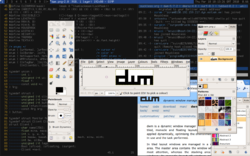
A graphical user interface (GUI) showing various elements: radio buttons, checkboxes, and other elements. The image shown uses the KDE desktop environment.

A graphical user interface, or GUI[a], is a form of user interface that allows users to interact with electronic devices through graphical icons and visual indicators such as secondary notation. In many applications, GUIs are used instead of text-based UIs, which are based on typed command labels or text navigation. GUIs were introduced in reaction to the perceived steep learning curve of command-line interfaces (CLIs),[4][5][6] which require commands to be typed on a computer keyboard.

The actions in a GUI are usually performed through direct manipulation of the graphical elements.[7][8][9] Beyond computers, GUIs are used in many handheld mobile devices such as MP3 players, portable media players, gaming devices, smartphones and smaller household, office and industrial controls. The term GUI tends not to be applied to other lower-display resolution types of interfaces, such as video games (where head-up displays (HUDs)[10] are preferred), or not including flat screens like volumetric displays[11] because the term is restricted to the scope of 2D display screens able to describe generic information, in the tradition of the computer science research at the Xerox Palo Alto Research Center.

GUI and interaction design

[edit]
The GUI is presented (displayed) on the computer screen. It is the result of processed user input and usually the main interface for human-machine interaction. The touch UIs popular on small mobile devices are an overlay of the visual output to the visual input.

Designing the visual composition and temporal behavior of a GUI is an important part of software application programming in the area of human–computer interaction. Its goal is to enhance the efficiency and ease of use for the underlying logical design of a stored program, a design discipline named usability. Methods of user-centered design are used to ensure that the visual language introduced in the design is well-tailored to the tasks.

The visible graphical interface features of an application are sometimes referred to as chrome or GUI.[12][13][14] Typically, users interact with information by manipulating visual widgets that allow for interactions appropriate to the kind of data they hold. The widgets of a well-designed interface are selected to support the actions necessary to achieve the goals of users. A model–view–controller allows flexible structures in which the interface is independent of and indirectly linked to application functions, so the GUI can be customized easily. This allows users to select or design a different skin or theme at will, and eases the designer's work to change the interface as user needs evolve. Good GUI design relates to users more, and to system architecture less. Large widgets, such as windows, usually provide a frame or container for the main presentation content such as a web page, email message, or drawing. Smaller ones usually act as a user-input tool.

A GUI may be designed for the requirements of a vertical market as application-specific GUIs. Examples include automated teller machines (ATM), point of sale (POS) touchscreens at restaurants,[15] self-service checkouts used in a retail store, airline self-ticket and check-in, information kiosks in a public space, like a train station or a museum, and monitors or control screens in an embedded industrial application which employ a real-time operating system (RTOS).

Cell phones and handheld game systems also employ application specific touchscreen GUIs. Newer automobiles use GUIs in their navigation systems and multimedia centers, or navigation multimedia center combinations.

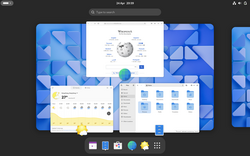
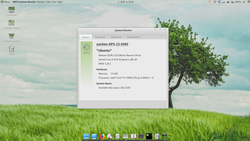
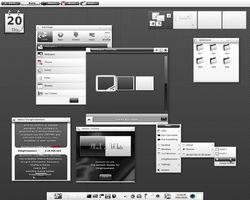
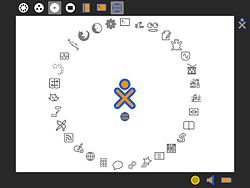
Examples

[edit]

Components

[edit]
Layers of a GUI based on a windowing system

A GUI uses a combination of technologies and devices to provide a platform that users can interact with, for the tasks of gathering and producing information.

A series of elements conforming a visual language have evolved to represent information stored in computers. This makes it easier for people with few computer skills to work with and use computer software. The most common combination of such elements in GUIs is the windows, icons, text fields, canvases, menus, pointer (WIMP) paradigm, especially in personal computers.[16]

The WIMP style of interaction uses a virtual input device to represent the position of a pointing device's interface, most often a mouse, and presents information organized in windows and represented with icons. Available commands are compiled together in menus, and actions are performed making gestures with the pointing device. A window manager facilitates the interactions between windows, applications, and the windowing system. The windowing system handles hardware devices such as pointing devices, graphics hardware, and positioning of the pointer.

In personal computers, all these elements are modeled through a desktop metaphor to produce a simulation called a desktop environment in which the display represents a desktop, on which documents and folders of documents can be placed. Window managers and other software combine to simulate the desktop environment with varying degrees of realism.

Entries may appear in a list to make space for text and details, or in a grid for compactness and larger icons with little space underneath for text. Variations in between exist, such as a list with multiple columns of items and a grid of items with rows of text extending sideways from the icon.[17]

Multi-row and multi-column layouts commonly found on the web are "shelf" and "waterfall". The former is found on image search engines, where images appear with a fixed height but variable length, and is typically implemented with the CSS property and parameter display: inline-block;. A waterfall layout found on Imgur and TweetDeck with fixed width but variable height per item is usually implemented by specifying column-width:.

Post-WIMP interface

[edit]

Smaller app mobile devices such as personal digital assistants (PDAs) and smartphones typically use the WIMP elements with different unifying metaphors, due to constraints in space and available input devices. Applications for which WIMP is not well suited may use newer interaction techniques, collectively termed post-WIMP UIs.[18]

As of 2011, some touchscreen-based operating systems such as Apple's iOS (iPhone) and Android use the class of GUIs named post-WIMP. These support styles of interaction using more than one finger in contact with a display, which allows actions such as pinching and rotating, which are unsupported by one pointer and mouse.[19]

Interaction

[edit]

Human interface devices, for the efficient interaction with a GUI include a computer keyboard, especially used together with keyboard shortcuts, pointing devices for the cursor (or rather pointer) control: mouse, pointing stick, touchpad, trackball, joystick, virtual keyboards, and head-up displays (translucent information devices at the eye level).

There are also actions performed by programs that affect the GUI. For example, there are components like inotify or D-Bus to facilitate communication between computer programs.

History

[edit]

Early efforts

[edit]

Ivan Sutherland developed Sketchpad in 1963, widely held as the first graphical computer-aided design program. It used a light pen to create and manipulate objects in engineering drawings in realtime with coordinated graphics. In the late 1960s, researchers at the Stanford Research Institute, led by Douglas Engelbart, developed the On-Line System (NLS), which used text-based hyperlinks manipulated with a then-new device: the mouse. (A 1968 demonstration of NLS became known as "The Mother of All Demos".) In the 1970s, Engelbart's ideas were further refined and extended to graphics by researchers at Xerox PARC and specifically Alan Kay, who went beyond text-based hyperlinks and used a GUI as the main interface for the Smalltalk programming language, which ran on the Xerox Alto computer, released in 1973. Most modern general-purpose GUIs are derived from this system.

The Xerox PARC GUI consisted of graphical elements such as windows, menus, radio buttons, and check boxes. The concept of icons was later introduced by David Canfield Smith, who had written a thesis on the subject under the guidance of Kay.[20][21][22] The PARC GUI employs a pointing device along with a keyboard. These aspects can be emphasized by using the alternative term and acronym for windows, icons, menus, pointing device (WIMP). This effort culminated in the 1973 Xerox Alto, the first computer with a GUI, though the system never reached commercial production.

The first commercially available computer with a GUI was the 1979 PERQ workstation, manufactured by Three Rivers Computer Corporation. Its design was heavily influenced by the work at Xerox PARC. In 1981, Xerox eventually commercialized the ideas from the Alto in the form of a new and enhanced system – the Xerox 8010 Information System – more commonly known as the Xerox Star.[23][24] These early systems spurred many other GUI efforts, including Lisp machines by Symbolics and other manufacturers, the Apple Lisa (which presented the concept of menu bar and window controls) in 1983, the Apple Macintosh 128K in 1984, and the Atari ST with Digital Research's GEM, and Commodore Amiga in 1985. Visi On was released in 1983 for the IBM PC compatible computers, but was never popular due to its high hardware demands.[25] Nevertheless, it was a crucial influence on the contemporary development of Microsoft Windows.[26]

Apple, Digital Research, IBM and Microsoft used many of Xerox's ideas to develop products, and IBM's Common User Access specifications formed the basis of the GUIs used in Microsoft Windows, IBM OS/2 Presentation Manager, and the Unix Motif toolkit and window manager. These ideas evolved to create the interface found in current versions of Microsoft Windows, and in various desktop environments for Unix-like operating systems, such as macOS and Linux. Thus most current GUIs have largely common idioms.

An Apple Lisa (1983) demonstrating the Lisa Office System (LisaOS), which featured Apple Computer's first commercially available GUI

Popularization

[edit]
HP LX System Manager running on a HP 200LX

The early 1980s saw growing interest in GUIs. The Apple Lisa was released in 1983, but was expensive and commercially unsuccessful. Individual applications for many platforms presented their own GUI variants.[27] Despite the GUI's advantages, many reviewers questioned the value of the entire concept,[28] citing hardware limits and problems in finding compatible software.

In 1984, Apple introduced the Macintosh via a a television commercial during Super Bowl XVIII,[29] with allusions to George Orwell's novel Nineteen Eighty-Four. The goal of the commercial was to make people think about computers, identifying the user-friendly interface as a personal computer which departed from prior business-oriented systems,[30] and becoming a signature representation of Apple products.[31]

The 1985 Atari ST shipped with the GEM GUI from Digital Research, which was also published for MS-DOS. The Amiga 1000 was released the same year, though not widely available until 1986, with the Workbench graphical desktop. This interface ran as a separate task, meaning it was very responsive and, unlike other GUIs of the time, it didn't freeze up when a program was busy.

Windows 95, accompanied by an extensive marketing campaign,[32] was a major success in the marketplace at launch and shortly became the most popular desktop operating system.[33]

In 2007, with the iPhone[34] and later in 2010 with the introduction of the iPad,[35] Apple popularized the post-WIMP style of interaction for multi-touch screens, and those devices were considered to be milestones in the development of mobile devices.[36][37]

The GUIs familiar to most people as of the mid-late 2010s are Windows, macOS, and the X Window System interfaces for desktop and laptop computers, and Android, Apple's iOS, Symbian, BlackBerry OS, Windows Phone/Windows 10 Mobile, Tizen, WebOS, and Firefox OS for handheld (smartphone) devices.[38][39]

Comparison to other interfaces

[edit]

People said it's more of a right-brain machine and all that—I think there is some truth to that. I think there is something to dealing in a graphical interface and a more kinetic interface—you're really moving information around, you're seeing it move as though it had substance. And you don't see that on a PC. The PC is very much of a conceptual machine; you move information around the way you move formulas, elements on either side of an equation. I think there's a difference.

— Andrew Fluegelman on the Macintosh, 1985[40]

Command-line interfaces

[edit]
A modern Command-Line Interface (CLI)

Since the commands available in command line interfaces can be many, complex operations can be performed using a short sequence of words and symbols. Custom functions may be used to facilitate access to frequent actions. Command-line interfaces are more lightweight, as they only recall information necessary for a task; for example, no preview thumbnails or graphical rendering of web pages. This allows greater efficiency and productivity once many commands are learned.[4] But reaching this level takes some time because the command words may not be easily discoverable or mnemonic. Also, using the command line can become slow and error-prone when users must enter long commands comprising many parameters or several different filenames at once. However, windows, icons, menus, pointer (WIMP) interfaces present users with many widgets that represent and can trigger some of the system's available commands.

GUIs can be made quite hard when dialogs are buried deep in a system or moved about to different places during redesigns. Also, icons and dialog boxes are usually harder for users to script.

WIMPs extensively use modes, as the meaning of all keys and clicks on specific positions on the screen are redefined all the time. Command-line interfaces use modes only in limited forms, such as for current directory and environment variables.

Most modern operating systems provide both a GUI and some level of a CLI, although the GUIs usually receive more attention.

GUI wrappers

[edit]

GUI wrappers find a way around the command-line interface versions (CLI) of (typically) Linux and Unix-like software applications and their text-based UIs or typed command labels. While command-line or text-based applications allow users to run a program non-interactively, GUI wrappers atop them avoid the steep learning curve of the command-line, which requires commands to be typed on the keyboard. By starting a GUI wrapper, users can intuitively interact with, start, stop, and change its working parameters, through graphical icons and visual indicators of a desktop environment, for example. Applications may also provide both interfaces, and when they do the GUI is usually a WIMP wrapper around the command-line version. This is especially common with applications designed for Unix-like operating systems. The latter used to be implemented first because it allowed the developers to focus exclusively on their product's functionality without bothering about interface details such as designing icons and placing buttons. Designing programs this way also allows users to run the program in a shell script.

Three-dimensional graphical user interface

[edit]

Many environments and games use the methods of 3D graphics to project 3D GUI objects onto the screen. The use of 3D graphics has become increasingly common in mainstream operating systems (ex. Windows Aero, and Aqua (macOS)) to create attractive interfaces, termed eye candy (which includes, for example, the use of drop shadows underneath windows and the cursor), or for functional purposes only possible using three dimensions. For example, user switching is represented by rotating a cube with faces representing each user's workspace, and window management is represented via a Rolodex-style flipping mechanism in Windows Vista (see Windows Flip 3D). In both cases, the operating system transforms windows on-the-fly while continuing to update the content of those windows.

The GUI is usually WIMP-based, although occasionally other metaphors surface, such as those used in Microsoft Bob, 3dwm, File System Navigator, File System Visualizer, 3D Mailbox,[41][42] and GopherVR. Zooming (ZUI) is a related technology that promises to deliver the representation benefits of 3D environments without their usability drawbacks of orientation problems and hidden objects. In 2006, Hillcrest Labs introduced the first ZUI for television.[43] Other innovations include the menus on the PlayStation 2; the menus on the Xbox; Sun's Project Looking Glass; Metisse, which was similar to Project Looking Glass;[44] BumpTop, where users can manipulate documents and windows with realistic movement and physics as if they were physical documents; Croquet OS, which is built for collaboration;[45] and compositing window managers such as Enlightenment and Compiz. Augmented reality and virtual reality also make use of 3D GUI elements.[46]

In science fiction

[edit]

3D GUIs have appeared in science fiction literature and films, even before certain technologies were feasible or in common use.[47]

See also

[edit]

Notes

[edit]

References

[edit]
[edit]
Revisions and contributorsEdit on WikipediaRead on Wikipedia
from Grokipedia
A graphical user interface (GUI) is an interactive visual environment that allows users to communicate with computers or electronic devices through graphical elements such as icons, windows, buttons, and menus, manipulated via input devices like a , keyboard, or , rather than relying solely on text-based commands. This approach, often referred to as a interface (windows, icons, menus, pointers), provides intuitive visual metaphors and direct manipulation to facilitate tasks like file management, application navigation, and data input. The origins of the GUI trace back to the early 1960s, when developed at MIT in 1963, introducing the first system with overlapping windows and a for interaction. In 1964, at invented the , a key that patented in 1970 and enabled precise cursor control on screen. These innovations laid the groundwork for modern GUIs, which were first realized in a complete form with the computer in 1973 at PARC, featuring displays and mouse-driven windows. The , released commercially in 1981, marked the debut of a GUI-based , incorporating a with folders, trash bins, and pull-down menus, though its high cost limited widespread adoption. The interface gained mass popularity through Apple's Macintosh in 1984, which integrated these elements into an affordable , emphasizing user-friendliness and visual appeal. followed with in 1985, evolving into a dominant platform that standardized GUIs across personal computing. Core components of a GUI typically include windows for containing and organizing content, icons as symbolic shortcuts to actions or objects, hierarchical menus for command selection, and a pointer for navigation and selection, often structured using frameworks like the Model-View-Controller pattern to separate , , and user input. Additional widgets such as buttons, scrollbars, and dialog boxes provide feedback and control, enabling event-driven responses to user actions. These elements make GUIs more accessible by offering contextual cues and reducing , with studies showing they cut training time to 20-30 hours and minimize errors compared to command-line interfaces. GUIs have profoundly influenced human-computer interaction by democratizing technology, allowing non-experts to perform complex operations intuitively through visual and metaphorical designs like the desktop paradigm. Their advantages include enhanced , immediate visual feedback, and support for multitasking, which have driven in fields from office work to creative design. In the , GUIs continue to evolve beyond traditional models, incorporating touch gestures on smartphones, voice commands, adaptive layouts via AI, and immersive elements in , ensuring relevance across diverse devices and user needs.

Fundamentals

Definition and Principles

A graphical (GUI) is a type of that enables users to interact with a computer or electronic device through graphical representations such as icons, visual indicators, and windows, rather than relying solely on text-based commands entered via a keyboard. This approach allows for manipulation of on-screen objects, where users can perform actions like clicking, dragging, or resizing elements to achieve desired outcomes, mimicking real-world interactions. The foundational principles of GUI design emphasize intuitiveness and efficiency. Direct manipulation is a core principle, involving continuous representation of objects of interest and rapid, reversible, incremental actions with immediate feedback, which reduces and enhances user control. Visual metaphors, such as representing files as desktop folders or documents as sheets, leverage familiar real-world concepts to make abstract digital operations more understandable. Consistency in layout, , and across elements ensures predictability, while feedback mechanisms—like animations, color changes, or auditory cues—confirm user actions and system responses in real time. GUIs offer significant benefits over command-line interfaces, particularly in accessibility and usability for non-expert users. They lower the by providing visual cues and discoverable options, making complex tasks more approachable without requiring memorized . Additionally, the window-based structure supports multitasking, allowing multiple applications to run simultaneously in resizable, overlapping spaces. These advantages stem from early innovations at PARC, which laid the groundwork for modern GUIs. A central concept in GUI design is the paradigm, which stands for Windows, Icons, Menus, and Pointers, serving as the standard model for organizing interactions in most desktop and mobile environments. This framework integrates the principles of direct manipulation and visual metaphors to create cohesive, user-centered experiences.

Evolution of Design Paradigms

The graphical user interface (GUI) has undergone significant paradigm shifts since the dominance of the model in the late , evolving toward post-WIMP approaches that integrate more natural and multimodal interactions. Post-WIMP interfaces, which move beyond traditional desktop metaphors, gained prominence in the 2000s with the advent of mobile and , emphasizing gesture-based, touch, and voice inputs to create more immersive experiences. This transition was driven by hardware innovations like screens, as exemplified by Apple's in 2007, which popularized direct manipulation through gestures such as pinching and swiping, reducing reliance on indirect pointer devices. Voice integration further advanced this shift, with systems like (introduced in 2011) enabling conversational interfaces that complement visual elements, allowing users to interact without constant screen focus. These developments marked a conceptual departure from WIMP's rigid structure, prioritizing fluidity and context-awareness in everyday computing. A key evolution in visual paradigms occurred through the contrast between skeuomorphism and , reflecting broader debates on realism versus in GUI aesthetics. Skeuomorphism, which employs realistic textures and shadows to mimic physical objects—like the leather-bound or wooden bookshelves in early (2007–2012)—aimed to leverage users' familiarity with the analog world for intuitive navigation. This approach, championed by , enhanced learnability for novice users by providing visual cues tied to real-world affordances, such as 3D buttons that appeared pressable. However, by the early , emerged as a minimalist counterpoint, stripping away gradients and textures for clean, two-dimensional elements that prioritize clarity and scalability across devices. Apple's (2013) exemplified this pivot under , favoring bold colors and simple icons to reduce visual clutter and improve performance on diverse hardware. Google's , launched in 2014, bridged these styles by incorporating subtle skeuomorphic shadows to imply depth while maintaining flat principles, influencing Android and web interfaces with a focus on motion and hierarchy. Hardware advancements, particularly the proliferation of varying screen sizes and input modalities from smartphones to wearables, necessitated responsive design paradigms to ensure consistent usability. Coined by Ethan Marcotte in 2010, responsive design uses fluid grids, flexible images, and to adapt layouts dynamically to changes, addressing the fragmentation caused by devices ranging from 320px mobile screens to 4K displays. This approach rose in response to the post-2007 boom, where touch inputs demanded larger, gesture-friendly elements, while diverse resolutions required scalable and spacing to maintain and interaction efficiency. By integrating these techniques, GUIs became device-agnostic, enhancing accessibility across ecosystems like and Android without separate fixed layouts. As of 2025, GUI paradigms are increasingly defined by AI-driven adaptive interfaces that personalize layouts and behaviors based on user data, marking a shift toward proactive, context-sensitive experiences. These systems employ to analyze patterns—such as navigation habits or environmental factors—and dynamically rearrange elements, like prioritizing frequently used apps on a or adjusting contrast for low-light conditions. For instance, generative AI tools now enable runtime UI modifications in personalized applications through real-time adaptations. This trend builds on post-WIMP foundations, integrating multimodal inputs with predictive to create interfaces that evolve with individual users, though ethical concerns around data privacy remain central to their .

Core Components

Basic Visual Elements

Basic visual elements form the foundational static components of graphical user interfaces (GUIs), providing structured visual organization within the paradigm of windows, icons, menus, and pointers. These elements enable users to perceive and navigate content through consistent, non-interactive representations that prioritize clarity and scalability across devices. Icons and symbols serve as standardized pictorial representations for actions, objects, or concepts, reducing cognitive load by leveraging visual metaphors familiar from everyday life. For instance, the trash bin icon, originating in the Xerox Star workstation in 1981 and adopted in the Apple Lisa system in 1983 before being popularized through the Macintosh, universally denotes deletion or disposal of files. Early GUI icons, such as those in the Xerox Alto from 1973, relied on bitmapped graphics for pixel-based rendering on raster displays, which limited scalability on varying screen resolutions. Over time, the shift to vector graphics, exemplified by Scalable Vector Graphics (SVG) standardized by the W3C in 1999, allowed icons to remain sharp and adaptable without loss of quality when resized, supporting modern high-resolution interfaces. International guidelines, like ISO 80416-4:2005, further promote the adaptation of graphical symbols for screen use, ensuring consistency in icon design for usability across systems. Windows and panels act as resizable, bounded containers that organize and isolate content, drawing from pioneering designs at PARC in the where overlapping s were first implemented on bitmapped displays. These elements typically include title bars displaying window names or statuses for identification, borders outlining edges for visual separation, and mechanisms for stacking, where windows overlap in layers to manage multiple views on a single desktop. Such structures facilitate hierarchical content arrangement, with panels often serving as sub-containers within larger windows to group related information without altering the overall layout. Menus and toolbars provide hierarchical navigation frameworks, presenting options in compact, organized formats to access functions efficiently. Dropdown menus, first featured in the workstation in 1981, expand from a static bar to reveal sub-options upon selection, enabling space-efficient command access in early GUIs. Toolbars extend this by housing frequently used icons or buttons in a linear row, while advanced variants like the ribbon interface—introduced in —integrate tabs, groups, and contextual tools into a dynamic yet static visual band for task-oriented workflows. Layout grids underpin the spatial arrangement of visual elements, using constraints to create responsive and adaptive structures. Techniques such as absolute positioning fix elements at specific coordinates relative to a container, offering precise control in early desktop GUIs, while modern web-based systems employ CSS Flexbox for one-dimensional flexible layouts that distribute space dynamically among items. CSS Grid extends this to two-dimensional grids, defining rows and columns with constraints for complex, responsive arrangements that adapt to changes without disrupting element relationships. These methods ensure visual elements align coherently across diverse screen sizes and orientations.

Interactive Controls

Interactive controls in graphical user interfaces (GUIs) are dynamic elements designed to facilitate user actions by responding to inputs such as clicks, drags, or taps, enabling direct manipulation of the interface and underlying . These controls translate user intentions into system commands, providing immediate visual feedback to confirm interactions, and are essential for creating intuitive and efficient user experiences. Unlike static visual elements, interactive controls incorporate states like enabled, disabled, hovered, or pressed to guide user behavior and prevent errors. Buttons are fundamental clickable elements that trigger specific actions upon , such as submitting a form or navigating to another screen; for instance, a submit in a dialog initiates . They typically feature distinct visual states: a default appearance for , a hover effect for mouse-over proximity, a pressed state during , and a disabled state to indicate unavailability, which helps users anticipate outcomes and avoid unintended clicks. Toggles, a variant of buttons, allow users to switch between binary states like on/off, often visualized as switches that slide or flip, providing persistent selection without requiring repeated actions; Apple's recommend using toggles for immediate, reversible options like enabling notifications, where the control's position clearly reflects the current state. Sliders enable users to select values from a continuous range by dragging a thumb along a track, commonly used for adjusting parameters like volume or , with defined minimum and maximum limits to constrain input. These controls support snapping behaviors, where the thumb aligns to predefined increments for precision, reducing the need for fine motor adjustments; Microsoft's guidelines specify that sliders should include marks for key values and labels to communicate the range clearly. Selectors, such as combo boxes or dropdown lists, allow choosing from a discrete set of options in a compact form, expanding to reveal items upon interaction; they often include scrollable lists for longer selections, ensuring users can navigate without overwhelming the interface. Text fields provide editable areas for user input, supporting features like validation to ensure , such as requiring formats or numeric ranges, and to suggest completions based on prior entries or databases—for example, search bars that predict queries as users type. These controls handle cursor positioning, selection highlighting, and placeholder text to guide input, with scrollable multiline variants for longer content. Lists, as scrollable collections of selectable items, facilitate choosing one or multiple entries from datasets, often with visual indicators like checkmarks for selections; they integrate with text fields for filtered searches, enhancing in applications like file explorers. Variations in interactive controls adapt to input modalities, with touch-optimized designs featuring larger hit areas—at least 44 points (about 9mm) for fingers—to accommodate imprecise touches on mobile devices, reducing errors compared to precision-oriented controls that rely on smaller, pixel-perfect targets. Studies show that direct-touch interactions on tabletops yield faster selection times for large targets but higher error rates for fine adjustments versus input, influencing control sizing in cross-platform GUIs.

User Interaction

Input Methods and Feedback

Input methods in graphical user interfaces (GUIs) primarily rely on hardware devices that translate user actions into digital commands, enabling precise and intuitive interaction. The , invented by in 1964 and first publicly demonstrated in 1968, was used in pioneering research systems like the in the 1970s, allows users to control a cursor for pointing and clicking to select or manipulate elements. Clicking actions, such as single or double-clicks, trigger events like opening files or activating buttons, while dragging facilitates operations like moving windows. Keyboard shortcuts complement the mouse by providing rapid access to commands without visual navigation; for instance, combinations like Ctrl+C for copy are mapped to frequently used functions, accelerating expert workflows in applications such as text editors or design software. Touch-based input has become dominant in mobile and tablet GUIs since the introduction of screens in the early , enabling direct manipulation through gestures like tapping, swiping, and pinching. Pinch-to-zoom, for example, scales content by detecting two-finger spreading or contracting motions on the screen, offering a natural analogy to physical handling. Emerging haptic technologies extend input capabilities by incorporating force and vibration feedback into touch interfaces, allowing users to "feel" virtual textures or confirm actions through subtle motor vibrations, as seen in devices like smartphones with integrated haptic actuators. Feedback mechanisms in GUIs provide immediate sensory responses to user inputs, confirming actions and guiding further interactions across visual, auditory, and tactile channels. Visual feedback, such as color changes or highlighting on hover, signals element states; for example, a button may shift from gray to blue when the cursor hovers over it, indicating interactivity without requiring a click. Auditory cues, like short beeps for errors, deliver non-visual alerts that enhance awareness in multitasking scenarios, such as a system chime when an invalid entry is detected in a form. Tactile feedback, particularly vibrations on mobile devices, offers subtle confirmation for touch inputs, reducing cognitive load by simulating physical button presses during virtual scrolling or tapping. Gesture recognition processes complex multi-touch patterns to interpret user intent in modern GUIs, often through specialized APIs that analyze sequences of touch events. In iOS, the UIGestureRecognizer framework handles recognition of gestures like swipes for navigation or rotations for by subclassing recognizers for specific patterns, such as UIPanGestureRecognizer for dragging or UISwipeGestureRecognizer for directional slides. These APIs decouple gesture detection from view logic, enabling developers to attach actions to recognized patterns, which supports fluid interactions in apps like photo editors where a two-finger swipe adjusts timelines. Error handling in GUIs employs techniques like inline validation and progressive disclosure to prevent and resolve issues seamlessly, minimizing user frustration. Inline validation provides real-time feedback as users enter data, such as highlighting a field in red with a if an format is invalid, allowing immediate corrections without form submission. Progressive disclosure reveals additional options or details only when relevant, such as expanding a collapsed after a valid initial input, which guides users through complex tasks while avoiding . These methods, rooted in principles, ensure errors are contextual and actionable, as demonstrated in web forms where validation reduces completion errors by up to 50% compared to post-submission alerts.

Accessibility Features

Accessibility features in graphical user interfaces (GUIs) are essential adaptations designed to make digital interactions inclusive for users with visual, auditory, motor, or cognitive disabilities, ensuring equitable access to information and functionality. These features draw from established standards and technologies that retrofit traditional visual and pointer-based designs, allowing diverse users to navigate and engage with interfaces effectively. By integrating assistive technologies and following guidelines like the (WCAG), GUIs can accommodate a wide range of needs without compromising core for the general population. WCAG 2.2 extends these with criteria for touch target sizes (at least 24x24 CSS pixels) and accessible dragging, improving mobile GUI interactions for users with motor disabilities. Screen readers, such as JAWS (Job Access With Speech) developed by Freedom Scientific, convert visual GUI elements into synthesized speech or output, enabling blind or low-vision users to comprehend layouts, text, and controls. These tools parse accessible markup in applications, reading out hierarchical structures like menus and dialogs, while magnification software like ZoomText enlarges screen content up to 60 times for partial sight users, often integrating seamlessly with operating systems like Windows or macOS. To support these, GUIs incorporate alternative text (alt text) for images and icons, providing descriptive labels that screen readers vocalize when non-text elements are encountered, thus preventing information loss for non-visual users. Keyboard navigation enhances GUI accessibility for users with motor impairments who cannot rely on mouse or touch input, allowing full interface traversal via key sequences. Features like tab-ordering define a logical sequence for focusing elements—such as form fields and buttons—using the Tab key to move forward and Shift+Tab backward, ensuring predictable navigation without visual pointing devices. Accessible Rich Internet Applications () labels, specified by the W3C, augment standard or GUI elements with semantic attributes (e.g., aria-label for unlabeled buttons), which assistive technologies interpret to announce roles and states, like "expandable menu" or "required field." This enables keyboard-only users to interact with dynamic content, such as sliders or accordions, mirroring mouse-driven experiences. Color and contrast standards in GUIs address visual impairments by promoting readability and distinguishing elements without relying solely on hue. The WCAG 2.2 guidelines (as of 2025) recommend a minimum of 4.5:1 for normal text and 3:1 for large text against background colors, calculated using the formula for to ensure sufficient differentiation for users with low vision or . GUIs implement this through tools like color analyzers in design software, avoiding problematic combinations (e.g., red-green for errors) and providing high-contrast modes that users can toggle, thereby reducing and improving comprehension across diverse lighting conditions. Voice and gesture alternatives expand GUI input for users with severe motor limitations, integrating speech-to-text systems like those in Apple's Dictation or Google's Voice Access for command execution. These convert spoken words into actions, such as "open settings" to navigate menus, while simplified gesture recognitions—using dwell clicks or eye-tracking via tools like —allow head or gaze movements to simulate selections, reducing physical effort. Such features often tie briefly to auditory feedback, providing non-visual confirmations like sound cues for completed actions, enhancing reliability for all users.

Historical Development

Pioneering Efforts

The pioneering efforts in graphical user interfaces (GUIs) began in the early 1960s with academic research focused on interactive computer graphics, laying the groundwork for direct manipulation of digital objects. A seminal contribution came from Ivan Sutherland at MIT, who developed Sketchpad in 1963 as part of his PhD thesis. Sketchpad ran on the Lincoln TX-2 computer and introduced the concept of direct manipulation through a light pen, allowing users to create and modify line drawings in real time by pointing, selecting, and transforming geometric shapes on a vector display. Key innovations included constraints for maintaining relationships between objects, such as parallelism or symmetry, and a hierarchical structure for copying and reusing drawing elements, which foreshadowed modern object-oriented graphics. This system marked the first practical demonstration of a computer as an interactive drawing tool, influencing subsequent HCI research by emphasizing user control over visual representations. Building on these foundations, Douglas Engelbart and his team at the Stanford Research Institute (SRI) advanced interactive computing in 1968 through the "Mother of All Demos," a public presentation of the oN-Line System (NLS). The demo showcased the first functional computer mouse—a wooden device with three buttons for pointing and clicking—alongside multiple windows for displaying text and graphics, enabling users to manipulate content across split-screen views. It also introduced hypertext linking, where users could jump between related documents, and collaborative features like shared editing over a network, all demonstrated in real time to an audience of over 1,000 at the Fall Joint Computer Conference. Engelbart's vision of augmenting human intellect through these tools emphasized symbolic and graphical manipulation as a means to enhance productivity, directly inspiring later GUI paradigms. By the early 1970s, research at Xerox Palo Alto Research Center (PARC) synthesized these ideas into a cohesive prototype with the Alto computer, first operational in March 1973. The Alto featured a display with 606 by 808 pixels, allowing pixel-level control for rendering arbitrary graphics, including text, icons, and windows in a (what you see is what you get) environment. It integrated a for , Ethernet for local networking to share resources like files and printers, and software such as the Press editor for formatted documents, establishing the first complete GUI workstation for office use. Over 2,000 Altos were built for internal research, fostering innovations in bit-block transfer (BITBLT) operations for efficient screen updates. These developments were deeply rooted in academic influences from institutions like MIT and Stanford during the 1960s and 1970s, where interactive graphics emerged from interdisciplinary efforts in computer science and engineering. At MIT, Sutherland's work on extended earlier experiments on systems like the computer, promoting real-time interaction as a core principle. Stanford's proximity to SRI facilitated Engelbart's research, while its Artificial Intelligence Laboratory explored graphical simulations, such as terrain mapping and molecular modeling, using early plotters and displays. These efforts, often funded by , emphasized hardware-software integration for visual problem-solving, bridging military applications with civilian computing visions.

Commercial Adoption and Spread

The commercialization of graphical user interfaces (GUIs) began in the early 1980s, transforming computing from niche research tools into accessible consumer products. The , released in April 1981, was the first commercial GUI-based workstation, priced at $16,595. It incorporated elements from the , such as a bitmap display, mouse-driven interface, with icons for files and folders, pull-down menus, and editing, targeted at office professionals for document creation and collaboration. Despite its innovative design, high cost and limited marketing resulted in only about 25,000 units sold, but it influenced subsequent systems by demonstrating practical GUI applications in a business setting. Apple followed with the Lisa in January 1983, the company's first computer with a GUI, priced at $9,995. The Lisa featured a 5 MHz processor, 1 MB RAM, a display, , and software like LisaWrite and LisaDraw, supporting multitasking and file management through windows and icons. Though commercially unsuccessful due to its price—selling around 10,000 units in the first year—it served as a technological precursor to the Macintosh, with many engineers transferring knowledge from the Lisa project. The Apple Macintosh, released in January 1984, was the first mass-market computer to feature a fully integrated GUI with a , desktop icons, windows, and pull-down menus, making interaction intuitive for non-experts. This design was heavily inspired by demonstrations from PARC, where engineers had prototyped similar elements in the 1970s. The Macintosh's affordability and marketing—epitomized by its iconic commercial—propelled GUI adoption, selling approximately 70,000 units in its first 100 days and setting a precedent for personal computing interfaces. Building on this momentum, introduced in November 1985 as a graphical shell for on IBM-compatible PCs, offering tiled windows, icons, and a mouse-driven interface to broaden GUI appeal beyond Apple's . Over the decades, Windows evolved significantly: (1990) introduced resizable windows and improved multitasking, (1995) integrated a and for seamless usability, and subsequent versions like (2001), (2009), and (2015) refined aesthetics and performance. The release of in 2021 further modernized the GUI with rounded corners, centered taskbars, and enhanced accessibility, contributing to Microsoft's dominance in the desktop market, where Windows holds approximately 70% share worldwide as of 2025. This progression not only standardized GUIs for productivity but also drove the PC industry's growth, with billions of installations fueling . The spread of GUIs accelerated in the mobile era, with Apple's debuting on the in June 2007, pioneering a capacitive screen that supported gestures like pinch-to-zoom and swiping for direct manipulation. This interface, combined with the App Store's launch on July 10, 2008—starting with 500 apps—created a vibrant , enabling developers to build and distribute native applications that expanded GUI functionalities from communication to , with cumulative developer earnings surpassing $320 billion by 2023 and the ecosystem facilitating $1.3 trillion in billings and sales in 2024. Similarly, Google's Android launched in September 2008 with the (T-Mobile G1), featuring a GUI optimized for mobile use, with support enabled in version 2.0 by 2009; the Android Market (announced in August 2008 and launched in October 2008, rebranded in 2012) fostered an open app that now serves over 3 million apps and powers more than 70% of global smartphones as of 2025. These mobile GUIs democratized access, shifting interactions from physical keyboards to gesture-based designs and spawning app economies worth trillions. Recent developments have extended GUI adoption through cross-platform tools and AI enhancements, reflecting ongoing integration into diverse devices up to 2025. Google's Flutter framework, announced in May 2017 and reaching stable release in December 2018, allows developers to create natively compiled GUIs for , and desktop from a single Dart codebase, reducing fragmentation and accelerating adoption in industries like and healthcare. Meanwhile, AI-driven features, such as Microsoft 's integration into starting September 2023, embed generative AI directly into the GUI—offering sidebar assistance for tasks like code generation and image creation—enhancing productivity without disrupting traditional interaction paradigms. These advancements, influenced briefly by foundational demos like Douglas Engelbart's 1968 "" that previewed and windowing concepts, underscore GUIs' evolution toward intelligent, ubiquitous interfaces.

Applications and Examples

Desktop and Operating Systems

The graphical user interface (GUI) in desktop operating systems has evolved to provide intuitive navigation and productivity tools tailored for keyboard and mouse interactions. Microsoft's Windows, introduced with its modern shell in Windows 95, featured the taskbar as a persistent toolbar for switching between open windows and launching applications, including the Start menu for accessing programs, settings, and documents. This design centralized user control, with the taskbar's notification area displaying system status icons and the clock. Over time, the taskbar integrated features like Quick Launch buttons in Windows XP, which were consolidated into pinnable taskbar icons starting with Windows 7 for streamlined multitasking. Windows , originally named Windows Explorer upon its debut in , replaced earlier text-based file management with a dual-pane graphical view supporting drag-and-drop operations and visual folder hierarchies. Subsequent evolutions included ribbon interfaces in for enhanced command access and the renaming to to distinguish it from the browser component, emphasizing its role in file organization and search. The itself underwent refinements, such as the searchable interface in and the hybrid tile-based layout in , balancing legacy functionality with modern app integration. , released in 2021, further redesigned the with a centered , pinned apps grid, and AI-powered recommendations, alongside features like Snap Layouts for multitasking and virtual desktops for workspace organization, as of 2025 updates including dark mode UI enhancements in version 25H2. Apple's macOS adopted a distinctive approach with the Aqua interface, unveiled in 2000 and fully implemented in (released in 2001), which drew inspiration from water motifs through translucent, droplet-like elements and skeuomorphic designs mimicking physical objects like leather textures and pinches. Aqua was later phased out in favor of starting with macOS in 2013. The , a semi-transparent application launcher at the screen's edge, enabled quick magnification of icons on hover and served as a central hub for running apps and minimized windows, enhancing spatial awareness in the . Complementing this, the Finder incorporated Aqua's with column views, sidebar navigation, and animated transitions, prioritizing aesthetic coherence and user familiarity through realistic metaphors like shadowed windows and glossy buttons. As of September 15, 2025, macOS 26 Tahoe introduced the Liquid Glass interface with updated light/dark appearances, color-tinted icons, and translucent adaptive elements for a more immersive design. In Linux distributions, desktop environments like and Plasma offer modular GUIs emphasizing extensibility. , the default in many distributions such as , uses a shell with an overview mode for workspace switching and supports customization via extensions that modify layouts, add widgets, and apply user themes to alter colors, icons, and animations without altering core functionality. Plasma, known for its widget-based architecture, allows extensive personalization through global themes that encompass panels, wallpapers, and window decorations, enabling users to rearrange plasmoids (interactive elements) and integrate scripts for tailored workflows. Both environments leverage open-source theming systems, such as for and Qt for , to ensure compatibility across hardware while maintaining lightweight performance. Cross-operating system trends are increasingly unifying desktop experiences through technologies like Progressive Web Apps (PWAs), which install as native-like applications on Windows, macOS, and via browsers like Microsoft Edge or Chrome. PWAs provide desktop integration features such as pinning, offline access, and system notifications, effectively blurring distinctions between web content and traditional OS apps by using a single codebase across platforms. This approach fosters consistent user interfaces, reducing fragmentation while leveraging OS-specific capabilities like file handling and hardware APIs.

Mobile and Web Interfaces

Mobile graphical user interfaces (GUIs) are designed to accommodate touch-based interactions on smaller screens, emphasizing fluidity, intuitiveness, and adaptability to varying device orientations and sizes. These interfaces prioritize gesture-driven navigation over traditional or keyboard inputs, enabling users to swipe, tap, and pinch to manipulate content seamlessly. In mobile environments, GUIs often integrate system-level features like home screens and notification overlays to provide quick access to apps and alerts without disrupting ongoing tasks. On devices, navigation forms a core part of the , with swipe s allowing users to return to previous screens by dragging from the left edge of the display, complementing the back button in navigation bars. This edge swipe, a standard since , supports hierarchical navigation in apps by revealing the prior view without requiring precise button targeting, enhancing efficiency on touchscreens. In iOS 18 (released 2024), enhancements include an improved one-hand back for larger devices. The organizes apps in a grid layout, where users can scroll through pages of icons arranged in rows and columns, facilitating quick launching and customization via long-press s. Notifications appear as banners or alerts that slide in from the top, offering non-intrusive updates with options to expand for details or dismiss via swipe, ensuring users remain informed while minimizing interruptions. Android GUIs, guided by Material Design principles, similarly emphasize gesture-based navigation, including back swipes from the screen edge to navigate app hierarchies, alongside full-screen gestures like upward swipes for home or recent apps. Android 15 (released 2024) integrates , introducing dynamic color palettes, updated components like button groups and toolbars, and expressive animations for more personalized interfaces as of 2025 rollouts. The Android launcher displays installed applications in a customizable grid on the , typically featuring 4-6 columns of icons that users can rearrange or search via a global drawer accessed by swiping from the side. Notifications in Android integrate into a persistent drawer pulled down from the top , presenting expandable cards with actions like reply or snooze, prioritized by channels to allow user control over alert types and vibrations. Web-based GUIs extend mobile principles to browser environments, leveraging JavaScript frameworks to create dynamic, interactive experiences. React, a developed by Meta, enables the construction of single-page applications (SPAs) by composing reusable components that update in real-time without full page reloads, using and event handlers to respond to user inputs like clicks or form submissions. React 19, released in 2024, added features like improved server components and async transitions for better performance. This approach allows web apps to mimic native mobile fluidity, rendering lists, forms, and modals efficiently through diffing for performance on resource-constrained devices. Responsive design ensures web GUIs adapt seamlessly across mobile and desktop viewports, primarily through CSS that apply styles based on screen width, orientation, or resolution. Introduced as a core web standard, media queries enable conditional layouts—such as stacking columns on small screens or hiding elements on larger ones—to maintain . Bootstrap, an open-source framework first released on August 19, 2011, popularized this technique by providing pre-built grid systems and components that use media queries for breakpoints (e.g., at 576px for mobile, 768px for tablets). Bootstrap 5, released May 5, 2021, enhanced this with CSS custom properties for theming, right-to-left language support, and a more modular structure, as of 2025. Emerging mobile GUIs incorporate (AR) to overlay digital elements onto the physical world, enhancing immersion through device cameras and sensors. In , released in 2016 by Niantic, the AR interface displays virtual Pokémon in the user's real environment, fixed to surfaces via AR+ mode, where players aim throws by tilting the device and observing reactive animations for successful captures. This touch-centric design combines GPS location data with camera feeds to create interactive overlays, demonstrating AR's potential for location-based engagement in mobile apps. Accessibility in these interfaces aligns with (WCAG), which extend principles like operable touch targets and alternative text to mobile contexts for inclusive use.

Comparisons and Alternatives

Versus Text-Based Interfaces

A (CLI) is a text-based mechanism for interacting with computer systems, where users input commands via a terminal or shell, such as the (e.g., Bash), to execute tasks like file management, program invocation, and system configuration. CLIs excel in scripting and automation, allowing users to create reusable scripts that chain multiple commands, automate repetitive processes, and integrate with tools for tasks like or remote server administration, thereby enhancing efficiency in resource-constrained environments. For instance, in systems, the shell enables outputs between commands and variable manipulation, supporting complex workflows without graphical elements. Graphical user interfaces (GUIs) offer distinct advantages over CLIs in , particularly for visual discovery and error prevention. GUIs present options through menus, icons, and visual hierarchies, enabling users to explore functionalities intuitively without memorizing syntax, which reduces the and compared to CLI's reliance on command recall. This visual prevents errors by providing immediate feedback, such as highlighting invalid selections or guiding through , whereas CLIs often yield cryptic error messages that require expertise to interpret. However, GUIs incur disadvantages like higher resource overhead, demanding more computational power for rendering elements, which can slow performance on low-end hardware or headless servers, and limit efficiency for repetitive tasks due to sequential interactions. In contrast, CLIs provide faster execution for proficient users by avoiding graphical rendering, though they demand greater memorability and increase error frequency for novices. Hybrid approaches integrate CLI capabilities into GUIs to leverage strengths of both, such as embedding command-line scripting backends within graphical frontends for enhanced . For example, Microsoft serves as an object-oriented CLI shell in Windows, accessible via a terminal but integrable with GUI tools like the PowerShell ISE for scripting and visualization, allowing users to combine precise command execution with visual editing. These hybrids mitigate GUI inefficiencies for repetitive tasks by adopting CLI features like direct string input to populate forms, while retaining graphical intuitiveness for broader . Use cases for GUIs and CLIs often align with user expertise and context: GUIs suit novices and general desktop applications, where visual facilitates quick for tasks like file browsing or software installation on personal computers. Conversely, CLIs are preferred by experts in server environments or , enabling precise control, of deployments, and management of headless systems like servers without the overhead of graphical displays.

Beyond Traditional GUIs

As graphical user interfaces (GUIs) evolved beyond the conventional window-icon-menu-pointer () , researchers and developers explored post-WIMP approaches to enhance and , particularly for handling complex spaces. These interfaces emphasize continuous, interactions that depart from discrete windows, allowing users to manipulate content in more natural, spatial ways. Post-WIMP interfaces include zooming user interfaces (ZUIs), which enable seamless navigation through vast datasets by continuously scaling views rather than switching between fixed windows. A seminal example is Pad++, a ZUI toolkit developed in the late 1990s that supports multiscale document creation and visualization, where users zoom in and out fluidly to access details or overview contexts. Complementing this, fish-eye views distort the display to magnify a focal area while compressing peripheral content, preserving global context without overwhelming the screen; this technique, rooted in information visualization, improves menu selection and graph exploration tasks by balancing detail and overview. For direct manipulation, data gloves facilitate immersive hand-based control in virtual environments, allowing precise grasping and repositioning of 3D objects through haptic feedback and finger tracking, as demonstrated in early virtual reality systems for scientific simulation. Three-dimensional (3D) GUIs extend traditional 2D desktops into spatial realms, simulating physical interactions for better organization and immersion. , released in 2009, transforms the desktop into a physics-based 3D surface where icons behave like scattered papers—users can fling, stack, or pin them with mouse gestures, mimicking real-world desk dynamics to reduce clutter. In (VR), immersive environments like those in Oculus (now Meta Quest) headsets and Apple's Vision Pro mixed-reality headset (released February 2024) create fully enclosed 3D workspaces, where hand-tracked gestures manipulate floating windows and tools in a persistent virtual room, enhancing productivity for tasks such as multi-monitor simulation without physical hardware limits. Multimodal interfaces integrate GUIs with alternative inputs like voice and gestures, enabling hybrid interactions that leverage multiple senses for efficiency. Apple's , embedded in since 2011, combines voice commands with on-screen GUI elements, such as dictating text into apps or querying device states, using multimodal fusion to correlate audio inputs with visual feedback for seamless task execution. Similarly, the Controller supports gesture-based GUI control by tracking fine hand movements to simulate mouse actions, like pinching to zoom or swiping to scroll, allowing touchless navigation in desktop and VR applications with sub-millimeter precision. These advancements draw inspiration from , notably the 2002 film Minority Report, where gestural interfaces depict air-sweeping manipulations of holographic data, influencing real-world designs by popularizing intuitive, body-centric controls over keyboard-mouse paradigms. This cinematic vision spurred developments in mid-air gesturing, as seen in systems from Oblong Industries, emphasizing expressive, fatigue-resistant interactions for complex data handling. Further advancing post-WIMP paradigms, brain-computer interfaces (BCIs) such as Neuralink's (first human implantation in 2024, with updates through 2025) enable users to control graphical interfaces directly via neural signals, eliminating physical input devices.

References

Add your contribution
Related Hubs
Contribute something
User Avatar
No comments yet.